How to Use Arrow Keys on 60% Keyboard
That first moment when you unbox your sleek 60% keyboard and realize the arrow keys are missing can be genuinely frustrating. You’re not alone—nearly every compact keyboard user experiences this initial panic when trying to navigate documents or edit code. The good news is your keyboard hasn’t lost functionality; manufacturers simply hide essential arrow keys behind clever layer systems. Mastering how to use arrow keys on 60 keyboard layouts transforms your experience from confusing to incredibly efficient, saving desk space without sacrificing productivity.
Unlike full-size keyboards, 60% models eliminate the dedicated arrow cluster along with function rows and navigation keys, creating a compact powerhouse that fits perfectly in small workspaces. This design choice forces you to learn alternative navigation methods, but within weeks, most users find themselves navigating faster than before. By the end of this guide, you’ll confidently access arrow functions through multiple methods, customize your setup for maximum comfort, and troubleshoot common issues that plague new 60% keyboard owners.
Master the Fn Layer Method for Instant Navigation
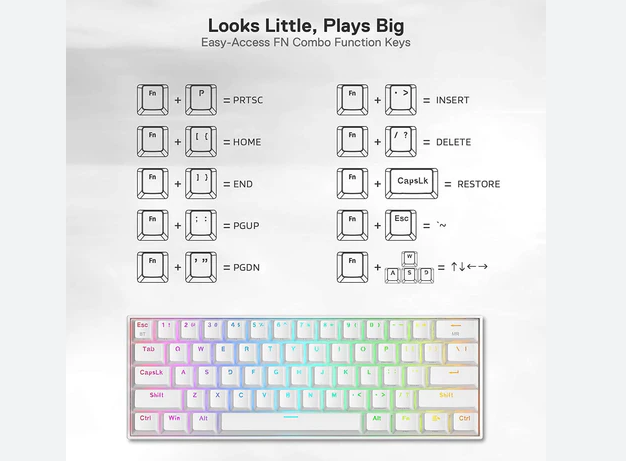
Your immediate solution for arrow key access is the Fn layer method, which activates secondary functions on specific keys. Hold the Fn key (typically positioned where the right Windows key lives on standard keyboards) while pressing W, A, S, D to navigate in all directions. This WASD mapping feels intuitive if you’re familiar with gaming controls, making the transition smoother for many users.
Alternative IJKL Positioning for Right-Hand Efficiency
Some manufacturers like Ducky and Anne Pro implement Fn+IJKL as their default arrow key configuration instead of WASD. This right-hand positioning keeps your left hand free for typing while your right hand handles navigation, creating a more natural workflow for spreadsheet work and text editing:
- Fn+I = Up arrow
- Fn+J = Left arrow
- Fn+K = Down arrow
- Fn+L = Right arrow
Pro tip: If you frequently switch between typing and navigating, try the IJKL configuration—it minimizes hand movement between the keyboard and mouse, reducing fatigue during extended work sessions.
Single-Hand Operation Techniques for Seamless Workflow
Master these ergonomic techniques to maintain productivity without constant hand repositioning. For left-hand dominance, anchor your pinky on the Fn key while using your remaining fingers for WASD navigation—this keeps your right hand firmly on the mouse during document review or spreadsheet work. Alternatively, if your keyboard positions Fn near the spacebar, rest your thumb on Fn and use your other fingers for arrow commands, significantly reducing strain during extended navigation sessions.
Navigate Without Holding Fn Continuously
Premium 60% keyboards offer advanced functionality that eliminates the need to hold Fn while navigating. Tap layer magic lets you quickly tap right-side modifier keys to produce arrow input: single tap Shift for up, Fn for down, Ctrl for left, and Alt for right. This feature transforms navigation from a two-handed chore into a fluid, single-handed operation that feels almost like having dedicated arrow keys.
Toggle Layer Switching for Extended Navigation
When working with spreadsheets or long documents, constant tapping becomes tedious. Activate layer lock mode by pressing Fn+Space to toggle your arrow layer on permanently. Watch for LED indicators (often changing from white to blue) that confirm active layer status. This prevents accidental activation during typing while maintaining continuous arrow access for those marathon Excel sessions. Warning: Remember to toggle back when finished to avoid unintended navigation during regular typing.
Manufacturer-Specific Arrow Key Positions
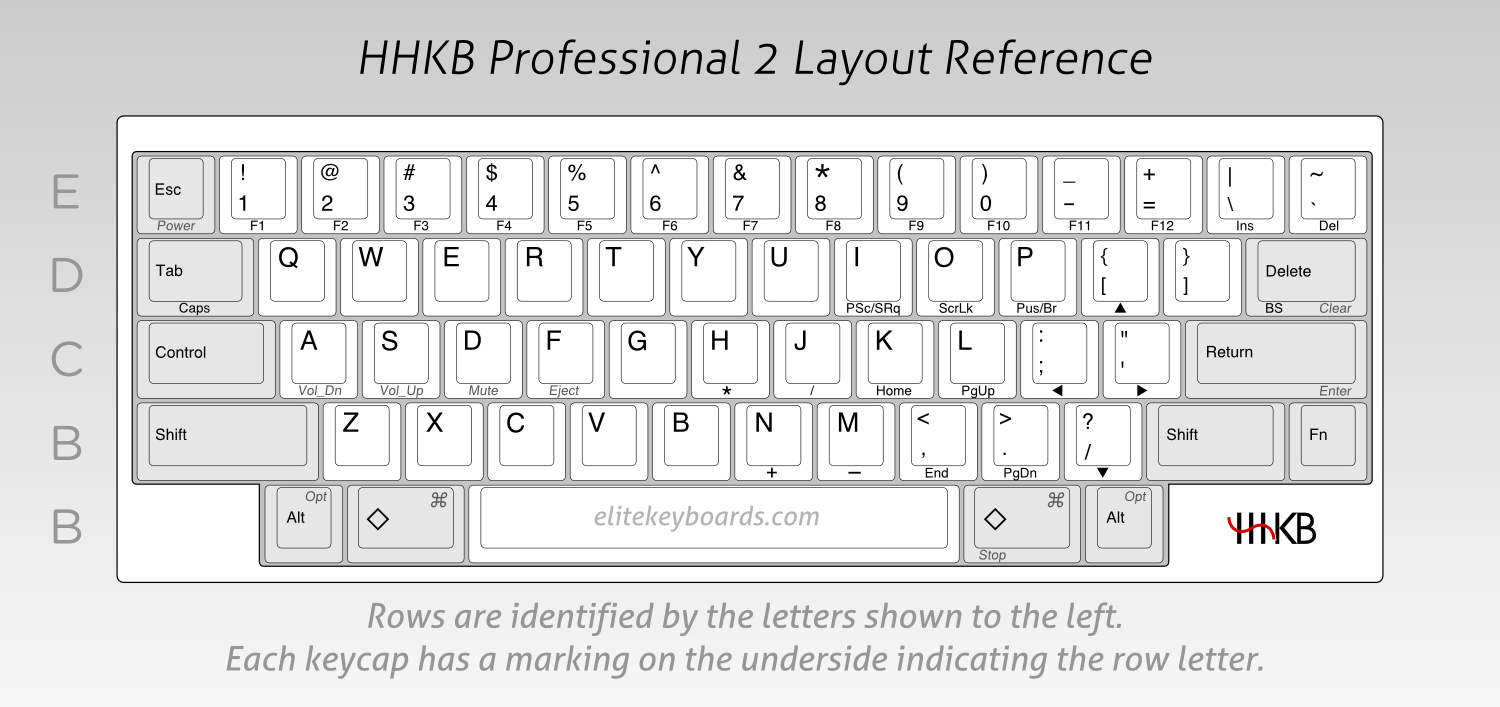
Different brands implement arrow keys in unique ways, so identifying your keyboard’s specific layout saves hours of frustration. The Happy Hacking Keyboard (HHKB) uses an unconventional but efficient cluster: Fn+Semicolon for left, Fn+Apostrophe for up, Fn+Bracket for down, and Fn+Backslash for right. This compact positioning requires precise finger placement but minimizes hand movement once mastered.
Gaming Brand Variations You Should Know
Ducky One 2 Mini owners benefit from multiple navigation options: default Fn+WASD for basic movement, plus Fn+Fn2 to access an extended navigation layer with Home, End, Page Up, and Page Down keys. Hardware DIP switches enable permanent arrow key remapping without software—flip switch 3 to convert Caps Lock to an additional Fn key for easier access.
Anne Pro 2 users have two primary configurations: the standard Fn+WASD and an alternative layout where Fn+Ctrl+Alt+Space creates a bottom-right arrow cluster. Both maintain full functionality in Bluetooth mode, making this keyboard ideal for multi-device setups.
Advanced Navigation Workflows for Power Users
Text Selection Mastery Without Dedicated Keys
Precision editing becomes effortless with these combinations that mimic traditional keyboard behavior:
- Shift+Fn+Arrow = Select text character by character
- Ctrl+Fn+Arrow = Jump word by word through text
- Ctrl+Shift+Fn+Arrow = Select entire words efficiently
- Alt+Fn+Arrow = Jump instantly to line beginnings or endings
Pro tip: In code editors like VS Code, add Ctrl+Alt to these combinations for paragraph-level navigation, dramatically speeding up your development workflow.
Spreadsheet Navigation Shortcuts That Save Time
Excel and Google Sheets users need these specific combinations to maintain productivity:
- Fn+Arrow = Move cell to cell in any direction
- Ctrl+Fn+Arrow = Jump instantly to data boundaries
- Shift+Fn+Arrow = Select continuous cell ranges
- Ctrl+Shift+Fn+Arrow = Select entire data regions at once
These shortcuts work identically to full-size keyboards once you’ve internalized the Fn modifier, preserving your spreadsheet proficiency despite the compact form factor.
Remap Your Way to Comfort with Custom Solutions
QMK/VIA Customization for Complete Control
QMK-compatible keyboards offer unparalleled customization for how to use arrow keys on 60 keyboard layouts:
- Download VIA software and connect your keyboard
- Navigate to the key remapping section
- Drag arrow functions to your preferred key combinations
- Save mappings to Layer 1 for instant access without modifiers
Expert note: Create a dedicated arrow layer activated by holding Caps Lock instead of Fn—this positions navigation under your left hand while keeping your right hand free for mouse operations.
Software Solutions for Non-Programmable Keyboards
Even non-custom keyboards can benefit from system-level remapping. Windows users can create an AutoHotkey script that turns Caps Lock into an arrow key modifier:
CapsLock & j::Send {Left}

CapsLock & k::Send {Down}

CapsLock & i::Send {Up}

CapsLock & l::Send {Right}
Mac users should try Karabiner-Elements with complex modifications like S+D+Space for down arrow navigation, creating intuitive gesture-based controls that work across all applications.
Build Muscle Memory Fast with Targeted Practice
Daily Training Routine for Quick Adaptation
Follow this progressive training schedule to master arrow key navigation in under three weeks:
Week 1: Practice basic navigation for 5 minutes daily using typing test websites that focus on arrow key exercises.
Week 2: Incorporate text selection with Shift modifier during normal work tasks.
Week 3: Add Ctrl/Alt combinations for advanced navigation in your primary applications.
Common Pitfall Solutions: Combat accidental activation by increasing firmware debounce settings, and address thumb strain by considering split-spacebar keyboards that position the Fn key more ergonomically.
Troubleshooting Arrow Key Issues Like a Pro
Connection Problems That Disable Arrow Functions
Wireless 60% keyboards sometimes experience layer lag that affects arrow key responsiveness. If your navigation feels sluggish, re-pair your keyboard after firmware updates and check battery levels, as low power can disable advanced features. Pro tip: 2.4GHz wireless connections typically maintain full functionality compared to Bluetooth, which may occasionally drop layer commands.
Software Conflicts That Block Custom Mappings
Windows Game Mode frequently interferes with custom arrow key remapping—disable Game Mode for affected applications through Windows Settings. Mac users encountering issues should check System Preferences > Security & Privacy > Input Monitoring and add applications requiring arrow key access. Critical step: Restart applications after granting these permissions for changes to take effect.
Mastering how to use arrow keys on 60 keyboard layouts transforms your compact keyboard from a frustrating puzzle into a productivity powerhouse. Start with basic Fn+WASD navigation, then gradually incorporate advanced techniques like tap layers and custom remapping. Within two weeks of consistent practice, you’ll navigate documents and code faster than traditional keyboard users while enjoying the space-saving benefits of your 60% layout. The initial learning curve pays off with reduced desk clutter, improved ergonomics, and surprisingly efficient navigation that many users never want to give up—even when returning to full-size keyboards.