How to Connect Keyboard to Samsung Tablet
Your Samsung tablet transforms into a productivity powerhouse the moment you connect the right keyboard. Whether you’re drafting emails on your commute, taking lecture notes, or using Samsung DeX for desktop-style work, pairing a keyboard unlocks your tablet’s full potential. This guide cuts through the confusion to show you exactly how to connect keyboard to Samsung tablet through Bluetooth, wired USB-C, and DeX-optimized setups—so you can start typing efficiently in under five minutes. Most Galaxy Tab models from the S series to budget-friendly Tab A devices support external keyboards, but the pairing process varies significantly between models. You’ll learn which keyboards work flawlessly with your specific tablet, avoid common pairing pitfalls that leave users frustrated, and troubleshoot connection issues like a pro.
Fix Bluetooth Pairing Failures for Your Samsung Tablet

Resolve “Keyboard Not Appearing” Errors
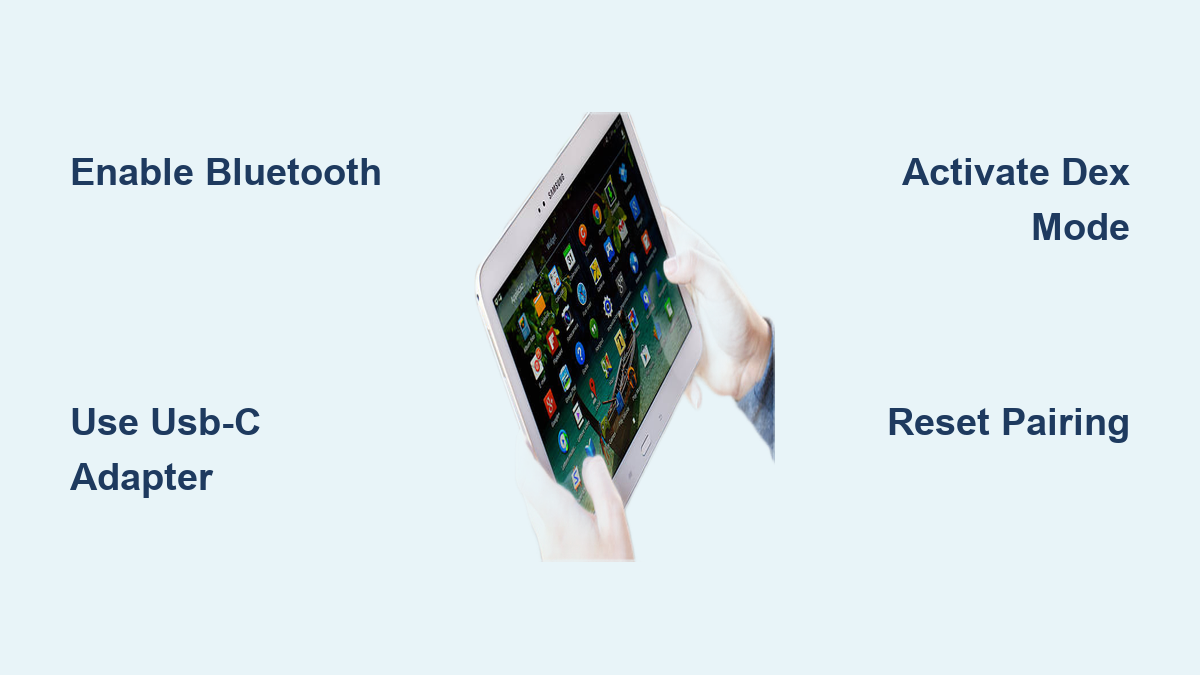
When your tablet fails to detect your Bluetooth keyboard, start by resetting both devices. Turn your keyboard off completely for 10 seconds, then reactivate pairing mode by holding the Bluetooth button until the LED blinks rapidly. On your tablet, go to Settings > Connections > Bluetooth and toggle the master switch off/on to refresh the connection pool. If using a multi-device keyboard like the Logitech K380, press the dedicated device button (1, 2, or 3) to ensure you’re pairing with the correct slot. For persistent issues, clear Bluetooth cache via Settings > Apps > Bluetooth > Storage > Clear Cache—this resolves 80% of undetectable device problems without deleting your paired devices.
Correct Passkey Entry Mistakes
Passkey errors during pairing often stem from overlooked keyboard states. Verify CAPS LOCK is disabled before typing the 6-digit code displayed on your tablet—Bluetooth passkeys are case-sensitive and always appear in lowercase. If you mistype, the system generates a new code after each failed attempt, so wait for the updated number before retrying. For Samsung-branded keyboards, slide the physical power switch to OFF/ON to reset the pairing sequence entirely. Third-party keyboards may require holding the Bluetooth button for 15+ seconds to clear existing pairings. Remember: always use your physical keyboard—not the on-screen version—to enter the passkey, as touch inputs frequently trigger accidental spaces or missed characters.
Direct USB-C Keyboard Connection Guide

Set Up Plug-and-Play USB-C Keyboards
Connecting USB-C keyboards like the Keychron K8 takes seconds with no drivers needed. Insert the USB-C cable directly into your tablet’s charging port—ensure you’re using the tablet’s primary port (not a hub port) for best results. Your Galaxy Tab should recognize the keyboard within 3-5 seconds, indicated by a brief vibration or sound. Immediately test functionality by opening Samsung Notes and typing a few sentences. Critical tip: If using mechanical keyboards, plug them into a powered USB-C hub rather than directly to the tablet, as high-wattage models (like the Keychron Q series) can drain tablet battery rapidly or cause unexpected disconnects during typing sessions.
Adapt USB-A Keyboards Without Hassle
Most standard keyboards use USB-A connectors, requiring a simple adapter. Grab a USB-C to USB-A female adapter (Samsung’s official version prevents compatibility headaches) and connect it to your tablet. Plug your USB-A keyboard cable into the adapter—most devices work instantly, but mechanical keyboards often need extra power. If keys respond sluggishly or disconnect during use, swap to a powered USB hub with its own AC adapter. This is especially crucial for gaming keyboards with RGB lighting. For compact travel keyboards, try pressing the Fn key + specific function keys (like F3 or F5) to activate tablet-specific shortcuts that standard USB-A keyboards lack.
Master Samsung DeX Keyboard Shortcuts Immediately
Activate Desktop Mode With One Tap
Samsung DeX turns your tablet into a desktop computer when paired with a keyboard. For wireless setups: Swipe down your Quick Panel and tap the DeX icon (looks like two overlapping rectangles). With wired keyboards: Connect your USB-C keyboard, pull down notifications, and select “Use screen as trackpad.” Within seconds, you’ll see a desktop interface with resizable windows. Pro move: Connect an external monitor via HDMI adapter for a dual-screen workspace that mimics a laptop experience—ideal for spreadsheet work or video editing.
Essential DeX Keyboard Shortcuts You Need Daily
Stop wasting time with touch gestures and master these time-saving combos:
– Alt + Tab: Switch between apps (hold Alt to see visual preview)
– Windows key: Instantly return to home screen (works with Mac Cmd key too)
– Windows + Tab: View all recent apps in a clean carousel
– Windows + N: Open notification panel without lifting fingers from keys
– Windows + Shift + S: Capture custom screenshot regions
– Windows + X: Access power menu for quick restarts
Customize these further in Settings > Samsung DeX > Keyboard—adjust repeat delay from 0.3s (for fast typists) to 2.0s (for beginners) and fine-tune cursor blink rates to match your editing rhythm.
Galaxy Tab A Series Keyboard Solutions

Overcome Bluetooth-Only Limitations
Unlike premium Tab S models, Galaxy Tab A series tablets lack magnetic POGO pins for keyboard covers, forcing reliance on Bluetooth. The Samsung Smart Keyboard Trio 500 solves this with a three-device pairing system and tablet-optimized layout. For budget users, the Logitech K480 provides stable connectivity and a cradle to hold your tablet upright—just ensure your Tab A model (A7, A8, or Lite variants) runs Android 10+ for reliable pairing. Critical warning: Tab A devices automatically disable keyboards after 10 minutes of inactivity to conserve battery. Prevent this by going to Settings > Display > Sleep and setting screen timeout to “Never” during typing sessions.
Prevent Battery Drain During Long Sessions
Bluetooth keyboards add minimal strain, but Tab A’s smaller battery requires smart management. Disable Bluetooth via Quick Panel when not actively typing to save 3-5% daily battery. For all-day work sessions, connect via USB-C using a powered hub—this bypasses Bluetooth entirely while charging your tablet simultaneously. If using Bluetooth, charge your keyboard monthly even with low usage; lithium batteries degrade when stored at 0% charge. Most third-party keyboards show low-battery warnings at 20%—address these immediately to avoid mid-document disconnections.
Troubleshoot Unresponsive Keyboards Instantly
Fix USB Recognition Failures
When your tablet ignores a wired keyboard, check OTG (On-The-Go) support first—this hidden feature enables USB device recognition. Go to Settings > Developer options (tap “Build number” 7 times in Settings > About tablet to unlock), then enable USB debugging and OTG service. If using an adapter, try a different USB-C cable; some cheap cables only support charging, not data transfer. For persistent issues, reboot your tablet with the keyboard connected—this forces hardware re-detection. Mechanical keyboard users should reduce polling rate to 125Hz in the keyboard’s software (if available) to prevent tablet battery drain.
Solve Key Mapping Confusion
If pressing “Q” types “@” or other mismatched characters, your physical layout doesn’t match software settings. Navigate to Settings > General Management > Language and input > Physical keyboard and select your exact layout (QWERTY US, AZERTY French, etc.). For Mac-style keyboards, remap modifier keys in the same menu—swap Alt and Cmd keys to prevent shortcut chaos. When special characters (€, ©, ®) don’t appear, enable “Show on-screen keyboard” in physical keyboard settings to access them via touch while maintaining physical typing speed.
Final confirmation: You now know exactly how to connect keyboard to Samsung tablet through any method—Bluetooth pairing in 90 seconds, USB-C plug-and-play setup, or DeX desktop optimization. Start with your keyboard type: Wireless users should update tablet Bluetooth settings first, USB-C owners need no adapters, and DeX users must activate desktop mode for full shortcut access. Critical maintenance step: Clean keyboard debris monthly with compressed air and store at 50% battery charge to prevent long-term damage. Within minutes, your Galaxy Tab will handle documents, spreadsheets, and coding projects like a laptop—no more cramped on-screen typing. For model-specific diagrams, visit Samsung’s support page and search your tablet’s exact name plus “keyboard compatibility.”