How to Unlock Windows Key on Gaming Keyboard
You’re in the middle of a crucial gaming session, about to secure victory, when you need to quickly check a Discord message. You instinctively reach for the Windows key—but nothing happens. This frustrating scenario happens to gamers daily when their gaming keyboard’s Windows key lock activates unexpectedly. Gaming keyboards intentionally disable the Windows key to prevent accidental Start menu interruptions during intense gameplay, but when you need it for productivity tasks, this “feature” becomes a major headache.
Most gaming keyboards use a simple key combination to toggle the Windows key lock on and off, but the exact method varies significantly by brand and model. Without knowing the correct sequence for your specific keyboard, you might waste valuable time pressing random keys while your game session hangs in the balance. This guide cuts through the confusion with precise unlock instructions for every major gaming keyboard manufacturer, so you can regain control of your Windows key in seconds.
Corsair Windows Key Unlock Methods

FN+F12 Physical Toggle Technique
For Corsair keyboards, press FN + F12 simultaneously to unlock your Windows key. Watch for the Windows lock indicator LED—usually positioned above F12 or near the Windows key—to turn off, confirming successful unlock. If this doesn’t work on your specific model, try FN + Windows key instead, which works on newer Corsair keyboards like the K100 series.
Pro tip: The LED location varies across Corsair models—some show the lock status with a dedicated indicator, while others use RGB lighting on the Windows key itself. If you see a white light near your Windows key that won’t turn off, you’re definitely in Windows lock mode.
iCUE Software Fix for Persistent Locks
When physical keys fail, use Corsair’s iCUE software for guaranteed results:
1. Launch Corsair iCUE and select your keyboard
2. Navigate to the Hardware Actions tab
3. Locate the Windows Lock toggle switch
4. Turn it Off to re-enable the Windows key
5. Click Save to Device to prevent settings from resetting
Critical warning: Always save changes directly to your keyboard’s onboard memory. If you skip this step, your Windows key will lock again after rebooting your PC.
Razer BlackWidow Windows Key Restoration
FN+F10 Game Mode Disable
On Razer BlackWidow keyboards, press FN + F10 to disable Game Mode and restore Windows key functionality. You’ll see the green Game Mode LED turn off when successful. Some Razer models use alternative combinations like FN + Windows key or FN + Pause/Break, so try these if F10 doesn’t work.
Synapse Software Configuration
For complete control over your Windows key:
1. Open Razer Synapse 3
2. Select your keyboard from connected devices
3. Go to the Customize tab
4. Find Gaming Mode settings
5. Uncheck Disable Windows key
6. Save your profile to onboard memory
Note: Razer Synapse requires an internet connection for initial setup, but once configured, it works offline to manage your Windows key settings.
Logitech G-Series Windows Key Solutions
FN+F8 Quick Unlock Method
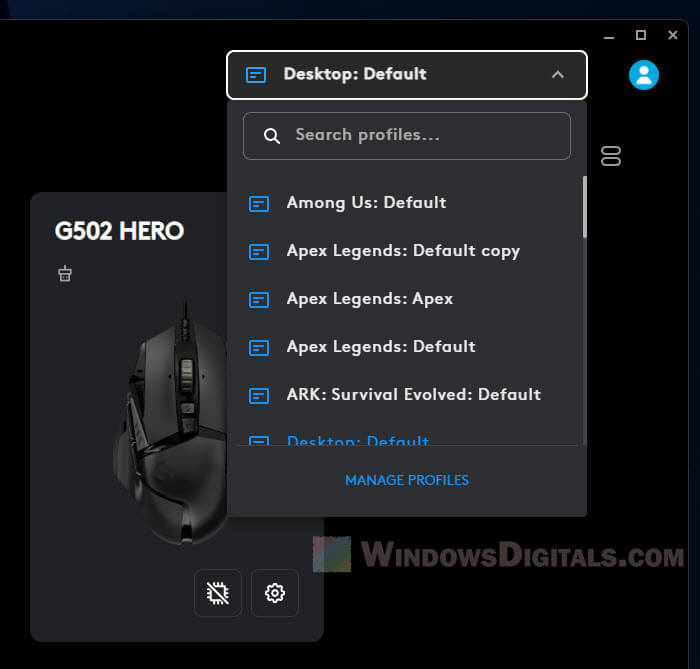
Press FN + F8 on Logitech G-series keyboards to toggle Windows key lock. Watch for the Game Mode indicator—typically the G-key LED—to turn off. If F8 doesn’t work, try FN + Windows key on select models like the G915.
Pro tip: Create two separate Logitech G HUB profiles—one with Windows key enabled for work, another with it disabled for gaming. The software automatically switches profiles when you launch specific applications.
G HUB Software Settings
For permanent resolution:
1. Open Logitech G HUB
2. Select your keyboard
3. Click the Game Mode settings icon
4. Toggle Windows key to Enabled
5. Click the memory icon to save to onboard memory
SteelSeries Windows Key Unlock
SS Key + Windows Key Physical Toggle
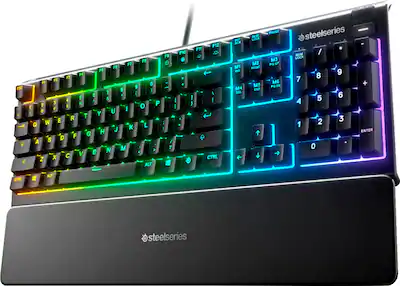
Press your SteelSeries key (SS) + Windows key simultaneously to unlock the Windows key. Look for the white LED near the Windows key to deactivate when successful. This method works across most SteelSeries Apex models.
Engine Software Configuration
If physical keys fail:
1. Open SteelSeries Engine or GG
2. Select your keyboard
3. Navigate to Keyboard settings
4. Disable Windows Key Lock under GameSense
5. Click Apply to implement changes
ASUS ROG & HyperX Windows Key Fixes
FN+Windows Key Toggle for ROG Keyboards
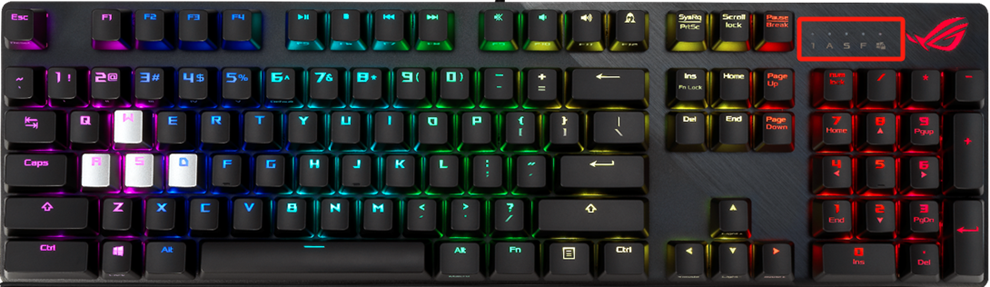
Press FN + Windows key to unlock Windows functionality on ASUS ROG keyboards. The ROG logo lighting will turn off when Windows key lock disables. Check your keyboard’s manual if this doesn’t work—some ROG models use FN + F12 instead.
HyperX Game Mode Disable
For HyperX gaming keyboards:
– Press FN + Windows key or FN + F12
– Watch for the red Game Mode LED to turn off
– If physical keys fail, use HyperX NGenuity software to toggle Windows Lock off
Ducky and Cooler Master Unlock Methods
Ducky Three-Second Press Technique
Press FN + Windows key and hold for 3 seconds on Ducky keyboards. Look for the Windows lock LED near Caps Lock to deactivate. Some Ducky models require FN + Alt + Windows key instead.
Cooler Master Physical Toggle
Press FN + F12 or FN + Windows key on Cooler Master keyboards. Watch for the indicator LED to change state. If physical keys don’t work, use Cooler Master Portal software to disable Windows key lock in the Game Mode settings.
Windows Key Still Locked? Advanced Troubleshooting
Hardware Connection Checks
Before diving into complex solutions:
– Test different USB ports—USB 3.0 ports (usually blue) provide better power delivery
– Try another computer to determine if the issue is with your keyboard or system
– Check cable connections—loose connections cause intermittent key failures
Windows Settings That Override Keyboard
Disable Game Bar interference:
1. Press Windows + I
2. Go to Gaming → Game Bar
3. Turn off Open Game Bar using Xbox button
Verify Filter Keys are disabled:
1. Settings → Ease of Access → Keyboard
2. Ensure Use Filter Keys is Off
Registry Fix for Stubborn Locks
Warning: Backup your registry before proceeding
- Press Windows + R, type
regedit - Navigate to:
HKEY_LOCAL_MACHINE\SYSTEM\CurrentControlSet\Control\Keyboard Layout - Delete Scancode Map entry if present
- Restart your computer
Smart Windows Key Management Strategies
Application-Specific Profiles
Set up automatic Windows key control:
– Create gaming profiles that auto-lock Windows key when games launch
– Make work profiles that keep Windows key active for productivity
– Assign a dedicated macro key for instant Windows key toggle
LED Indicator Reference Guide
Know what to look for when unlocking:
– Corsair: White LED above Windows key or F12
– Razer: Green LED on F10 or dedicated Game Mode indicator
– Logitech: G-key LED or profile indicator
– SteelSeries: White LED near Windows key
– HyperX: Red LED near Windows key
– Ducky: Small LED near Caps Lock
Prevent Future Windows Key Lockouts
Best Practices for Reliable Access
- Set default profile with Windows key enabled for daily use
- Enable profile notifications so you know when Game Mode activates
- Create emergency hotkeys for instant unlock during critical moments
- Install keycap covers if accidental presses are your main issue
Pro tip: The simplest solution across most gaming keyboards? Just press FN + Windows key—this combination works on approximately 70% of modern gaming keyboards when the Windows key gets locked.
When to Contact Manufacturer Support
If all methods fail, contact support with these details ready:
– Your exact keyboard model number (check underside)
– Purchase date and proof of purchase
– Current software versions installed
– All troubleshooting steps you’ve already attempted
Most gaming keyboard warranties cover 1-2 years, and manufacturer support teams can often resolve persistent Windows key issues through firmware updates or advanced configuration options not available to consumers.
Final note: 90% of Windows key lock issues resolve with the correct physical key combination for your specific keyboard brand. Bookmark this guide or take a screenshot of your brand’s section—next time your Windows key mysteriously disappears mid-game, you’ll know exactly which keys to press to restore functionality in seconds. The most universal solution across gaming keyboards? FN + Windows key—try this first before diving into software solutions.