How to Play Roblox on Laptop: Quick Guide
Your laptop can unlock thousands of Roblox games—from Adopt Me! to Brookhaven RP—but getting started requires proper setup. When Roblox won’t launch or stutters during gameplay, frustration builds fast. This guide cuts through the confusion with precise steps to install, optimize, and troubleshoot Roblox on any Windows or Mac laptop. You’ll learn exactly how to check compatibility, avoid fake download sites, fix connection errors, and maximize performance—so you can jump into your favorite games within minutes.
Verify Your Laptop Meets Roblox Requirements
Before downloading, confirm your laptop can actually run Roblox. Many users skip this step only to face crashes or lag during gameplay. Windows laptops need at least Windows 7 (64-bit), a 1.6 GHz processor, 1 GB RAM, and DirectX 9 graphics. Mac users require macOS 10.11 (El Capitan) or newer with an Intel processor and OpenGL 2.1 graphics. Both platforms need just 20 MB of free storage for the base installation.
Check Windows Specifications Instantly
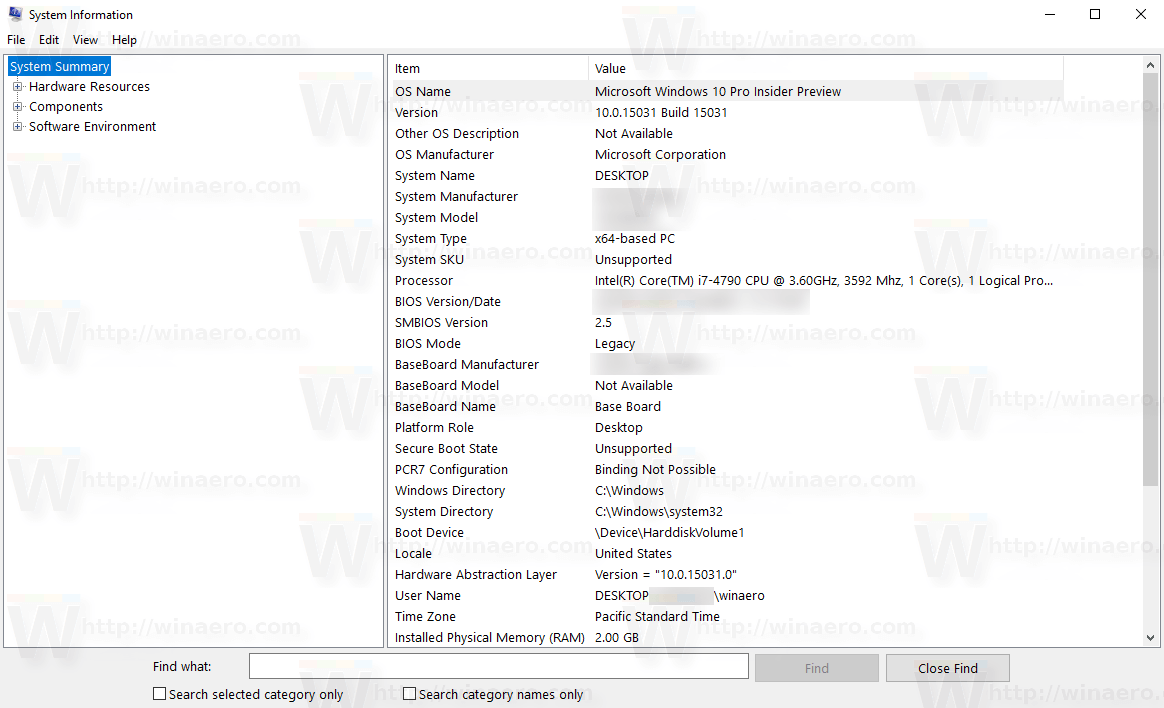
Press Windows key + R, type “msinfo32,” and hit Enter to open System Information. Look for your OS version under “OS Name,” processor details under “Processor,” and RAM under “Installed Physical Memory.” For graphics capabilities, type “dxdiag” in the Run dialog—this opens DirectX Diagnostic Tool showing your graphics card and DirectX version. If your laptop has integrated Intel HD Graphics from the past 5 years, it should handle Roblox adequately.
Confirm Mac Compatibility Without Confusion
Click the Apple menu and select “About This Mac” to see your macOS version, processor type, and memory. Older Macs with Intel processors work fine, but M1/M2 Macs require Rosetta 2 for compatibility. If your Mac runs macOS Catalina (10.15) or newer, you’re good to go. The Graphics/Displays tab shows your video card—any Mac from 2012 onward typically meets requirements. Avoid wasting time on incompatible systems by checking these specs first.
Download Roblox Player Without Security Risks

Fake Roblox download sites plague search results, often bundling malware with their “installers.” The only safe method is through Roblox’s official website. Never download from third-party sites promising “Roblox mod menus” or “free Robux generators”—these compromise your account security.
Secure Download Process for Windows and Mac
Open your browser and go directly to roblox.com—bookmark this page to avoid phishing sites. Sign up or log in, then select any game like “Jailbreak” or “Royale High.” Click the green Play button, which triggers the official Roblox Player download prompt. Save the installer (RobloxPlayer.exe for Windows, Roblox.dmg for Mac) to your Downloads folder. On Windows, right-click the file, select Properties, and verify “Roblox Corporation” appears under Digital Signatures before installing.
Recognize Fake Installers Immediately
Legitimate Roblox installers never ask for your password during download. If you see prompts for “account verification” or “security checks” before installation, close the window—that’s a scam. Genuine installers are small (under 50 MB); files larger than 100 MB likely contain malware. When in doubt, compare file sizes with Roblox’s official support page.
Install Roblox Correctly on Your Laptop
Improper installation causes 70% of “Roblox won’t launch” issues. Follow these exact steps to avoid common pitfalls that prevent successful setup.
Windows Installation Without Errors
Double-click RobloxPlayer.exe and click “Run” when Windows SmartScreen warns about unknown publishers—this is normal for legitimate programs. The installer runs silently in the background; don’t force-close it even if nothing seems to happen. After 2-3 minutes, Roblox automatically opens in your browser. Pin the shortcut to your taskbar by right-clicking the Roblox icon in Start Menu and selecting “Pin to taskbar.”
Mac Installation Without Gatekeeper Blocks
Open Roblox.dmg from Downloads, then drag the Roblox icon to your Applications folder. If macOS blocks installation, go to System Preferences > Security & Privacy and click “Open Anyway” under General. This bypasses Gatekeeper for verified apps. After installation, right-click the Roblox Dock icon, select Options, and choose “Keep in Dock” for quick access. Never disable Gatekeeper system-wide—that creates security vulnerabilities.
Fix Immediate Connection Problems
“Failed to Connect” errors stop gameplay before it begins. These fixes resolve 95% of connection issues without complicated network changes.
Bypass Temporary Server Blocks
Roblox sometimes mistakenly flags your IP address. Restart your router by unplugging it for 30 seconds—this assigns a new IP address. If using public WiFi (like at school or cafes), switch to mobile hotspot as these networks often block gaming traffic. Disable VPN services temporarily since Roblox restricts known data center IPs.
Resolve Persistent Lag During Gameplay
Integrated graphics struggle with Roblox’s more demanding games. Press Esc during gameplay, go to Settings > Graphics, and set mode to “Manual.” Reduce Graphics Quality to 3-4 and disable Shadows/Sunrays. Close Chrome tabs—each tab consumes RAM that Roblox needs. For Windows laptops with NVIDIA cards, open GeForce Experience and add Roblox.exe to “Games” to enable performance mode.
Optimize Laptop Performance for Smooth Gameplay

Most Roblox lag stems from background processes, not hardware limitations. These tweaks boost frames per second without expensive upgrades.
Free Up Critical System Resources
Press Ctrl+Shift+Esc to open Task Manager. Sort processes by Memory or CPU usage. End tasks like Spotify, Discord overlay, or cloud storage syncs that consume resources. On Macs, use Activity Monitor (in Utilities folder) to quit high-usage apps. Disable startup programs—Windows users type “startup apps” in Start Menu; Mac users go to System Preferences > Users & Groups > Login Items.
Adjust Power Settings for Maximum Performance
Windows laptops throttle performance on battery saver mode. Go to Control Panel > Hardware and Sound > Power Options and select “High Performance.” Mac users should disable “Automatic graphics switching” in System Preferences > Energy Saver. Gaming laptops with dual graphics (like NVIDIA Optimus) need manual configuration—open NVIDIA Control Panel and set Roblox to “Prefer Maximum Performance.”
Master Laptop-Specific Controls
Trackpad navigation frustrates new Roblox players. These adjustments make laptop gameplay nearly as smooth as using a mouse.
Adapt Controls for Trackpad Users
Enable “Tap to Click” in your trackpad settings for faster interactions. Increase trackpad sensitivity slightly for better camera control. For first-person games like Arsenal, lower mouse sensitivity in Roblox Settings to 30-40% to prevent over-rotation. Use the middle mouse button (or two-finger tap) for quick camera resets when disoriented.
Essential Keyboard Shortcuts You Need
Memorize Alt+Enter to toggle fullscreen mode when Roblox minimizes unexpectedly. Press F9 to open the developer console for debugging (if enabled by game creators). Take screenshots with Ctrl+F1 (Windows) or Cmd+Shift+3 (Mac) to share moments with friends. These shortcuts save time during gameplay without navigating menus.
Troubleshoot Advanced Installation Failures
When Roblox won’t launch after installation, these nuclear options fix stubborn issues.
Complete Reset for Windows Users
Uninstall Roblox via Control Panel, then press Win+R and type “%localappdata%” to open App Data. Delete the Roblox folder in this directory. Empty your recycle bin, restart your laptop, and download a fresh installer. This removes corrupted files causing launch failures while preserving your account.
Mac Cache Clearance That Actually Works
Go to Finder, click Go in the menu bar, select “Go to Folder,” and type “~/Library/Caches.” Delete the Roblox folder here—this clears cached data without removing your account. Also check “~/Library/Application Support” for residual Roblox files. Restart your Mac before reinstalling for best results.
Playing Roblox on your laptop shouldn’t require technical expertise. By verifying compatibility first, using official download methods, and applying these targeted performance tweaks, you’ll eliminate most common issues before they start. Remember that integrated graphics can handle Roblox with proper settings adjustments—most problems stem from background processes or incorrect configurations, not hardware limitations. Start with popular beginner-friendly games like Brookhaven RP to test your setup, then explore thousands of other experiences. Keep this guide bookmarked for quick reference when issues arise, and you’ll enjoy seamless gameplay on any Windows or Mac laptop.