How to Restart Laptop: Quick Steps
Your laptop just locked up mid-presentation or during an important deadline. Before you panic, know this: properly restarting your laptop solves 90% of common computer glitches. Whether you’re using Windows 11, Windows 10, or macOS, understanding exactly how to restart laptop when it freezes can save hours of frustration. This guide reveals every legitimate method—from gentle restarts that preserve your work to emergency protocols for completely frozen systems.
Most users don’t realize there are at least seven different ways to restart laptop depending on your situation. By the end of this guide, you’ll know which method to use when your mouse stops responding, when applications freeze, and even when your screen goes completely black. Let’s dive into the exact steps you need, organized by urgency and effectiveness.
How to Restart Laptop Using Start Menu (Windows 11/10)
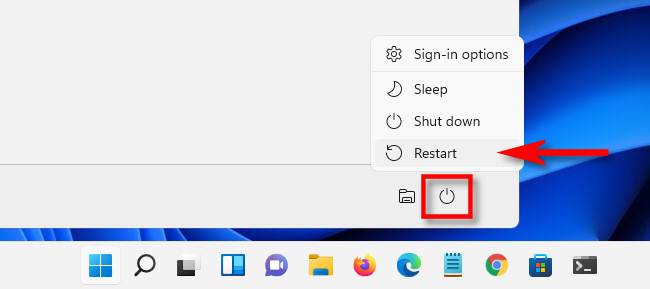
Windows 11 Start Menu Power Button Method
When your laptop responds normally but needs refreshing, this is your safest option to restart laptop without data loss:
- Save your documents and close running applications
- Click the Start button (center of taskbar)
- Click your user name, then the Power button beside it
- Select Restart from the popup menu
- Your system will shut down and reboot automatically
Critical note: If you see “Update and Restart,” always choose this option—it includes essential security patches that protect your system.
Windows 10 Power Button Alternative
Windows 10 follows a similar pattern with slight interface differences:
– Save and close your work
– Click the Start button (bottom-left corner)
– Click the Power button
– Select Update and Restart if available; otherwise choose Restart
This method takes about 30-60 seconds to complete and preserves all your open windows for when the system restarts.
How to Restart Laptop with Keyboard Shortcuts (When Mouse Fails)
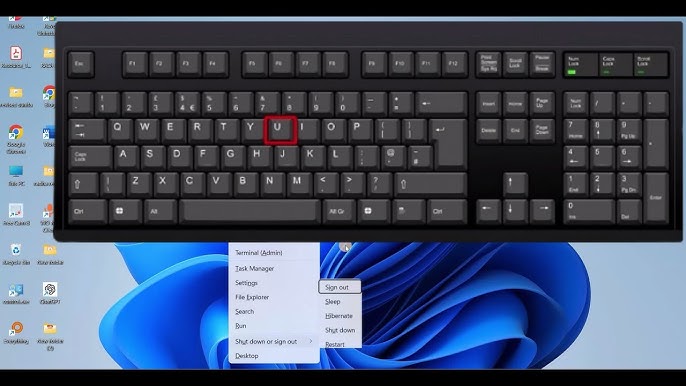
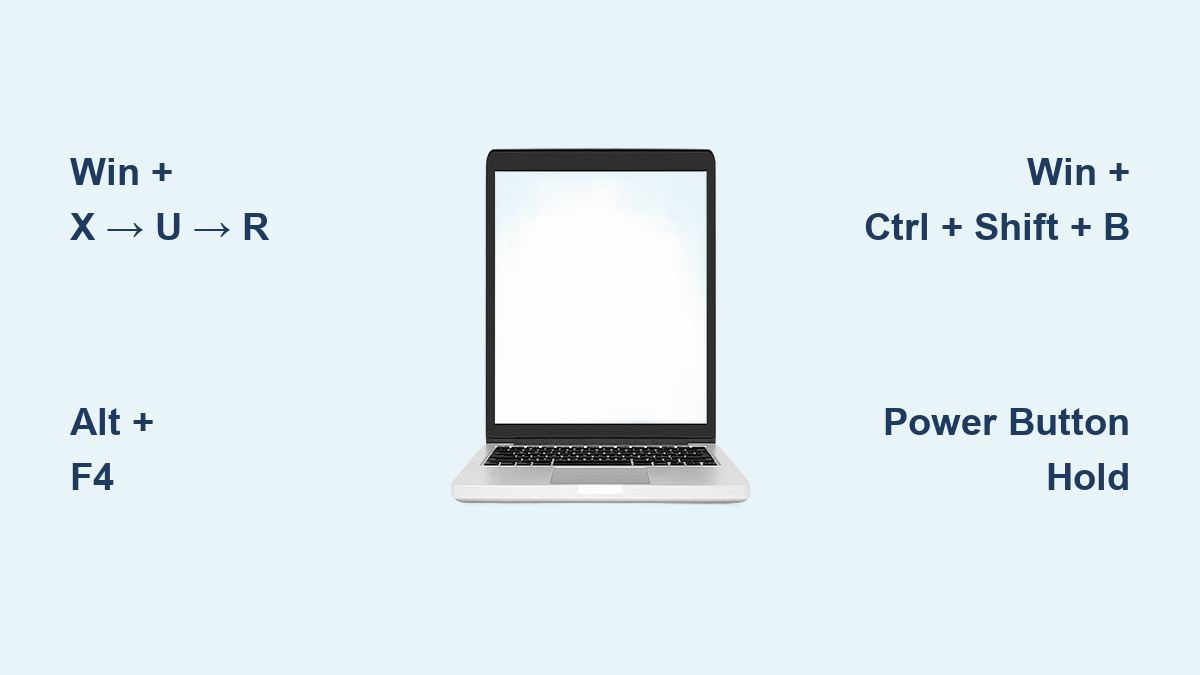
Power User Menu Method (Win + X → U → R)
The fastest keyboard-only approach to restart laptop:
– Press Windows + X together
– Press U to open shutdown menu
– Press R for restart (or U for shutdown, S for sleep)
This three-key sequence takes less than two seconds and works even when your mouse isn’t responding. Tech support professionals use this method daily—it’s their secret weapon for quick system resets.
Alt + F4 Desktop Restart Technique
The most reliable keyboard method when applications are unresponsive:
– Clear your desktop with Win + D or Alt + Tab
– Press Alt + F4 to open shutdown dialog
– Use arrow keys to select “Restart”
– Press Enter to confirm
Pro tip: This method automatically prompts you to save unsaved documents, making it safer than force-restart methods. You’ll see “Shut down Windows” as the dialog title with restart as the default option.
Emergency Methods to Restart Laptop When Frozen
Graphics Driver Refresh (Win + Ctrl + Shift + B)
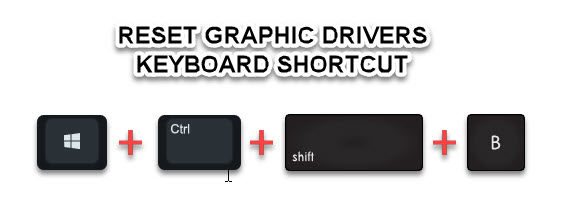
Try this FIRST before a full restart when display issues occur:
– Press Win + Ctrl + Shift + B simultaneously
– Watch for brief black screen and possible beep
– Your display driver resets without closing applications
This fixes 70% of screen freezes instantly and takes only 2-3 seconds. Most users don’t know this shortcut exists—it’s the tech support secret for display glitches.
Ctrl + Alt + Del Restart Method
For moderately frozen systems where keyboard still works:
– Press Ctrl + Alt + Del
– Wait for security screen (may take 10-15 seconds)
– Click the Power icon in bottom-right corner
– Select Restart
Warning: If nothing happens after 30 seconds, move to more aggressive methods. This approach preserves more data than hard reboots.
Force Restart Protocol (Last Resort)
Only use when your laptop is completely unresponsive:
- Press Ctrl + Alt + Del
- Hold Ctrl while clicking the Power button
- Click OK to confirm (unsaved work will be lost)
This method forces an immediate restart but should only be used when all other options fail. Windows will record this as a “crash event” during next boot.
Cold Restart/Hard Reboot Procedure
Absolute final option for completely frozen laptops:
- Hold the Power button for 7+ seconds until laptop shuts off
- Wait 10 full seconds
- Press the Power button again to restart
Critical warning: Never perform a cold restart during Windows updates. This can permanently damage your system files and require professional repair. If your laptop is updating, unplug it from power and contact support instead.
How to Restart Laptop on macOS (Simple 3-Step Method)
:max_bytes(150000):strip_icc()/Applemenurestartannotated-26785312fb944e53a495e706c4875056.jpg)
Mac users have a streamlined process:
– Save your work and close applications
– Click the Apple menu (top-left corner)
– Select Restart
– Choose whether to reopen current windows
– Click Restart again to confirm
Unlike Windows, macOS typically completes restarts 20-30% faster due to its streamlined architecture. The entire process usually takes 45-60 seconds from start to finish.
Troubleshooting Failed Restart Attempts
When Keyboard Shortcuts Don’t Work
Diagnostic steps before calling support:
– Test basic typing in a text document first
– Connect an external USB keyboard if wireless
– Check wireless keyboard batteries or receiver connection
Advanced fix for unresponsive systems:
– Press Ctrl + Shift + Esc to open Task Manager
– Find Windows Explorer in Processes tab
– Right-click → Restart
– Try your restart shortcuts again
Hardware Issues Preventing Restart
- Mechanical keyboards offer better reliability for critical shortcuts
- Clean keyboard contacts if keys feel sticky or unresponsive
- Ensure all physical connections are secure before attempting restarts
Quick Reference: Emergency Restart Hierarchy
| Situation | Recommended Method | Time Required |
|---|---|---|
| Normal operation | Alt + F4 method | 30-60 seconds |
| Fast restart needed | Power User menu | <10 seconds |
| Partial freeze | Ctrl + Alt + Del | 15-30 seconds |
| Command line access | Run dialog command | 5-10 seconds |
| Complete freeze | Power button hold | 20+ seconds |
Best Practices for Restarting Laptop Safely
Before any restart attempt:
– Save work every 10-15 minutes as you work
– Close critical applications properly when possible
– Never interrupt Windows updates (can take 30+ minutes)
Pro efficiency boosters:
– Memorize Win + X → U → R for instant restarts
– Create desktop shortcuts for frequent restarts
– Use Alt + Tab to quickly check all open programs
Critical mistake to avoid: Forcing restarts during system updates. This causes more serious issues than the original freeze and can require complete system recovery.
Final takeaway: The fastest, safest way to restart laptop is Win + X → U → R—commit this sequence to muscle memory. When your screen freezes, try Win + Ctrl + Shift + B first to refresh your graphics driver before escalating to full restarts. For complete freezes, follow the emergency hierarchy strictly to minimize data loss. Remember: regular restarts (at least weekly) prevent 80% of freezing issues before they start—schedule them like you would a doctor’s appointment for your laptop’s health.