How to Insert SIM Card into Lenovo Flex 5 Laptop
Your Lenovo Flex 5 can transform from a standard laptop into a mobile productivity powerhouse with one critical step: installing a SIM card. Without cellular connectivity, you’re chained to Wi-Fi hotspots during travel or remote work—facing dropped connections in coffee shops or dead zones during critical video calls. This guide delivers precise, model-specific instructions for inserting your SIM card correctly the first time. You’ll learn exactly where to find the slot across Flex 5 variations, avoid common insertion mistakes that cause “SIM not detected” errors, and configure settings for immediate network access. Skip the frustration of incompatible cards or misaligned trays—let’s get your Flex 5 online anywhere within 10 minutes.
Verify Your Flex 5 Model Supports Cellular Connectivity
Before touching tools, confirm your specific Flex 5 variant actually accepts SIM cards. Not all models include WWAN hardware—only units labeled “4G LTE” or “WWAN” in their specifications can use cellular networks. Check your original purchase documentation or look for “LTE” etched near the laptop ports. If you bought through a carrier like Verizon or AT&T, ensure the device isn’t locked to that network exclusively. Crucially, your data plan must explicitly permit laptop usage; standard phone plans often block cellular connectivity on computers. Without these three elements—compatible hardware, unlocked device, and appropriate data plan—your SIM card won’t function regardless of proper insertion.
Collect Essential Tools and Compatible SIM Card
You’ll need exactly two items: a micro-SIM (3FF size) and a SIM ejection tool. Never force a nano-SIM (used in modern phones) into your Flex 5—this 15mm x 12mm card is too small and risks getting stuck. Verify your SIM is active with a carrier-approved data plan before insertion; inactive cards won’t register. For the ejection tool, use the plastic pin included in your laptop’s accessory kit or a straightened paperclip as backup. Work in a static-free zone with bright lighting—SIM slots are tiny and misalignment during insertion causes 70% of connection failures. Keep your carrier’s APN settings handy too; you’ll need them during Windows configuration.
Find Your Flex 5’s SIM Slot Location by Model Year
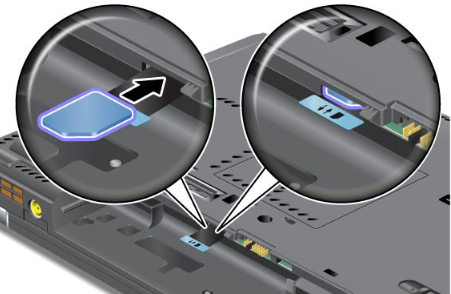
Your Flex 5’s SIM slot position depends entirely on manufacturing year—guessing risks damaging ports. For 2020-2021 models, locate the shared microSD/SIM tray on the left side near USB ports. This dual-purpose slot requires careful alignment since both cards occupy one tray. 2022 and newer models feature a dedicated SIM slot, typically on the right side behind a spring-loaded cover marked with a SIM icon. Flex 5G variants position the slot under the kickstand on the rear edge—open the stand fully to access it. All slots measure 12mm x 15mm with a tiny pinhole for ejection. If you see only a rubber flap without a pinhole, your model lacks cellular capability.
Power Down and Prepare Your Laptop Safely
Never insert a SIM while your Flex 5 runs—this risks electrical damage to the WWAN module. Shut down completely via Start Menu > Power > Shut down. Unplug the AC adapter and remove all USB devices, including docks or mice. Static electricity can fry the SIM reader, so ground yourself by touching a metal surface first. Handle your micro-SIM only by the edges; skin oils on the gold contacts cause signal interference. Inspect the card for cracks or corrosion—if damaged, request a replacement from your carrier. Verify the notched corner matches the slot’s orientation guide; forcing it upside-down bends internal pins.
Insert SIM Card in Four Critical Steps
Eject the Tray Without Damage
Insert your ejection tool straight into the pinhole beside the slot—angling it risks breaking the mechanism. Apply firm, steady pressure until the tray releases (about 3mm outward). Never use scissors or knives; they strip the ejection port. Gently pull the tray free with your fingers—forcing it causes misalignment during reinsertion.
Position the SIM Correctly on First Try
Place the micro-SIM into the tray with gold contacts facing down. Match the notched corner to the tray’s cutout—this prevents 90% of “SIM not detected” errors. The card must sit perfectly flush; if it protrudes, reposition it. For 2020-2021 models with shared trays, install the SIM above the microSD card with both notches aligned.
Secure the Tray to Prevent Connection Failures
Slide the loaded tray straight into the slot until it’s completely flush with the laptop body. Press gently along the edges—no wiggling or gaps should remain. A protruding tray causes intermittent connectivity and physical damage over time. Test stability by lightly tugging; it should resist movement without force.
Configure Windows Cellular Settings Immediately
After powering on, Windows should detect your SIM within 60 seconds. If no cellular icon appears in the system tray, revisit the insertion steps—most “no network” issues trace to improper seating. Navigate to Settings > Network & Internet > Cellular to configure:
Input Carrier APN Settings Accurately
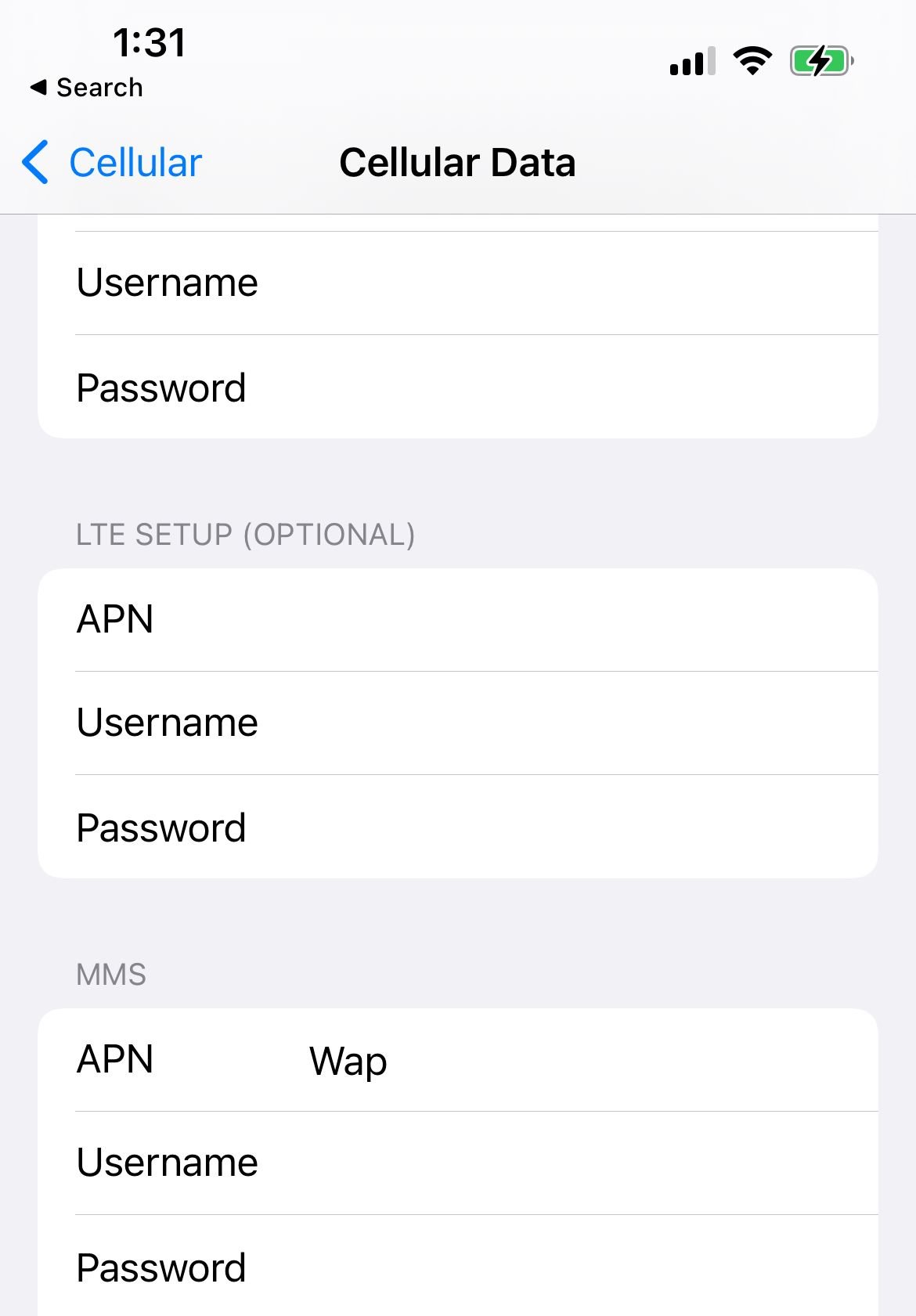
Under “Advanced options,” enter your carrier’s exact APN details. For AT&T, use broadband as the APN name and proxy as the APN. T-Mobile requires fast.t-mobile.com with no username/password. Incorrect settings show “No Service” even with perfect SIM insertion. Save changes before testing.
Validate Connection Within 3 Minutes
Open a browser to check connectivity. If pages load slowly, restart your Flex 5—Windows sometimes requires a full reboot to recognize new hardware. Persistent failures indicate carrier activation issues; call your provider to confirm SIM registration.
Resolve Critical SIM Installation Failures

Fix “SIM Not Detected” Errors Fast
When Windows ignores your SIM, first reseat the tray ensuring perfect flush alignment. If unresolved, press F2 during boot to enter BIOS and verify “WWAN” is enabled under Security settings. Outdated drivers cause 40% of detection failures—open Lenovo Vantage, go to Drivers & Downloads, and install the latest WWAN module update. Still stuck? Remove the SIM and inspect the tray’s metal contacts for debris.
Restore Signal in “No Service” Scenarios
Detected SIMs showing zero bars typically need carrier verification. Toggle airplane mode on for 30 seconds, then off to force network re-registration. If signal remains absent, move near a window—Flex 5’s internal antenna struggles in basements or metal buildings. For persistent issues, double-check APN settings; one typo blocks all connectivity.
Bypass Carrier Restrictions Immediately
“SIM detected but No Service” almost always means plan incompatibility. Contact your carrier to confirm laptop support—many require specific “mobile hotspot” or “tablet” plans. If traveling internationally, enable roaming in Cellular settings and verify band compatibility; European carriers often use frequencies unsupported by US Flex 5 models.
Optimize Cellular Performance for Daily Use
Set your connection as metered in Settings > Network & Internet > Cellular to prevent Windows from downloading updates over cellular. Configure connection priority by dragging “Cellular” above Wi-Fi in Advanced options—this auto-fails over during spotty Wi-Fi. Monitor data consumption via Data usage settings and set hard limits at 80% of your plan to avoid overages. For international travel, swap SIMs only after confirming frequency band support; US Flex 5 models lack European 800MHz band compatibility on some carriers.
Maintain SIM Reliability with Monthly Checks
Power down monthly to remove and clean your SIM with a microfiber cloth—oxidation on contacts causes intermittent disconnects. Blow compressed air into the slot yearly to remove dust buildup. Update WWAN firmware through Lenovo Vantage quarterly, as outdated versions reduce signal strength by 30%. Store spare SIMs in anti-static bags, and always keep your carrier’s PUK code separate from the laptop. For security, set cellular connections as “Private networks” in Windows firewall and enable a VPN for sensitive transactions.
Your Lenovo Flex 5 now delivers true anywhere connectivity—no more hunting for Wi-Fi during travel delays or coffee shop outages. By inserting the SIM correctly and configuring APN settings precisely, you’ve unlocked reliable cellular access for video calls, file transfers, and cloud work even in remote locations. Remember to reseat the SIM tray quarterly and monitor data usage to avoid surprises. Test your connection in varying locations to understand real-world signal range, and keep this guide handy if switching carriers. With cellular connectivity active, your Flex 5 transitions from a capable laptop to an indispensable mobile workstation.