How to Use F Buttons on Laptop
Pressed F5 to refresh your browser only to dim your screen? You’ve just encountered the dual personality of laptop F-buttons. Those F1-F12 keys above your number row operate in two completely different modes, confusing even experienced users. Most modern laptops ship with media controls as the default function, meaning F2 might rename files one day and control brightness the next—depending on whether you’re holding the Fn key.
This guide delivers exactly how to command your F-buttons like a pro, whether you’re gaming, working, or just trying to refresh a webpage without silencing your video call. You’ll discover manufacturer-specific tricks, troubleshooting fixes for unresponsive keys, and customization options that transform these overlooked keys into productivity powerhouses. No more guessing whether you’ll get volume control or traditional function keys—take complete control today.
Why Your F1-F12 Keys Suddenly Changed Behavior
Laptop manufacturers redesigned F-buttons to prioritize hardware controls over traditional functions. When you press F2 on most new Dell, HP, or Lenovo machines, you’ll adjust brightness instead of renaming files—unless you hold the Fn key. This “function lock” behavior varies dramatically between brands, creating daily frustration for users who expect consistent functionality.
The culprit is your Fn key—that small button nestled between Ctrl and the Windows key. On gaming laptops like ASUS ROG series, holding Fn activates traditional functions, while on business models like ThinkPads, you might need Fn + Esc to toggle modes. Understanding this duality prevents accidental screen dimming during presentations or unexpected volume changes during important calls.
F-Button Cheat Sheet: What Each Key Actually Does

F1-F4: Essential Daily Functions
F1: The accidental mute button
Press F1 alone on most HP and Dell laptops to mute your speakers—not access help like in Windows programs. To get the traditional help menu, hold Fn + F1. Gaming laptops like MSI models often map F1 to activate RGB lighting profiles, while holding Fn + F1 opens BIOS settings during boot.
F2: Your fastest file renaming tool
Highlight any file and press F2 to instantly rename it—no right-clicking required. On Lenovo ThinkPads, F2 alone accesses BIOS during startup, while on ASUS laptops it typically controls keyboard backlight brightness. Need the traditional F2 function? Hold Fn while pressing it.
F3: Search master for browsers and files
Press F3 to open search in File Explorer or browsers. On multimedia keyboards, F3 alone increases volume—hold Fn to get search functionality. Microsoft Word users gain a secret weapon: Shift + F3 cycles text between uppercase, lowercase, and title case without menu diving.
F4: The window closer you never knew you needed
Alt + F4 closes your active window instantly—a lifesaver when apps freeze. On most laptops, F4 alone decreases volume, while Fn + F4 gives you the traditional function. Browser power users press Ctrl + F4 to close individual tabs without touching your mouse.
F5-F8: Productivity Powerhouse Keys
F5: Refresh vs. brightness battle
Your go-to browser refresh key (F5) often controls screen brightness down on modern laptops. Hold Fn to refresh pages normally. PowerPoint presenters rejoice—F5 starts slideshows instantly, while Excel users access the Go To dialog box with the same key.
F6: Address bar accelerator
Press F6 in Chrome or Edge to jump directly to the address bar—faster than mouse navigation. On most machines, F6 alone increases brightness, while Fn + F6 gives traditional functionality. Developers use F6 to cycle between code panes in IDEs like Visual Studio.
F7: The spelling checker that doubled as RGB controller
Microsoft Office users press F7 to launch spell check instantly. On gaming laptops like Razer Blade models, F7 alone controls keyboard backlighting, while Fn + F7 activates traditional functions. Firefox users hold F7 to enable caret browsing mode.
F8: Safe Mode savior
During boot-up, press F8 repeatedly to access Windows Safe Mode—a critical troubleshooting tool. On most laptops, F8 alone controls previous media track, while Fn + F8 gives traditional functionality. Excel users extend selections by pressing F8 followed by arrow keys.
Fix Your F-Buttons When They Stop Working Properly
When pressing F10 opens volume instead of menus
This common issue occurs when your laptop defaults to media controls. Fix it permanently by accessing BIOS during startup (press F2 or Del repeatedly). Navigate to Advanced > Function Key Behavior and switch from “Multimedia Key” to “Function Key” mode. Save changes and exit—your F-buttons will now work as traditional function keys by default.
Brand-specific quick fixes:
– Dell: Press Fn + Esc to toggle modes
– HP: Hold Fn + Shift to lock traditional functions
– Lenovo: Press Fn + Esc for instant mode switch
– ASUS: Install ATK Package for deeper control
When F5 refreshes but won’t dim your screen
This reverse problem happens when your system prioritizes traditional functions. Gaming laptops often suffer here during intense sessions. First, check your Fn lock indicator—many machines have a small LED showing current mode. If no light appears, update your keyboard drivers from the manufacturer’s website, as generic Windows drivers often lack media control support.
Critical troubleshooting sequence:
1. Test keys in BIOS setup (press F2 during boot)
2. If keys work there, it’s a software issue
3. If keys fail in BIOS, contact support for hardware check
4. Uninstall conflicting software like gaming overlays
Customize F-Buttons for Your Specific Workflow
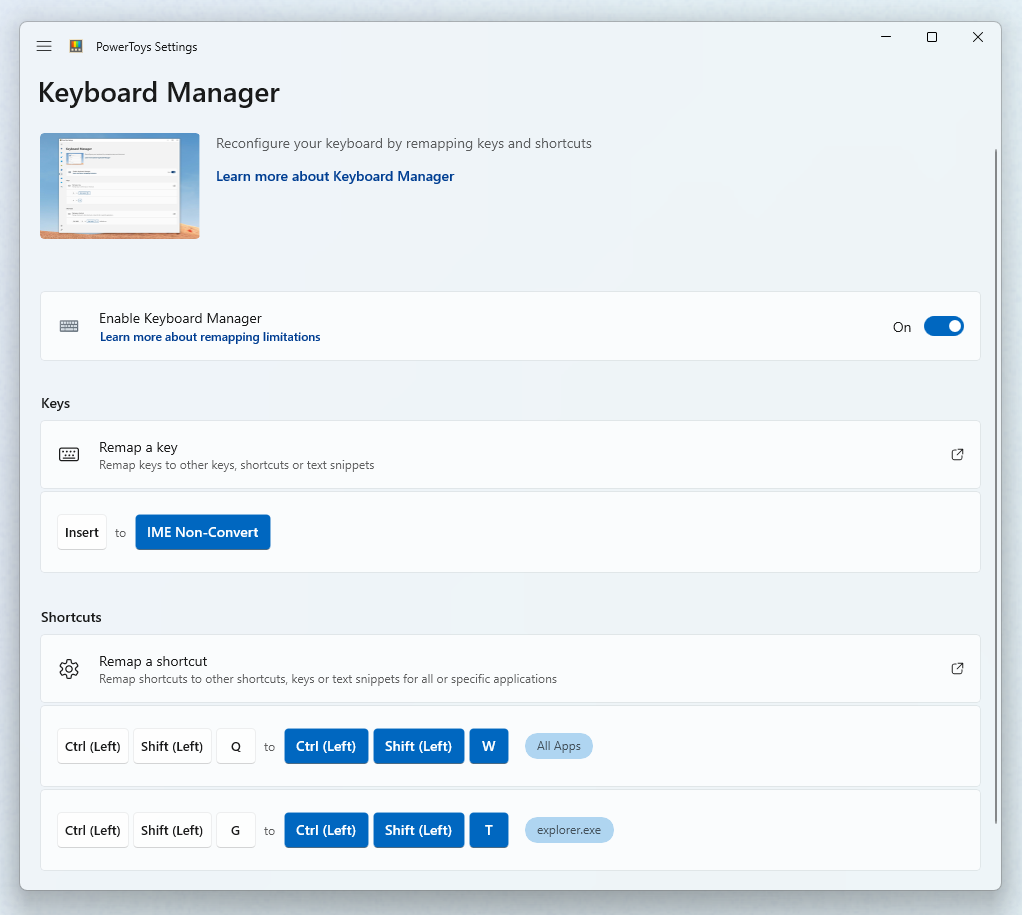
Create browser-specific shortcuts with PowerToys
Microsoft’s free PowerToys transforms F-buttons into workflow accelerators. After installation, open Keyboard Manager and remap F7 to “Ctrl + T” for instant new tab creation in Chrome. Map F8 to “Ctrl + Shift + T” to reopen closed tabs—a game-changer for researchers. The beauty? These mappings only activate when your browser is active.
Three productivity-boosting remaps:
– F9: “Ctrl + L” to focus address bar instantly
– F10: “Ctrl + Shift + N” to open incognito window
– F11: “Ctrl + H” to open browsing history
Gaming laptop secret: Hardware-level programming
High-end gaming machines like Alienware and MSI GS series store F-button configurations in onboard memory. Program F1 as “WASD to arrow keys” for strategy games, then set F2 as “mouse acceleration toggle” for shooters. These profiles persist even when connecting to different computers—no software required after initial setup.
Pro tip: Record complex macros on F12 for MOBA games—single presses can execute ability combos that normally require multiple keystrokes. Most gaming utilities let you assign different profiles per game executable.
Maintain Your F-Buttons for Long-Term Reliability
Clean between F-keys monthly using compressed air to prevent sticky behavior—especially critical for gaming where rapid presses are common. Avoid liquid spills near these keys since F1-F12 sit directly above sensitive circuitry. For heavy users, replace worn keycaps every 18 months; most manufacturers sell individual replacements.
Critical update schedule:
– BIOS: Check manufacturer site quarterly
– Keyboard drivers: Install immediately when available
– Utility software: Update before major gaming releases
When upgrading Windows, export your custom mappings first. Most gaming software includes backup options, but take screenshots of BIOS settings too—recovery partitions often reset function key behavior to factory defaults.
Emergency F-Button Shortcuts You Must Know
When apps freeze, Alt + F4 closes them instantly—faster than task manager. Stuck in a presentation? F5 restarts PowerPoint slideshows immediately. Need full-screen focus? F11 toggles browser full-screen mode across all major platforms. For developers, F12 opens browser developer tools without mouse navigation.
Master these dual-purpose keys and you’ll navigate your laptop like a pro—no more accidental muting when trying to refresh your screen. The real secret? Understanding your specific laptop model’s behavior through its unique Fn key configuration. Whether you’re troubleshooting, gaming, or working, take control of your F-buttons today and transform overlooked keys into daily productivity boosters.