How to Unfreeze a Laptop: Quick Fix Tips
Your presentation freezes mid-slide. The cursor locks in place. That urgent email remains unsent as your screen turns into a digital statue. When your laptop freezes, time seems to stop—but you don’t have to stay stuck. Knowing exactly how to unfreeze a laptop transforms panic into productivity, saving both your work and your sanity. This guide delivers proven methods to rescue your frozen system, from quick keyboard tricks to permanent fixes that prevent future freezes.
Force Restart Your Frozen Laptop in 30 Seconds
When your laptop freezes completely, your first move determines whether you lose work or save your session. Don’t panic—follow this sequence to maximize your chances of recovery.
Confirm It’s Truly Frozen (Not Just Slow)
Before taking drastic action, verify your laptop is genuinely frozen. Move your mouse—if the cursor doesn’t budge, try pressing the Caps Lock key. If the indicator light doesn’t respond, your system has locked up completely. This 10-second check prevents unnecessary restarts when your computer might simply be processing a demanding task. Many users mistake slow performance for a freeze, causing them to lose unsaved work unnecessarily.
Use Ctrl+Alt+Delete to Target Frozen Programs
Your most effective first recovery step is pressing Ctrl + Alt + Delete simultaneously. This keyboard shortcut accesses Windows Security options or the Task Manager directly. Once the Task Manager appears, navigate to the Processes tab, identify any programs marked as “Not Responding,” and click End Task. This surgical approach closes only the problematic application while preserving your other open programs and unsaved work. If this works, immediately save your documents before continuing.
Execute a Safe Hard Reboot When Nothing Responds
When Task Manager won’t open or your entire system remains unresponsive, perform a controlled hard reboot. Hold your power button for 10-15 seconds until all lights go out—don’t release too soon. Wait 30 seconds (this critical pause allows capacitors to discharge fully), then press the power button to restart. For older laptops with removable batteries, you can alternatively remove the battery for 30 seconds before reinstalling and powering on. This sequence prevents electrical damage that can occur from immediate power cycling.
Identify Why Your Laptop Keeps Freezing (Software vs Hardware)
Understanding what causes your laptop freezes directs you to the right solution. Most freezes stem from either software conflicts or hardware limitations—knowing which category your problem falls into saves hours of wasted troubleshooting.
Spot Software-Related Freeze Patterns
Software freezes typically occur during specific activities. Does your laptop freeze when opening Chrome but works fine in Edge? That points to browser-specific issues. Do freezes happen consistently when launching Photoshop or playing games? This suggests application-specific problems or driver conflicts. Software-related freezes often follow system updates or new software installations. Note if the freeze happens immediately after clicking certain buttons or performing specific actions within programs.
Recognize Hardware Freeze Warning Signs
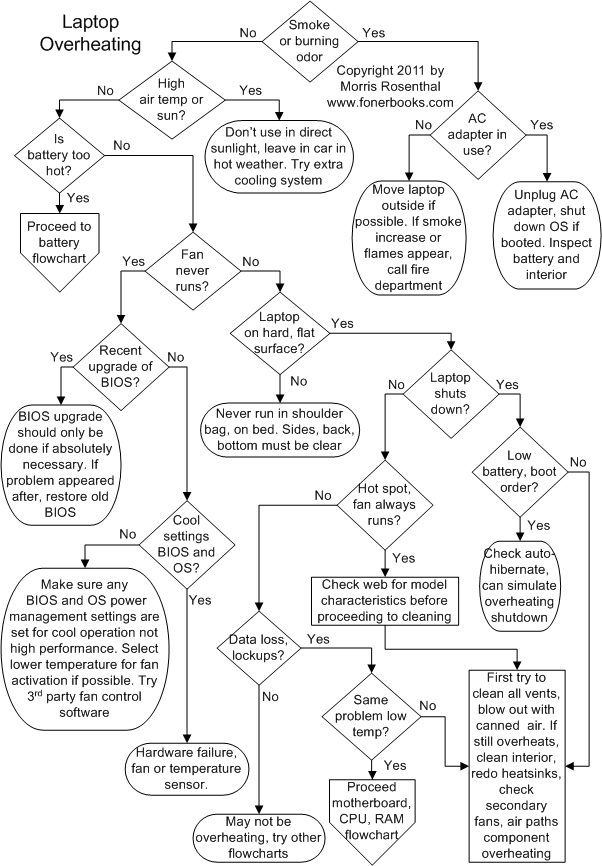
Hardware-related freezes announce themselves differently. If your laptop freezes during intensive tasks—like gaming, video editing, or even multiple browser tabs—and feels hot to the touch, overheating is likely the culprit. Listen for unusual fan noise (constant high-speed spinning) or hard drive clicking sounds. Hardware freezes often occur randomly regardless of what you’re doing, and may be accompanied by blue screens of death (BSODs) with cryptic error codes. These symptoms require different solutions than software freezes.
Browser-Specific Freeze Fixes That Actually Work
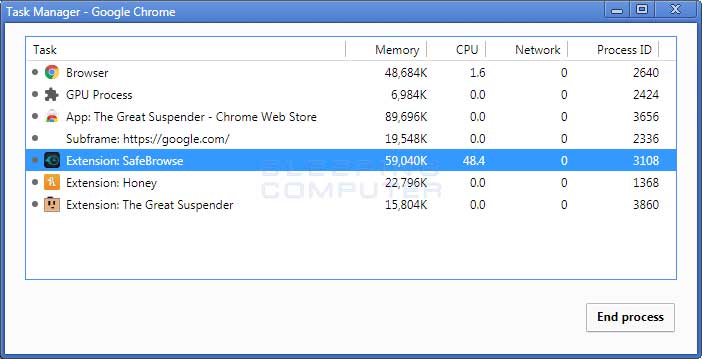
Web browsers consume more system resources than almost any other application, making them prime freeze culprits. When Chrome, Edge, or Firefox freezes your entire laptop, these targeted solutions get you back online fast.
Chrome Freeze Recovery Protocol
When Chrome freezes your system, press Ctrl + Shift + Esc to open Task Manager directly. End all Chrome processes (look for “Google Chrome” entries), then restart the browser. Immediately clear Chrome’s cache by pressing Ctrl + Shift + Delete, selecting “All time” for the time range, and checking “Cached images and files.” Next, disable extensions by typing chrome://extensions in the address bar and toggling off all extensions. Restart Chrome to see if stability improves—then re-enable extensions one by one to identify the problematic one.
Firefox and Edge Emergency Fixes
For Firefox freezes, restart the browser and clear the cache via Ctrl + Shift + Delete, selecting “Everything” from the dropdown menu. In Microsoft Edge, use the same keyboard shortcut but select “All time” for maximum cleanup. Both browsers offer reset options that restore default settings while preserving bookmarks and passwords—access these through browser settings under “Reset settings.” If freezes persist, try creating a new browser profile, as corrupted user profiles frequently cause system-wide freezes.
Gaming Freeze Solutions for Lag-Free Play

Gamers face unique freeze challenges when demanding titles push hardware to its limits. These specialized fixes prevent game-related freezes without sacrificing performance.
Graphics Driver Update Procedure
Gaming freezes often stem from outdated graphics drivers. Visit your GPU manufacturer’s website (NVIDIA GeForce Experience, AMD Adrenalin, or Intel Driver Assistant) and download the latest drivers. For a clean installation, use DDU (Display Driver Uninstaller) in Safe Mode to remove existing drivers completely before installing new ones. This prevents driver conflicts that cause random freezes during gameplay. Set calendar reminders to check for driver updates monthly—game developers frequently release optimizations for new titles.
In-Game Optimization Settings That Prevent Freezes
Adjust these critical settings before launching demanding games: reduce texture quality to “High” instead of “Ultra,” disable motion blur and depth of field effects, lower anti-aliasing settings, and set a frame rate cap at 60 FPS. Monitor your laptop’s temperature using free tools like HWMonitor—if temperatures exceed 85°C, further reduce settings. Many games include built-in benchmark tools; run these to automatically optimize settings for your specific hardware configuration, preventing thermal throttling that causes freezes.
Prevent Future Freezes With These Maintenance Habits
The best way to unfreeze a laptop is to prevent freezes before they happen. Implement these simple maintenance routines to keep your system running smoothly for months between issues.
Monthly Vent Cleaning Routine
Overheating causes 60% of unexplained laptop freezes. Every 30 days, power down your laptop and use compressed air to blast dust from all vents (hold cans upright to prevent moisture release). Do this over a trash can with short bursts—not continuous spraying. For stubborn dust, use a soft-bristled brush to gently dislodge particles before blowing. Elevate your laptop on a hard surface or cooling pad during intensive tasks—never use it on beds or couches that block airflow.
Startup Program Management Checklist
Too many startup programs create resource conflicts that freeze your laptop during boot. Open Task Manager with Ctrl + Shift + Esc, click the Startup tab, and disable unnecessary programs. Target these high-impact offenders first: cloud storage apps (Dropbox, OneDrive), messaging clients (Skype, Slack), and utility software (printer tools, hardware monitors). Disable anything you don’t need immediately after startup—most applications can be launched manually when needed. This simple adjustment prevents resource exhaustion during the critical boot process.
Emergency Data Recovery After a Freeze
When a freeze strikes during critical work, these recovery techniques maximize your chances of salvaging unsaved documents before they disappear forever.
Immediate Post-Freeze Document Rescue
The moment your laptop unfreezes, immediately save all open documents—don’t wait, don’t click elsewhere. For Microsoft Office users, check File > Info > Manage Document > Recover Unsaved Workbooks. Chrome users can type chrome://restart to restore previous sessions. Check these hidden recovery locations: C:\Users[YourName]\AppData\Local\Microsoft\Office\UnsavedFiles and C:\Users[YourName]\AppData\Local\Temp. Time is critical—these temporary files disappear after system restarts.
Auto-Save Configuration That Actually Works
Prevent future data loss by configuring aggressive auto-save settings. In Microsoft Office, set auto-save to 1-minute intervals via File > Options > Save. Enable AutoRecover and set it to save versions every 3 minutes. For browsers, install session manager extensions that auto-save open tabs. Most writing applications (like Scrivener or Notion) have robust auto-save features—ensure they’re enabled with minimal intervals. These settings create multiple recovery points, turning potential disasters into minor inconveniences.
Key Takeaway: Most laptop freezes resolve through immediate keyboard recovery methods followed by targeted troubleshooting. Start with Ctrl+Alt+Delete to close frozen programs, then progress to hardware diagnostics if problems persist. Implement monthly maintenance routines—especially vent cleaning and startup program management—to prevent 90% of freezes before they happen. When freezes do occur, act quickly with data recovery techniques before restarting, and configure aggressive auto-save settings to protect your work permanently. By understanding why your laptop freezes and applying these specific fixes, you’ll transform frustrating interruptions into minor speed bumps in your productivity.