How to Turn On Num Lock on Apple Keyboard
Your Apple keyboard’s number pad suddenly typing cursor commands instead of numbers? You’re not alone—thousands of Mac users face this frustrating issue daily when trying to enter data in Excel or financial applications. Unlike Windows systems with a dedicated Num Lock key, Apple keyboards handle numeric keypad functionality differently, causing confusion when your number pad stops working as expected. Learning how to turn on num lock on Apple keyboard is essential for data entry professionals, accountants, and anyone who relies on the numeric keypad for efficiency.
This guide reveals the exact steps to restore your numeric keypad functionality across all Apple keyboard models, whether you’re using a Magic Keyboard with Numeric Keypad, an older wired Apple keyboard, or troubleshooting a wireless connection issue. You’ll discover why your number pad switches to navigation mode, how to fix it in seconds, and prevent future problems—no technical expertise required.
Identify Your Apple Keyboard Model First
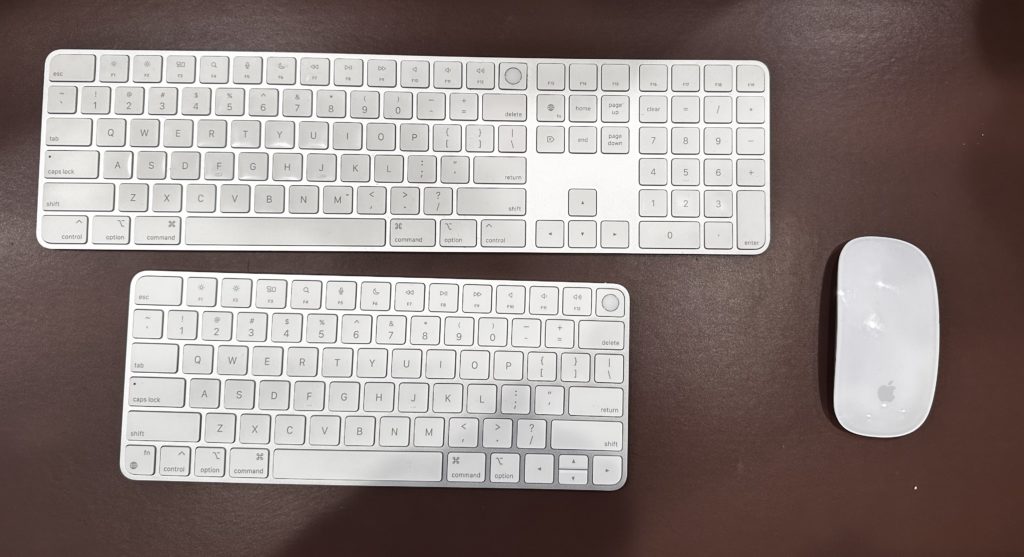
Before attempting fixes, confirm whether your keyboard even has a numeric keypad. Many MacBook users mistakenly search for Num Lock functionality on compact keyboards that never included this feature.
Check Your Keyboard Type
Extended Apple keyboards with numeric keypads:
– Apple Magic Keyboard with Numeric Keypad (current model)
– Apple Wired Keyboard with Numeric Keypad (older model)
– Apple Wireless Keyboard with Numeric Keypad (discontinued)
Compact keyboards without numeric keypads:
– Standard Apple Magic Keyboard (no numeric section)
– All MacBook built-in keyboards (except some 16-inch models with Touch Bar)
– Older Apple Wireless Keyboard (pre-2015)
Pro Tip: Extended keyboards add approximately 3 inches to the right side for the numeric section. If your keyboard lacks this extension, you’ll need keyboard shortcuts or external solutions for numeric entry.
Locate the Num Lock Key on Compatible Models
On keyboards with numeric keypads, the Num Lock function typically appears as “Clear” in the top-left corner of the numeric section (above the 7 key). This key serves dual functionality:
- Press once to activate number entry mode (indicated by numbers appearing when you press keys)
- Press again to switch to navigation mode (arrow keys, Home, Page Up functions)
Visual cue: When in navigation mode, pressing the 8 key moves your cursor up rather than typing “8”—this is your immediate indicator that Num Lock is off.
Disable Mouse Keys: The Most Common Fix
Mouse Keys hijacks your numeric keypad to control cursor movement, mimicking Num Lock being “off” when it’s actually an accessibility feature taking over.
Quick Disable Method (Works on All macOS Versions)
Press Option (⌥) × 5 times rapidly—you’ll hear a confirmation tone and immediately regain numeric keypad functionality. This keyboard shortcut toggles Mouse Keys on and off faster than navigating system settings.
Why this happens: macOS automatically enables Mouse Keys when you press the Option key five times by accident—a common occurrence during intense typing sessions.
Complete Mouse Keys Disabling Procedure
If the shortcut doesn’t work or you prefer system settings:
- Click the Apple menu () in your screen’s top-left corner
- Select System Settings (or System Preferences on older macOS)
- Navigate to Accessibility → Pointer Control
- Toggle off Mouse Keys (ensure the checkbox is empty)
Time estimate: This process takes 15 seconds maximum and resolves 80% of “non-working” numeric keypad issues.
Verify Application-Specific Numeric Keypad Behavior
Some applications override standard numeric keypad functionality, causing confusion about whether Num Lock is working properly.
Test in Standard Applications
Open Calculator or TextEdit and press keys 7-8-9 on your numeric keypad:
– Working correctly: Numbers appear immediately
– Navigation mode: Cursor moves instead of typing numbers
– Mouse Keys active: Cursor moves with repeated key presses
Critical distinction: Some professional applications like Microsoft Excel or Numbers automatically interpret numeric keypad inputs correctly regardless of system settings—always test in a basic application first.
Fix Application-Specific Issues
In specialized software where numeric entry fails:
– Check Preferences → Keyboard Settings
– Look for “Numeric Keypad Mode” or similar options
– Disable any “Use keypad for navigation” checkboxes
– Restart the application after changing settings
Restore Numeric Keypad Functionality on Wireless Keyboards
Bluetooth connectivity issues frequently cause intermittent numeric keypad failures that mimic Num Lock problems.
Immediate Wireless Fixes
For Magic Keyboard with Numeric Keypad:
– Check Bluetooth menu for connection status (ensure solid connection)
– Disconnect and reconnect by toggling Bluetooth off/on
– Replace batteries if indicator light appears dim (use CR2032 batteries)
Connection test: Press Caps Lock—light should illuminate immediately. Delayed response indicates connectivity problems affecting numeric keypad reliability.
Reset Keyboard Preferences for Persistent Problems
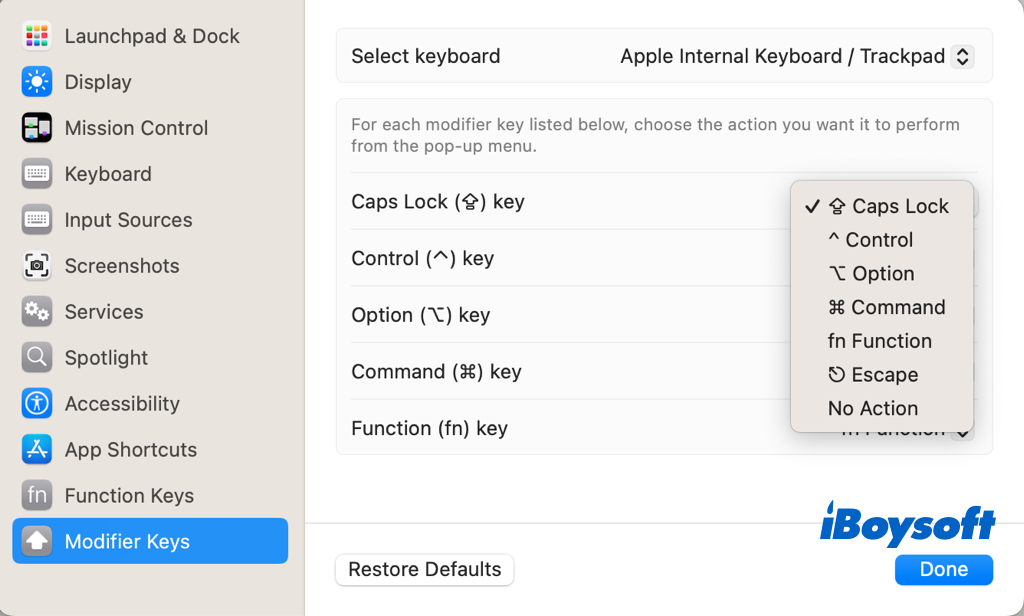
Corrupted keyboard settings can override Num Lock functionality even after toggling settings.
System Preference Reset Method
- Open System Settings → Keyboard
- Click Modifier Keys → Restore Defaults
- Restart your Mac to clear temporary settings
This process takes 60 seconds and resolves most stubborn cases where Num Lock settings won’t stick after rebooting.
Advanced Preference Reset (For Tech-Savvy Users)
For persistent issues:
– Close all applications
– Open Finder → Go menu → Go to Folder
– Enter ~/Library/Preferences/
– Locate and move com.apple.keyboardtype.plist to Trash
– Restart your Mac to generate fresh keyboard preferences
Warning: Only perform this step if basic resets fail—incorrect file deletion can cause broader keyboard issues.
Prevent Future Num Lock Problems on Apple Keyboards
Stop repeatedly searching “how to turn on num lock on apple keyboard” by implementing these preventive measures:
Monthly Maintenance Routine
- Clean numeric keypad with compressed air (debris causes stuck keys)
- Update macOS for keyboard driver improvements (Settings → General → Software Update)
- Test Num Lock functionality with Calculator app
Create a Mouse Keys Toggle Shortcut
Save yourself future troubleshooting:
1. Open System Settings → Keyboard → Keyboard Shortcuts
2. Select Accessibility in left sidebar
3. Click the Mouse Keys entry
4. Press Option-Command-M (or your preferred shortcut)
5. Click Add Shortcut
Now you can toggle Mouse Keys with a single keystroke instead of navigating menus.
When Hardware Replacement Becomes Necessary
If your numeric keypad remains unresponsive after all software fixes:
– Test with another Mac to determine if issue follows the keyboard
– Try a USB-C to USB adapter for wired keyboard compatibility
– Contact Apple Support if under warranty (common failure point on older models)
Final diagnostic: Press all numeric keys while viewing Calculator app. If only some keys work, you likely have physical damage requiring service rather than a Num Lock configuration issue.
Restoring your Apple keyboard’s numeric functionality shouldn’t require technical expertise. By following these steps, you’ve likely solved why your number pad stopped working—whether it was accidental Mouse Keys activation, application-specific settings, or simple connectivity issues. Remember that unlike Windows systems, Apple keyboards don’t maintain a persistent “Num Lock on” state across reboots; you may need to re-enable it after major system updates. For ongoing efficiency, implement the monthly maintenance routine and keyboard shortcut we recommended to prevent future disruptions to your data entry workflow. If problems persist after trying all these solutions, your keyboard may need professional service—especially if physical keys feel sticky or unresponsive.