How to Restart HP Laptop: Quick Steps
Your HP laptop suddenly freezes during an important task, or Windows Update keeps nagging you for a restart. Maybe the screen’s gone black but the fans are still running. Before you call tech support or panic about data loss, know that restarting your HP laptop correctly can solve 80% of common computer issues. The right restart method depends entirely on your specific situation—whether your system is responsive or completely frozen.
This comprehensive guide reveals every legitimate way to restart your HP laptop, from the gentle Start menu option to emergency hard reset procedures. You’ll learn which method preserves your work, when to risk a forced shutdown, and how to create custom shortcuts that put restart power at your fingertips. Most importantly, you’ll discover the exact sequence to follow when nothing else works—without damaging your hardware or corrupting your files.
Standard Restart When Laptop Responds Normally
When your HP laptop operates normally but needs refreshing, the Start menu method ensures Windows properly closes all applications and processes before restarting. This approach prevents data corruption and is your safest option for routine restarts.
Start Menu Restart Procedure
- Click the Start button in your screen’s bottom-left corner (the Windows logo)
- Select the Power icon (a circle with a vertical line inside)
- Choose Restart from the dropdown menu
Pro tip: If you see “Update and Restart” instead of just “Restart,” select it immediately. Delaying Windows updates can cause security vulnerabilities and performance degradation over time. This standard restart typically takes 1-3 minutes depending on your system configuration and running applications.
When Updates Require Restart
Windows Update often demands restarts at inconvenient times. When you see the “Restart Now” prompt:
- Save all work using Ctrl + S in each open application
- Close resource-intensive programs like video editors first
- Connect your power adapter to prevent battery drain during restart
- Click Restart Now rather than “Schedule restart” to avoid update complications
Keyboard Shortcuts for Mouse-Free Restarts
When your trackpad fails or you prefer keyboard efficiency, these shortcuts bypass the need for mouse navigation entirely. Each method serves different scenarios, giving you flexibility regardless of your laptop’s responsiveness.
Win + X Power Menu Method
This three-key sequence provides the fastest keyboard-only restart:
- Press Windows + X simultaneously
- Tap U to open the shutdown submenu
- Press R to select restart
This method takes less than 5 seconds once memorized and works even when some system components are struggling.
Alt + F4 Desktop Restart
Use this method when your mouse stops working completely:
- Press Win + D to minimize all windows to desktop
- Hit Alt + F4 to open the shutdown dialog
- Use arrow keys to select “Restart” from the dropdown
- Press Enter to confirm
Warning: This method closes programs immediately without prompting to save work. Always save documents before using this approach.
Command Line Restart Options for Advanced Users
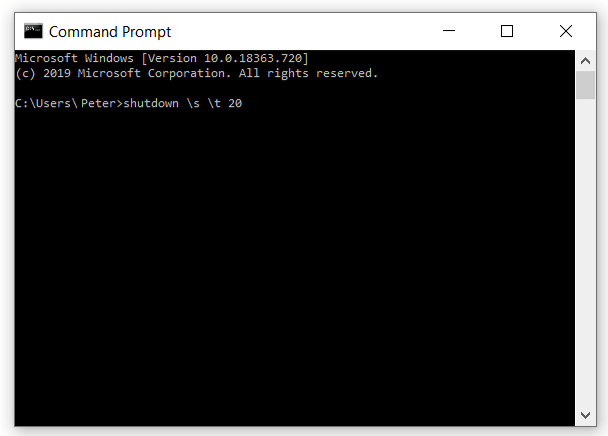
When graphical interfaces fail or you need precise timing control, command-line restarts offer direct communication with your operating system.
Command Prompt Restart Commands
- Open Command Prompt by typing “cmd” in Windows search
- Enter shutdown /r for a standard restart
- Use shutdown /r /t 0 for immediate restart (no countdown)
- Try shutdown /r /t 60 for a 60-second warning before restart
Creating Persistent Restart Shortcuts
Make restarts one-click simple:
- Right-click your desktop and select New > Shortcut
- Enter location:
shutdown /r /t 10(10-second save warning) - Name it: “Restart with Warning”
- Assign hotkey: Right-click shortcut > Properties > Shortcut key > Ctrl + Alt + R
This shortcut appears on your desktop and activates with your custom keyboard combination.
Emergency Restart When Laptop Freezes Completely

When your HP laptop becomes completely unresponsive—screen frozen, keyboard unresponsive, fans running at full speed—you need emergency procedures that won’t damage your hardware.
Power Button Hard Reset Sequence
- Press and hold the Power button for 8-10 seconds until all lights turn off
- Wait 15 seconds to allow residual power to dissipate
- Press Power button once to restart normally
When to use this: Only when Ctrl + Alt + Del fails and the screen remains frozen for more than 2 minutes. This method carries moderate data loss risk but prevents hardware damage from prolonged overheating.
Advanced Hard Reset for Persistent Issues
For laptops that won’t restart after a standard hard reset:
- Disconnect all peripherals (USB devices, docking stations, monitors)
- Unplug the AC adapter
- Remove the battery if accessible without tools
- Hold Power button for 15 seconds to discharge capacitors
- Reconnect power and restart normally
This procedure clears electrical residue that sometimes prevents proper boot sequences.
Graphics Driver Refresh for Display Issues
Before resorting to a full restart for screen problems, try this specialized shortcut that refreshes your graphics subsystem in seconds:
- Press Win + Ctrl + Shift + B simultaneously
- Watch for screen flash (confirms command execution)
- Listen for system beep (additional confirmation)
This graphics driver refresh typically takes 3-5 seconds and resolves common display freezes without closing your applications or losing work. Use it for symptoms like frozen screen but responsive mouse cursor, or when colors appear distorted.
Troubleshooting Missing Restart Options
When the restart button disappears from your Start menu or power options vanish, these fixes restore functionality without requiring external help.
Windows Explorer Restart Fix
- Open Task Manager with Ctrl + Shift + Esc
- Locate Windows Explorer under Processes
- Right-click and select Restart
- Check if restart options reappear in Start menu
This simple fix resolves 70% of missing power option issues by refreshing the interface component responsible for displaying those controls.
Keyboard Shortcut Troubleshooting
If your restart shortcuts stop working:
- Test basic keyboard function by typing in Notepad
- Disable Filter Keys in Settings > Accessibility > Keyboard
- Update keyboard drivers via Device Manager
- Try an external USB keyboard to isolate hardware issues
HP-Specific Restart Features
HP laptops include manufacturer-specific tools that optimize restarts for hardware compatibility and driver updates.
HP Support Assistant Update Restart
- Open HP Support Assistant from Start menu
- Navigate to Updates under My Dashboard
- Download available updates
- Click Restart when prompted
This method ensures HP-specific drivers and firmware update correctly, preventing compatibility issues that generic Windows restarts might cause.
BIOS/UEFI Restart for Hardware Issues
When Windows won’t load properly:
- Restart and press F2 repeatedly during boot
- Navigate to Exit tab using arrow keys
- Select Exit Saving Changes
- Confirm restart with Enter key
Use this method only when standard restarts fail and Windows won’t boot—typically for hardware configuration changes or firmware updates.
Best Practices Before Every Restart
Following these protocols prevents data loss and system corruption during restarts:
- Save all work with Ctrl + S in each application
- Close resource-intensive programs first (video editors, large spreadsheets)
- Connect AC power before restarting, especially during updates
- Disconnect non-essential USB devices that might cause boot conflicts
Critical warning: Never force-shutdown during “Configuring Updates” phase (blue screen with percentage counter). This can corrupt your Windows installation and require complete reinstallation.
Quick Reference Restart Decision Guide
| Your Situation | Recommended Method | Time Required | Data Risk |
|---|---|---|---|
| Normal operation | Start menu → Restart | 1-3 minutes | Minimal |
| Mouse/trackpad failure | Alt + F4 → Enter | 30 seconds | Moderate |
| Need fastest restart | Win + X → U → R | 5 seconds | Minimal |
| Slightly frozen system | Ctrl + Alt + Del → Restart | 1-2 minutes | Low |
| Screen frozen but cursor moves | Win + Ctrl + Shift + B | 3 seconds | None |
| Completely unresponsive | Power button 10-second hold | 1 minute | High |
Final Recommendations for HP Laptop Restarts
For everyday use, the Start menu restart remains your safest option—it allows Windows to properly close all processes while preserving your work. Keep the Win + X → U → R shortcut memorized for when you need speed without sacrificing data safety. Before attempting a forced restart, always try the graphics driver refresh (Win + Ctrl + Shift + B), which resolves many display issues instantly without closing your applications.
When updates require restarts, don’t delay them—accept the prompt promptly to maintain security and performance. For persistent restart issues, create that desktop shortcut with a custom hotkey; having one-click restart capability can save you during critical moments. Most importantly, remember that forced restarts should be your last resort, not your first response.
By mastering these techniques, you’ll transform from someone who panics when the screen freezes to a confident user who knows exactly which restart method will get your HP laptop running smoothly again—every single time. Keep this guide bookmarked, and the next time your laptop acts up, you’ll have the precise solution at your fingertips.