How to Reset Dell Inspiron Laptop: Quick Steps
Your Dell Inspiron laptop feels sluggish, malware-infected, or you’re preparing to sell it—either way, learning how to reset Dell Inspiron laptop properly will restore it to day-one performance. Unlike a simple restart, this process wipes everything and reinstalls Windows fresh. Before you click “Reset,” understand that all photos, documents, and apps will vanish permanently. This guide walks you through every reset path, from quick Windows 10 fixes to emergency USB recovery when the laptop won’t turn on.
Pre-Reset Backup Checklist
Never skip this step. Factory reset deletes everything instantly—no undo button exists. Taking 15 minutes to back up critical data prevents hours of frustration later. Your personal files won’t magically reappear after reset, so treat this phase as non-negotiable.
Essential Data Backup Steps
- External Drive Method: Plug in a USB hard drive → copy
C:\Users\[YourName]folders (Documents, Pictures, Desktop) - Cloud Sync: Enable OneDrive or Google Drive folder sync for automatic backup
- Browser Data: Export Chrome/Firefox bookmarks to HTML file
- Product Keys: Screenshot or save software license keys (Office, Adobe, games)
Power and Environment Setup
- Connect AC Adapter: Reset takes 1–4 hours; battery failure mid-process corrupts Windows
- Remove USB Devices: Unplug printers, external drives, SD cards to prevent conflicts
- Network Settings:
- Windows 7/8: Disconnect internet to avoid driver conflicts on first boot
- Windows 10/11: Keep Wi-Fi on for automatic driver downloads
Reset from Working Windows (10/11)
When Windows loads normally, use the built-in reset tool—fastest and safest method to reset your Dell Inspiron laptop. This approach takes about 30 minutes and requires no external tools.
Open Reset Settings
- Keyboard Shortcut: Press
Win + I→ Update & Security → Recovery - Alternative Path: Start menu → Settings gear → Update & Security → Recovery
- Click “Get started” under “Reset this PC”
Choose Reset Type
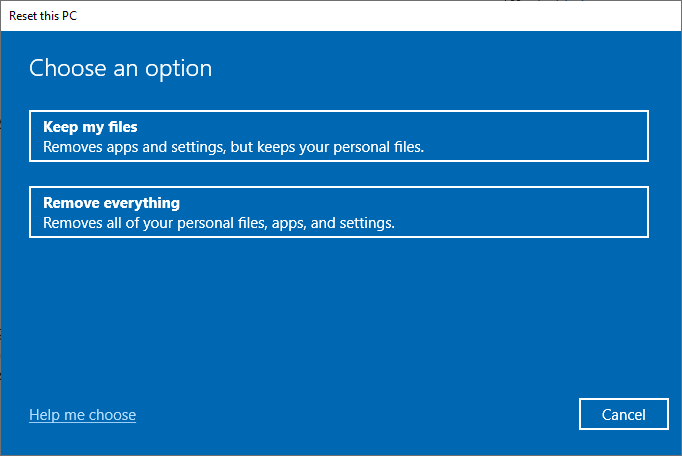
- Keep my files: Reinstalls Windows but saves personal data (removes apps/settings)
- Remove everything: Complete factory wipe—select this for resale or deep cleaning
Secure Erase Options
- Just remove my files: 30-minute quick wipe (good for personal reuse)
- Remove files and clean the drive: 2-hour secure erase (prevents data recovery—mandatory before selling)
Pro Tip: On Inspiron 5770 and newer models, these steps work identically across Windows 10/11, so you don’t need to adjust your approach based on minor model differences.
When Windows Won’t Boot: Key Combinations
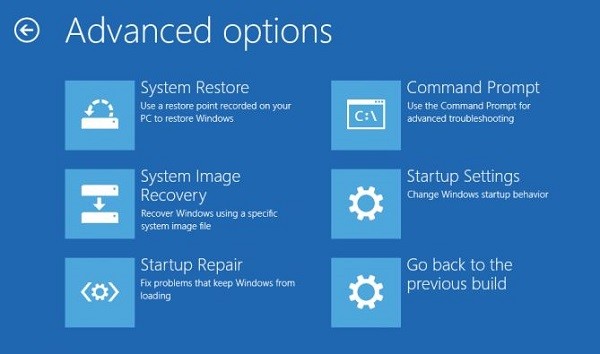
Your laptop stuck in a boot loop? Different Dell generations use different recovery keys to reset Dell Inspiron laptop without Windows access.
Legacy Models (Windows 7/8)
- Key Combo: Hold
Ctrl+ tapF11repeatedly (1 press per second) at Dell logo - Timing Critical: Start tapping the instant Dell logo appears—miss it and repeat
- Result: Dell Factory Image Restore screen appears
UEFI Models (Windows 10/11)
- Key Combo: Tap
F11repeatedly at Dell logo - Alternative:
F12→ SupportAssist OS Recovery (2018+ models) - Result: Blue Dell Recovery Environment loads
Emergency USB Boot
If recovery partition is missing:
1. Create Windows USB on another PC using Microsoft’s Media Creation Tool
2. Insert USB → power on → F12 → select USB under UEFI BOOT
3. Click “Repair your computer” → Troubleshoot → Reset this PC
Dell SupportAssist OS Recovery (Automatic)
Modern Inspirons (2018+) detect boot failures automatically, offering the most user-friendly path to reset Dell Inspiron laptop when standard methods fail.
Automatic Trigger
- Condition: Windows fails to load 3 consecutive times
- Action: SupportAssist OS Recovery launches without key presses
- Options:
- Backup Files: Save data to external USB before reset
- Repair System: Automated fixes without data loss
- Restore System: Full factory reset
Manual Access
- F12 Boot Menu → SupportAssist OS Recovery
- Benefit: Downloads latest factory image even if recovery partition is corrupted
Reset Without Admin Password
Locked out of Windows? No problem—use external media to reset Dell Inspiron laptop without credentials.
Create Windows Installation USB
- Download Tool: Get Microsoft’s Media Creation Tool from another PC
- 8GB+ USB Drive: Select “Create installation media” → USB flash drive
- Boot from USB: Insert into Inspiron → power on → F12 → choose USB
Reset via Windows Setup
- Click “Repair your computer” (bottom-left corner of setup screen)
- Troubleshoot → Reset this PC → Remove everything
- Drive Selection:
– Only Windows drive: Faster, keeps secondary storage
– All drives: Wipes everything—use cautiously
Windows 7 Legacy Reset Guide
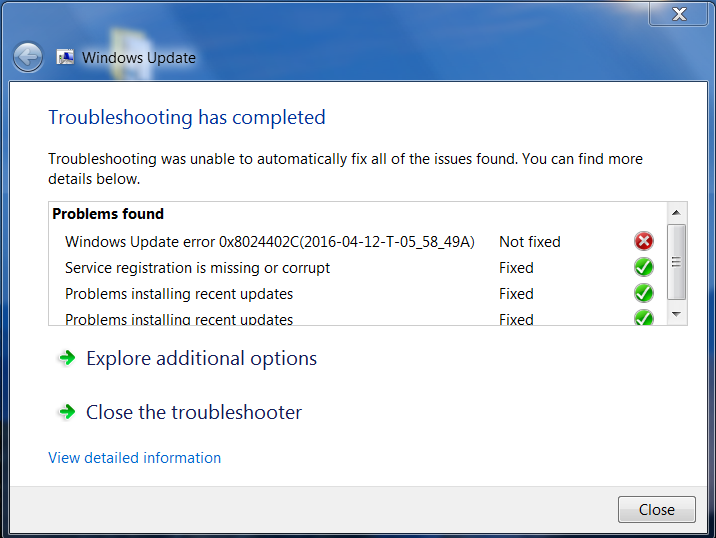
Older Inspiron models need special handling when you reset Dell Inspiron laptop running legacy Windows versions.
Post-Reset Update Fix (Critical)
After Windows 7 reinstall, updates freeze without these patches:
1. Download offline: KB3083710 and KB3102810 (match 32/64-bit)
2. Install sequence:
– Install Windows 7 SP1 → restart
– Install KB3083710 → restart
– Install KB3102810 → restart
– Reconnect internet → run Windows Update normally
Driver Installation
- Source: Download Dell’s Windows 7 driver CAB for your exact Inspiron model
- Install order: Chipset → graphics → network → audio
Troubleshooting Reset Failures
| Problem | Quick Fix |
|---|---|
Ctrl + F11 does nothing |
Switch to F11 (UEFI models) or create USB |
| Recovery partition missing | Use Windows USB method (Section 6) |
| BitLocker recovery screen | Enter 48-digit key or reinstall via USB |
| Stuck at 1% reset progress | Run Dell diagnostics (F12 → Diagnostics) |
| Windows Update hangs (Win7) | Install KB3083710 & KB3102810 offline |
Post-Reset Setup Essentials
First Boot Checklist
- Windows OOBE: Set region, language, user account
- Windows Update: Run immediately for security patches
- Dell SupportAssist: Auto-installs missing drivers
- Restore Data: Copy files back from backup
- Reinstall Apps: Office, browsers, antivirus
Activation Check
- Windows 10/11: Usually auto-activates with digital license
- Windows 7: Enter product key from COA sticker (under battery or in BIOS)
- Troubleshooting: Run activation troubleshooter if prompted
Quick Decision Tree
Laptop Boots? ─┬─ YES ─→ Settings → Recovery → Reset this PC

               │

               └─ NO ─→ Dell logo appears ─┬─ Ctrl+F11 (legacy)

                                          ├─ F11 (UEFI recovery)

                                          ├─ F12 → SupportAssist

                                          └→ USB reinstall
Final Tip: After reset, create a recovery USB immediately using Dell’s OS Recovery Tool—your future self will thank you when Windows refuses to start again. Mastering how to reset Dell Inspiron laptop properly saves you from costly repair bills and data disasters, turning frustrating tech moments into simple DIY fixes you can complete in under an hour. Whether you’re troubleshooting persistent errors or preparing your device for new ownership, this reset process restores your Inspiron to its factory-fresh state with minimal hassle.