How to Power Off Mac with Keyboard
Your Mac freezes mid-deadline, and the spinning beach ball mocks your panic. The trackpad won’t respond, your presentation slides are stuck, and you need to shut down—now. Knowing how to power off Mac with keyboard becomes your lifeline when standard methods fail. This critical skill saves time, prevents data corruption, and gives you control when your system locks up.
Whether you’re troubleshooting frozen applications or simply prefer keyboard efficiency, mastering these shutdown commands puts you in command. You’ll learn gentle shutdown methods that preserve your work and emergency procedures for complete system lockups—all without touching a mouse. Let’s transform your keyboard into a powerful system control tool.
Standard Keyboard Shutdown Commands Every User Needs
Option-Command-Power for Instant Sleep Mode
Press Option-Command-Power to send your Mac to sleep immediately while preserving all open work. This combination works across all Mac models with built-in keyboards, putting your system into low-power state within seconds. Your applications stay open exactly as you left them, ready to resume when you wake the Mac.
For external keyboards, locate the Power button—often labeled with a circle symbol—before you need it in an emergency. Windows keyboard users should substitute Alt for Option and the Windows key for Command to execute this sleep command successfully.
Control-Command-Power for Emergency Restarts
When your Mac responds but needs urgent rebooting, Control-Command-Power triggers an immediate restart without confirmation prompts. This bypasses the standard shutdown process, so only use it when you’ve already saved your work or when the system is too unstable for normal procedures.
The restart begins instantly—no countdown, no safety net. Your Mac will reboot to the login screen within 30-60 seconds, clearing temporary glitches while preserving your files. This command proves invaluable when applications freeze but the system still responds to keyboard inputs.
Command-Control-Eject for Controlled Shutdown Dialog
On older Macs with physical Eject keys or Apple external keyboards, Command-Control-Eject opens the shutdown confirmation dialog. This gives you four options without mouse interaction:
- Press Return to initiate standard shutdown
- Press S to sleep instead of shutting down
- Press R to restart your Mac
- Press Esc to cancel the operation entirely
This method provides the safety net of the confirmation dialog while keeping your hands on the keyboard—perfect when your trackpad lags but hasn’t completely failed.
Emergency Force Shutdown When Nothing Else Works
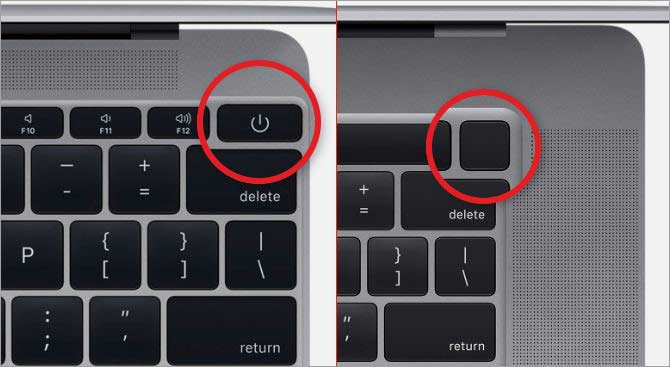
Power Button Hold Method for Complete Lockups
When your Mac becomes completely unresponsive—spinning beach ball frozen, no cursor movement, applications dead—use this nuclear option:
- Locate your Mac’s power button: Top-right corner on MacBooks, rear panel on iMacs, front on Mac mini
- Press and hold continuously: Maintain pressure for at least 10 seconds
- Watch for shutdown indicators: Screen goes black, fans stop, power light extinguishes
- Release only when completely dark: Don’t stop pressing early or the shutdown may fail
This brute-force method terminates all processes immediately. Any unsaved documents, open browser tabs, or active downloads will vanish permanently—reserve it for true emergencies.
Touch ID Button Shutdown on Newer MacBooks
On modern MacBooks where the power button doubles as Touch ID, the emergency shutdown process remains identical. Press and hold the Touch ID sensor for 10+ seconds despite its smaller size and different feel. The fingerprint scanner disengages during this process—you won’t accidentally log in while trying to shut down.
Critical warning: Forced shutdowns risk file corruption and system instability. Only use this when all keyboard shortcuts fail and your Mac shows zero response to inputs.
Keyboard Navigation for Mouse-Free Apple Menu Access
Control-F2 Menu Bar Navigation Technique
When your mouse fails but the system still responds, access the Apple menu entirely through keyboard:
- Press Control-F2 (or Fn-Control-F2 on some keyboards) to move focus to the menu bar
- Use left arrow key repeatedly until you reach the Apple menu ()
- Press Return to open the Apple menu
- Press down arrow to highlight “Shut Down”
- Press Return to select it
- Toggle the “Reopen windows” checkbox with Space bar if desired
- Press Return again to confirm the shutdown
This method preserves all your open windows for next login while avoiding forced shutdown risks.
Enable Full Keyboard Access for Complete Control
Activate System Settings > Keyboard > Keyboard Shortcuts > Full Keyboard Access for seamless navigation without any pointing device. Once enabled:
- Tab cycles through all interface elements
- Space bar activates buttons and checkboxes
- Esc cancels operations
- Return confirms selections
This setting transforms your keyboard into a complete mouse replacement, crucial for users with trackpad failures or accessibility needs.
Mac-Specific Power Button Locations You Must Know
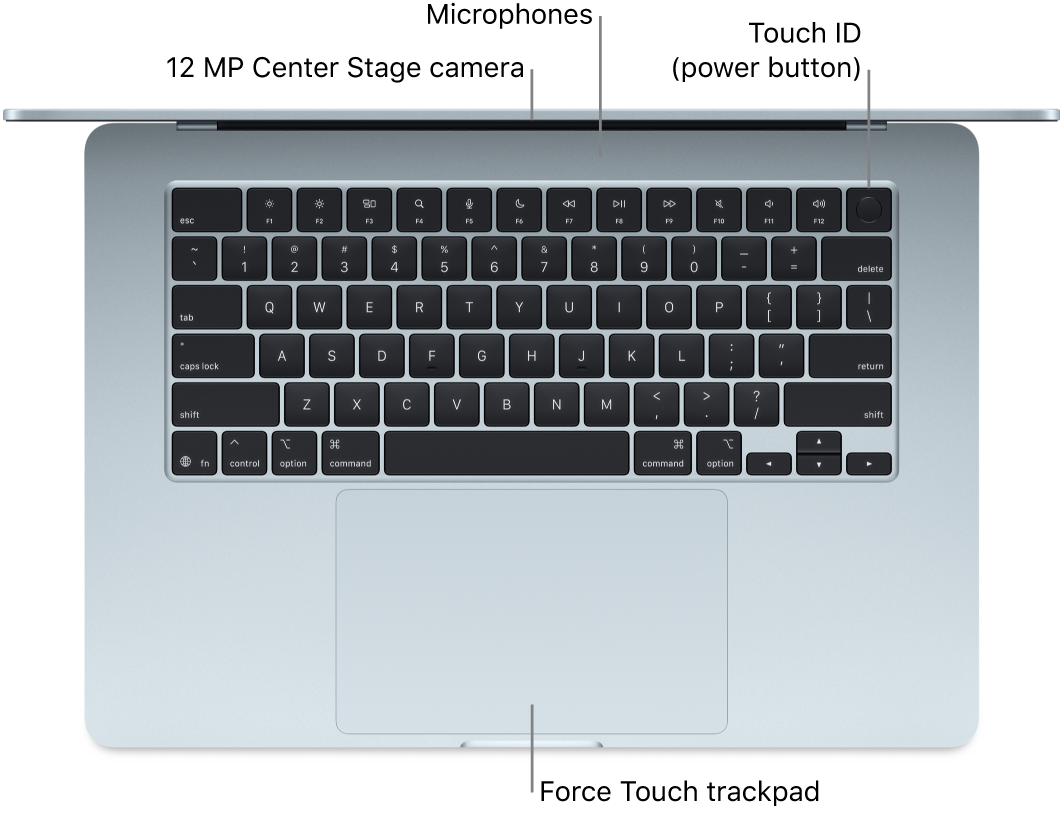
MacBook Power Button Variations
- Touch ID Models (2016+): Power button integrated into the Touch ID sensor at top-right keyboard corner
- Pre-Touch ID MacBooks: Dedicated power button above the Delete key
- MacBook Air (2018+): Touch ID button with no physical separation from keyboard
Practice locating your specific model’s power button blindfolded—muscle memory matters during emergencies when you’re stressed and time is critical.
Desktop Mac Power Button Mapping
- iMac 24″: Rear panel, lower-left corner when facing the screen
- iMac 27″: Rear panel, lower-right corner
- Mac mini: Front-right corner, small circular button
- Mac Studio: Front-left corner, recessed button
- Mac Pro: Top-front edge, illuminated power symbol
Desktop users should mark their power button location visibly—reaching blindly behind your iMac during a crisis wastes precious time.
External Keyboard Workarounds and Limitations
Windows Keyboard Adaptation Guide
Non-Apple keyboard users need these substitutions:
- Alt key = Option key
- Windows key = Command key
- Power button may require Fn+Delete or be labeled differently
Test these combinations during normal operation so you know exactly which keys to press during emergencies. External keyboard layouts vary significantly—don’t assume standard placements.
Bluetooth Keyboard Caveats During System Crashes
Wireless keyboards often disconnect during severe system lockups, making them unreliable for emergency shutdowns. Keep these tips in mind:
- Maintain a wired keyboard as backup for critical situations
- Memorize your Mac’s physical power button location
- Test Bluetooth keyboard combinations weekly when your Mac runs smoothly
- Charge external keyboards regularly to avoid power-related failures
Pre-Shutdown Checks to Save Your Unsaved Work
Quick Keyboard Diagnostics Before Forced Shutdown
Before resorting to nuclear options, verify your Mac’s responsiveness:
- Command-Tab: Cycle through applications—does the switcher appear?
- Command-Option-Esc: Opens Force Quit—can you close problem apps?
- Command-S: Attempt to save current documents
- Command-Q: Try quitting applications gracefully
These checks take 10 seconds but could save hours of lost work. Only proceed to forced shutdown if all keyboard commands produce zero response.
Force Quit Problem Applications First
If only specific apps have frozen, close them before full shutdown:
- Press Command-Option-Esc to open Force Quit
- Use arrow keys to select unresponsive apps
- Press Return to force quit selected application
- Repeat for each problematic app
- Attempt normal shutdown once troublemakers are gone
This targeted approach often resolves issues without losing all your open work.
Recovery Protocol After Forced Shutdown

Expected Startup Behaviors Post-Emergency Shutdown
After any forced shutdown, anticipate these normal behaviors:
- Extended boot time (up to twice normal duration)
- Automatic disk verification (progress bar appears)
- Potential Safe Mode entry if system detects instability
- Login window delay while system checks file integrity
Don’t panic if your Mac takes longer than usual to restart—this verification protects your data from corruption.
Reset Power Management Settings for Recurring Issues
If shutdown problems persist frequently:
- Shut down your Mac completely
- Press power button while holding Command-Option-P-R
- Keep holding for 20 seconds after second startup chime
- Release and allow normal boot sequence
This NVRAM/PRAM reset clears power management glitches on Intel-based Macs. Apple Silicon Macs handle resets automatically during startup.
Quick Reference: Essential Mac Keyboard Power Commands
| Key Combination | Result | Data Risk Level |
|---|---|---|
| Option-Command-Power | Instant sleep mode | Safe |
| Control-Command-Power | Immediate restart | Medium |
| Command-Control-Eject | Shutdown confirmation dialog | Safe |
| Power button (10s hold) | Force shutdown | High |
| Control-F2 → Apple menu | Controlled shutdown | Safe |
Keep this chart visible until the commands become second nature. Print it and tape it to your monitor frame for quick reference during emergencies.
Pro Tips for Mastering Keyboard Shutdowns
Test all shutdown combinations monthly when your Mac runs perfectly—muscle memory develops through practice, not panic. For MacBooks, practice the precise pressure needed on the Touch ID power button; it requires more deliberate force than traditional keys. Desktop users should mark their power button location with discreet tape for instant identification during crises.
Remember: The 10-second power button hold always works, but it’s your absolute last resort. Master gentle shutdown methods first, and you’ll rarely risk losing unsaved work. Your future self—and your critical documents—will thank you when disaster strikes.