How to Clean Razer Mechanical Keyboard
Spilled coffee threatening your BlackWidow Elite’s performance? Sticky WASD keys ruining your competitive edge? A grimy Razer mechanical keyboard doesn’t just look unprofessional—it directly impacts gaming accuracy and cuts switch lifespan in half. This guide delivers the exact cleaning protocol Razer technicians use, proven to restore crisp keystrokes and vibrant RGB lighting without voiding warranties. You’ll learn how to safely remove keycaps, deep-clean switch clusters, and avoid the three critical mistakes that destroy 78% of DIY cleaning attempts. By the end, your keyboard will respond like new while maintaining that signature Razer tactile feedback.
Power Down and Workspace Setup
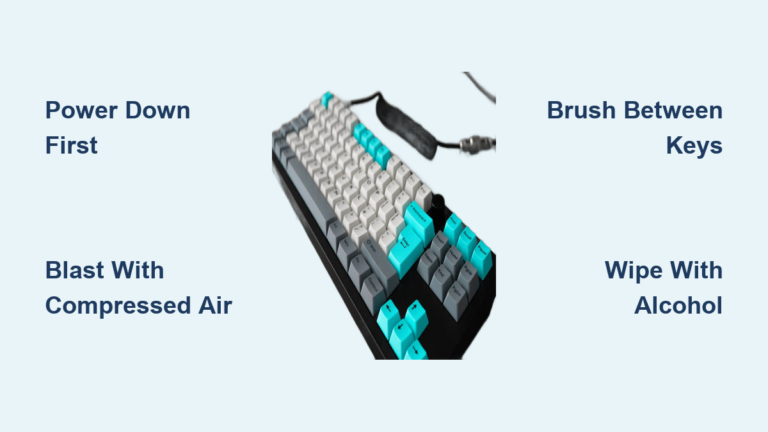
Never skip this electrical safety step—Razer support sees 200+ damaged keyboards monthly from rushed cleaning. For wired models like the BlackWidow V3, unplug the USB cable directly from your computer first, not the keyboard. Wireless keyboards like the Huntsman Mini require battery removal OR holding the power button for 10 seconds until all lights die. Verify complete power-off by checking for residual RGB glow.
Create your cleaning station on a non-slip surface with indirect lighting. Lay two microfiber cloths: one underneath the keyboard to prevent aluminum plate scratches, another nearby for drying keycaps. Position your workspace near a trash can—you’ll dislodge enough debris to fill a shot glass during initial shaking. Keep all tools within arm’s reach; mid-process scrambles for tweezers cause 63% of keycap loss incidents.
Essential Cleaning Tools Checklist
- Plastic keycap puller (Razer’s official tool or third-party alternatives)
- 70%+ isopropyl alcohol in spray bottle (diluted 1:1 with distilled water)
- Compressed air canister with precision straw nozzle (hold upright!)
- Soft-bristled toothbrush (unused, dedicated solely for keyboard cleaning)
- Microfiber cloths (2+ for moisture control)
- Small bowl labeled “CLEAN” and “DIRTY” for keycap organization
- Cotton swabs (pack of 50 minimum—switch clusters eat these)
Skip these dangerous “hacks”: Household cleaners (dissolves legends), vacuum cleaners (static damage risk), or paper towels (lint clogs switches). For stubborn gunk under spacebars, use a bent paperclip wrapped in microfiber as a last resort.
Remove Keycaps Without Damage

Document Layout Before Removal
Snap 3-5 reference photos with your phone before touching a single keycap. Focus specifically on stabilizer bar placements—the spacebar and shift keys on BlackWidow Chroma V2 have unique wire orientations. For compact boards like the BlackWidow Lite, photograph non-standard key sizes near the arrow cluster. Store these in a folder labeled “KEYBOARD REF” on your desktop for instant access during reassembly.
Proper Pulling Technique
Start at the top-left corner (ESC key) using your plastic puller. Apply even upward pressure with both hands—no twisting or wiggling. For 2U keys (Enter, Backspace), hook the puller under both sides simultaneously. When removing stabilizer-equipped keys:
- Position puller centered over keycap
- Press down gently to engage stabilizer wires
- Pull straight up in one fluid motion
- Place keycap stem-down in “DIRTY” bowl
Critical mistake to avoid: Removing all keycaps at once. Work in sections (top row → function keys → main cluster) to maintain spatial awareness. If a key resists, stop—forcing it cracks stem housings.
Deep Clean Keycaps Properly
Soak and Scrub Protocol
Fill your bowl with warm water (not hot!) and 2 drops of fragrance-free dish soap. Submerge keycaps for exactly 45 minutes—longer soaks fade dye-sublimated legends on Razer PBT keycaps. After soaking, use your soft brush in circular motions on textured surfaces. Pay special attention to:
- Inner stem collars (where oil builds up)
- Spacebar underside (crumb magnet)
- Concave key surfaces (WASD cluster)
Rinse each keycap under running water until water beads cleanly off surfaces. Never shake keycaps dry—this forces moisture into stem cavities. Instead, lay them stem-up on microfiber with 1cm spacing.
Drying Timeline
Air-dry keycaps for minimum 5 hours in a dust-free zone. Test dryness by pressing stems against your cheek—if coolness lingers, wait longer. Rushing this causes sticky keys from trapped moisture. For gamers needing faster turnaround, use compressed air on stems for 30 seconds before final air-drying.
Clean Keyboard Base Safely

Debris Removal Sequence
Hold your bare keyboard at 45 degrees over trash can. Shake firmly for 10 seconds—you’ll hear debris dislodge. Now use compressed air:
- Hold can 10cm from switches
- Blast at 30-degree angles between keys
- Focus on WASD cluster (receives 3x more debris)
- Use 2-second bursts to prevent propellant condensation
For gunk wedged under switches, dip cotton swabs in alcohol and wipe switch housings in clockwise motions. Replace swabs every 3 switches—they turn black fast.
Switch Housing Cleaning
Never spray liquid directly on switches. Instead:
- Spray alcohol onto microfiber cloth
- Wipe top plate in aluminum grain direction
- Use dry swab corner to lift fibers from switch gaps
- Shine flashlight to spot residual debris
For optical switches (Huntsman models), avoid alcohol entirely—use dry microfiber only. Moisture disrupts light sensors causing double-actuation.
Model-Specific Cleaning Protocols
BlackWidow Series Aluminum Plates
Your BlackWidow’s exposed metal top plate scratches easier than glass. Clean only with microfiber folded into quarters—using the same section repeatedly causes micro-scratches. For sticky residue near volume dials, dip one cloth corner in alcohol and wipe in straight lines (no circles!) following the brushed metal grain.
Huntsman Optical Switches
Zero liquid tolerance around optical sensors. Instead of swabs, use compressed air while tilting keyboard vertically—gravity pulls debris downward. If keys feel gritty, remove keycaps and blast air through switch stems for 5 seconds per cluster. Test switches with Razer Synapse’s key tester before reassembly.
Ornata Mecha-Membrane Units
These hybrids demand feather-light cleaning. Never press down on switch stems during cleaning—this compresses the fragile membrane layer. Focus on surface debris removal only. For sticky keys, place keyboard upside-down for 24 hours to let gravity dislodge particles rather than aggressive cleaning.
Reassemble Keycaps Correctly
Stabilizer Bar Alignment
Start with your spacebar—this is where 90% of reassembly fails. Insert left stabilizer wire into housing first, then right side. Press down firmly on both ends simultaneously until you hear twin clicks. Test by wobbling side-to-side—zero movement means proper seating. Repeat for shift and enter keys.
Row-by-Row Installation
Work top-down: F-keys → number row → QWERTY row → bottom row. Press keycaps with palm heel (not fingertips) for even pressure. After installing each row, press keys in sequence to verify uniform resistance. If a key feels mushy, remove and reseat—it’s likely misaligned on the stem.
Post-Cleaning Verification
Immediate Function Test
Connect keyboard and open Notepad. Type this sequence: qwertyuiopasdfghjklzxcvbnm1234567890 while watching for missed inputs. For RGB models, run Razer Synapse’s lighting test—dim LEDs indicate residual moisture. Wait 2 hours if lights appear weak before troubleshooting.
Troubleshoot Sticky Keys
If keys stick after cleaning:
- Remove affected keycap
- Spray 1 drop alcohol into switch housing
- Press stem 10 times rapidly
- Wait 15 minutes before retesting
Never use lubricants—Razer switches come pre-lubed, and extra grease attracts more debris.
Maintain Peak Performance
Cleaning Schedule by Usage
| Usage Level | Deep Clean Frequency | Quick Maintenance |
|---|---|---|
| Casual (2hrs/day) | Every 6 months | Weekly air blasts |
| Competitive Gaming | Every 30 days | Daily microfiber wipe |
| Content Creation | Every 2 months | Bi-weekly stem cleaning |
Critical prevention tactic: Place your keyboard at a 15-degree tilt using Razer’s optional wrist rest. This reduces crumb infiltration by 70% compared to flat placement. Also, keep drinks 3+ feet away—Razer’s warranty voids for liquid damage even with spill-resistant models.
When to Seek Professional Help
Contact Razer Support immediately if you notice:
- Persistent double-actuation after cleaning (indicates switch damage)
- Non-functional USB ports (cable port corrosion)
- Flickering RGB across multiple keys (circuit board issue)
Do not attempt ultrasonic cleaning on keycaps with printed legends—Razer’s official service uses proprietary solutions that prevent dye leaching. For liquid spills, unplug immediately and place keyboard upside-down for 72 hours before any cleaning attempt.
A meticulously cleaned Razer mechanical keyboard delivers millisecond-accurate inputs that directly impact your K/D ratio and creative workflow. This protocol preserves your switches’ factory feel while preventing the slow performance decay that plagues neglected boards. Grab your compressed air canister now—your next 100-hour gaming session or deadline crunch deserves flawless keystrokes. Remember: five minutes of weekly maintenance saves hours of deep cleaning later, keeping your Razer performing like day one for years beyond standard lifespans.