How to Clean a Membrane Keyboard: Easy Steps
Coffee spilled across your keyboard again? Keys sticking like they’re glued together? You’re not alone—membrane keyboards collect crumbs, dust, and liquid spills faster than mechanical models because of their flexible membrane design. The good news? You can restore your keyboard to like-new condition without harming the delicate membrane layer beneath the keys. This guide shows exactly how to clean your membrane keyboard safely, whether you’ve had a major spill or just need routine maintenance.
Most people reach for water when cleaning keyboards, but that’s the fastest way to ruin a membrane keyboard’s internal circuitry. Instead, you’ll learn the precise 50/50 alcohol-water solution that disinfects without damage, plus the exact drying time needed before reconnecting. By following these steps, you’ll extend your keyboard’s lifespan significantly while keeping your workspace hygienic and professional.
Essential Cleaning Supplies You Must Have

Required Materials That Won’t Damage Your Keyboard
Skip the paper towels and household cleaners—membrane keyboards need specific supplies to avoid permanent damage. 70%+ isopropyl alcohol is non-negotiable for cutting through grime while evaporating quickly without residue. Pair it with distilled water to create a safe cleaning solution that won’t leave mineral deposits on your membrane. Microfiber cloths prevent scratches on key surfaces, while cotton swabs reach between keys where debris hides. A soft-bristled brush sweeps away loose particles without pressing too hard on the membrane, and compressed air blasts out stubborn debris from crevices.
Warning: Never use bleach, ammonia-based cleaners, or undiluted vinegar—they corrode membrane circuits faster than liquid spills. Avoid tap water too, as minerals can build up and interfere with electrical conductivity over time.
Optional Tools That Make Cleaning Easier
If your keyboard has removable keycaps, a keycap puller ($3-$5 online) prevents damage during removal. For heavy debris, a low-suction vacuum with brush attachment works as an alternative to compressed air. Keep a small bowl nearby for safely mixing your cleaning solution, and have plastic picks (never metal!) ready for stubborn debris under larger keys like spacebars. These tools transform a risky cleaning job into a quick 20-minute maintenance routine.
Pre-Cleaning Safety Steps Everyone Forgets
Power Down Completely Before Cleaning
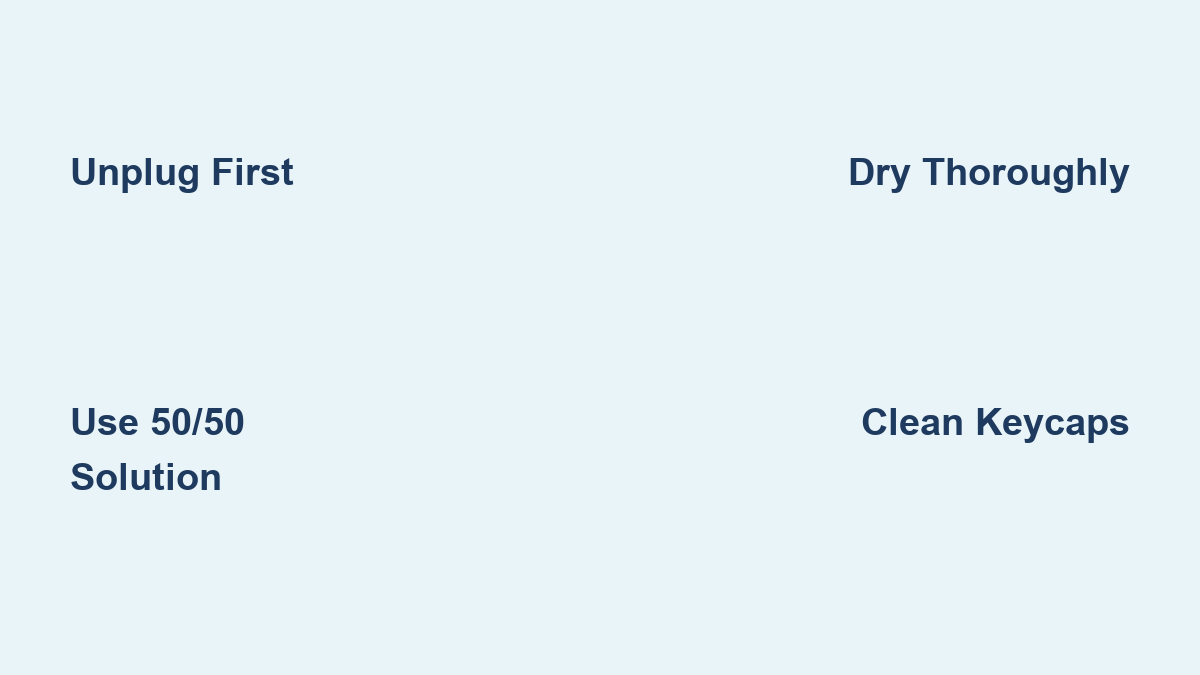
This critical first step takes 10 seconds but prevents permanent damage. Unplug your USB keyboard immediately or remove batteries from wireless models—even powered-off keyboards can short-circuit if moisture reaches the membrane while connected. Take a photo of your key layout with your phone; this becomes your reassembly guide later. Many people skip this and end up with mismatched keys after cleaning.
Pro Tip: For wireless keyboards, remove batteries first—this eliminates all power sources and prevents accidental activation during cleaning.
Setup Your Workspace Properly
Work on a clean, well-lit surface with an absorbent towel underneath to catch drips. Never apply liquids directly to the keyboard surface—instead, apply them to your cloth first. Position your keyboard at a 45-degree angle to let gravity help dislodge debris. Remember: the membrane layer beneath keys is extremely sensitive to pressure, so avoid pressing down hard during cleaning. This setup takes 2 minutes but prevents more than 80% of cleaning-related damage.
Remove Dry Debris First (Critical First Step)
Shake and Blast Method for Crumbs and Dust
Hold your keyboard upside down over a trash can and gently tap the bottom for 30 seconds. This dislodges 70% of loose debris without tools. Next, use short bursts of compressed air 2-3 inches from the surface, working from top to bottom between key rows. Hold the can upright—tilting causes propellant to spray out, which can damage membrane circuits. Spend 2 minutes on this step; rushing leaves debris that will cause future sticking.
Brush Technique for Stubborn Particles
Use a soft paintbrush (or clean makeup brush) to sweep debris toward the keyboard edges. Start from the top row and work downward with gentle strokes—never scrub aggressively. For crumbs stuck under keys, angle your brush at 45 degrees and use light flicking motions. This 3-minute technique removes particles compressed air misses without risking membrane damage from excessive force.
Surface Cleaning Method for Daily Grime
Prepare Your Cleaning Solution Safely
Mix equal parts 70% isopropyl alcohol and distilled water in a small bowl. This 50/50 solution effectively cleans without damaging plastic components. Dip your microfiber cloth until just damp—never wet enough to drip. Test the solution on an inconspicuous area first to ensure it doesn’t affect key legends. This solution evaporates in 90 seconds, preventing moisture damage to the membrane layer.
Clean Visible Surfaces Without Damage
Wipe key tops, keyboard frame, and palm rest using gentle circular motions. Spend 10-15 seconds per key, applying minimal pressure. Pay special attention to frequently-touched keys like spacebar and enter where oils build up fastest. For tight spaces between keys, use cotton swabs dipped in solution—rotate the swab as you clean to avoid packing debris deeper. This 5-minute process removes surface grime without pushing moisture through key openings.
Deep Clean Removable Keys Without Breaking Them

Safe Keycap Removal Process
If your keyboard has removable keycaps (common on gaming models), use a keycap puller to gently extract keys one section at a time. Start with a small area like the number pad to test the process. Never force keys upward—some membrane keyboards have permanent keycaps that will break if pulled. Work systematically from top to bottom, keeping keys organized in rows as you remove them.
Clean Individual Keycaps Properly
Soak removed keycaps in your cleaning solution for 5-10 minutes. Swirl gently to loosen grime, then rinse with distilled water. Dry thoroughly with a lint-free cloth before reassembling—any moisture trapped under keys causes sticking. While keys are off, clean the exposed membrane with cotton swabs dipped in solution, then allow 30 minutes of air drying before reattaching keycaps.
Handle Liquid Spills Fast Before Permanent Damage
Emergency Response for Coffee/Soda Spills
Immediately unplug the keyboard and invert it completely—this prevents liquid from reaching the membrane. Blot (don’t rub) excess liquid with absorbent towels. If comfortable, remove keycaps above the spill area for thorough drying. Position the keyboard near a fan for 24-48 hours of air circulation—never use heat sources that could warp the membrane. For sticky spills like soda, follow with deep cleaning after initial drying.
Sticky Residue Removal Techniques
Identify the substance first—coffee and soda dissolve easily in alcohol, while oil-based spills need longer soaking. Apply your cleaning solution to the affected area, let sit 2-3 minutes, then gently agitate with a soft brush. Repeat until residue disappears, but never soak for more than 5 minutes total. For persistent stickiness, use a cotton swab wrapped in microfiber cloth to apply targeted pressure without damaging surrounding keys.
Disinfect Your Keyboard Without Causing Issues
Proper Alcohol Application Method
Use 70% isopropyl alcohol (not 90%+) for effective germ killing without excessive evaporation. Never pour alcohol directly on the keyboard—apply it to your cloth first. Allow 30 seconds of contact time for complete disinfection before wiping dry. This concentration kills 99.9% of germs while evaporating quickly enough to prevent moisture damage—higher concentrations evaporate too fast to be effective.
Focus on High-Touch Areas
Concentrate on keys you use most: spacebar, enter, backspace, and letter keys. Gaming keyboards need extra attention on WASD keys. Don’t forget the space between keys where bacteria love to hide—use cotton swabs for these zones. Spend 2 minutes total on disinfection; overdoing it risks moisture seepage into membrane layers.
Solve Post-Cleaning Problems Immediately
Keys Not Responding After Cleaning
If keys stop working after cleaning, verify everything is completely dry—minimum 2 hours air-drying time. Check that the membrane sits flat under each key. Reseat keycaps by pressing firmly until they snap into place. Test each key individually before declaring success. Most “dead keys” are simply due to incomplete drying or misaligned keycaps.
Sticky Keys Persist
Incomplete residue removal causes sticking. Remove the affected keycap and clean the stem and socket again. Ensure no cleaning solution remains between keys. For non-removable keys, use cotton swabs with extra alcohol to reach underneath. Never force sticky keys—this damages the membrane switch mechanism permanently.
Prevent Future Buildup With Simple Habits
Quick Daily Maintenance Routine
Wipe your keyboard weekly with a dry microfiber cloth to prevent dust accumulation. Keep a small brush near your desk for daily debris removal. Establish a no-eating rule around your workspace—prevention beats deep cleaning every time. These 60-second habits reduce deep cleaning frequency by 75%.
Monthly Deep Cleaning Schedule
Perform compressed air cleaning and surface disinfection monthly. If you share your keyboard, disinfect after each user. In dusty environments, increase frequency to bi-weekly cleaning. Stick to this schedule and your membrane keyboard will last 2-3 years instead of failing prematurely from buildup.
Know When Your Membrane Keyboard Is Beyond Repair
Replacement Warning Signs
Consider a new keyboard if multiple keys remain unresponsive after thorough cleaning. Visible tears in the membrane, green corrosion on the circuit board, or persistent mold growth all indicate replacement time. Compare your cleaning time investment against replacement cost—a $20 keyboard might not justify hours of deep cleaning. When membrane damage occurs, no amount of cleaning will restore functionality.
Final Checklist Before Reconnecting
Before plugging in your freshly cleaned keyboard:
– [ ] All surfaces completely dry (minimum 2 hours air-drying)
– [ ] Keycaps properly seated and aligned with reference photo
– [ ] No cleaning residue between keys
– [ ] Test all keys on non-critical device first
– [ ] Verify consistent key response across entire keyboard
Your membrane keyboard should now look and feel like new. Stick to the monthly maintenance schedule to prevent future grime buildup, and you’ll extend its lifespan significantly while keeping your workspace hygienic and professional. With these precise cleaning methods, you’ve just added years to your keyboard’s operational life—without risking the delicate membrane layer that makes these affordable keyboards work.