How to Charge Surface Pro Keyboard
Your Surface Pro keyboard suddenly stops responding, and you’re left staring at an unresponsive trackpad or dead keys. This common frustration affects countless users who mistakenly believe their Type Cover is broken when it’s simply suffering from a drained battery or connection issue. Most charging problems stem from overlooked basics rather than permanent hardware failure. Understanding how to properly charge your Surface Pro keyboard can save you time, money, and unnecessary service center visits.
This definitive guide walks you through proven methods to charge your Surface Pro keyboard successfully, covering everything from identifying charging indicators to troubleshooting stubborn connection issues. You’ll learn the exact steps Microsoft recommends plus insider tips that resolve 90% of charging problems without professional help. Whether you’re dealing with a completely dead keyboard or inconsistent charging behavior, this comprehensive resource provides the solutions you need.
Diagnose Surface Pro Keyboard Battery Status First
Before diving into fixes, confirm whether your keyboard actually needs charging. Many users mistake software glitches for power issues, wasting time on unnecessary troubleshooting steps.
View Battery Level in Windows Settings
Press Windows key + I to open Settings, then navigate to Devices > Bluetooth & other devices. Your Surface Type Cover appears under “Mouse, keyboard, & pen” with a battery percentage if it’s connected and has sufficient charge. No percentage displayed? Your keyboard battery is likely depleted or disconnected. For quicker access, click the battery icon in your system tray—Windows often shows connected peripheral battery levels there too.
Look for Physical Charging Indicators
Genuine Surface keyboards lack dedicated LED charging lights, making visual confirmation tricky for many users. However, the keyboard backlight provides valuable clues about your charging status:
– No backlight when pressing keys = battery critically low or disconnected
– Dim backlight with reduced functionality = partially charged (20-50%)
– Bright, responsive backlight = fully charged (80-100%)
Pro tip: Test keyboard function by pressing Caps Lock – if the indicator light responds, your keyboard has at least minimal charge. If you see no response after connecting to your Surface Pro for 15 minutes, you likely have a connection issue rather than a dead battery.
Connect Surface Pro Keyboard Properly for Reliable Charging
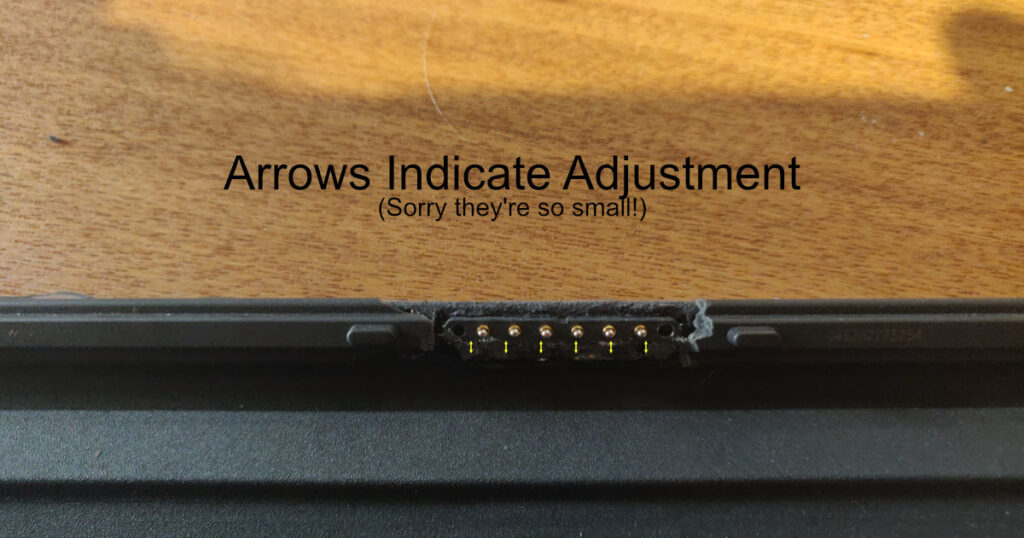
Improper connection prevents charging even when everything appears normal. The magnetic connector requires specific alignment that many users get wrong.
Align Magnetic Connector Correctly for Maximum Contact
Hold your keyboard at a 30-degree angle to the Surface Pro’s bottom edge before attaching. The magnetic strips should pull the keyboard into place with a satisfying click. Avoid sliding the keyboard into position horizontally—this common mistake can damage the delicate connector pins over time. When properly aligned, you’ll feel strong magnetic attraction along the entire connector edge.
Clean Connection Points to Eliminate Charging Blockages
Dust and debris frequently block charging contacts, especially in environments with pets or high traffic. To clean properly:
1. Power down your Surface Pro completely
2. Use a dry microfiber cloth to gently clean the keyboard’s magnetic strip
3. Carefully wipe the Surface Pro’s connector edge with the same cloth
4. For stubborn debris, use compressed air at a 45-degree angle to avoid pushing particles deeper
Warning: Never use liquids, alcohol, or metal objects directly on the contacts—this risks permanent damage to both your keyboard and tablet.
Verify Secure Attachment Before Assuming Charging Failure
After connecting, gently lift the keyboard’s front edge to test attachment strength. If it detaches easily, the magnets aren’t fully engaged. Reposition until you feel consistent magnetic pull along the entire connector. A properly attached keyboard shouldn’t wobble or detach with light pressure—this secure connection ensures optimal charging contact.
Verify Power Supply Function Before Blaming the Keyboard

Your Surface Pro’s power adapter affects keyboard charging indirectly through power management settings and available current.
Test with Original Microsoft Charger for Adequate Power Output
Use the Microsoft-supplied 44W charger that came with your device. Third-party chargers often lack sufficient power output for simultaneous device and keyboard charging. The original charger provides adequate power for both components, while weaker alternatives may charge your tablet but fail to power the keyboard connection.
Check Power Indicator Light Patterns for Hidden Issues
Connect your Surface charger and observe the indicator light patterns:
– Solid white light = charger working properly
– Blinking white = connection issue or insufficient power
– No light = faulty charger, outlet, or cable problem
Try different wall outlets directly (avoiding power strips initially), as these can cause voltage fluctuations that disrupt the charging circuit.
Monitor Surface Pro Keyboard Charging Progress Realistically
Keyboard charging begins automatically when connected to a powered-on Surface Pro. Charging time varies based on current battery level:
– 0-50%: 30-45 minutes (rapid charge phase)
– 50-100%: Additional 60-90 minutes (trickle charge phase)
– Full charge cycle: 2-2.5 hours maximum under ideal conditions
Don’t expect immediate results—many users disconnect too soon, thinking charging isn’t working when the process simply needs more time.
Troubleshoot Surface Pro Keyboard Charging Failures Systematically
When standard charging fails, systematic troubleshooting identifies the root cause quickly without unnecessary component replacement.
Restart Surface Pro to Reset Charging Circuitry
A simple restart resolves approximately 40% of charging issues by resetting the USB controller that manages keyboard power:
1. Disconnect the keyboard completely
2. Hold power button for 30 seconds until screen goes black
3. Wait 10 seconds, then power on normally
4. Reconnect keyboard after Windows loads completely
Pro tip: Listen for the subtle click when reconnecting—this indicates proper magnetic engagement for charging.
Update Keyboard Drivers to Fix Communication Errors
Outdated drivers cause charging miscommunication between your Surface Pro and keyboard:
1. Right-click Start button → select Device Manager
2. Expand “Keyboards” section
3. Right-click “Surface Type Cover” → Update driver
4. Choose “Search automatically” for updated driver software
If updates don’t resolve the issue, select “Uninstall device” then restart—Windows will reinstall fresh drivers automatically.
Run Windows Hardware Troubleshooter for Automated Fixes
Windows includes built-in diagnostic tools specifically designed for peripheral issues:
1. Settings > Update & Security > Troubleshoot
2. Select “Hardware and Devices”
3. Run the troubleshooter and apply recommended fixes
This tool often detects and resolves power management settings that prevent proper keyboard charging.
Fix Persistent Surface Pro Keyboard Connection Issues
When keyboards refuse to charge despite proper connection, deeper issues require specific solutions beyond basic troubleshooting.
Reset Keyboard Connection to Clear Configuration Errors
- Remove Type Cover from Bluetooth devices:
– Settings > Devices > Bluetooth & other devices
– Click Surface Type Cover → Remove device - Restart Surface Pro completely
- Reconnect keyboard – Windows reinstalls drivers automatically
This process clears corrupted pairing data that sometimes blocks charging functionality.
Check for Physical Damage That Prevents Charging
Examine both connector strips carefully for:
– Bent or missing pins (visible with flashlight)
– Cracks in magnetic strip compromising contact
– Discoloration from overheating (brownish spots)
– Deep scratches affecting electrical contact points
Note: Minor cosmetic scratches rarely affect charging, but significant physical damage typically requires Microsoft service.
Test Keyboard on Another Surface Device for Accurate Diagnosis
If possible, test your keyboard on a friend’s Surface Pro. This determines whether the issue lies with:
– The keyboard (won’t charge on any Surface device)
– Your Surface Pro (keyboard charges normally on other devices)
This simple test saves hours of unnecessary troubleshooting on the wrong component.
Optimize Surface Pro Keyboard Charging Efficiency Long-Term
Maximize your keyboard’s battery life and charging speed with these proven strategies that extend usability between charges.
Enable Battery Saver Mode to Conserve Keyboard Power
Windows Battery Saver extends keyboard battery between charges significantly:
1. Settings > System > Battery
2. Toggle “Battery saver” to “Always”
3. This reduces keyboard backlight intensity and polling rate
This setting alone can double your keyboard’s operational time between charges.
Adjust Backlight Settings to Minimize Power Drain
Keyboard backlight consumes the most power in Type Covers:
– Fn + F1 decreases brightness (saves power)
– Fn + F2 increases brightness (use sparingly)
– Turn off backlight when not needed via Fn + F7
Setting backlight to minimum or disabling it entirely when working in well-lit environments dramatically extends battery life.
Avoid Complete Discharge to Preserve Battery Health
Lithium batteries degrade faster when fully depleted:
– Recharge when keyboard reaches 20% battery
– Never store keyboard disconnected for extended periods
– Monthly charging prevents deep discharge during storage
Maintaining between 20-80% charge most of the time extends your keyboard’s usable life by years.
When to Seek Professional Surface Keyboard Repair
Some charging issues indicate hardware failure requiring professional repair rather than user troubleshooting.
Identify Warranty Coverage Before Proceeding
Surface keyboards carry a 1-year limited warranty against manufacturing defects. Check coverage status at account.microsoft.com/devices using your keyboard’s serial number (found on the magnetic strip). If your device is out of warranty, consider whether repair costs justify replacement.
Recognize Critical Failure Signs Needing Immediate Attention
Contact Microsoft Support when experiencing:
– Swelling of keyboard body (battery hazard)
– Overheating during charging (safety risk)
– No response after trying all troubleshooting steps
– Burning smell from keyboard or Surface connector
Service tip: Back up your data before sending for repair—Microsoft often replaces rather than repairs keyboards under warranty, and the process may require device reset.
Key Takeaways for Reliable Surface Pro Keyboard Charging
Most Surface Pro keyboard charging issues resolve through proper connection technique and basic troubleshooting. Start with cleaning contacts and verifying power supply, then progress through restart procedures and driver updates. Persistent issues usually indicate hardware failure requiring Microsoft’s attention. Remember that your keyboard charges automatically whenever connected to a powered Surface Pro—no separate charging cable needed. If problems persist after following this guide, document your troubleshooting steps for faster Microsoft support resolution. Regular maintenance and proper charging habits will keep your Surface Pro keyboard functioning reliably for years beyond the typical 3-year lifespan.