Fix Ghost Keypad Not Working Issue
Your keypad suddenly starts typing random characters without you pressing any keys, or certain numbers refuse to register when you need them most. This frustrating “ghost keypad” problem can derail your work, especially when entering passwords or financial data. Whether you’re using an external number pad or your laptop’s built-in keys, phantom inputs turn simple tasks into exercises in patience and repeated corrections. The good news is most ghost keypad issues can be resolved with systematic troubleshooting—no expensive repairs needed in many cases.
Before jumping into fixes, understand what you’re dealing with: ghost keypad problems typically show as keys pressing themselves, inconsistent response from specific keys, or complete failure of certain numbers. These issues might seem mysterious, but they usually stem from identifiable causes like debris buildup, connection problems, or software conflicts. This guide provides a clear path to diagnosing and fixing your ghost keypad problem, saving you time and frustration.
Identify Your Ghost Keypad Symptoms Accurately
Recognize Common Manifestations
Ghost keypad behavior presents in several distinct ways that help pinpoint the underlying issue. Phantom key presses happen when your keypad registers inputs without any physical contact—watching numbers or symbols appear mysteriously on your screen. Intermittent response occurs when keys work sometimes but not others, creating unpredictable typing experiences. Stuck key syndrome makes it seem like one key remains continuously depressed, flooding your document with repeated characters. Complete key failure affects specific numbers or entire sections of your keypad, rendering them unresponsive despite proper pressing technique.
Perform a Quick Symptom Check
Open a text editor like Notepad and methodically test each key to identify exactly which ones malfunction. Press keys individually while observing the results: Do any keys register multiple characters from a single press? Which keys produce no response at all? Are certain keys generating different characters than labeled? Does any key continue inputting after you’ve released it? Document these observations carefully—they’ll guide your troubleshooting process and help determine whether the problem is isolated to specific keys or affects the entire keypad.
Address Hardware Connection Problems Immediately
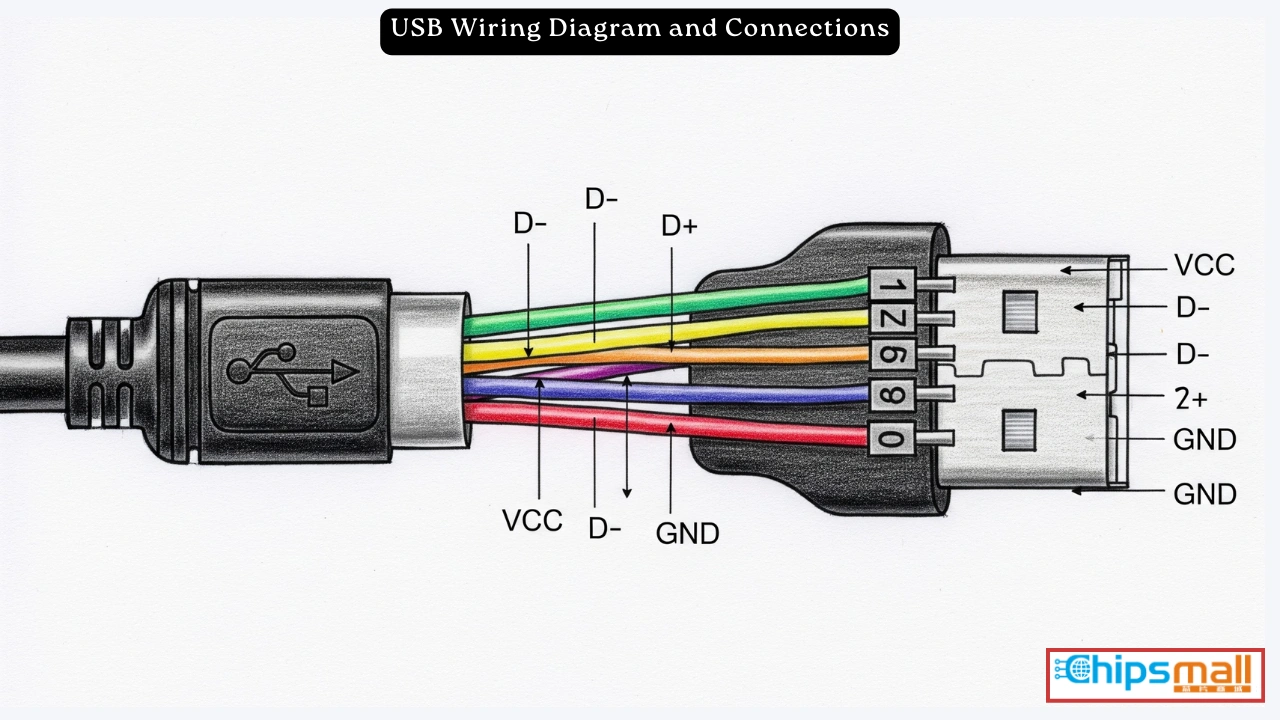
Troubleshoot USB Keypad Connections
For external keypads, start by unplugging the device and examining the USB connector for visible issues. Look for bent or damaged pins inside the plug that could cause intermittent connections. Check for debris blocking a clean connection between the plug and port. Test your keypad in different USB ports—front panel ports often provide less stable power than rear motherboard connections. If you’re using a USB hub, connect the keypad directly to your computer instead, as hubs can introduce power or signal issues that trigger ghost inputs.
Verify Wireless Keypad Functionality
Wireless keypads require different troubleshooting steps. Replace the batteries first—even batteries that appear fresh can cause erratic behavior when their voltage drops below optimal levels. Ensure clear line-of-sight between your keypad and the wireless receiver, as obstacles can interfere with the signal. Reseat the USB receiver in a different port to rule out connection problems. Check for interference from other wireless devices like routers, cordless phones, or Bluetooth speakers that might operate on similar frequencies and disrupt your keypad’s signal.
Conduct Thorough Physical Inspection
Turn your keypad upside down and gently shake it to dislodge loose debris that commonly causes ghost inputs. Examine the keypad for sticky residue around key edges that might keep contacts engaged. Look for visible damage to key mechanisms, such as cracked or broken key stems. If your keypad has transparent sections, check for visible damage to the circuit board beneath. Pay special attention to the area around malfunctioning keys, as physical damage often correlates with specific problem keys.
Clean Your Keypad to Eliminate Debris-Related Issues
Follow a Deep Cleaning Process
Power down and completely disconnect your external keypad before cleaning. Use a keycap puller or gentle prying with plastic tools to remove keycaps from problem areas—avoid metal tools that could damage delicate components. Apply compressed air to blow debris from beneath keys, holding the can upright to prevent liquid discharge that could damage electronics. Use cotton swabs dipped in 90%+ isopropyl alcohol to clean contact points, allowing the alcohol to evaporate completely (minimum 30 minutes) before reconnecting your keypad.
Adapt Cleaning for Laptop Keyboards
Laptop keyboards require extra care due to their integrated design. Power off your laptop completely and remove the battery if possible before cleaning. Use compressed air at an angle to avoid pushing debris deeper into the mechanism—never spray cleaners directly onto laptop keys. Focus on problem keys using targeted air bursts rather than attempting to remove individual keys, which can damage laptop-specific mechanisms. Avoid liquid cleaners that might seep into sensitive electronics beneath the keyboard.
Resolve Software and Driver Conflicts
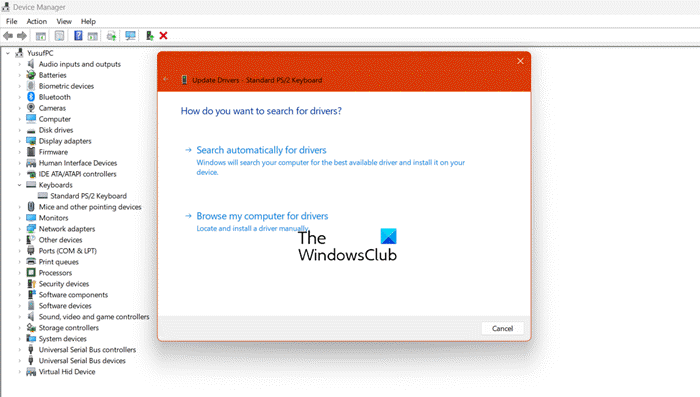
Update or Reset Keyboard Drivers on Windows
Access Device Manager by pressing Windows key + X and selecting “Device Manager” from the menu. Expand the “Keyboards” category to view your connected devices. Right-click your keypad entry and select “Update driver,” then choose “Search automatically for updated driver software.” After installation completes, restart your computer. If Windows reports that “best drivers are already installed,” try uninstalling the device from Device Manager, disconnecting the keypad, restarting your computer, and then reconnecting the keypad to trigger fresh driver installation.
Adjust macOS Keyboard Settings Properly
On Mac systems, navigate to System Preferences → Keyboard → Input Sources to verify your keypad configuration. Remove and re-add your keypad layout to refresh the system’s recognition of your device. For persistent issues, reset the System Management Controller (SMC) by shutting down your Mac completely, then holding Shift+Control+Option+Power for 10 seconds before releasing and restarting normally. This resets hardware management functions that might be interfering with keypad operation.
Test Keypad Function in BIOS/UEFI Environment
Restart your computer and enter BIOS/UEFI setup (typically by pressing F2, F10, or Delete during boot) to test your keypad’s functionality outside the operating system. If your keypad works normally in BIOS, the problem is software or driver-related. If the ghosting issues persist in BIOS, this confirms a hardware problem that requires physical cleaning or replacement rather than software fixes.
Implement Advanced Troubleshooting Techniques
Check Filter Key Settings That Cause Conflicts
Windows’ Filter Keys accessibility feature can sometimes cause ghost input behavior. Navigate to Settings → Ease of Access → Keyboard and turn off “Use Filter Keys.” Also uncheck “Allow shortcut key to start Filter Keys” to prevent accidental activation. These settings, designed to help users with motor control issues, can misinterpret normal typing as accidental presses and create ghosting effects.
Identify Third-Party Software Conflicts
Boot into Safe Mode to determine if third-party applications are causing your ghost keypad issues. On Windows, hold Shift while selecting “Restart” and navigate through Troubleshoot → Advanced Options → Startup Settings. On macOS, hold Shift during startup. If your keypad functions normally in Safe Mode, third-party software like keyboard managers, gaming utilities, or remote desktop tools is likely interfering with normal operation.
Determine When Replacement Is Necessary
Recognize Replacement Indicators
Consider replacing your keypad when physical damage is visible on the circuit board or key mechanisms, when multiple cleaning attempts fail to resolve issues, when the same problems occur on different computers, or when the cost of professional repair exceeds replacement price. External keypads typically cost less than $30 to replace, making repair attempts less economical for severely damaged units.
Choose Appropriate Replacement Options
For external keypads, decide between mechanical models that offer better durability and tactile feedback versus membrane keypads that provide quieter operation at lower cost. Wireless models reduce cable clutter but require regular battery maintenance. Laptop keyboard replacement usually requires professional service unless you have specific experience with your model’s disassembly process, as integrated keyboards present higher risks during DIY repairs.
Prevent Future Ghost Keypad Problems Proactively
Establish Daily Maintenance Habits
Prevent recurring issues by keeping food and drinks away from your keypad area, using keyboard covers in dusty environments, cleaning monthly with compressed air, and storing external keypads properly when not in use. These simple habits significantly extend keypad lifespan and prevent the debris accumulation that causes most ghosting issues.
Implement Software Prevention Strategies
Keep your keypad drivers updated through manufacturer websites rather than relying solely on operating system updates. Avoid beta software releases that may contain keyboard-related bugs. Create system restore points before major system changes to easily revert if new software causes issues. Use quality surge protectors to prevent electrical damage from power fluctuations that can affect keypad circuitry.
Ghost keypad problems rarely indicate catastrophic failure. Starting with simple cleaning and connection checks resolves most cases within 30 minutes. When hardware replacement becomes necessary, external keypads offer affordable solutions, while laptop keyboards may require professional service. Document symptoms carefully and test systematically—your keypad likely needs attention, not replacement. By understanding the causes and solutions for ghost keypad issues, you can maintain reliable input functionality and avoid the frustration of phantom key presses disrupting your workflow.