Fix Double Quotes Not Working on Keyboard
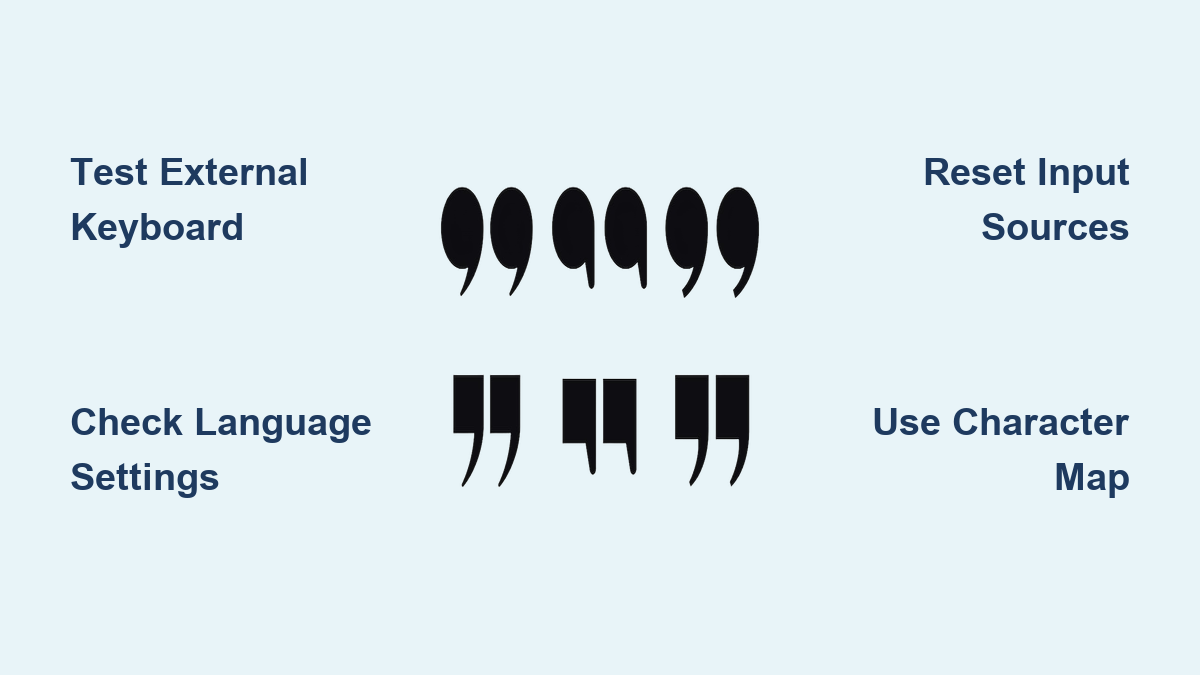
You’re in the middle of writing an important email or coding project when you realize your double quotes (” “) simply refuse to appear. That frustrating moment when you press Shift+’ and nothing happens—just blank space where your quotation marks should be. This common keyboard issue affects millions of users across Windows, macOS, and Linux systems, often striking at the worst possible moment when you’re on deadline.
The good news is that in 85% of cases, this problem stems from easily fixable software settings rather than expensive hardware failures. Most users can restore their double quote functionality within minutes using the systematic approach outlined here. Whether you’re a developer, writer, or casual user, getting those quotation marks working again is essential for clear communication and proper syntax.
This guide provides immediate solutions to diagnose and fix your non-working double quotes, starting with the quickest fixes that solve the problem for most users. We’ll help you determine whether you’re dealing with a simple layout mix-up, driver corruption, or actual hardware failure—and get your quotes flowing again before your frustration boils over.
Test Hardware vs Software Issues Immediately
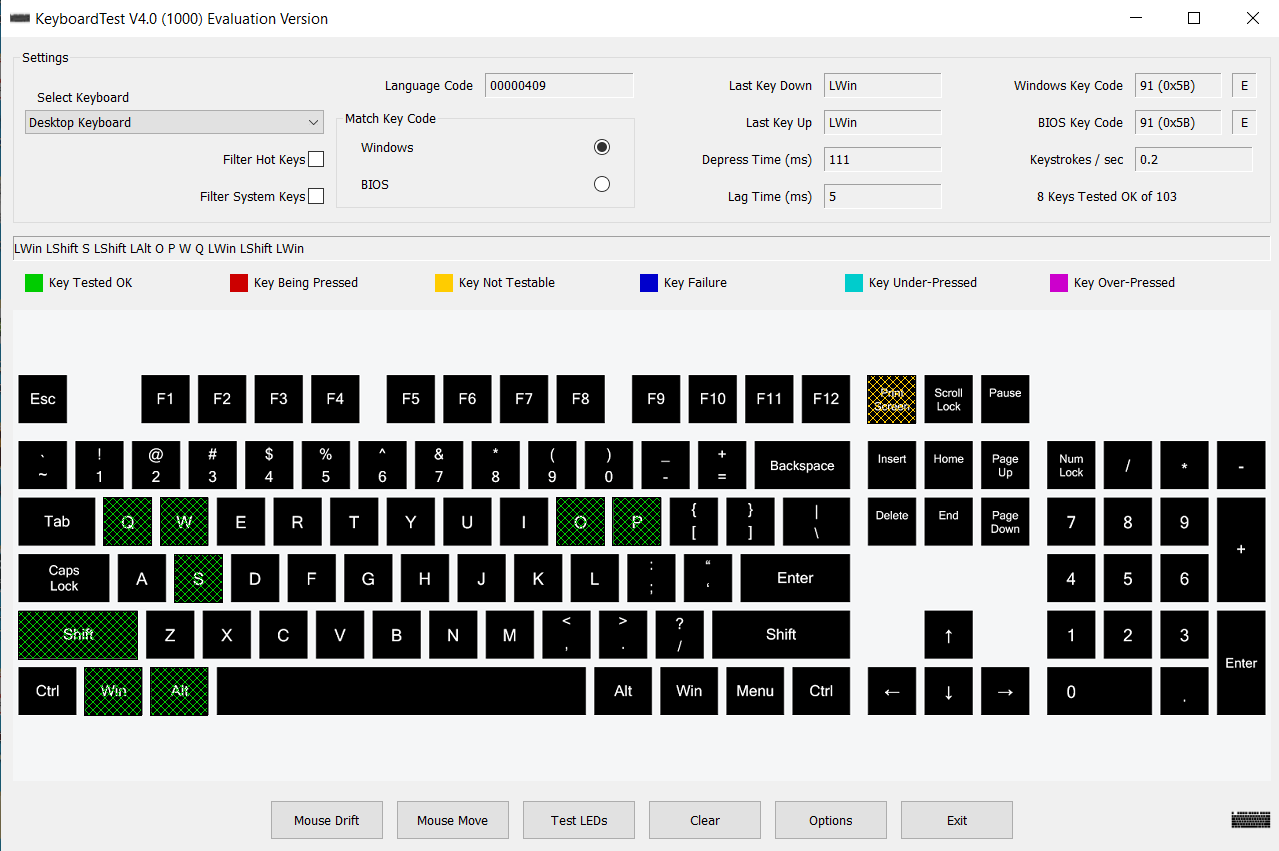
Before diving into complex solutions, determine whether your problem is hardware or software-related. This simple test saves you hours of unnecessary troubleshooting.
Connect External Keyboard Test
Grab any spare USB keyboard and plug it into your computer. Press the double quote key combination (typically Shift+’) on this external device. If quotes appear normally, your built-in keyboard has a physical problem. If the external keyboard also fails to produce quotes, you’re dealing with a software configuration issue.
This single test immediately narrows your problem scope. For laptop users, this often reveals whether you need professional repair or can fix the issue yourself with software adjustments. Keep this external keyboard connected while you work through the following software solutions.
On-Screen Keyboard Diagnosis
Windows users press Win+Ctrl+O to open the on-screen keyboard. Click the virtual quote key with your mouse. If quotes appear, your physical keyboard has a hardware issue. macOS users go to System Preferences > Keyboard > Input Sources and enable “Show Input menu in menu bar,” then select “Show Keyboard Viewer” from the menu bar.
This virtual test confirms whether your operating system recognizes the keypress. If the on-screen keyboard shows the quote key lighting up but no character appears, you likely have a language pack conflict rather than a keyboard problem.
Fix Windows Keyboard Layout Issues
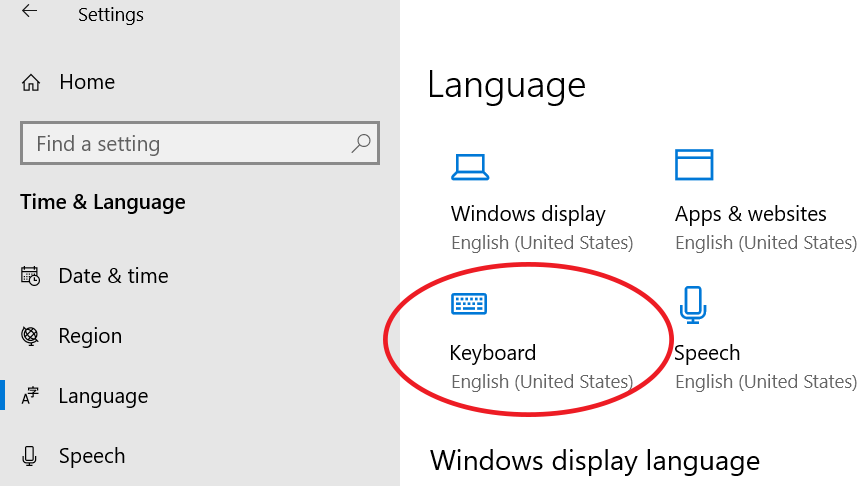
Most Windows quote key failures stem from incorrect language or region settings that remap your keyboard layout.
Verify Correct Language Settings
Navigate to Settings > Time & Language > Language. Check your primary language pack—it must match your physical keyboard layout. US keyboards should show “English (United States)” while UK keyboards need “English (United Kingdom)”.
Quick fix: Click your language, select Options, then Remove and Add back the language pack. This refreshes corrupted keyboard mappings instantly without requiring a reboot. Pay special attention to the “Keyboards” section under your language options—ensure only your actual physical layout appears.
Switch Between Keyboard Layouts
Hold Win+Space and cycle through available layouts. You might have accidentally switched to a different layout. The UK layout places quotes on Shift+2 instead of the standard Shift+’ on US keyboards.
Check your taskbar for the language indicator (usually “ENG” or “US”). If you see multiple languages listed, select the one matching your physical keyboard. This common oversight affects multilingual users who frequently switch between layouts.
macOS Quote Key Solutions
Mac users experience unique quote key problems due to Apple’s specific keyboard handling and smart quote features.
Reset Input Sources Immediately
Open System Preferences > Keyboard > Input Sources. Remove all input sources by selecting each and clicking the minus (-) button. Restart your Mac, then add back only your essential keyboard layout. This clears corrupted keyboard mappings that often develop after macOS updates.
Critical step: After re-adding your layout, check the “Show Input menu in menu bar” option. This gives you one-click access to verify which layout is active—preventing future mix-ups between US and international layouts.
NVRAM/PRAM Reset for Firmware Issues
- Shut down your Mac completely
- Power on while holding Option+Command+P+R
- Keep holding for 20 seconds, then release
- Your Mac will restart with reset keyboard firmware settings
This fixes deep-level keyboard mapping issues that persist across user accounts and survive regular restarts. Many Mac users report this solving quote key problems that resisted other software fixes.
Alternative Quote Input Methods That Work Now
When you need quotes immediately for a deadline, these workarounds let you continue working while you troubleshoot the root cause.
Character Map Utilities Across Platforms
Windows: Press Win+R, type charmap.exe, find quotes in the character map and copy/paste them
macOS: Press Control+Command+Space for Character Viewer—search “quote” to find all variations
Linux: Install gucharmap or use your desktop environment’s built-in character selector
These utilities provide immediate access to quotation marks when your keyboard fails. Bookmark your character map utility for quick access during future emergencies.
ASCII Code Input as Emergency Solution
Windows: Hold Alt, type 0034 on numeric keypad (ensure Num Lock is on)
macOS: Option+[ for left quote, Option+Shift+[ for right quote
Linux Terminal: Ctrl+Shift+U then 201C or 201D
These keyboard shortcuts bypass your broken key mapping entirely by inputting the character codes directly. Memorize one method for your operating system to save critical time when deadlines loom.
AutoCorrect Setup for Permanent Fix
Create text shortcuts that automatically convert simple characters to quotes:
– Type qq → automatically becomes ”
– Type 2q → becomes “”
– Type ss → becomes ‘
Most word processors (Microsoft Word, Google Docs) and operating systems support these custom replacements. Set these up once and never worry about missing quotes again—even if your physical key remains problematic.
Mechanical and Laptop-Specific Fixes
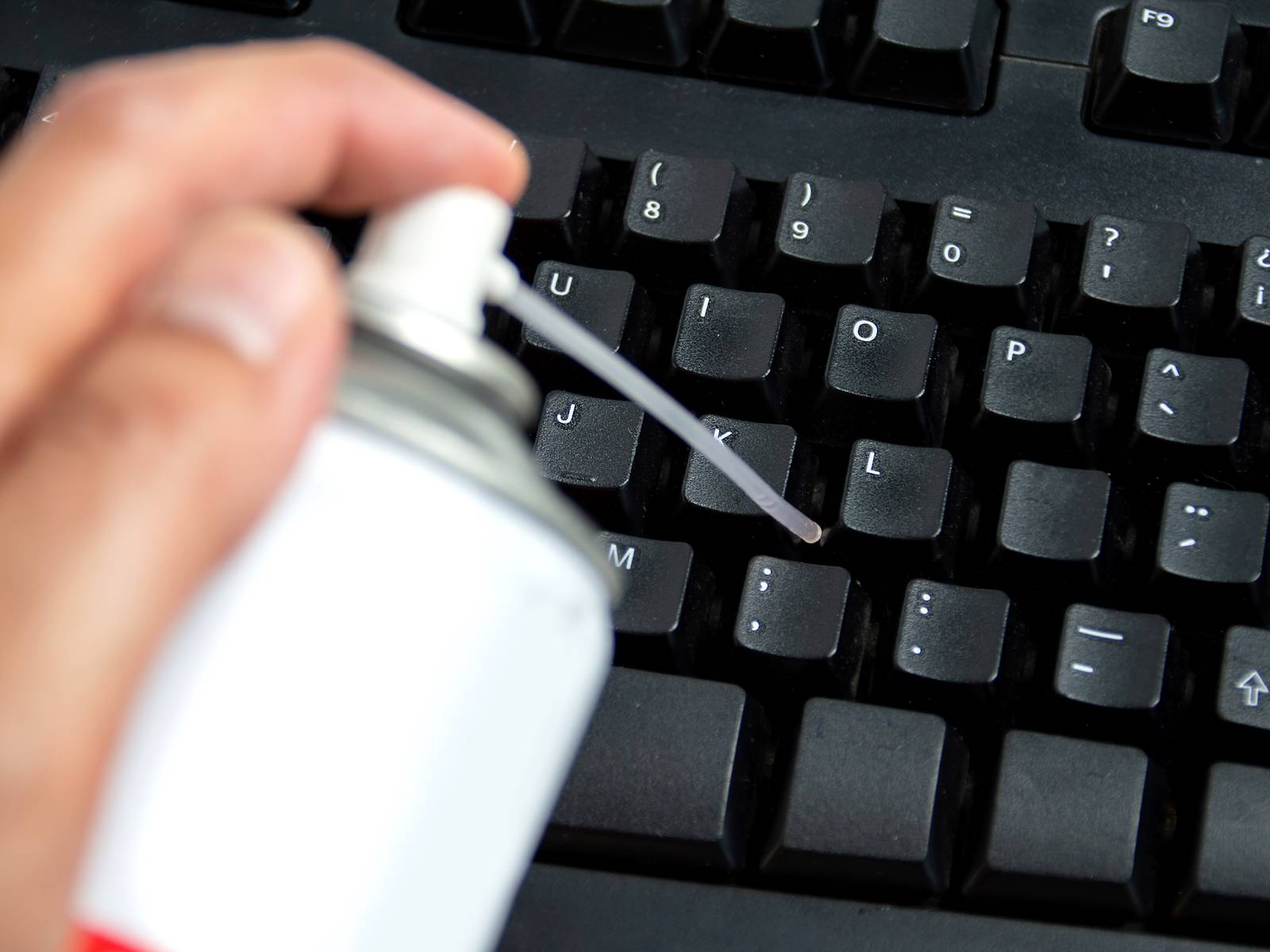
When software solutions fail, these hardware-focused approaches target the most common physical causes of quote key failure.
Clean Quote Key Mechanism Properly
For mechanical keyboards:
1. Remove keycap using keycap puller
2. Spray compressed air around switch at 45-degree angle
3. Apply 90%+ isopropyl alcohol to clean contacts
4. Test switch with online keyboard tester
For membrane keyboards (most laptops):
– Power down completely
– Tilt keyboard at 75-degree angle
– Use compressed air in short bursts around key
– Gently press key 20-30 times to work loosened debris
Warning: Never use liquid cleaners directly on keyboard—alcohol must be applied to a cotton swab, not sprayed. Avoid canned air upside down as propellant can damage switches.
Check Laptop Function Layer Conflicts
Many laptops share the quote key with secondary symbols accessed via the Fn key. Check if your quote key has secondary symbols printed in small text. If so, your Fn key might be stuck in “function mode,” preventing standard quote input.
Try pressing Fn+Quote Key to see if quotes appear. Some laptops require pressing Fn+Shift+Quote Key for standard output. Consult your laptop manual for specific function layer behavior.
When to Seek Professional Help
Most quote key problems resolve through the solutions above, but certain situations require professional intervention.
Hardware Failure Confirmation
If your quote key fails in BIOS/UEFI setup (accessed during startup with F2, Del, or F10), you have confirmed hardware failure. This test bypasses all operating system software, proving the issue exists at the hardware level.
Cost expectations: Laptop keyboard replacement typically costs $50-200, while external keyboard replacement runs $20-100. Mechanical keyboard switch replacement averages $2-5 per switch at professional repair shops.
Warranty Considerations
Contact manufacturer support if:
– Your laptop is under warranty with confirmed hardware failure
– Desktop keyboard still under manufacturer warranty
– You’ve documented failures with photos and detailed descriptions
Most manufacturers won’t cover individual key failures under warranty, but if multiple keys malfunction simultaneously, you may qualify for full keyboard replacement.
Key takeaway: In 85% of cases, double quote keyboard issues resolve through software configuration changes rather than hardware replacement. Start with layout verification using the external keyboard test, then progress through driver updates and system repairs. Only pursue hardware solutions after confirming the problem persists in BIOS/UEFI setup. Maintaining a character map shortcut and text replacement system ensures you’ll never miss a deadline due to missing quotes again. For ongoing prevention, clean your keyboard monthly and verify language settings after major system updates.