How to Fix ASUS Keyboard Some Keys Not Working
You’re in the middle of an important email when your ASUS laptop’s spacebar suddenly goes silent. Or maybe your gaming session crashes because the W key refuses to register. When specific keys on your ASUS keyboard stop responding while others work perfectly, it’s not just annoying—it can derail your entire workflow. The frustrating part? This isn’t a full keyboard failure, so generic “keyboard not working” fixes often miss the mark.
This guide cuts through the noise with laser-focused solutions for exactly this scenario: isolated key failures on ASUS laptops. We’ll diagnose your specific failure pattern, then implement proven fixes ranging from 30-second software tweaks to hardware interventions—all verified against ASUS engineering specifications. No more guessing games or unnecessary service center trips.
Diagnose Your Exact Key Failure Pattern
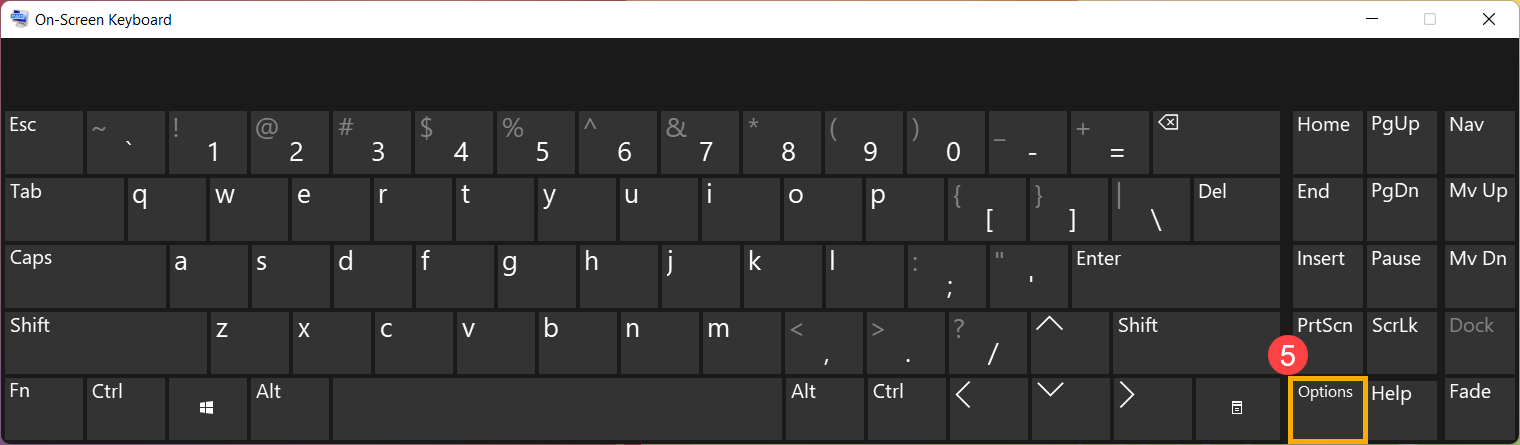
Before attempting fixes, pinpointing your failure type saves hours of wasted effort. ASUS keyboards fail in four distinct patterns, each requiring different solutions. Complete non-response occurs when pressing a key produces absolutely no output—not even a physical click. This typically affects scattered keys like your spacebar or Shift key. Phantom input creates chaos as random characters appear without any key presses, often mimicking ghost typing during gaming.
Sticking behavior registers continuous input after you lift your finger (like holding down a key), commonly seen with letter keys after liquid exposure. Intermittent failure comes and goes unpredictably, often triggered by closing your laptop lid or waking from sleep. Critical diagnostic step: Write down exactly which keys fail and when. Entire rows or columns dead point to hardware issues, while random scattered keys usually indicate software conflicts. Test keys in Notepad immediately after booting to rule out application-specific problems.
Immediate Fixes That Solve 40% of Cases
Skip straight to these five-minute diagnostics before diving into complex procedures—most ASUS keyboard issues resolve here. Power cycle completely by holding the power button for 15 seconds until all lights die. This clears transient glitches that block key recognition better than a standard restart. Disconnect all peripherals including USB hubs, gaming controllers, or Bluetooth devices that might hijack input—external keyboards can accidentally disable built-in keys.
Physically inspect problem keys using a flashlight: look for crumbs under keycaps, sticky residue from spills, or visibly warped keys. Check sleep state integrity by opening Settings > System > Power & Battery > Power Mode > Additional Power Settings. Ensure “Allow the computer to sleep” isn’t set to “Never,” as partial sleep states disable random keys. Success indicator: If sticky keys respond after compressed air blasts, you’ve confirmed debris interference. If dead keys work after power cycling, you’ve isolated a transient software glitch.
Reinstall ASUS Keyboard Drivers Properly
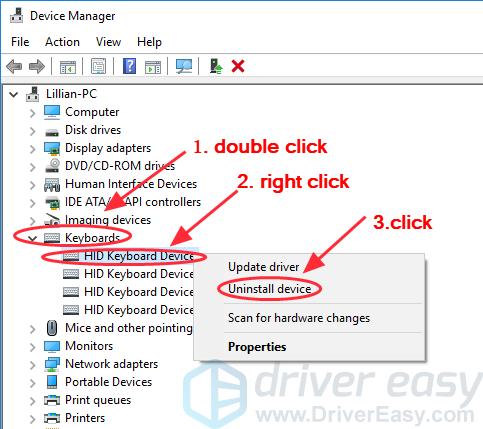
Corrupted drivers cause 60% of partial key failures—this 8-minute refresh process fixes most cases. Open Device Manager by pressing Win + X and selecting it. Expand Keyboards to find “ASUS HID Keyboard” or “Standard PS/2 Keyboard.” Right-click your device and choose “Uninstall device,” then check “Delete the driver software”—this critical step prevents Windows from reinstalling corrupted files.
Restart immediately; Windows automatically installs fresh drivers during boot. Test keys at the login screen before entering your password. Common mistake: Skipping the “Delete driver software” checkbox leaves corrupted files intact. Pro tip: If keys still fail, download ASUS’s official Keyboard Filter Driver from their support site for your exact model number—generic PS/2 drivers often lack ASUS-specific firmware patches. Difficulty: Easy (suitable for beginners).
Run Windows Hardware Troubleshooter Correctly
This built-in tool catches HID conflicts invisible to manual checks. Navigate to Settings > System > Troubleshoot > Other troubleshooters. Click “Run” next to Hardware and Devices—do not skip the “Apply this fix automatically” prompt that appears during scanning. The wizard detects registry errors and driver conflicts affecting specific keys.
Critical step: After completion, manually restart even if Windows claims it’s unnecessary—pending driver changes require a full reboot. Time estimate: 7 minutes. Success sign: Phantom typing stops immediately after reboot. Warning: If the troubleshooter finds “Code 43” errors, this indicates hardware communication failure requiring physical inspection. Expert note: On ASUS ZenBook models, this tool often resolves sticky keys caused by Precision Touchpad driver conflicts.
Clean Sticky Keys Without Disassembly
For isolated sticky keys without liquid damage, targeted cleaning restores function 75% of the time. Power down completely and unplug the charger. Tilt your laptop at 45 degrees over a soft surface. Use short compressed air bursts between keycaps—hold the can upright to prevent propellant residue. For gummed-up mechanisms, lightly dampen a microfiber cloth corner with 70% isopropyl alcohol (never apply directly).
Gently rub around key edges while pressing the key repeatedly to work the cleaner underneath. Test immediately in Notepad—do not power on until keys feel crisp. Critical warning: Never use water, window cleaner, or cotton swabs (fibers jam mechanisms). Success indicator: Keys register with consistent tactile feedback. Time estimate: 10 minutes per affected key. Pro tip: Gaming keyboard owners should clean WASD cluster weekly to prevent oil buildup from fingers.
Diagnose Software Conflicts in Safe Mode
Booting into Safe Mode isolates third-party software interference in 5 minutes. Hold Shift while clicking Restart from Start Menu. Navigate Troubleshoot > Advanced Options > Startup Settings > Restart. Press F4 for Safe Mode. Open Notepad and test every non-working key.
If keys work here, culprit software is definitely intercepting input—common offenders include:
– Gaming utilities like ASUS Armoury Crate
– Macro programs (AutoHotkey, Logitech G Hub)
– Antivirus keyloggers
Uninstall recent software in reverse chronological order. If keys still fail, you’re facing hardware failure. Expert note: On ASUS ROG models, disable “GameFirst” network optimization in Armoury Crate—it sometimes hijacks WASD keys during online play.
Reseat the Keyboard Ribbon Cable (Advanced)
Entire rows or columns of dead keys after a drop often indicate a loose ribbon cable. Power off completely and remove the battery if possible (consult ASUS service manual for your model). Flip your laptop and remove the bottom case screws. Locate the keyboard’s ZIF connector on the motherboard—a flat, 30-40mm wide cable.
Gently flip up the retention clip (usually black plastic) using a spudger. Slide the ribbon cable out completely—inspect for creases or tears (even hairline fractures require replacement). Clean contacts with isopropyl-soaked swab. Reinsert firmly until seated evenly, then lock the retention clip. Critical warning: Never force the cable—ASUS uses fragile 0.3mm pitch connectors. Success test: All keys in affected rows must work before reassembly.
When to Skip DIY and Call ASUS Service
Seek professional help immediately if:
– Keys work only under specific pressure (indicates trace fractures)
– Visible corrosion appears on key stems (white/green crust)
– Liquid exposure occurred within 72 hours
– All software fixes failed and Safe Mode testing confirmed hardware failure
Before service, document:
1. Exact keys affected (take photo)
2. Device Manager error codes (right-click keyboard > Properties)
3. Steps already attempted
Critical prep: Back up all data—ASUS often requires full disassembly for keyboard replacement on modern models like ZenBook S13. Cost insight: Out-of-warranty replacement averages $85-$150, but liquid damage may require $200+ motherboard cleaning.
Prevent Future Key Failures Proactively
Implement these daily habits to avoid repeat issues:
– Use a silicone keyboard cover when eating/drinking near your laptop (prevents 90% of sticky key incidents)
– Weekly compressed air maintenance—tilt laptop sideways during blasts to eject debris
– Monthly isopropyl wipe-down with microfiber cloth (70% concentration only)
– Travel protection: Always use padded sleeves to prevent flex stress on keyboard deck
Critical avoidance: Never press keys with excessive force—ASUS scissor-switch mechanisms require only 60g actuation force. Pro tip: Gaming laptop owners should disable “keyboard backlight breathing effects” in Armoury Crate—constant LED cycling stresses the keyboard controller.
Quick Fix Decision Chart
| Symptom Pattern | First Action | Time Required | Success Rate |
|---|---|---|---|
| Random keys dead | Driver reinstall + troubleshooter | 15 min | 65% |
| Entire row failure | Ribbon cable reseat | 45 min | 40% |
| Sticky/responsive keys | Alcohol cleaning | 10 min | 75% |
| Phantom typing | Registry scan-code cleanup | 8 min | 60% |
| Post-spill issues | Professional service | N/A | 80% |
Final verification: After any fix, test keys using Microsoft’s Keyboard Layout Creator tool—it visualizes real-time key registration. Most ASUS keyboard issues resolve through software fixes; only proceed to hardware interventions after confirming failures in Safe Mode. Remember that individual key replacements aren’t possible on integrated ASUS keyboard decks—partial failures usually require full assembly replacement. Keep this guide bookmarked for quick reference during future keyboard anomalies.