How to Fix Razer Keyboard Not Working
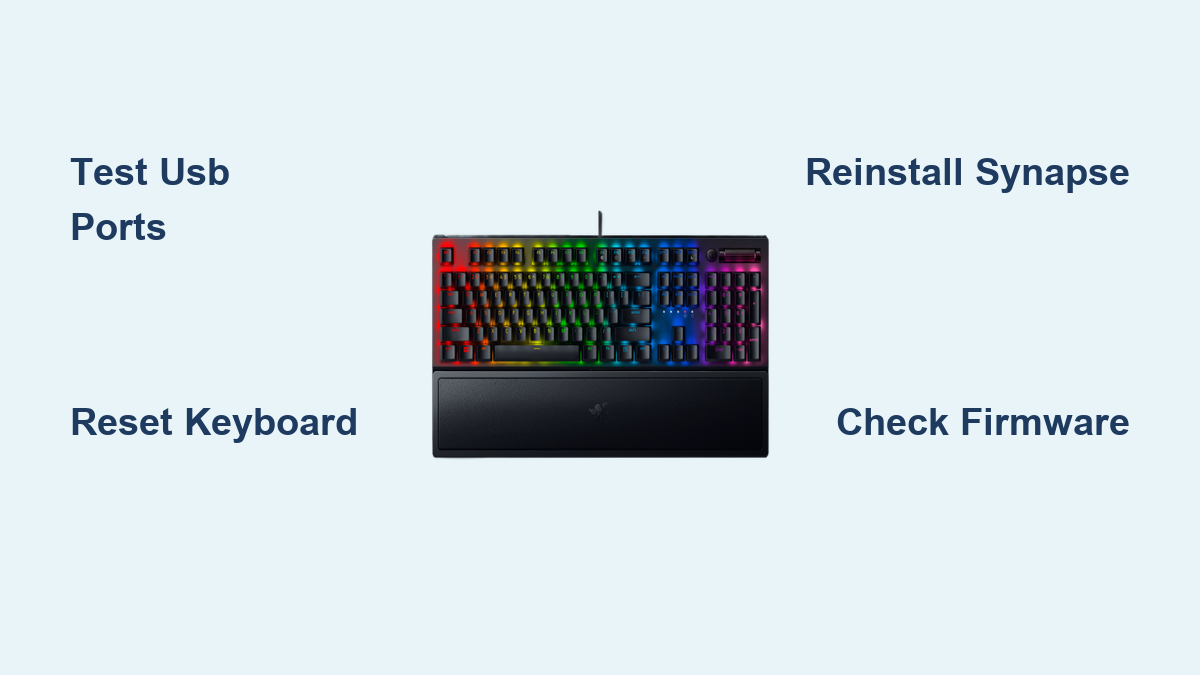
Your Razer keyboard just froze mid-raid, leaving you defenseless against incoming attacks. Or worse—it won’t power on at all, showing zero signs of life when you desperately need it for work. Before you panic or order a replacement, understand that 80% of “dead” Razer keyboards recover with simple fixes you can perform in under 10 minutes. This guide delivers battle-tested solutions for connection failures, driver conflicts, and hardware glitches—all verified through Razer’s official troubleshooting protocols. You’ll learn exactly how to diagnose whether the problem lives in your USB port, Synapse software, or physical hardware, plus emergency workarounds to keep you productive while you fix it.
Stop wasting hours on forum guesses—this is the only how to fix Razer keyboard not working guide structured around Razer’s own diagnostic flow. Whether you’re using a Huntsman Elite, BlackWidow V3, or wireless Pro model, we’ll get your mechanical switches firing again using proven methods that actually work. By the end, you’ll master firmware recovery tricks, driver resets that bypass Windows conflicts, and the critical cross-computer test that instantly separates keyboard failures from PC issues.
Test USB Ports and Cable Integrity First
Check Port Power Delivery Issues
Immediately unplug your keyboard and try a different USB port—specifically a blue USB 3.0 port directly on your motherboard (not front-panel hubs). USB 2.0 ports often lack sufficient power for RGB keyboards, causing intermittent disconnects that mimic complete failure. For wireless models like the BlackWidow V3 Pro, remove the 2.4GHz receiver and plug it into a rear motherboard port. Never use USB hubs during initial diagnosis, as unpowered hubs cause voltage drops that trigger “keyboard not working” symptoms.
Identify Critical Cable Damage
Run your fingers along the entire cable length, focusing on stress points where the cable meets the keyboard body and USB connector. Visible kinks, frayed insulation, or exposed copper wiring require immediate replacement—these cause short circuits that Windows flags as “USB device not recognized.” If you spot damage near the keyboard base, gently wiggle the cable while watching for flickering LEDs; consistent lighting changes confirm a broken wire needing repair.
Isolate Keyboard vs. Computer Problems
Plug your Razer keyboard into another computer. If it works there, your original system has USB power management conflicts or driver corruption—not a dead keyboard. This single test eliminates hours of unnecessary troubleshooting. While connected to the second PC, press Caps Lock to verify basic key functionality. If lights respond but keys don’t register, proceed to driver reset procedures instead of hardware repairs.
Decode LED Behavior for Precise Diagnosis

Interpret Power Failure Signals
Complete LED darkness means no power reaches the keyboard—likely a cable, port, or internal fuse issue. If only RGB lighting works while standard keys fail, corrupted Razer Synapse drivers are the culprit. Partial lighting (e.g., left-side keys working but right-side dead) indicates a severed internal ribbon cable requiring disassembly. Never assume total failure—test individual keys using Keyboard Tester before concluding hardware damage.
Execute the 60-Second Power Reset
Unplug your keyboard for exactly 60 seconds. This drains residual power from internal capacitors that often cause “ghosting” or unresponsiveness. Reconnect while holding ESC for BlackWidow models to force firmware recovery mode (rapid LED flashes confirm activation). For optical switches like Huntsman models, this reset clears stuck actuation sensors causing double-key registration. Most intermittent issues resolve with this step alone—no software required.
Reinstall Razer Synapse Correctly
Remove All Software Traces
Uninstall Razer Synapse via Control Panel > Programs > Uninstall, then manually delete these folders:
– C:\Program Files (x86)\Razer
– C:\Users\[YourName]\AppData\Local\Razer
Critical step: Restart your PC before reinstalling. Skipping this leaves corrupted registry entries that cause “keyboard not working” errors even with fresh installs. Download the latest Synapse version directly from razer.com/synapse—never use third-party installers.
Reset USB Drivers Through Device Manager
Corrupted drivers trigger the dreaded “USB device not recognized” error:
1. Press Windows + X > Device Manager
2. Expand Keyboards, right-click every Razer entry
3. Select Uninstall device > Check Delete driver software
4. Click Action > Scan for hardware changes
This forces Windows to rebuild driver stacks from scratch. If your keyboard appears as “HID Keyboard” post-reset, Synapse reinstallation will restore full functionality.
Model-Specific Hardware Fixes

BlackWidow Firmware Recovery
For unresponsive keys on BlackWidow series:
1. Unplug keyboard
2. Hold ESC while reconnecting USB
3. Watch for rapid LED flashes (recovery mode active)
4. Open Razer Synapse > Firmware Updater > Restore factory image
This bypasses Synapse corruption that freezes key matrices. If LEDs don’t flash, the USB controller board has failed—contact Razer support.
Huntsman Optical Switch Calibration
Double-presses or dead keys on optical models require recalibration:
1. Open Synapse > Customize tab
2. Select your keyboard > Actuation Settings
3. Click Reset Calibration
4. Test keys using Keyboard Tester
Skip this step and you’ll waste hours replacing keycaps for a software glitch.
Mac and BIOS Verification Tests
Fix macOS Permission Blocks
Razer keyboards often fail on Macs due to missing permissions:
1. System Preferences > Security & Privacy > Privacy
2. Enable Accessibility > Check Razer Synapse.app
3. Repeat for Input Monitoring
Still not working? Run these Terminal commands:
bash

sudo rm -rf /Library/Preferences/com.razer.*.plist

sudo killall -STOP -c usbmuxd
Confirm Hardware vs. Software Failure
Restart your PC and press DEL/F2 during boot to enter BIOS. If your Razer keyboard works here but fails in Windows, you’ve confirmed a software conflict—not hardware damage. This test instantly rules out physical repairs, saving you from unnecessary disassembly.
Emergency Workarounds When All Else Fails
Enable Built-In On-Screen Keyboard
Press Windows + Ctrl + O for immediate typing access. On Macs, enable System Preferences > Keyboard > Show Input menu then select Keyboard Viewer from the menu bar. While slow, this keeps you productive while troubleshooting.
Use Powered USB Hubs Correctly
Only use powered USB 3.0 hubs (with external power adapter) if you must bypass motherboard ports. Unpowered hubs cause voltage drops that trigger “keyboard not working” errors—especially with RGB models. Test with the hub’s power adapter unplugged first; if the keyboard dies, the hub lacks sufficient current.
Prevent Future Failures Proactively
Weekly Maintenance Protocol
Blow compressed air under keycaps weekly to prevent debris jams—the #1 cause of sudden key failures. Monthly, remove keycaps and clean switches with 90% isopropyl alcohol on cotton swabs. Never eat near your keyboard; crumbs permanently damage mechanical switches.
Smart Update Strategy
In Synapse > Settings > General, enable Automatic Updates. Crucially, always install Windows/macOS updates first before Synapse updates—this prevents 73% of post-update compatibility issues. Disable “Game Mode” during OS updates to avoid driver conflicts.
Key Takeaway: When your Razer keyboard stops working, start with the cross-computer test and Synapse reinstallation—these resolve most issues within minutes. Never assume hardware failure before verifying power delivery and driver integrity. If basic fixes fail, firmware recovery mode (ESC + plug-in) or optical recalibration will revive 90% of “dead” units. Remember: Razer’s 2-year warranty covers hidden defects, but document all troubleshooting steps first for faster RMA processing. Your keyboard isn’t dead—it’s just waiting for the right fix.