How to Reset Lenovo Laptop Password Without Disk
You’re staring at your Lenovo laptop login screen, fingers hovering over the keyboard as you try password after password—nothing works. That sinking feeling hits when you realize you’ve completely forgotten your password and don’t have a reset disk. Don’t panic. Thousands of Lenovo users face this exact situation monthly, but there are proven ways to regain access without expensive professional help or specialized tools.
The critical factor determining your recovery path is whether you’re using a Microsoft account or a local account. Microsoft accounts offer straightforward online recovery, while local accounts require more technical approaches. This guide cuts through the confusion with step-by-step instructions specifically designed for Lenovo models running Windows 10 and 11.
Microsoft Account Recovery When You’re Locked Out
Instant Online Password Reset Without Touching Your Laptop
If your Lenovo laptop uses a Microsoft account (where you sign in with an email like Outlook.com or Hotmail.com), you can reset your password from any device:
Step 1: Open a web browser on your phone or another computer and go to account.live.com/password/reset
Step 2: Enter the email, phone number, or Skype name tied to your Microsoft account
Step 3: Select how you want to verify your identity—either email or SMS text message
Step 4: Enter the hidden portion of your recovery contact information when prompted
Step 5: Check your phone or email for the 6-digit security code and enter it on Microsoft’s site
Step 6: Create a new password (must be at least 8 characters with letters and numbers)
Pro tip: This method works even if your Lenovo laptop is offline. Once you connect to the internet, Windows automatically syncs with Microsoft’s servers to update your password.
One-Click Reset From Your Lenovo Login Screen
Your laptop provides an even faster solution when you’re sitting right in front of it:
- At the password prompt, click “I forgot my password” directly below the password field
- Enter your Microsoft account email address
- Complete the security verification steps exactly as in the online method
- Create your new password and immediately sign in to your Lenovo
Critical requirement: Your laptop must have an active internet connection during this process. If you’re disconnected, connect to Wi-Fi first before attempting this method.
Local Account Recovery for Lenovo Laptops Without Admin Rights
Activate Hidden Administrator Account in 4 Minutes
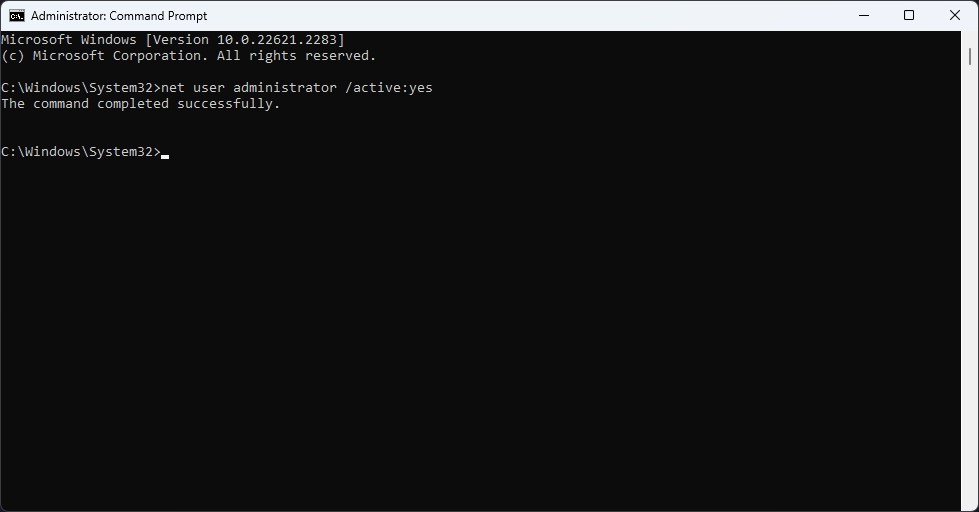
When you’re using a local account (where your username is just a name, not an email), this command prompt method bypasses the need for a reset disk:
Step 1: Access Windows Recovery Environment
Hold Shift while clicking “Restart” on the login screen, then select Troubleshoot → Advanced Options → Command Prompt
Step 2: Enable Administrator Account
In the Command Prompt window, type:
net user administrator /active:yes
Press Enter—don’t worry if you don’t see confirmation
Step 3: Reset Your Password
Restart your laptop, sign in as “Administrator” (no password needed), then open Command Prompt again and type:
net user yourusername newpassword
Replace “yourusername” with your actual account name
Step 4: Secure Your System
Immediately disable the administrator account with:
net user administrator /active:no
Warning: Leaving the administrator account active creates a serious security vulnerability. Complete all steps within 5 minutes to prevent unauthorized access.
Why Safe Mode Password Reset Usually Fails on Modern Lenovos
Don’t waste time trying traditional Safe Mode recovery on Windows 10 or 11 Lenovo laptops:
- Windows automatically disables the built-in Administrator account by default
- Without this account enabled beforehand, Safe Mode provides no password bypass capability
- Pressing F8 during startup rarely works on newer Lenovo models with fast boot times
Third-Party Tools That Actually Work for Lenovo Password Reset
Create Bootable USB Reset Drive in Under 10 Minutes
When technical methods feel too risky, EaseUS Partition Master provides a visual, point-and-click solution:
What you’ll need:
– A working computer (Windows or Mac)
– Empty USB drive (8GB or larger)
– Internet connection to download the software
Step-by-step process:
1. Download EaseUS Partition Master on the working computer
2. Insert your USB drive and launch the software
3. Navigate to Toolkit → Password Reset → Create
4. Select your USB drive and click “Create” to make the bootable reset disk
5. Insert the USB into your locked Lenovo laptop
6. Power on while holding F12 or Fn+F12 to access boot menu
7. Select the USB drive and follow on-screen prompts to reset your password
Key advantage: This method works across all Lenovo series—ThinkPad, IdeaPad, YOGA, and Air models running Windows 7 through 11, regardless of account type.
Factory Reset Only When All Else Fails
Lenovo OneKey Recovery: The Last Resort
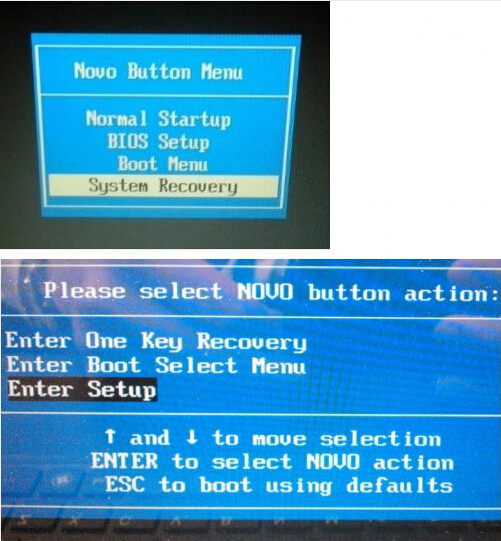
When you’ve exhausted all password recovery options and data loss is acceptable:
- Completely power off your Lenovo laptop
- Locate the small circular OneKey Recovery button (marked with an upside-down U icon) near the power port
- Press and hold this button while powering on the laptop
- Select “System Recovery” from the Novo Button Menu that appears
- Follow the prompts to restore factory settings
Critical warning: This erases EVERYTHING—your documents, photos, applications, and system settings. Only use this method if you have complete backups or consider the data expendable.
ThinkPad vs IdeaPad: Model-Specific Recovery Differences

Enterprise-Grade ThinkPad Security Challenges
ThinkPad models often include additional security layers that complicate password recovery:
- Intel vPro or TPM security chips may require IT department intervention
- BIOS-level passwords create an extra barrier before Windows even loads
- Some business models disable USB boot options, blocking third-party reset tools
Consumer IdeaPad and YOGA Series Advantages
IdeaPad and YOGA models typically offer smoother recovery experiences:
- Fewer enterprise security restrictions
- Touch screens remain fully functional during recovery processes
- Standard USB boot options usually remain enabled
Prevent Future Lockouts With These 3 Simple Steps
Convert Local Account to Microsoft Account Today
This single action eliminates future password lockout risks:
- Go to Settings → Accounts → Your info
- Click “Sign in with a Microsoft account instead”
- Follow prompts to link your existing email
- Verify your Microsoft account has current recovery contact information
Create Password Reset USB Before You Need It
Don’t wait until you’re locked out—prepare now:
- Insert a 8GB+ USB drive into your working Lenovo
- Search for “Create a password reset disk” in Windows
- Follow the wizard to create your reset disk
- Store the USB in a secure but accessible location
Implement Foolproof Password Management
Prevent forgotten passwords with these professional practices:
- Use a reputable password manager like Bitwarden or 1Password
- Enable two-factor authentication on your Microsoft account
- Store recovery codes in a physical safe location (not digitally)
- Create memorable but secure passwords using passphrases
Emergency Recovery Decision Flowchart
When locked out of your Lenovo, follow this sequence:
- First check: Is your username an email address? → If yes, use Microsoft online reset
- Second check: Do you have another device? → If yes, create USB reset drive
- Third check: Are you comfortable with command prompts? → If yes, enable hidden admin
- Final option: Only consider factory reset if data is backed up or expendable
Professional Help When You’re Truly Stuck
When self-recovery fails, contact these resources:
- Lenovo Support: Call 1-855-253-6686 for model-specific guidance (have your serial number ready)
- Microsoft Account Recovery: Visit account.live.com for dedicated Microsoft support
- Certified Repair Shops: Search “Lenovo password recovery near me” for local experts
Remember: Microsoft account recovery succeeds 95% of the time when you have internet access. Only attempt local account methods if you’re confident in your technical abilities—otherwise, the USB reset tool provides the safest alternative. Never pay for “password recovery services” when these free or low-cost methods exist for your Lenovo laptop.