How to Take Screenshot on HP Laptop Windows 10
Your HP laptop just displayed that critical error message, or you spotted the perfect meme to share with your team. Instead of fumbling with awkward phone photos of your screen, Windows 10 has built-in tools to capture exactly what you need in seconds. Whether you’re troubleshooting tech issues, creating training materials, or saving online receipts, mastering how to take screenshot in HP laptop Windows 10 eliminates wasted time and blurry images. This guide cuts through the confusion with precise, model-specific methods verified for HP hardware—no third-party apps required. You’ll learn when to use keyboard shortcuts versus annotation tools, where Windows hides your captures, and how to fix common HP-specific snags.
Unlike generic Windows tutorials, we address HP’s unique keyboard layouts where Print Screen might hide under Fn keys. You’ll never wonder “why won’t my PrtSc work?” again. By the end, you’ll have a personalized screenshot workflow—whether you need a lightning-fast full-screen grab for IT support or pixel-perfect annotated steps for a client presentation. Let’s transform your HP laptop into a screenshot powerhouse.
Instant HP Keyboard Shortcuts for Windows 10
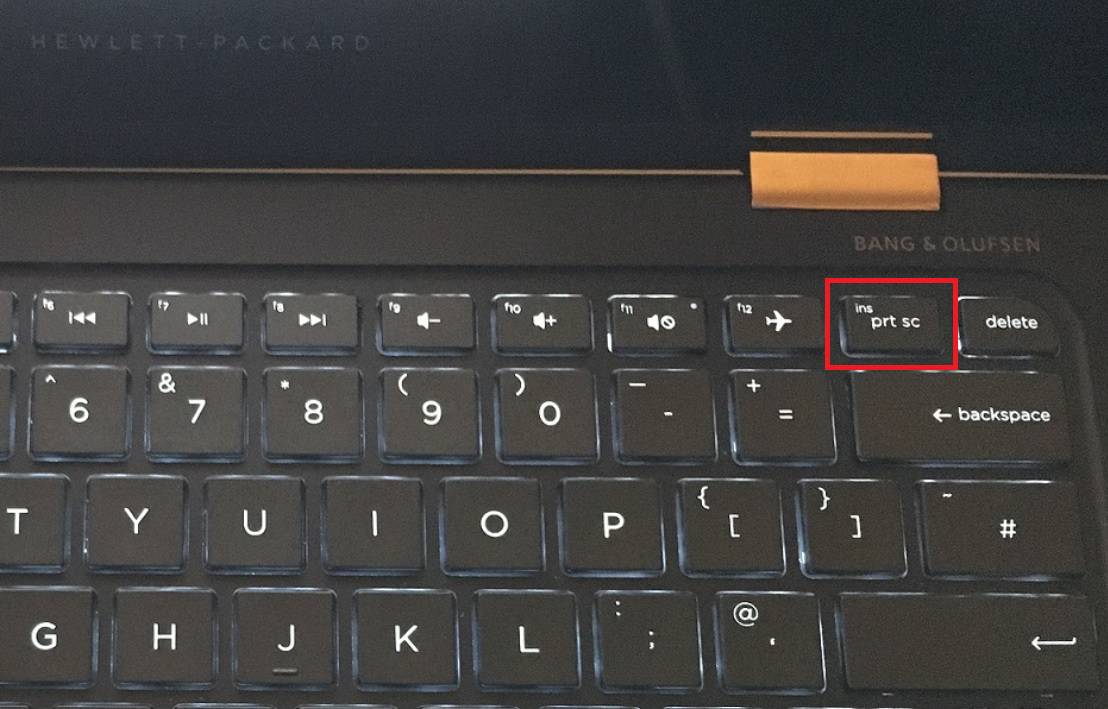
HP laptops use standard Windows keys, but their placement varies across models like the Pavilion, Envy, or Spectre. Knowing these shortcuts saves you opening apps for routine captures.
Full Screen Capture to Clipboard
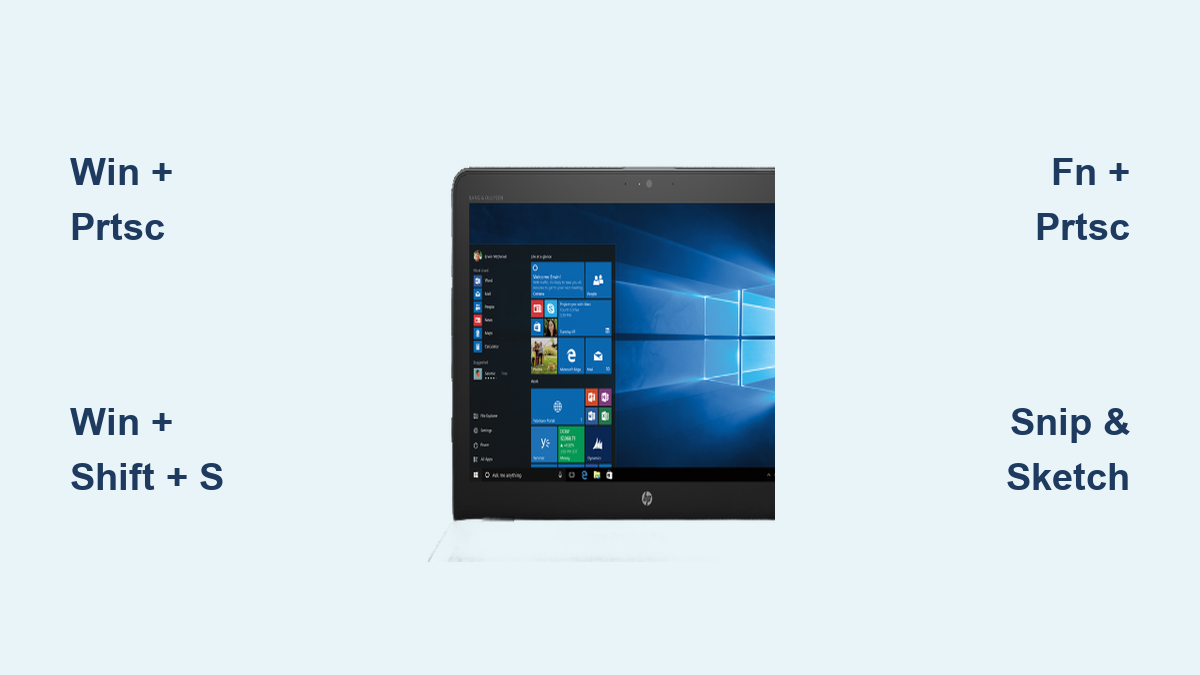
Press the PrtSc key (usually labeled “PrtScn” or “SysRq” near your keyboard’s top-right corner). Nothing appears to happen—but your entire screen is now copied to the clipboard. Immediately open Paint, Word, or Outlook, press Ctrl + V to paste, then save as PNG for sharp text. This method works even if your HP laptop lacks a dedicated numeric keypad. If PrtSc does nothing, try Fn + PrtSc—common on slim models like the HP Stream where screen-capture shares a key with F12.
Auto-Save Full Screen Shots
Hold Windows + PrtSc simultaneously. Your screen dims briefly, confirming the capture. Unlike basic PrtSc, this auto-saves a high-quality PNG file named “Screenshot (1).png” in your Pictures > Screenshots folder. Subsequent captures increment the number (Screenshot 2, 3, etc.). This is ideal for documenting multi-step processes—you’ll never lose a clipboard-copied image by accidentally pasting something else.
Active Window Only Capture
Press Alt + PrtSc with your target window selected (e.g., a browser tab or Excel sheet). Only that window copies to your clipboard, excluding taskbars or background apps. Paste it into an email or document with Ctrl + V for clean, professional-looking screenshots. Use this when sharing error messages—your recipient won’t see your messy desktop or private browser history.
Snip & Sketch Precision Tool for Targeted Captures
Windows 10’s Snip & Sketch beats Paint for quick edits, especially on HP touchscreens. It’s your go-to for capturing specific screen regions without post-capture cropping.
Select Any Screen Area Instantly
Press Windows + Shift + S. Your screen grays out with a toolbar at the top offering four options:
– Rectangular snip: Drag to frame a box around content
– Freeform snip: Draw irregular shapes around objects
– Window snip: Click any open window border
– Full-screen snip: Capture all monitors
After selecting, the snip copies to your clipboard. A notification pops up—click it to open Snip & Sketch for immediate editing. Use the 3-second or 10-second delay (via the timer icon) to capture dropdown menus that disappear when you click away.
Edit and Save Without Extra Apps
In Snip & Sketch, highlight key areas with the pen tool, add arrows via the ruler icon, or blur sensitive data with the pencil tool. Crop edges using the scissor icon, then click Save As to choose your folder. Unlike basic Print Screen, this skips the clipboard step—perfect for saving directly to project folders. Pro tip: Enable “Auto-copy snip to clipboard” in Settings > Snip & Sketch for hybrid workflows.
Classic Snipping Tool for Delayed Captures
The legacy Snipping Tool remains useful for timed captures, especially on older HP models where Snip & Sketch might glitch.
Four Capture Modes for Tricky Situations
Search “Snipping Tool” in your Start menu. Click New and select:
– Free-form: Trace around irregular shapes (like a product logo)
– Rectangular: Drag to capture a specific zone
– Window: One-click capture of any visible window
– Full-screen: Grab everything, including secondary monitors
This tool excels when you need to capture tooltips or right-click menus that vanish instantly.
Capture Hidden Menus with Timer Delay
Click Delay > 5 seconds, then New. A countdown begins—use those seconds to open a dropdown menu or hover over an icon. The tool snaps the screen after the timer ends, freezing transient UI elements. Essential for documenting software bugs where menus disappear on click.
Game Bar for App-Specific Screenshots
:max_bytes(150000):strip_icc()/001a-windows-10-game-bar-4150524-2a8e339eb8874c108ad8b99ff2059a3e.jpg)
Surprisingly useful beyond gaming, Game Bar captures app windows cleanly—even in full-screen mode.
Activate Game Bar First
Go to Windows Settings > Gaming > Game Bar and toggle ON “Record game clips.” Now press Windows + G to open the overlay in any app (e.g., Zoom or Excel). If prompted, check “Yes, this is a game” to bypass the warning.
One-Click App Screenshots
With Game Bar open, click the camera icon or press Windows + Alt + PrtSc. Screenshots save as PNG files in Videos > Captures, automatically named with the app title (e.g., “Microsoft_Word_20240515_142302.png”). This avoids desktop clutter in your captures and works when other tools fail in full-screen applications.
Fixing HP-Specific Screenshot Failures

HP keyboards sometimes hide Print Screen under function layers, causing frustration.
PrtSc Key Not Responding? Try This
On many HP laptops (like the EliteBook series), PrtSc requires Fn + PrtSc. Look for a tiny camera icon on your F12 key—if present, press Fn + F12 instead. Still stuck? Update keyboard drivers:
1. Right-click Start > Device Manager
2. Expand Keyboards
3. Right-click your HP keyboard > Update driver
Avoid third-party “HP Screen Capture” utilities—they’re often bloatware. Windows 10’s native tools are faster and more reliable.
Where Screenshots Save on Your HP Laptop
Confused about missing files? Here’s exactly where to look:
| Method Used | Save Location | File Type |
|---|---|---|
| Windows + PrtSc | Pictures > Screenshots | PNG |
| Snip & Sketch | Your chosen folder during save | PNG/JPEG |
| Game Bar | Videos > Captures | PNG |
| Basic PrtSc/Alt+PrtSc | Clipboard only (paste to save) | – |
If your Screenshots folder is empty after using Windows + PrtSc, manually create it: Open Pictures, right-click > New > Folder, and name it “Screenshots.” Windows will auto-detect it next time.
Troubleshooting Blurry or Missing Captures
Fix Blurry Screenshots Instantly
HP laptops with high-resolution displays (like 4K Spectres) often produce fuzzy captures. Before screenshotting:
1. Right-click desktop > Display settings
2. Set Scale to 100% (not 125% or 150%)
3. Set Resolution to “Recommended”
Always save as PNG—not JPEG—to preserve text clarity. If using clipboard methods (PrtSc/Alt+PrtSc), paste into Paint 3D instead of Word for crisper results.
Recover “Lost” Screenshots
If Windows + PrtSc shows the dimming effect but no file appears:
– Check hidden folders: In File Explorer, go to View > Hidden items
– Verify storage: Ensure your C: drive has >500MB free space
– Reset permissions: Right-click Screenshots folder > Properties > Security > Edit, then grant “Full control” to your user
Pro Efficiency Upgrades for HP Users
Auto-Backup Screenshots to Cloud
Right-click your Screenshots folder > Properties > Location > Move. Select your OneDrive or Dropbox folder. Now every Windows + PrtSc capture syncs across devices—no manual uploading. Ideal for remote work where you switch between HP laptop and desktop.
Create a Screenshot Keyboard Cheat Sheet
Print this quick-reference guide and stick it near your HP laptop’s keypad:
– PrtSc → Full screen to clipboard
– Alt + PrtSc → Active window to clipboard
– Win + PrtSc → Auto-save full screen
– Win + Shift + S → Select any region
– Win + Alt + PrtSc → Game Bar capture
Touchscreen HP Models: Annotate with Your Finger
On HP touchscreens (like the x360), open Snip & Sketch and tap the Pen icon. Use your finger or stylus to draw directly on screenshots—add handwritten notes or circle problem areas. The Ruler tool (tap the icon) creates perfect straight lines for diagrams.
Mastering how to take screenshot in HP laptop Windows 10 turns tedious documentation into a 2-second task. Start with Windows + PrtSc for foolproof auto-saves, then graduate to Windows + Shift + S for precision edits. When troubleshooting, always capture the entire error screen—not just the message box—so IT teams see context. Within a week, these shortcuts will feel like muscle memory, freeing you to focus on what matters: solving problems, not wrestling with your screen. For HP-specific driver updates, visit support.hp.com and enter your laptop’s serial number—never third-party “driver booster” tools.