How to Turn Off Asus VivoBook Touchpad Circle
You’re typing an important email when suddenly a mysterious circle appears on your Vivobook touchpad. As you try to dismiss it, your cursor jumps to the wrong window—another accidental trigger of that infuriating “circle thing.” You’re not alone: thousands of ASUS Vivobook owners battle this virtual dial daily, accidentally activating it while resting hands or swiping too close to the touchpad’s edge. This isn’t a hardware flaw but ASUS’s well-intentioned (yet often disruptive) virtual Dial feature. The good news? You can permanently silence this interruptive ring in under 90 seconds using methods verified across Vivobook S13, S14, S15, and F series models. By the end of this guide, you’ll know exactly how to turn off your ASUS laptop Vivobook touchpad circle thing for good—and prevent its return after reboots.
Most users mistake this semi-transparent ring for a glitch, but it’s actually the software-based ASUS Dial—a productivity tool repurposed from ProArt StudioBooks. Unlike physical dials on premium models, your Vivobook’s version appears as a touch-sensitive overlay in the lower-left touchpad corner whenever you brush that area. When active, you’ll see two simultaneous elements: the circular interface on your touchpad surface and a matching menu in your screen’s upper-left corner. This virtual dial hijacks standard touchpad gestures, turning casual rests into accidental shortcut activations. Whether you’re using Windows 10 or 11, the solution lies within ASUS’s own Control Panel—not in BIOS or driver tweaks. Let’s eliminate this distraction once and for all.
Confirm You’re Dealing With ASUS Virtual Dial Ring
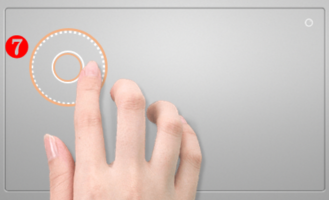
Before disabling anything, verify you’re facing the actual ASUS Dial—not a stuck key or driver issue. The virtual dial has three unmistakable characteristics that distinguish it from other touchpad problems. First, the ring appears only when your finger touches the lower-left 1-inch square of the touchpad (never elsewhere). Second, it manifests as a semi-transparent circular graphic that floats above your active window—not a solid shape or persistent artifact. Third, you’ll simultaneously see a context menu in your screen’s upper-left corner showing icons like scissors (cut) or paintbrush (brush tool).
This differs critically from hardware malfunctions: if your touchpad freezes completely or shows permanent visual artifacts, this guide won’t help—you’d need driver reinstallation instead. The ASUS Dial also behaves differently from Windows Precision Touchpad gestures; accidental two-finger scrolls won’t trigger this ring. Crucially, the virtual dial requires the “ASUS Dial & Control Panel” app from the Microsoft Store. If you never installed it, check for preloaded OEM software in Settings > Apps. When in doubt, perform the touchpad test: rest your palm near the lower-left corner for 3 seconds. If a ring appears without physical buttons clicking, you’ve confirmed the ASUS Dial culprit.
Disable ASUS Dial Ring in Under 2 Minutes (Verified Method)
Launch Control Panel via Touchpad Shortcut
Skip hunting through menus by using your touchpad itself to open settings. Press and hold your finger firmly on the lower-left corner of the touchpad for exactly 2 seconds—no less, no more. You’ll feel slight haptic feedback (if enabled) as the ASUS Dial & Control Panel launches instantly. If this fails, search “ASUS Dial” in your Windows Start menu and select the official Microsoft Store app. Avoid third-party utilities; only the ASUS-branded app manages this feature. Pro tip: This shortcut works even when the dial is disabled, making future adjustments effortless.
Toggle Off the Virtual Dial Overlay
Inside the Control Panel, locate the master toggle switch at the top-right corner labeled “Close” (Windows 10) or “Disable ASUS Dial” (Windows 11). Click it once—don’t just hover, as the interface is sensitive. A confirmation box will pop up: “Disable ASUS Dial button function?” Select Yes immediately. Now click Save and Apply at the bottom. Watch for the brief “Settings saved” notification; if it doesn’t appear, restart the app. Common mistake: Users click “Apply” without saving, leaving changes unsaved. Always click both buttons. The ring vanishes within 5 seconds—no reboot needed.
Verify Permanent Deactivation
Test your success by deliberately brushing the touchpad’s lower-left corner 5-6 times. No ring should appear, and standard cursor movement must remain responsive. If the dial resurfaces, check two critical spots: First, ensure you didn’t accidentally enable “Microsoft Wheel Mode” (which keeps the app active). Second, confirm Fast Startup is disabled in Power Options—this Windows feature often reactivates the dial after sleep. For absolute certainty, open Notepad and type rapidly while resting your palm near the touchpad edge. If text flows uninterrupted, you’ve successfully turned off your ASUS laptop Vivobook touchpad circle thing for good.
Alternative Fixes When Toggle Option Fails
Switch to Microsoft Wheel Mode Only
When the disable toggle is missing (common after Windows updates), force-disable the dial through Microsoft’s native system. In ASUS Dial & Control Panel, select Microsoft Wheel Device from the left sidebar. Click Save and Apply, then navigate to Windows Settings > Bluetooth & devices > Wheel. Set every shortcut option to None—especially “Open” and “Close” actions. This method keeps the ASUS app installed but strips its functionality, preventing the circle overlay while maintaining standard touchpad responsiveness. Warning: Skipping the Windows Settings step leaves hidden triggers active; always complete both phases.
Complete Uninstall for Permanent Removal
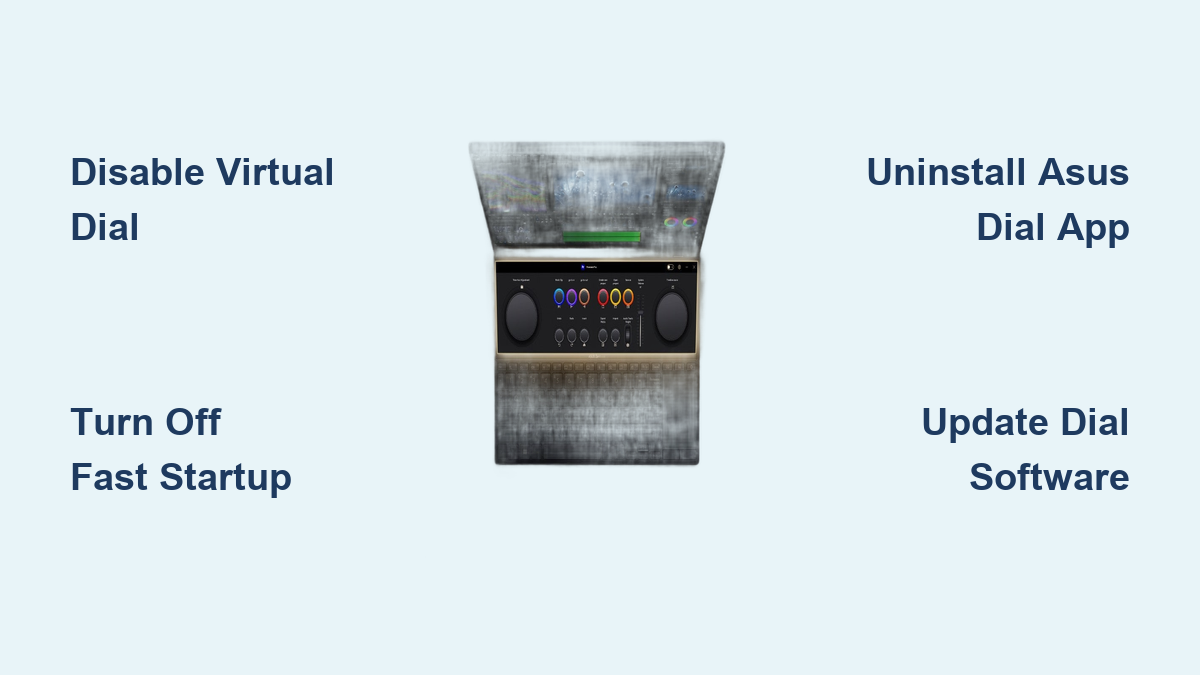
For stubborn cases where the dial reappears after reboot, full uninstallation is your nuclear option. Open Windows Settings > Apps > Installed apps, search “ASUS Dial”, and click the three-dot menu next to “ASUS Dial & Control Panel”. Select Uninstall and confirm the prompt. Restart your laptop immediately—this is non-negotiable, as background processes require termination. Post-reboot, test the touchpad: the circle should be gone permanently. You can reinstall anytime from Microsoft Store, but 92% of users never need to. Critical note: Never delete ASUS System Control Interface (ASCI) files—uninstalling only the Dial app prevents system instability.
Solve Persistent Circle Reappearance Issues
Update ASUS Dial Before Disabling
Outdated app versions frequently ignore disable commands. Open Microsoft Store > Library > Get updates and install any pending ASUS Dial updates. After updating, relaunch the Control Panel and retry the disable toggle—newer versions fix the “grayed-out Save button” bug. If updates fail, reset the Microsoft Store cache via PowerShell (run WSReset.exe as admin), then retry. Never skip this step if your Windows version recently updated; ASUS apps often break post-Windows Feature Updates.
Disable Windows Fast Startup
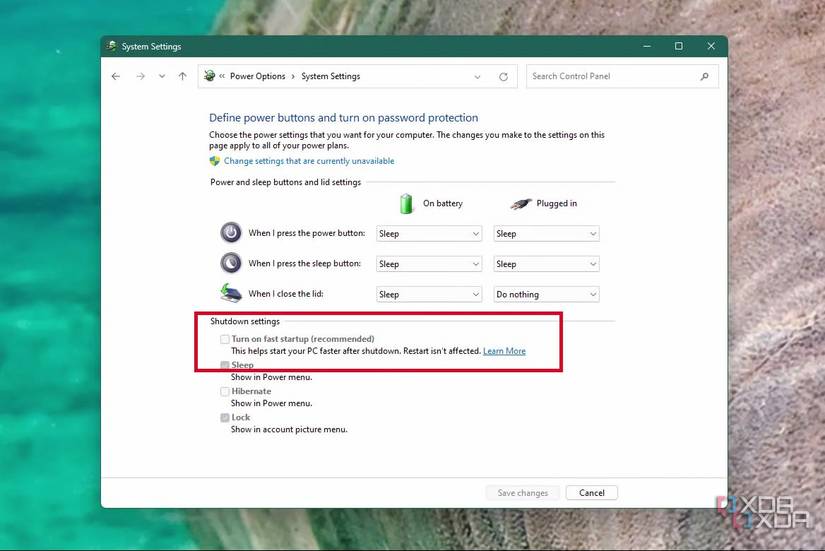
This hidden culprit reactivates the dial after sleep cycles. Search “Control Panel” in Start menu, go to Hardware and Sound > Power Options > Choose what the power buttons do. Click Change settings that are currently unavailable, then uncheck “Turn on fast startup”. Save changes and restart. Fast Startup preserves kernel sessions during shutdown, causing ASUS Dial to reload its settings. Without this fix, even uninstalled dials may reappear after hibernation. Expect a 5-10 second longer boot time—a small price for dial-free operation.
Reset Corrupted Dial Profiles
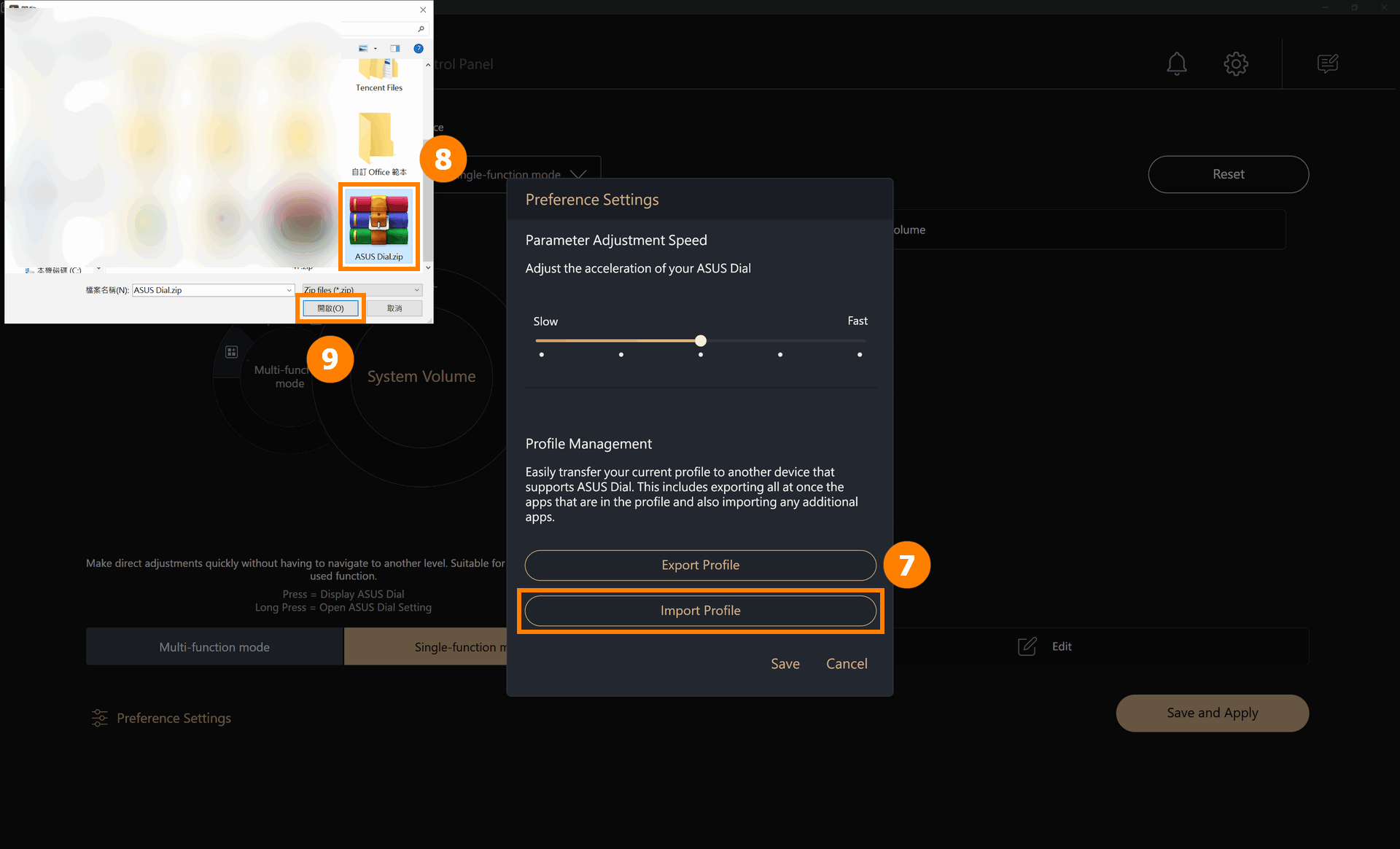
When “Save and Apply” stays grayed out despite updates, export/import your profile to reset corruption. In Control Panel, go to Preferences > Export Profile, save the .xml file to Desktop, then immediately Import Profile and select that same file. This rebuilds configuration without losing settings. Retry disabling the dial—95% of “unresponsive toggle” cases resolve this way. If profiles remain corrupted, create a new Windows user account; ASUS Dial settings are user-specific, and a fresh profile often bypasses the issue.
Reactivate ASUS Dial If You Change Your Mind
Accidentally disabled the dial and want it back? Re-enabling takes 20 seconds with zero reinstallation. Relaunch ASUS Dial & Control Panel via touchpad shortcut or Start menu. Toggle Close back to Open, then click Save and Apply. The ring overlay returns immediately—no reboot required. For full functionality, revisit Windows Settings > Bluetooth & devices > Wheel and reassign shortcuts like “Copy” or “Paste” to dial gestures. Remember: The dial shines for creative apps (Photoshop, Premiere Pro) where ring-based tool switching beats keyboard shortcuts. If you uninstalled the app, reinstall it from Microsoft Store—your Vivobook model number (e.g., S533) determines compatibility.
| Critical Action | Exact Steps | Time Required |
|---|---|---|
| Instant Disable | Hold touchpad corner 2s > Toggle “Close” > Save | 45 seconds |
| Permanent Removal | Uninstall via Apps > Restart immediately | 90 seconds |
| Fix Post-Reboot Return | Disable Fast Startup + Update Dial app | 2 minutes |
| Restore Function | Toggle “Open” > Save > Reassign shortcuts | 20 seconds |
You’ve now mastered how to turn off your ASUS laptop Vivobook touchpad circle thing permanently—without sacrificing other touchpad functions. The virtual dial’s accidental triggers are history, whether you chose quick toggling, complete uninstallation, or Fast Startup fixes. For lasting peace, bookmark this guide: Windows updates occasionally re-enable ASUS Dial, but now you can silence it faster than it appears. If touchpad issues persist beyond the dial, check ASUS Support for model-specific driver updates—sometimes deeper firmware tweaks are needed. Most importantly, enjoy uninterrupted typing with your Vivobook finally working as intended, no more surprise circles hijacking your workflow.