How to Fix Laptop Touchpad Problems
Your cursor suddenly freezes mid-scroll. You tap the touchpad frantically, but nothing happens. This frustrating scenario affects millions of laptop users daily, turning simple tasks into digital nightmares. Whether you’re experiencing erratic cursor jumps, complete touchpad failure, or mysteriously reversed button functions, this guide walks you through proven solutions that actually work.
From quick 30-second fixes to comprehensive system restores, we’ll cover every touchpad problem in laptop systems across Windows 11, 10, and 8/8.1. You’ll learn to distinguish between driver issues, hardware failures, and simple configuration problems—saving you hours of unnecessary troubleshooting.
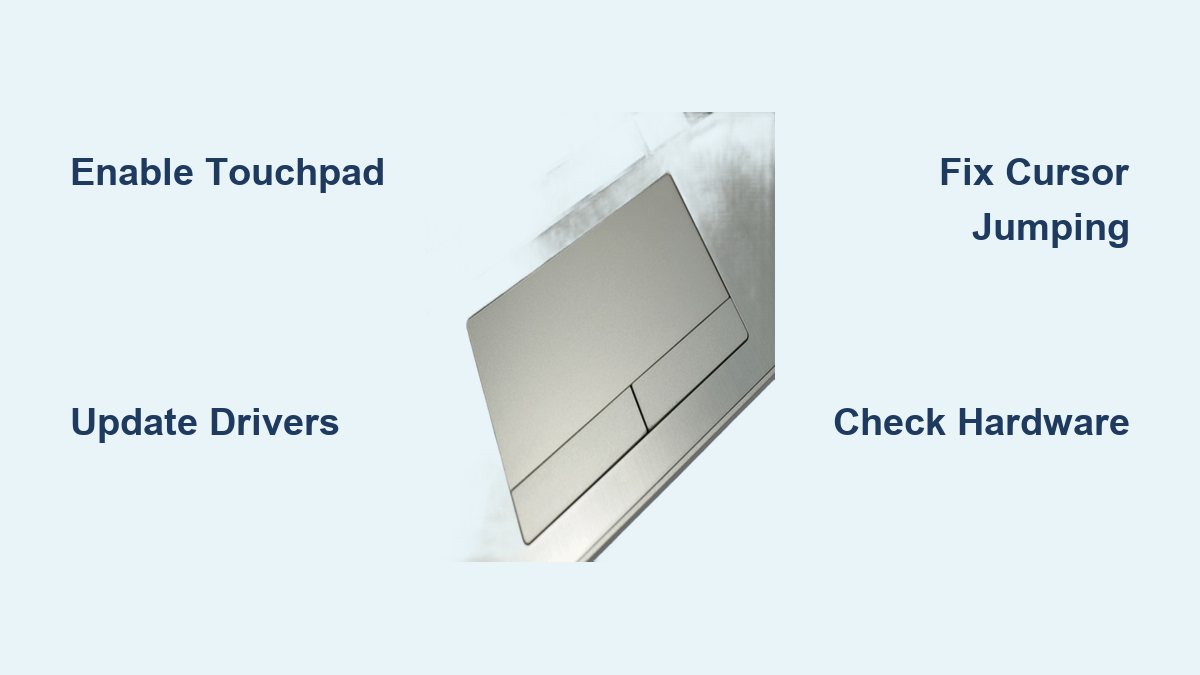
Enable Touchpad Using Hardware Shortcuts and Settings
Before assuming your touchpad has failed completely, verify it’s actually enabled. Many users accidentally disable their touchpad with a simple key combination.
Use Manufacturer-Specific Function Keys
Dell laptops offer Fn + F7 as a hardware shortcut—tap this combination once to toggle touchpad functionality. Look for a touchpad icon on your function keys; the exact key varies by model. Some systems use Fn + F5 or Fn + F9 instead. If the shortcut doesn’t work immediately, try pressing the key combination twice to ensure you’re not stuck in an intermediate state.
Navigate Windows Touchpad Settings
For Windows 11 and 10 systems, go to Settings > Bluetooth & devices > Touchpad and confirm the toggle switch shows On. Windows 8/8.1 users should navigate to Control Panel > Hardware and Sound > Mouse. If you see multiple mouse listings, this indicates additional connected pointing devices that might be causing interference. Check each entry to identify your built-in touchpad.
Verify Touchpad Recognition in Device Manager
Open Device Manager by right-clicking the Start button and selecting it from the menu. Expand Mice and other pointing devices to see how Windows recognizes your touchpad. The presence of “Dell Touchpad” indicates proper driver recognition, while “HID-compliant mouse” suggests either missing touchpad drivers or that your system uses a Dell Precision Touchpad with Windows-integrated drivers.
Diagnose Touchpad Hardware Failures
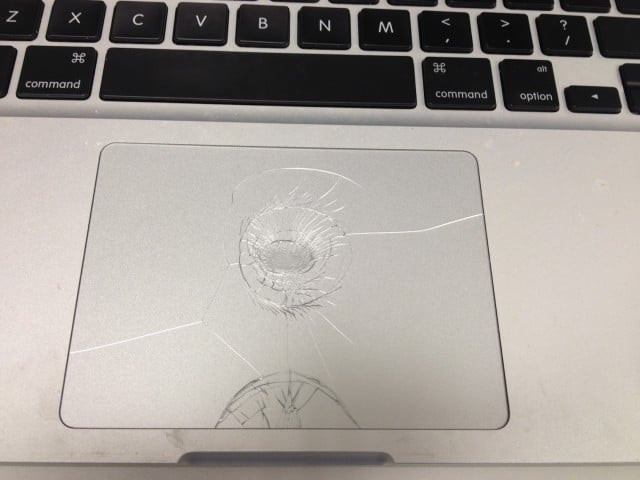
Physical damage or connection issues require different solutions than software problems—knowing which you’re facing saves crucial time.
Check for Physical Damage Indicators
Press gently on each corner of the touchpad. A noticeable wobble or loose feeling indicates physical damage requiring professional repair. Look for cracks around the touchpad edges or uneven surfaces that catch your finger. If you recently spilled liquid near the keyboard area, moisture may have seeped beneath the touchpad surface, causing intermittent failures.
Run Built-in Hardware Diagnostics
For Dell systems, run SupportAssist:
1. Start menu → Dell folder → SupportAssist
2. Select Hardware Checkup
3. Choose Scan a Specific Device
4. Select Mouse/Touchpad
The diagnostic scan reveals whether Windows recognizes your touchpad properly. If the system identifies it as “HID-compliant mouse” without showing a Dell-specific entry, you likely have driver issues rather than hardware failure.
Update Touchpad Drivers Without Rebooting
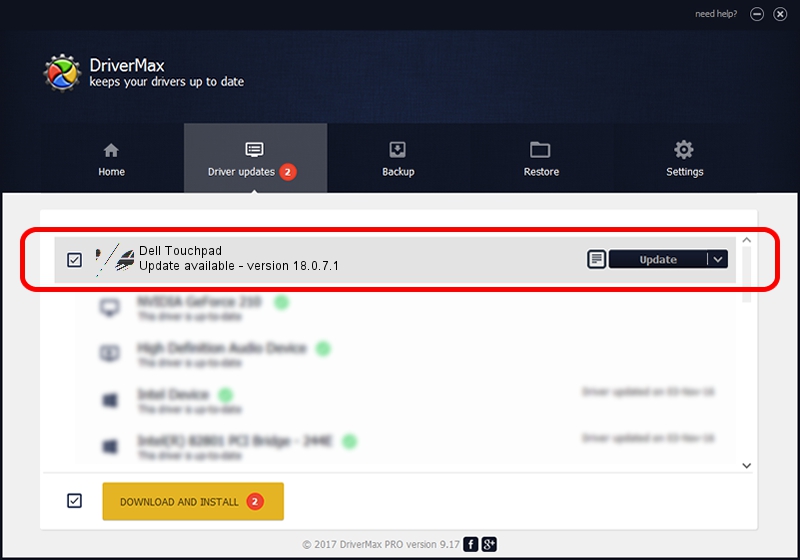
Outdated or corrupted drivers cause 70% of touchpad problems—here’s how to fix them correctly.
Install Manufacturer-Specific Drivers
Visit your laptop maker’s support site and enter your service tag or model number. Locate the Mouse, Keyboard & Input Devices section and download the latest Dell Touchpad driver. Critical warning: Never use third-party driver update utilities—they often install incompatible drivers that worsen touchpad problems.
Identify Precision Touchpad Systems
Some modern laptops use Windows-integrated Precision Touchpad drivers that don’t require separate downloads. If Device Manager shows only “HID-compliant mouse” without a specific manufacturer entry, your system likely uses Precision drivers. In this case, updating through Windows Update provides the necessary driver improvements.
Update BIOS and Chipset Drivers
Outdated BIOS frequently causes cursor jumping during typing. Download BIOS updates directly from your manufacturer’s website—never use third-party sources. Install chipset drivers alongside BIOS updates for maximum compatibility. These components work together to manage touchpad functionality at the hardware level.
Stop Cursor Jumping While Typing Immediately
This common touchpad problem disrupts productivity—here’s how to fix it in under 2 minutes.
Configure Palm Rejection Settings
Prevent accidental cursor movement with these precise settings:
Windows 11/10:
1. Settings > Bluetooth & devices > Touchpad
2. Click Taps
3. Adjust Touchpad sensitivity to Low sensitivity
Dell Touchpad settings:
1. Control Panel > Mouse
2. Select Dell Touchpad tab
3. Click Click to change Dell Touchpad settings
4. Enable Touch Guard or Palm Check
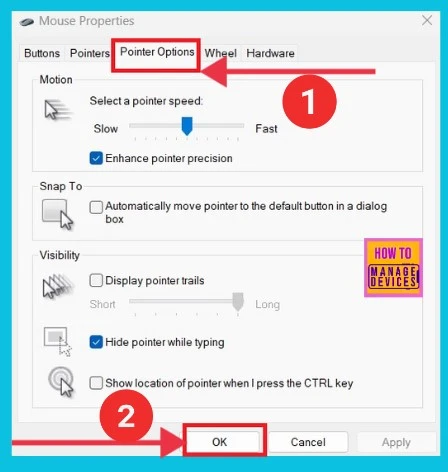
Enable Windows’ Built-in Pointer Hiding
Activate this often-overlooked protection feature:
1. Settings > Bluetooth & devices > Mouse > Additional mouse settings
2. Pointer Options tab
3. Check Hide pointer while typing
4. Set delay to 0.5-1.0 seconds
This prevents accidental touchpad contact from moving your cursor while you’re focused on typing.
Restore Unresponsive Touchpad Buttons
When touchpad buttons stop working or reverse functions, follow this exact sequence to restore normal operation.
Fix Reversed Primary/Secondary Buttons
If left-click acts as right-click:
1. Settings > Bluetooth & devices > Touchpad
2. Under Taps, verify Primary button is set correctly
3. Right-handed users: select Left
4. Left-handed users: select Right
Resolve Complete Button Failure
Try these solutions in order of increasing complexity:
1. Restart laptop completely (save work first)
2. Update touchpad drivers through Device Manager
3. Check for Windows updates (Settings > Windows Update)
4. Run Dell SupportAssist diagnostics
If buttons remain unresponsive after these steps, enable Mouse Keys by pressing Left Alt + Left Shift + Num Lock to navigate using your keyboard as a temporary solution.
Fix Touchpad Failure After Sleep Mode
This specific touchpad problem in laptop systems occurs when Windows fails to properly reinitialize the touchpad after waking from sleep.
Force Windows Update Completion
- Settings > Windows Update
- Click Check for updates
- Install all available updates
- Restart when prompted
Many touchpad issues after sleep mode stem from incomplete Windows updates that affect power management drivers.
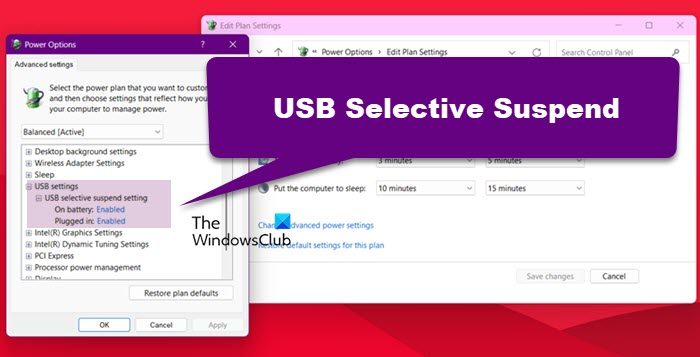
Disable USB Selective Suspend
Prevent Windows from powering down your touchpad:
1. Device Manager > Human Interface Devices
2. Right-click HID-compliant touchpad
3. Properties > Power Management
4. Uncheck “Allow computer to turn off device to save power”
This setting stops Windows from disabling the touchpad to conserve power during sleep cycles.
Prevent Future Touchpad Problems Proactively
Avoid recurring touchpad issues with these manufacturer-recommended maintenance steps.
Weekly Cleaning Routine
- Clean touchpad weekly with 70% isopropyl alcohol on a microfiber cloth
- Remove contaminants that interfere with capacitive sensing: grease, lotion, dust
- Dry fingers completely before use—moisture causes erratic cursor behavior
- Avoid eating near your laptop to prevent food particles from accumulating
Optimal Configuration Settings
Disable problematic gestures:
– Three-finger tap (often triggers accidentally)
– Four-finger swipe (conflicts with alt-tab)
– Pinch to zoom (causes erratic cursor)
Adjust sensitivity:
– Medium sensitivity for most users
– Low sensitivity if you experience jumping
– High sensitivity only for very light touch users
When to Contact Professional Support
Contact technical support immediately if you experience:
– Physical damage (cracks, wobble, loose components)
– Complete failure after all troubleshooting steps
– Burning smell or overheating near touchpad
– Liquid spills that penetrate beneath the surface
Dell users can initiate support through:
– Dell SupportAssist automatic ticket creation
– Dell.com/support for live chat
– 1-800-624-9896 for phone support
Touchpad Problem Resolution Summary
The most common touchpad problem in laptop systems stems from three sources: driver conflicts, configuration errors, or hardware failure. Start with quick fixes—cleaning, enabling, and restarting—then progress through driver updates and system settings. Most problems resolve within 15 minutes using these steps.
Remember that Windows updates frequently cause temporary touchpad glitches. Keep your system current, perform weekly maintenance, and you’ll prevent 90% of touchpad problems before they impact your productivity. Your laptop touchpad should now respond smoothly to every gesture—bookmark this guide for future reference when touchpad issues arise.