How to Use Laptop with Lid Closed
Picture this: You’re at your desk with a beautiful 27-inch monitor displaying your work, but your laptop screen sits there dark and unused, taking up valuable space. That sleek machine you paid good money for is now just an expensive paperweight. Sound familiar? You’re not alone—thousands of professionals, students, and creators are discovering the power of transforming their laptop into a compact desktop powerhouse by simply closing the lid.
This setup isn’t just about aesthetics. When done correctly, using your laptop with the lid closed creates an ergonomic workspace that reduces neck strain, maximizes desk real estate, and often provides better display quality than your laptop’s built-in screen. Whether you’re coding, gaming, creating music, or crunching spreadsheets, this configuration can revolutionize your workflow while maintaining the portability laptops were designed for.
Connect External Monitor Before Closing Laptop Lid
Before shutting your laptop, establish a solid connection with your external display. This critical first step determines whether your closed-lid setup works seamlessly or leaves you staring at a blank screen with frustration.
Match Your Laptop and Monitor Connection Types
Selecting the right cable matters for optimal performance. Modern laptops offer several options:
– HDMI: The most universally compatible option that carries both video and audio signals
– DisplayPort: Ideal for high refresh rates, especially beneficial for gaming setups
– USB-C: Delivers video, data, and charging through a single cable (verify your port supports video output)
– VGA/DVI: Older standards that should only be used when no modern alternatives exist
Check both your laptop’s output ports and your monitor’s input options. When in doubt, HDMI typically provides the most reliable connection for Windows 11 systems without requiring additional drivers.
Position Your External Monitor for Ergonomic Comfort
Place your external monitor at arm’s length with the top of the screen at or slightly below eye level. This positioning prevents forward head posture that causes neck pain during extended work sessions. Your laptop will sit closed to the side or behind the monitor, so ensure your cables reach comfortably without tension. Proper monitor placement is essential when you use your laptop with lid closed to maintain healthy posture.
Configure Windows 11 Display Settings for Closed-Lid Operation
Windows 11 makes transitioning to closed-lid mode straightforward, but skipping these steps will leave you frustrated when your screen goes black after closing the lid.
Open Windows Project Menu with Keyboard Shortcut
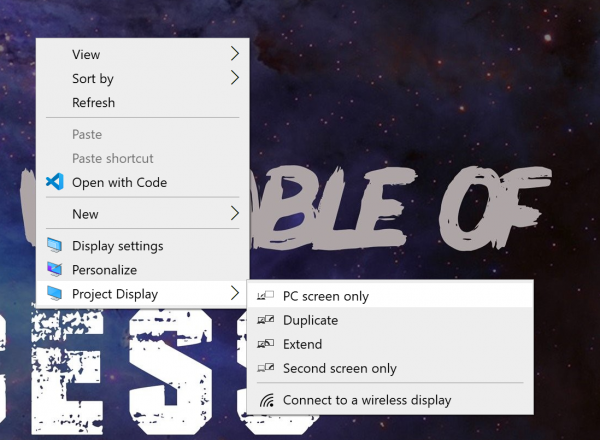
Press Windows + P to instantly access the Project menu—this shortcut saves you from navigating through multiple settings menus. You’ll see four display options:
– PC screen only: Uses just your laptop display (not what you want)
– Duplicate: Shows identical content on both screens (wastes screen real estate)
– Extend: Creates one large workspace across both displays
– Second screen only: The perfect choice for closed-lid operation
This menu is your control center when learning how to use laptop with lid closed effectively.
Activate “Second Screen Only” for Seamless Transition
Select “Second screen only” from the Project menu to disable your laptop screen completely, routing all video output to your external monitor. Your desktop will briefly flicker as Windows adjusts, then settle into your new single-display configuration. This setting ensures your external monitor remains active when you use laptop with lid closed.
Pro tip: If you need to access your laptop screen temporarily, simply reopen the lid—Windows will automatically reactivate it without disrupting your workflow.
Stop Laptop From Sleeping When Lid Closes

This is where most people fail: closing the lid typically triggers sleep mode, cutting power to your external display and leaving you with nothing but a black screen.
Access Power Settings Through System Tray
Right-click the battery icon in your taskbar and select “Power Options”. This direct path saves you time searching through Control Panel menus. Alternatively, type “Power Options” in the Windows search bar if you prefer keyboard navigation.
Change Lid Close Behavior in Windows Settings
Follow these exact steps to prevent sleep mode activation:
1. Click “Choose what closing the lid does” in the left sidebar
2. Locate the “When I close the lid” section
3. Change both “On battery” and “Plugged in” dropdowns to “Do nothing”
4. Click “Save changes” at the bottom
This crucial setting modification is what makes using your laptop with lid closed actually possible without constant interruptions.
Set Up External Keyboard and Mouse for Full Functionality
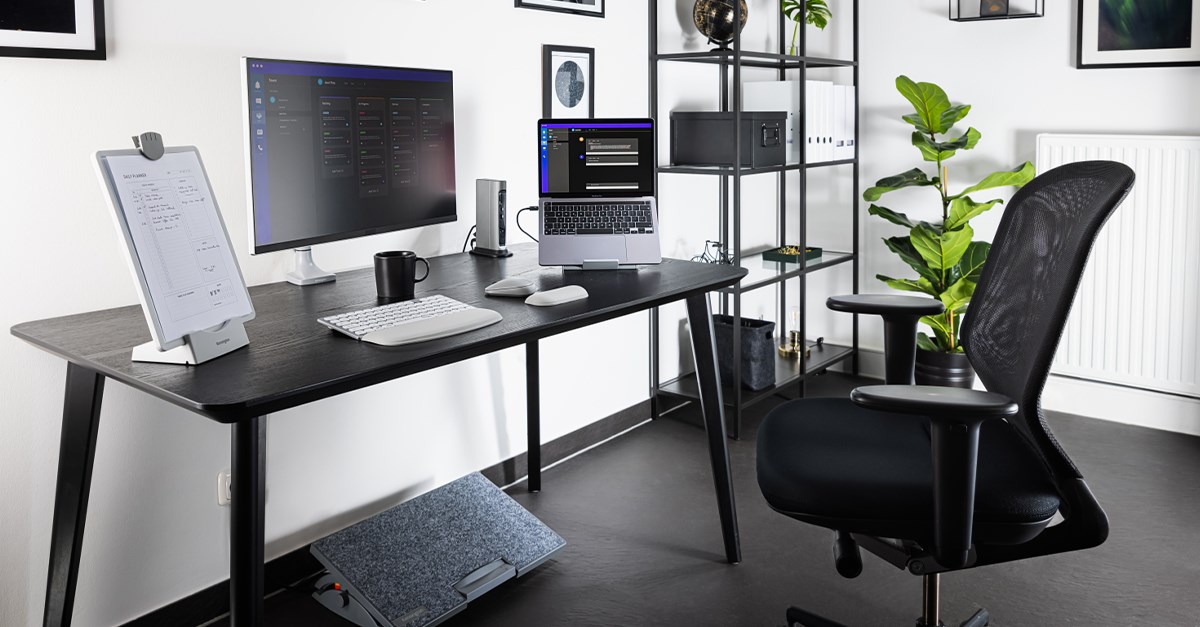
With your laptop closed, you lose access to the built-in keyboard and trackpad. Quality peripherals aren’t optional—they’re essential components of your closed-lid workstation.
Select Between Wired and Wireless Input Devices
Wired peripherals eliminate battery concerns and provide the most reliable connection. Plug USB keyboard and mouse directly into available ports for instant recognition.
Wireless options offer cleaner desk aesthetics with minimal cable clutter. Most modern laptops support Bluetooth keyboards and mice, or you can use a single USB receiver for multiple devices. Consider Logitech’s Unifying receiver that connects multiple peripherals through one USB port.
Position Your Input Devices for Comfort
Place your keyboard so your elbows rest at 90-degree angles with wrists straight while typing. Position your mouse at the same height as your keyboard, close enough that your arm remains relaxed when using it. These small adjustments prevent repetitive strain injuries during long sessions when you use laptop with lid closed.
Test Your Closed-Lid Configuration Thoroughly
Before declaring victory, run through this quick verification sequence to ensure everything works as expected in your closed-lid setup.
Close Your Laptop Lid Properly
After connecting everything and configuring settings, close your laptop lid slowly. Your external monitor should remain active, displaying your Windows desktop without interruption. If the screen goes black, reopen the lid immediately—Windows likely reverted to sleep mode, indicating your power settings need adjustment.
Check All Critical Functions
Test these elements to confirm full functionality:
– Keyboard input: Type in a text document or search bar
– Mouse movement: Navigate Windows and open applications
– Audio output: Play media to confirm sound routes correctly
– USB devices: Test any connected external drives or accessories
Optimize Your Closed-Lid Workspace Layout
Now that your laptop runs closed, maximize the benefits of your new configuration with these professional touches.
Ensure Proper Laptop Ventilation
Laptops vent heat differently when closed. Place your laptop on a hard, flat surface—not carpet or bedding. Consider a laptop stand or cooling pad to improve airflow. If your laptop feels unusually warm, slightly propping up one side can enhance ventilation when you use laptop with lid closed.
Implement Smart Cable Management
Route cables behind your monitor or through desk grommets to maintain clean aesthetics. Use velcro ties or cable sleeves to bundle connections neatly. Position your laptop within reach of power outlets and frequently used USB ports for easy access when needed.
Fix Common Closed-Lid Operation Problems
Even with perfect initial setup, issues occasionally arise. These solutions address the most frequent challenges when using your laptop with lid closed.
Resolve “No Signal” Monitor Issues
If your external monitor shows “No Signal”:
1. Check physical cable connections at both ends
2. Ensure monitor input source matches your cable type
3. Try Windows + P again, cycling through display options
4. Update graphics drivers through Windows Update
Prevent Unexpected Sleep Mode Activation
When the laptop enters sleep despite settings:
1. Revisit Power Options settings—Windows updates sometimes reset these
2. Check for manufacturer-specific power management software overriding Windows settings
3. Verify you’re changing settings for the correct power plan
Maintain Your Closed-Lid Setup Long-Term
Keep your closed-lid configuration running smoothly with these maintenance practices.
Schedule Monthly Ventilation Checks
Ensure your laptop’s vents remain dust-free. Use compressed air to clear accumulated debris that impairs cooling. Pay special attention if you notice increased fan noise or higher operating temperatures when you use laptop with lid closed.
Update Graphics Drivers Regularly
External display compatibility improves with driver updates. Check your laptop manufacturer’s website or use Windows Update monthly to maintain optimal display performance. This is especially important when troubleshooting display issues in your closed-lid setup.
Your closed-lid laptop setup is now complete. You’ve transformed your portable computer into an ergonomic desktop workstation while maintaining all the benefits of laptop ownership. This configuration will serve you well whether you’re coding late into the night, editing your next creative project, or simply enjoying a more comfortable work environment. When you’re ready to hit the road, your laptop awaits—just lift the lid and go.