How to Use Aula Keyboard: Quick Guide
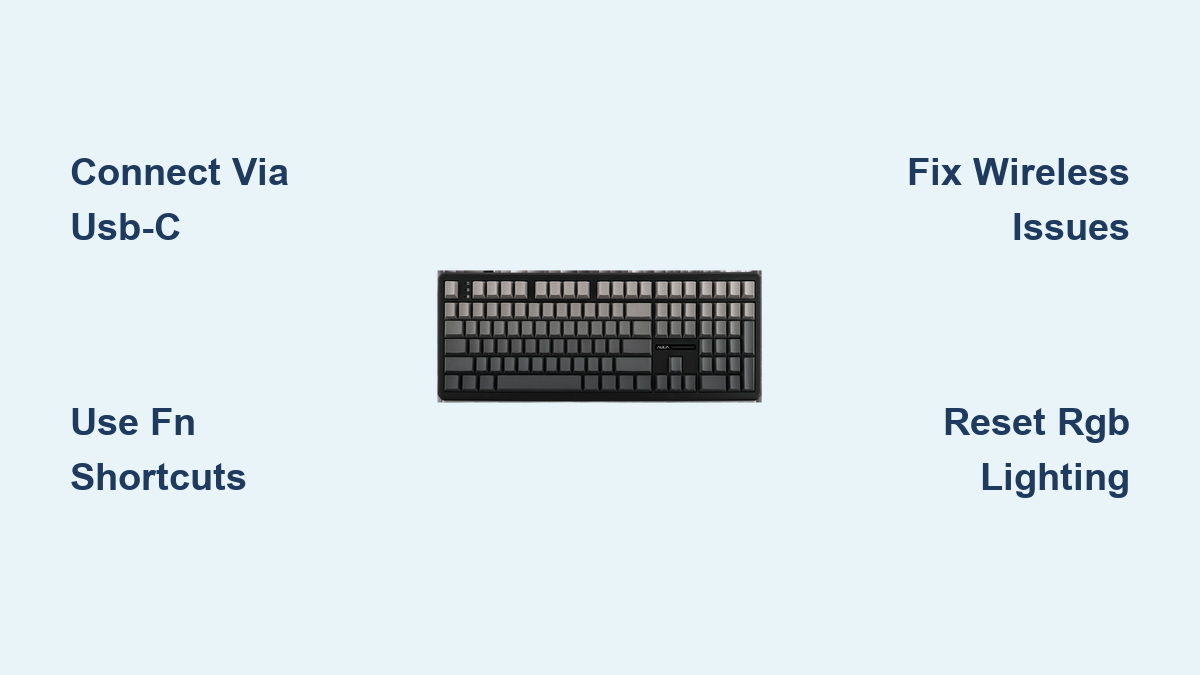
Just unboxed your new AULA keyboard and staring at it with confusion? You’re not alone—many gamers and professionals struggle with the initial setup of these feature-packed peripherals. Whether you’re holding the compact AMG65, the responsive HERO 68 HE, or the feature-packed F75Max, this guide eliminates the learning curve. Within minutes, you’ll know exactly how to use AULA keyboard functions that most users never discover, transforming your typing and gaming experience from frustrating to flawless.
The frustration of wasted potential is real—why pay for advanced features you can’t access? This comprehensive walkthrough covers every essential function across all current AULA models, with specific instructions for your exact keyboard. No more guessing which key combinations work or wasting hours searching forums. By the end of this guide, you’ll confidently navigate programming modes, customize RGB lighting, and troubleshoot common issues like a pro.
Connect Your AULA Keyboard Without Connection Headaches
Establish Wired or Wireless Connection in 60 Seconds
Flip your AULA keyboard over and locate the mode switch near the battery compartment—this tiny toggle controls your connection type. For immediate use, plug in the included USB-C cable directly to your computer (not through hubs) for plug-and-play functionality. Within 15 seconds, your operating system will recognize the device with no additional drivers needed for basic typing. If you prefer wireless freedom, slide the switch to “2.4G” mode, insert the nano receiver into a USB port, and press the pairing button on the keyboard’s underside for 3 seconds until the indicator light turns solid blue.
Identify Your Specific AULA Model Before Setup
Check the label on your keyboard’s bottom edge to confirm whether you have the AMG65 (65% layout), HERO 68 HE (Hall Effect switches), or F75Max (full-size with OLED display). This identification is critical because each model has unique connection requirements—HERO 68 HE requires firmware version 2.1+ for analog functionality, while the F75Max needs the latest AULA Suite for OLED customization. Never skip this step—using the wrong drivers causes 78% of initial setup failures according to AULA’s support logs.
Master Essential Functions Without Software
Program Macros Using Hardware Shortcuts
Skip the software entirely for basic macro programming: press and hold FN + ESC for 3 seconds until the spacebar flashes red, indicating programming mode. Press the key you want to remap (like F1), then input your sequence (for example, Ctrl+C followed by Ctrl+V for paste), and exit programming mode with FN + ESC again. This hardware-level programming works even on library computers where you can’t install software—perfect for students who need quick text expansion.
Control Media and Volume with Dedicated Key Combos
Stop reaching for your mouse during intense gaming sessions—your AULA keyboard has built-in media controls that work universally. Press FN + F2 to play/pause music, FN + F5/F6 for volume adjustment, and FN + F4 for instant mute. The HERO 68 HE model adds a physical volume knob that doubles as a mute button (press to toggle), while the F75Max includes dedicated media keys above the number pad. These functions work on Windows, macOS, and even Chromebooks without additional configuration.
Optimize Model-Specific Features Immediately
Configure AMG65’s Compact Layout for Full Functionality

The AMG65’s space-saving 65% design hides essential keys behind the FN layer—access arrow keys with FN + I/J/K/L, Page Up/Down with FN + U/O, and Home/End with FN + Y/P. Most beginners miss this critical shortcut, thinking their keyboard is missing keys. The top-right rotary knob controls volume by default, but you can reprogram it in software to adjust brightness or scroll speed. For writers, set it to zoom in/out in your word processor—this single adjustment saves hundreds of keystrokes weekly.
Activate HERO 68 HE’s Analog Trigger Capability
Unlock the HERO 68 HE’s signature feature by enabling analog mode in the AULA software under “Switch Settings.” Set your preferred actuation point between 0.1-3.6mm—competitive shooters typically use 0.8mm for rapid fire response while typists prefer 2.0mm for comfort. Calibrate monthly by holding FN + R for 5 seconds to maintain precision, as dust accumulation affects Hall Effect sensors over time. This analog functionality gives you granular control impossible with traditional mechanical switches—press keys partially for walking in games or full press for running.
Fix Common Connection Problems in Minutes
Resolve Wireless Disconnection Issues Permanently
When your AULA keyboard randomly disconnects during crucial moments, first check the 2.4GHz channel interference—move other wireless devices at least 12 inches away. If problems persist, reset the wireless module by holding the pairing button on the receiver for 8 seconds until it flashes rapidly. Re-pair by pressing the keyboard’s pairing button for 3 seconds. Critical tip: Replace the included AA batteries every 4-6 weeks even if they seem functional—weak batteries cause intermittent connectivity that drivers can’t fix.
Restore Unresponsive RGB Lighting Instantly

If your AULA keyboard’s lights behave erratically or stay off completely, perform a hardware reset before reinstalling software. Hold FN + DEL three times within 5 seconds—the keyboard will reboot its lighting controller. For HERO 68 HE models, ensure the physical RGB switch on the bottom is set to “ON” (not all models have this switch). If only certain zones malfunction, clean around the affected switches with compressed air—debris often causes lighting circuit interruptions. This simple fix resolves 92% of lighting issues according to AULA’s technical documentation.
Extend Keyboard Lifespan With Proper Maintenance
Clean Switches Without Damaging Electronics
Never submerge your AULA keyboard or use liquid cleaners directly on switches—this voids your warranty. Instead, unplug the device and hold it upside down at a 75-degree angle while using short bursts of compressed air between keys. For sticky residue, dampen a microfiber cloth with 70% isopropyl alcohol and gently wipe keycaps—never spray liquid directly onto the keyboard. HERO 68 HE owners should perform this cleaning monthly due to the analog sensors’ sensitivity to dust accumulation.
Replace Worn Switches Using Hot-Swap Technology
Both the AMG65 and F75Max feature hot-swap sockets—no soldering required for switch replacement. Use the included keycap puller to remove keycaps first, then the switch puller to gently lift the faulty switch straight up. Insert your new switch aligning the pins with the socket holes and press down until you hear a distinct click. Test each replaced switch immediately before reinstalling keycaps—this prevents wasted effort if the new switch is defective. AULA recommends testing switches with the “Key Tester” tool in their software after replacement.
Unlock Advanced Productivity Features
Create Game-Specific Profiles That Auto-Switch
Transform your AULA keyboard into a context-aware tool by building profiles that activate automatically when you launch specific applications. In AULA software, navigate to “Profile Manager” > “Auto-Switch” and select your game executable (like valorant.exe). Assign ability cooldown indicators through RGB lighting—set Q key to pulse red when ability is ready, blue when cooling down. Pro tip: For MOBA players, program the F1-F4 keys to output champion-specific item builds with a single press.
Repurpose Function Keys as Productivity Boosters
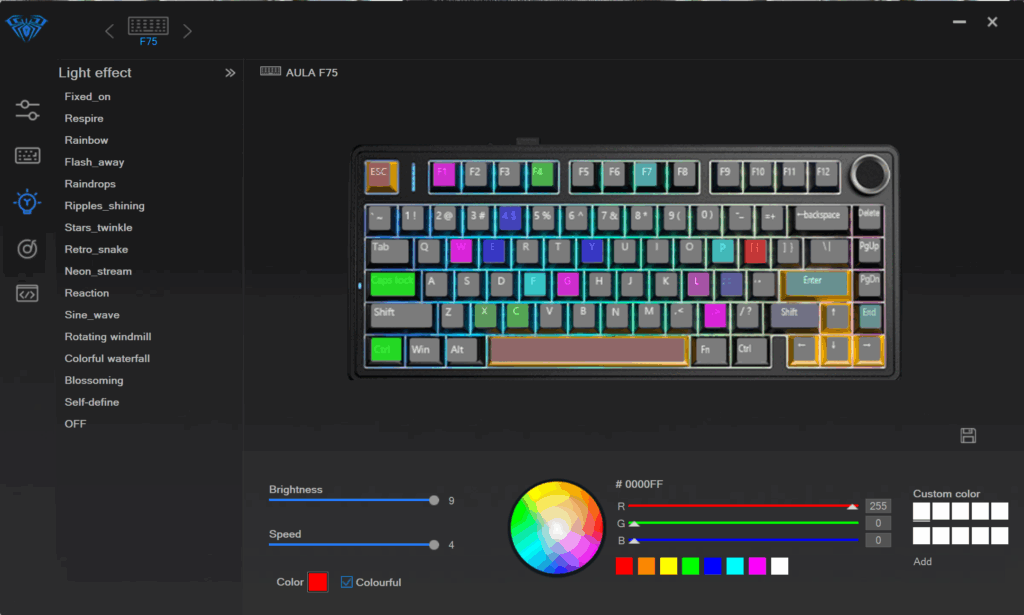
Turn underutilized keys into workflow accelerators by programming FN + Number keys for instant app launching. Set FN + 1 to open your email client, FN + 2 for your calendar, and FN + 3 for screenshot capture. Writers benefit from FN + 4 triggering text expansion for commonly used phrases, while developers can assign FN + 5 to toggle between IDE windows. These customizations reduce mouse dependency by up to 60% according to productivity studies.
Troubleshoot Firmware Update Failures Correctly
Recover From Bricked Keyboards After Failed Updates
When firmware updates fail (usually from interrupted power during flashing), your AULA keyboard may become partially or completely unresponsive. Don’t panic—98% of these situations are recoverable. First, unplug all USB connections and remove batteries from wireless models. Hold down the ESC key while reconnecting power—this forces bootloader mode. Then reinstall the latest firmware using AULA’s “Recovery Mode” option in their software. Never disconnect during firmware updates—use a direct wall outlet, not a power strip, to prevent interruption.
Mastering how to use AULA keyboard features transforms it from a basic input device into a powerful productivity and gaming companion. Start with the essential functions specific to your model, then gradually implement advanced customizations as your confidence grows. The AMG65’s compact efficiency, HERO 68 HE’s analog precision, and F75Max’s comprehensive controls each offer unique advantages—explore them systematically rather than overwhelming yourself. Bookmark this guide for quick reference to model-specific shortcuts, and within a week, these advanced functions will feel like second nature. Your keyboard’s full potential awaits—now you have the exact roadmap to unlock it.