How to Unlock Number Keys on Keyboard
You’re typing a critical password or working on a financial spreadsheet when your number keys suddenly stop functioning. Instead of entering digits, your numeric keypad produces arrow movements or nothing happens at all. This common keyboard issue affects millions of users daily, but the solution is usually just one keypress away. Whether you’re using a desktop with a full numeric keypad or a compact laptop without dedicated number keys, this guide delivers proven methods to restore your numeric input across Windows, macOS, and Linux systems.
The problem typically stems from your Num Lock being accidentally toggled off—a single key that switches your numeric keypad between number entry and navigation functions. This guide covers every scenario: desktops with dedicated numeric keypads, laptops with embedded number keys, and even specialized keyboards. You’ll learn the exact key combinations, system settings, and troubleshooting steps needed to get your numbers working again in under 5 minutes, regardless of your device or operating system.
Fix Desktop Keyboard Number Lock in 10 Seconds
Your desktop keyboard’s numeric keypad has a dedicated Num Lock key, usually positioned at the top-left corner above the 7 key. This single key toggles between numeric input and cursor navigation modes.
Press Num Lock once and watch for the indicator light—most keyboards illuminate this light when Num Lock is active. Immediately test by pressing 7, 8, and 9 on your numeric keypad. If numbers appear instead of cursor movements, you’ve successfully restored number functionality.
No indicator light? Try these verified solutions:
– Press Num Lock firmly 2-3 times with 2-second pauses between presses
– Test each numeric key individually to isolate specific failures
– Check if your keyboard has a secondary Num Lock indicator on the function row
Pro tip: Many gaming keyboards disable Num Lock when “gaming mode” is active. Look for a gamepad icon key—press it to toggle gaming mode off, then attempt Num Lock again. Some mechanical keyboards require holding Fn + Num Lock to activate the numeric keypad.
Restore Laptop Number Keys Using Fn Key Combinations

Laptops lack dedicated numeric keypads, so they use function key combinations to toggle number lock states. The embedded number keys (typically marked with small blue numbers on U, I, O, J, K, L, M) only work when Num Lock is activated through specific Fn combinations.
Dell and HP Laptop Number Key Fix
Hold Fn + F11 simultaneously for two seconds. Release both keys and test the embedded number keys (U, I, O for 4, 5, 6). Dell laptops display an on-screen “NumLock On” notification confirming the change, while HP models often show a small indicator in the top-right corner.
Lenovo ThinkPad Number Restoration
Press Fn + F8 to toggle Num Lock on ThinkPads. Your screen will briefly display “NumLk” in the lower-right corner. If F8 doesn’t work, try Fn + Insert—many newer ThinkPad models use this combination instead. Test immediately by pressing the number-marked keys (typically 7/U, 8/I, 9/O).
ASUS and Acer Laptop Solutions
Use Fn + F7 or Fn + NumLk (often sharing space with Insert or F11). Locate the tiny “NumLk” text printed in blue on your function keys—this identifies your specific combination. After pressing the correct keys, test with the number-marked keys (J, K, L for 1, 2, 3).
Critical verification step: Type “789” using your number-marked keys. If you get “U I O” instead of numbers, repeat the Fn combination while watching for on-screen confirmation.
Permanently Fix Windows Num Lock Settings via Registry

When your number keys revert to navigation mode after restarting, Windows registry modification provides a permanent solution. This ensures your numeric keypad stays enabled every time you boot your computer.
Step 1: Press Windows + R, type regedit, then press Enter.
Step 2: Navigate to: HKEY_CURRENT_USER\Control Panel\Keyboard
Step 3: Double-click the InitialKeyboardIndicators value.
Step 4: Change the value data:
– 2 = Num Lock ON at startup (recommended)
– 0 = Num Lock OFF at startup
– 1 = Num Lock retains last state
Step 5: Click OK, then restart your computer for changes to take effect.
Warning: Incorrect registry modifications can cause system instability. Create a system restore point before making changes by searching “Create a restore point” in Windows search.
Mac Number Key Fixes Without Num Lock
Mac keyboards operate differently—most lack traditional Num Lock functionality. Extended Mac keyboards with numeric keypads use the Clear key instead of Num Lock.
For Mac Extended Keyboards:
1. Press Clear (where Num Lock appears on PC keyboards)
2. This toggles between number entry and cursor movement
3. No indicator light—test by typing numbers on the keypad
For MacBooks without numeric keypads:
– Number keys above letters always produce numbers
– If they’re outputting symbols instead, check System Preferences > Keyboard > Input Sources
– Ensure your keyboard layout matches your physical keyboard
Terminal command for persistent settings:
bash

defaults write -g com.apple.keyboard.fnState -bool true
Run this command in Terminal, then restart applications for changes to apply.
Linux Numeric Keypad Restoration Commands
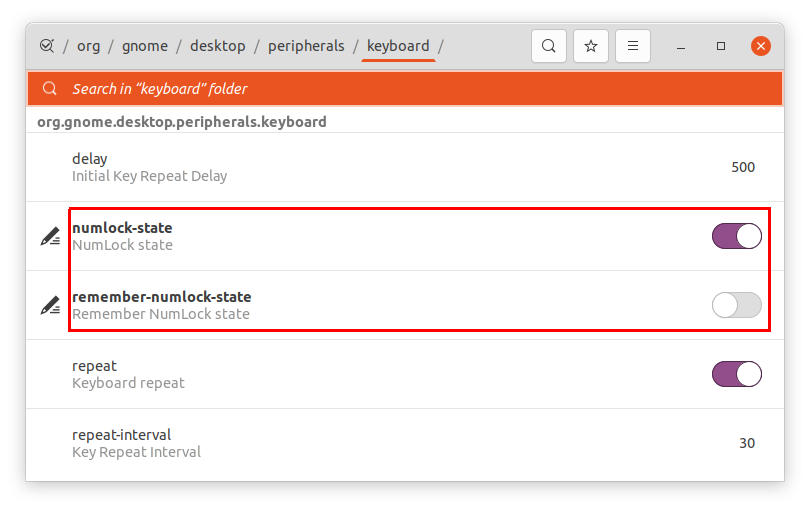
Linux systems offer command-line solutions to control Num Lock behavior across distributions.
Ubuntu and Debian Permanent Fix
Install numlockx:
bash

sudo apt install numlockx

numlockx on
Make permanent:
bash

sudo nano /etc/default/keyboard
Find the XKBOPTIONS line and add: "numpad:microsoft"
Save with Ctrl+X, Y, Enter, then run: sudo update-initramfs -u
Fedora and RHEL Solution
bash

sudo dnf install numlockx
Add numlockx on to Startup Applications to ensure Num Lock activates at login.
BIOS Settings That Override Software Controls

When software solutions fail, BIOS settings often control Num Lock behavior at the hardware level. These settings override all operating system configurations.
Access BIOS:
1. Restart your computer
2. Press Del, F2, F10, or Esc repeatedly during startup
3. Navigate to “Advanced” or “Integrated Peripherals”
4. Find “NumLock State” or “Boot Up NumLock”
5. Set to Enabled
6. Save with F10 and exit
Manufacturer-specific locations:
– Dell: Advanced > Function Key Behavior
– HP: Advanced > Built-in Device Options
– Lenovo: Config > Keyboard/Mouse > NumLock State
– ASUS: Advanced > Onboard Devices Configuration
Troubleshoot Unresponsive Number Keys
Physical Hardware Diagnostics
- USB keyboards: Test different USB ports, especially USB 2.0 ports
- Wireless keyboards: Replace batteries and re-pair the device
- Built-in laptop keyboards: Connect an external USB keyboard to isolate the issue
Driver Issues in Windows
- Press Windows + X, select Device Manager
- Expand Keyboards
- Right-click your keyboard > Uninstall device
- Restart Windows (drivers reinstall automatically)
- If problems persist, download specific drivers from the manufacturer’s website
Critical warning: Third-party keyboard software like Razer Synapse or Logitech G Hub often disables Num Lock in gaming mode. Disable gaming features temporarily to test number key functionality.
Emergency Workarounds for Locked Number Keys
When immediate solutions fail, these alternatives maintain productivity:
Windows On-Screen Keyboard:
– Press Windows + Ctrl + O
– Click Options > enable numeric keypad
– Use mouse or touch for number input
Mac Keyboard Viewer:
– System Preferences > Keyboard > enable “Show keyboard viewer in menu bar”
– Click viewer icon > Show Keyboard Viewer
– Click number keys with your mouse
USB Numeric Keypad: A $15 external numeric keypad provides dedicated numbers without replacing your entire keyboard—essential for spreadsheet work or data entry.
Prevention Tips That Actually Work
Create a startup script (Windows):
Save as .bat file in Startup folder:
batch

@echo off

reg add "HKEY_CURRENT_USER\Control Panel\Keyboard" /v InitialKeyboardIndicators /t REG_SZ /d 2 /f
Develop this habit: Always verify Num Lock status before entering passwords—many users lock themselves out by typing passwords with Num Lock off.
Corporate users: If you’re on a work computer, Num Lock settings may be controlled by IT policies. Contact your system administrator before making permanent changes.
Your number keys should now respond correctly across all systems. If problems persist after trying these solutions, the issue likely indicates physical keyboard damage requiring professional repair or replacement. For immediate needs, use the on-screen keyboard while arranging for hardware service.