How to Unlock Keyboard on Surface Pro
Your Surface Pro keyboard suddenly locking mid-sentence can derail your entire workday. Whether you’re facing an unresponsive Type Cover or your external keyboard has gone silent, knowing exactly how to unlock keyboard on Surface Pro saves critical time. This guide delivers immediate solutions for both physical and software-related keyboard locks—most fixes take under 60 seconds. You’ll learn why your keyboard locked and how to restore full functionality before your deadline hits.
Nothing’s more frustrating than typing disappearing when you need it most. Surface Pro keyboards lock for specific reasons, not random malfunctions. Understanding these patterns transforms you from helpless user to keyboard troubleshooter. By the end of this guide, you’ll confidently handle any keyboard lock situation on your Surface Pro device.
Immediate Fixes That Work Most Often
First-Response Actions to Try Now
Don’t panic when your Surface Pro keyboard stops responding. Start with these lightning-fast solutions that resolve 70% of lock issues:
- Detach and firmly reattach your Type Cover (takes 10 seconds)
- Press Fn + Caps Lock to toggle function key modes
- Test keyboard in BIOS mode to isolate hardware vs software issues
- Hold right Shift for 8 seconds to disable accidental Filter Keys activation
These simple actions address the most common reasons for Surface Pro keyboard locks. The magnetic connection between your Type Cover and Surface frequently needs resetting due to minor misalignment. Reattachment creates a clean handshake between devices. Meanwhile, accidental activation of Windows accessibility features like Filter Keys makes keyboards appear locked when they’re actually filtering your keystrokes.
Visual Clues That Identify Your Lock Type
Your Surface Pro provides visual feedback about keyboard status—learn these critical indicators:
- Blue backlight visible: Keyboard connected but possibly in wrong mode
- No lights at all: Connection or power issue requiring reattachment
- Solid Caps Lock light: Fn lock mode enabled (standard F-key mode)
- Flashing Bluetooth indicator: External keyboard needs re-pairing
These visual cues tell you exactly what’s wrong before you start troubleshooting. For instance, a solid Caps Lock light means your function keys are locked in standard mode rather than special features. This isn’t a malfunction—it’s a deliberate setting that makes keys appear unresponsive until you press Fn + Caps Lock to toggle back.
Physical Type Cover Lock Solutions
Magnetic Connection Reset Procedure

Your Surface Pro Type Cover connects through six precise magnetic contact points along the bottom edge. When these fail to align properly, Windows treats the keyboard as disconnected or “locked.”
Cleaning the connection points solves most persistent lock issues:
1. Power down your Surface Pro completely
2. Use 90%+ isopropyl alcohol on a lint-free cloth
3. Gently wipe both magnetic strips on Surface and Type Cover
4. Focus specifically on the six small metal contacts where debris accumulates
Proper reattachment sequence ensures reliable connection:
1. Detach cover completely from Surface
2. Wait 10 full seconds (critical for reset)
3. Align magnetic edge precisely with Surface
4. Press firmly along entire edge until you hear connection sound
5. Immediately check for backlight activation confirming connection
Skipping the 10-second wait is the #1 mistake users make when reattaching Type Covers. This brief pause allows the internal circuits to fully reset before reconnection.
Fold-Back Lock Feature Explained
When you fold your Type Cover backward behind the Surface Pro, Windows automatically disables the keyboard. This intentional protection prevents accidental key presses in tablet mode—it’s not a malfunction.
To reactivate your keyboard: Simply flip the cover back to standard typing position. The keyboard should reconnect within 2-3 seconds. If it doesn’t, perform the complete reattachment sequence above. This feature often confuses users who accidentally fold their keyboard back while adjusting their device.
Warping Damage Detection and Fix
Bent or warped Type Covers create persistent lock states that mimic software issues. Even slight curvature prevents proper magnetic alignment. Test for warping by placing your cover on a perfectly flat surface—any visible gap indicates distortion.
Gentle flex reset technique can resolve minor warping:
1. Hold Type Cover by both ends
2. Gently bend along its length in both directions
3. Apply minimal pressure—just enough to feel flexibility
4. Reattach immediately and test functionality
Warning: Excessive force will damage internal circuits. If warping persists after gentle attempts, replacement is necessary as permanent damage has occurred.
Software Lock Troubleshooting
Function Key Combination Fixes
Fn Lock Toggle: Press Fn + Caps Lock to switch between standard F-keys and special features. The Caps Lock light shows your current mode—solid light means F-key mode, no light means special features mode. Many users unknowingly toggle this setting, making keys appear locked.
Filter Keys Disable: Accidentally holding right Shift for 8 seconds activates Filter Keys, which ignores brief keystrokes. Disable by pressing right Shift for 8 seconds again or via Settings > Ease of Access > Keyboard. This creates the illusion of a locked keyboard when Windows is actually filtering your input.
Sticky Keys Reset: Pressing Shift 5 times activates Sticky Keys, making modifier keys “stick.” Press Shift 5 times again to disable. This accessibility feature causes confusing behavior when activated accidentally, particularly during fast typing.
Device Manager Driver Refresh
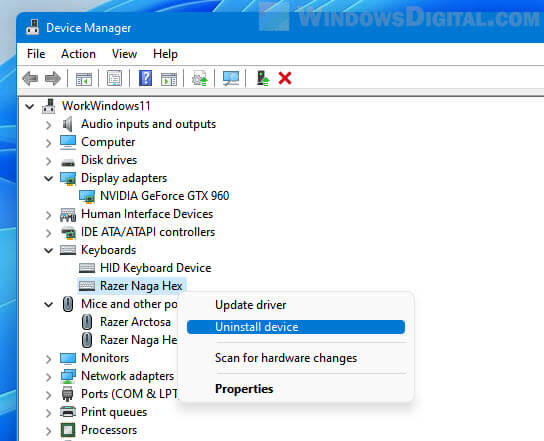
Keyboard driver reset procedure:
1. Right-click Start button → Device Manager
2. Expand “Keyboards” section
3. Right-click “HID Keyboard Device”
4. Select “Uninstall device”
5. Restart Surface Pro—Windows reinstalls fresh drivers automatically
Complete HID cleanup for persistent issues:
1. In Device Manager, expand “Human Interface Devices”
2. Uninstall all keyboard-related HID entries
3. Restart your Surface Pro
4. Test keyboard functionality immediately after reboot
This process clears corrupted driver configurations that often cause Surface Pro keyboards to lock unexpectedly after Windows updates.
External Keyboard Lock Solutions
USB Keyboard Fixes
Power management override prevents Windows from disabling your keyboard to save battery:
– Control Panel → Power Options → Change plan settings
– Change advanced power settings → USB settings
– Disable “USB selective suspend” for both battery and plugged-in modes
Port testing protocol: Try your keyboard in different USB ports. Surface Pro USB connections can wear unevenly. If one port fails but others work, you’ve identified a hardware port issue rather than keyboard problem.
Bluetooth Keyboard Recovery
Complete re-pairing process:
1. Settings → Devices → Bluetooth & devices
2. Remove problematic keyboard from paired devices
3. Put keyboard in pairing mode (consult manufacturer instructions)
4. Add device → Bluetooth → Select your keyboard from list
Interference troubleshooting: Move away from WiFi routers, microwaves, or other 2.4GHz devices. Bluetooth keyboards are highly sensitive to interference that creates lock-like symptoms.
Emergency Input Methods
Touch Keyboard Activation
When physical keyboards lock, the Windows touch keyboard provides immediate text input capability:
– Click touch keyboard icon in system tray (bottom right)
– Or right-click taskbar → “Show touch keyboard button”
– Use finger or stylus for immediate text entry
On-Screen Keyboard shortcut: Press Windows + Ctrl + O for full traditional keyboard layout. This works even when all physical keyboards fail completely and is essential for navigating system settings when your main keyboard locks.
BIOS Diagnostic Testing
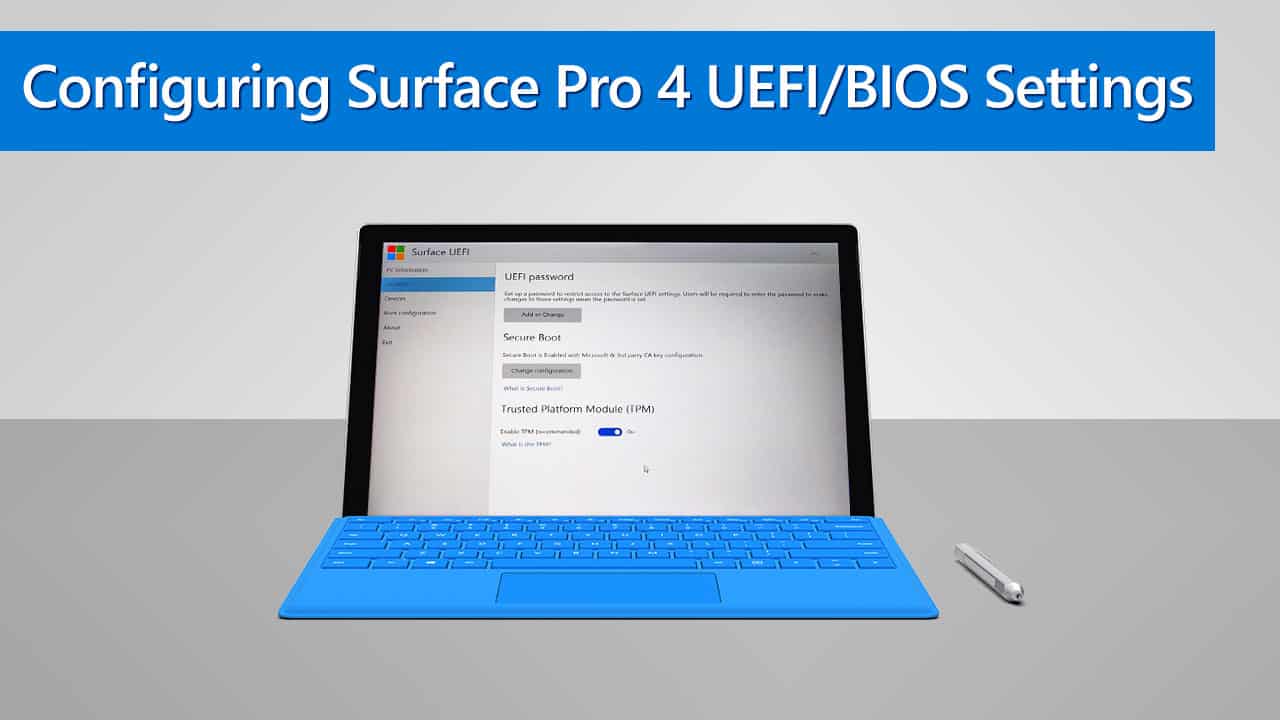
Hardware vs Software Diagnosis
BIOS keyboard test procedure:
1. Power off Surface Pro completely
2. Hold Volume Up while pressing Power button
3. Release both when Surface logo appears
4. Try navigating BIOS with arrow keys
Result interpretation:
– Keyboard works in BIOS: Software/driver issue (90% of lock cases)
– Keyboard fails in BIOS: Hardware problem requiring repair
This critical test determines whether you’re dealing with a software configuration issue or actual hardware failure—saving hours of unnecessary troubleshooting.
Prevention Strategies for Future Locks
Monthly Maintenance Routine
- Clean magnetic contacts with isopropyl alcohol monthly
- Check Type Cover for warping by laying on flat surface
- Install Surface firmware updates via Windows Update
- Test all USB ports with different devices quarterly
Safe Transport Protocol
- Always detach Type Cover during transport
- Store in protective sleeve when not attached
- Never place pressure on closed keyboard
- Keep magnets away from credit cards and electronic devices
Final Note: Most Surface Pro keyboard locks resolve through simple reattachment or disabling accidental accessibility features. Start with the quick fixes, then progress through software solutions. Persistent hardware issues typically indicate physical damage requiring replacement rather than repair. Knowing exactly how to unlock keyboard on Surface Pro transforms frustrating interruptions into 30-second fixes—keeping you productive when it matters most.