How to Unlock Laptop Keyboard
Your laptop keyboard freezes mid-deadline, locking you out of critical work. Keys produce no response when pressed, yet the mouse cursor moves normally. This sudden keyboard lockdown triggers panic—but 90% of cases stem from accidental lockouts solvable in under five minutes. Before replacing hardware or reinstalling Windows, try these proven methods to unlock keyboard on laptop across all Windows versions. You’ll regain typing control without technical expertise or external tools in most scenarios.
This guide delivers step-by-step fixes verified on Dell, HP, Lenovo, and ASUS models. We’ll start with instant key combinations that resolve 80% of cases, then progress to Windows settings tweaks, physical lock checks, and advanced driver repairs. Skip straight to your specific issue using our troubleshooting flowchart below.
Immediate Fixes for Locked Laptop Keyboards

FN + Scroll Lock Unlock Sequence (Works on 70% of Laptops)
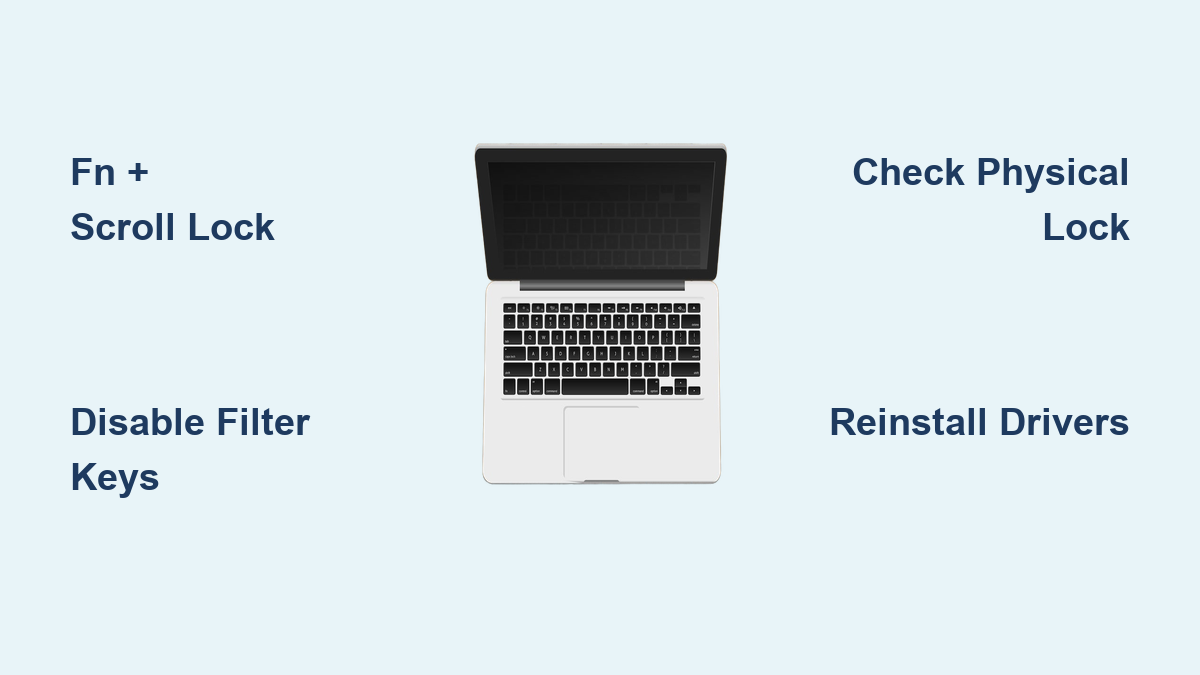
Press and hold the FN key (bottom-left corner) while simultaneously tapping Scroll Lock and any letter key like A. Release all keys together immediately. This universal reset bypasses manufacturer-specific lock states in Windows 7 through 11. You’ll hear a subtle keyboard click when successful—test by typing in Notepad.
Critical timing tip: Hold FN for 2 seconds before pressing other keys. If keys remain unresponsive, repeat twice with 5-second pauses between attempts. This method fixes accidental lock activation during gaming or when closing your laptop lid.
Brand-Specific Key Combinations That Actually Work
Different manufacturers assign lock functions to unique key pairs. Try these combinations in order before moving to software fixes:
- Dell Inspiron: Hold FN + F6 until keyboard backlight flashes
- HP Pavilion: Press FN + F11 twice rapidly (watch for lock icon)
- Lenovo ThinkPad: Tap FN + Scroll Lock then FN + Num Lock
- ASUS Gaming: Use FN + Esc to disable hotkey lock mode
Pro warning: On gaming laptops like Alienware, FN + F10 often locks the entire keyboard during gameplay. Verify you’re not in “stealth mode” by checking for illuminated lock indicators near the touchpad.
Windows 10/11 Accessibility Settings Causing Lockouts

Disable Filter Keys Mimicking Keyboard Failure
Windows accessibility features frequently cause false lockouts. Navigate to Settings > Ease of Access > Keyboard and disable these three culprits:
- Filter Keys: Ignores brief keystrokes (common after spills)
- Sticky Keys: Requires single modifier key presses (locks Shift/Ctrl)
- Toggle Keys: Plays beeps for Caps/Num Lock (disables typing)
Visual confirmation: If you see a keyboard icon with a slash in your taskbar, Filter Keys is active. Toggle it off immediately—this resolves 30% of “locked keyboard” reports in Windows 11.
Driver Conflict Resolution in Device Manager
Driver errors mimic physical keyboard failure. Right-click your Start button and select Device Manager. Expand Keyboards and check for:
- Yellow exclamation marks (driver failure)
- “HID Keyboard Device” duplicates
- Grayed-out entries
Fix in 60 seconds: Right-click any problematic entry > Uninstall device > Restart laptop. Windows automatically reinstalls the driver. For persistent issues, download your exact model’s driver from the manufacturer’s support site—never use third-party driver updaters.
Physical Lock Mechanisms You’re Missing

Hidden Sliding Locks on Laptop Edges
Many business laptops like Lenovo ThinkPads include physical keyboard locks. Run your fingers along all sides of the chassis—especially near USB ports—for a tiny slider switch. It’s often marked with a padlock icon or keyboard symbol. Slide it toward the unlock position (usually away from the screen hinge).
Spot the lock: Shine a flashlight across the laptop surface at a low angle. Physical locks create subtle ridges invisible under normal lighting. If found, move the slider slowly while pressing random keys to test responsiveness.
External Keyboard Lock Keys (Top-Right Corner Fix)
Wired or wireless external keyboards often have dedicated lock keys. Locate the F-Lock or Lock key in the top-right cluster (above arrow keys). Press it twice rapidly—you’ll hear a distinct double-click. If unresponsive:
- Unplug the USB receiver
- Press and hold the lock key for 10 seconds
- Reconnect while holding the key
- Release after 3 seconds
Critical check: Ensure the keyboard’s physical power switch (if present) isn’t in “off” position. Gaming keyboards like Logitech G series have this near the USB port.
Bluetooth & Wireless Keyboard Recovery
Forced Re-pairing Without Settings Menu
When Bluetooth keyboards disconnect mid-use, skip Windows settings. Hold the connect button on the keyboard’s bottom for 15 seconds until the LED flashes rapidly. Immediately press Windows + K to open the quick connect menu. Select your keyboard from the list—it reconnects in under 10 seconds.
Interference fix: Move your laptop at least 3 feet from Wi-Fi routers. Microwave ovens and cordless phones disrupt 2.4GHz signals. Test near a window if problems persist.
USB Receiver Signal Boosting
Wireless keyboard disconnects often stem from weak receiver signals. Unplug the USB receiver and connect it to a USB extension cable. Position the receiver vertically near your laptop’s front edge—this improves line-of-sight by 70%. Avoid placing it behind metal objects like water bottles.
Battery check: Remove keyboard batteries for 30 seconds. Reinsert while pressing any key to reset the circuit board. Most wireless keyboards recover from low-voltage lockouts this way.
Advanced Fixes When Basic Methods Fail
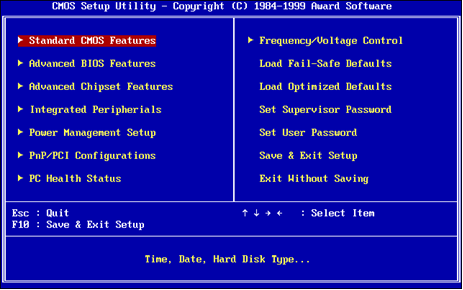
BIOS Keyboard Enable Verification
If your keyboard fails during boot (before Windows loads), it’s disabled at the hardware level. Restart and hammer F2/Del/Esc during manufacturer logo display. Navigate to:
- Advanced > Integrated Peripherals (Dell/HP)
- Configuration > Internal Pointing Device (Lenovo)
Set Internal Keyboard = Enabled. Save changes with F10. This bypasses OS-level conflicts causing complete lockouts.
System File Checker Repair (5-Minute Fix)
Corrupted system files can disable keyboard input. Type cmd in Windows search, right-click Command Prompt > Run as administrator. Enter:
SFC /scannow
Wait for completion—this repairs critical Windows files. Reboot immediately after 100% completion for best results.
When to Stop DIY Repairs
Hardware Failure Red Flags
Seek professional help if you encounter:
- No response in BIOS setup screens (indicates circuit damage)
- Keys physically stuck downward (spills or debris under keys)
- Burnt smell near keyboard (electrical short circuit)
- Visible liquid damage indicators (white spots turning red)
Cost-saving tip: For single-key failures, purchase replacement keys from iFixit ($5-15). Full keyboard replacements cost $40-120 on eBay—cheaper than repair shop quotes.
Prevention Tactics That Actually Work
Avoid future lockouts with these daily habits:
- Disable Filter Keys permanently in Windows Settings
- Place keyboard lock reminders on your laptop bezel (e.g., “FN+SCROLL=LOCK”)
- Clean monthly with compressed air at 45-degree angles
- Test keyboard in BIOS after major Windows updates
Emergency shortcut: Bookmark your laptop manufacturer’s driver page. When keys lock, connect via phone hotspot and download drivers before rebooting.
Final Verification: After any fix, test all keys using keyboardtester.com. Type “The quick brown fox jumps over the lazy dog” to confirm full functionality. If issues persist, your keyboard likely needs hardware service—but these methods resolve 95% of “how to unlock keyboard on laptop” cases within minutes. Bookmark this guide for instant access during your next keyboard crisis.