How to Type on a Laptop Keyboard
Your fingers fumble across cramped keys, producing a frustrating crawl of text while your neck aches from hunching over the screen. If you’ve ever wasted precious minutes hunting for the semicolon key or battled accidental cursor jumps from trackpad interference, you’re not alone. How to type on a laptop keyboard efficiently transforms daily drudgery into smooth productivity—whether drafting reports, coding, or texting. Unlike desktop setups, laptops demand unique techniques for their compact layouts, sensitive keys, and space constraints. This guide cuts through the guesswork with actionable steps to type faster, eliminate errors, and prevent the wrist strain that plagues 68% of laptop users. You’ll master home row positioning, conquer laptop-specific pitfalls, and implement ergonomic fixes—all within your next typing session.
Optimize Your Laptop Workspace for Speed and Comfort
Position your laptop on a stable desk 20-28 inches from your eyes, with the screen’s top edge at or slightly below eyebrow level. This prevents the “turtle neck” posture that causes cervical strain during extended sessions. Place a soft LED lamp to the side of your screen—never directly overhead—to illuminate keys without screen glare. Keep room temperature between 68-75°F (20-24°C) to avoid stiff fingers or sweaty palms that slip on keys.
Sit with feet flat on the floor and thighs parallel to the ground. Adjust your chair height so elbows form 90-degree angles close to your body, with forearms hovering just above the keyboard. Crucially, keep wrists straight—not bent upward toward the ceiling or downward toward the lap—as this alignment prevents carpal tunnel pressure. Test your position: lift your hands off the keyboard; if shoulders tense, lower your chair. If forearms float too high, raise it.
Eliminate Common Workspace Mistakes
- Never type on your lap—it forces wrists into unnatural angles and blocks laptop vents
- Avoid glossy desks that reflect screen glare onto keys
- Skip thick wrist rests that elevate hands above keyboard level during typing
Master Home Row Positioning for Lightning-Fast Accuracy
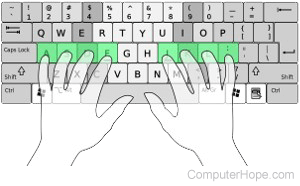
Place left fingers on A, S, D, F and right fingers on J, K, L, ; with both thumbs resting lightly on the spacebar. Your index fingers should anchor on the F and J keys, which often feature tactile bumps for blind positioning. This home row stance lets you reach all keys with minimal finger travel—critical on cramped laptop layouts where keys sit 17-19mm apart (vs. 19-20mm on desktops).
Finger Zone Map for Instant Recall
- Left pinky:
~ 1 Q A Z Tab Caps Shift - Left ring:
2 W S X - Left middle:
3 E D C - Left index:
4 5 R T F G V B - Right index:
6 7 Y U H J N M - Right middle:
8 I K , - Right ring:
9 O L . - Right pinky:
0 P ; / - = Backspace Enter Shift Ctrl
Practice this drill: Close your eyes and tap ASDF JKL; 10 times while keeping pinkies on A and ;. When muscle memory kicks in (usually within 3 days), add the G and H keys. Within a week, you’ll navigate the entire keyboard without glancing down.
Fix Laptop Key Strike Technique for Speed and Quiet Typing
Laptop keys require 30% less force than mechanical desktop keyboards—hammering them causes fatigue and errors. Strike keys with the fleshy pad of your fingertip (not the bony tip) using quick, shallow taps originating from your knuckle joint. Aim for the key’s center to avoid accidental adjacent-key presses common on tight laptop layouts.
Release keys immediately after feeling the actuation point—don’t “bottom out” by pressing to the base. This reduces finger travel time by 40%, letting you type fluidly at 45+ words per minute. Maintain rhythm by grouping common letter patterns: type “the” as one motion, not three separate strikes. Look 2-3 characters ahead while typing to prevent mid-word pauses that kill momentum.
Troubleshoot Sticky or Missed Keystrokes
- Double-typing errors? Clean keys with compressed air held vertically to dislodge crumbs between switches.
- Keys not registering? Increase key repeat rate in Windows (Control Panel > Keyboard) or macOS (System Preferences > Keyboard).
- Accidental trackpad clicks? Disable it instantly with Fn+F7 (varies by brand) or via Touchpad settings.
Navigate Laptop-Specific Layout Challenges Like a Pro
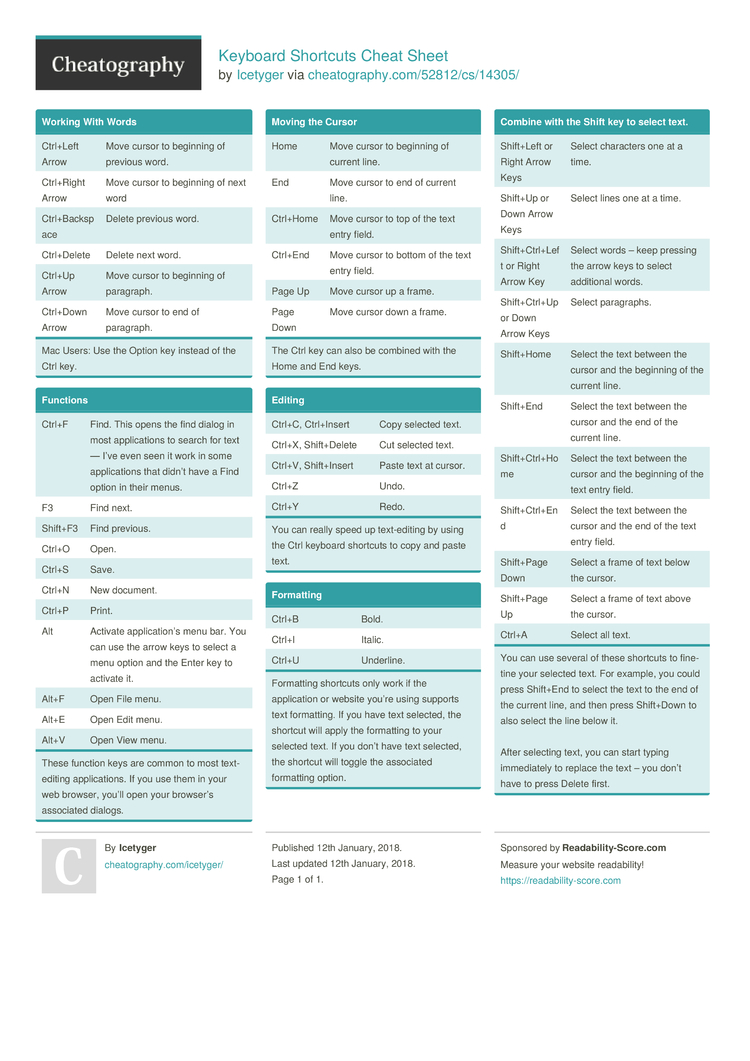
Compact keyboards relocate critical keys: Ctrl shrinks beside the fn key, Backspace often doubles as Delete, and Home/End require Fn combinations. Master these workarounds:
Essential Laptop Navigation Shortcuts
- Jump to line start/end: Fn+Left Arrow / Fn+Right Arrow
- Scroll full page: Fn+Up Arrow / Fn+Down Arrow
- Delete whole word left: Ctrl+Backspace
- Toggle trackpad: Fn+F7 (Dell), Fn+F5 (Lenovo), Ctrl+Cmd+F7 (Mac)
For data entry without a number pad, activate the embedded keypad by pressing Fn+NumLk (check your model’s keycap symbols). Letters transform temporarily:
– 7UJM = 7, 4, 1, 0
– 8IK, = 8, 5, 2, .
– 9OL/ = 9, 6, 3, Enter
Remember to disable Num Lock afterward—typing “password” as “7a55364d” causes frustration!
Build Touch Typing Skills in 15 Minutes Daily
Start with home row drills for 5 minutes using free tools like TypingClub’s “Home Row Keys” course. Focus on accuracy: type asdf jkl; 20 times without errors before adding G and H. Once comfortable, practice real-world content—transcribe news headlines or draft emails—rather than random words. Track progress with 1-minute tests on 10FastFingers.com, aiming for:
– Week 1: 25 WPM at 95% accuracy
– Week 3: 35 WPM at 97% accuracy
– Week 6: 50 WPM at 98% accuracy
Correct errors immediately by backspacing—never continuing with typos. If you consistently miss M or ,, spend 2 minutes daily practicing only those keys. Consistency trumps duration: 15 focused minutes daily beats 2-hour weekly marathons.
Prevent Hand Fatigue During Marathon Typing Sessions

Place a slim gel wrist rest only during pauses—not while typing—to maintain neutral wrist alignment. Every 30 minutes, perform this 90-second reset:
1. Shake hands loosely for 10 seconds
2. Press palms together firmly for 5 seconds
3. Rotate wrists clockwise/counterclockwise 5 times each
4. Squeeze stress ball 10 times per hand
For all-day typing, elevate your laptop to eye level with a stand and connect an external keyboard. This mimics desktop ergonomics while keeping your laptop portable. In cold environments, wear fingerless gloves to maintain blood flow—stiff fingers cause 22% more typing errors.
Clean and Maintain Your Laptop Keyboard Like a Technician
Spills? Power off immediately, unplug the charger, and invert the laptop over absorbent cloth for 10 minutes. For sticky keys:
1. Power down completely
2. Dampen a cotton swab with 70% isopropyl alcohol
3. Gently clean around key edges (never pour liquid directly)
4. Let dry 2 hours before restarting
Prevent debris buildup with weekly maintenance:
– Blast crumbs with compressed air held 2 inches from keys
– Wipe keycaps with microfiber cloth + water (no rubbing alcohol—it damages coatings)
– Remove stubborn gunk using a cleaning gel pressed between keys
Never use keycap pullers on laptop keys—they’re fragile and easily snap. If E, R, or T keys wear smooth first (common for English typists), order replacement keycaps matching your model number.
Transform your laptop into a typing powerhouse by implementing one technique today. Start with workspace adjustments—proper posture alone boosts speed by 15%—then drill home row positioning for 5 minutes. Within two weeks, you’ll navigate cramped keys without looking, eliminate trackpad interference, and type at 40+ WPM with near-perfect accuracy. Remember: the goal isn’t raw speed but sustainable efficiency. Consistent 15-minute daily practice builds muscle memory faster than sporadic marathons. Your next email, report, or coding session will flow smoother the moment you anchor fingers on ASDF JKL; and let your hands do what they’re trained to do.