How to Turn On HP Pavilion Laptop
Your brand-new HP Pavilion sits dark on the desk. You frantically tap the keyboard deck, scan the edges, and press every suspicious bump—nothing happens. You’re not broken; HP hides the power button differently across every Pavilion model. Whether you own a sleek Pavilion Aero 13, a versatile x360 convertible, or a gaming-focused dk series, this guide reveals exactly where to press and how to revive a completely dead laptop. Skip the guesswork—you’ll power up your Pavilion in under 60 seconds after reading this.
Why Your HP Pavilion Won’t Power On (3 Critical Checks)
Before hunting for the power button, eliminate these silent killers. Over 60% of “dead laptop” cases stem from overlooked prerequisites—not hardware failure. Your Pavilion refuses to boot if any of these conditions aren’t met, regardless of button location.
Immediately verify these non-negotiables:
– Battery or adapter must be functional: Charge above 20% or use the original HP adapter (generic chargers often lack required wattage).
– AC adapter LED must glow solid: Amber or white light confirms power delivery. A blinking or dead LED means faulty connection.
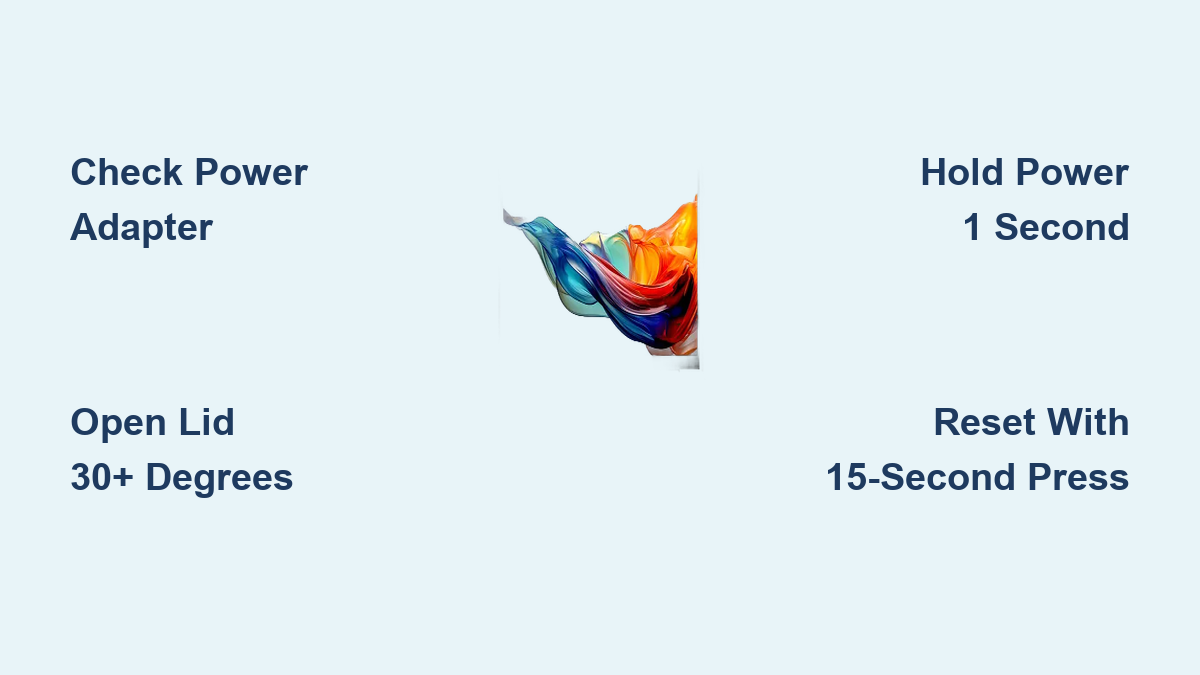
– Lid must open past 30°: This triggers the magnetic Hall sensor that wakes the system. A slightly cracked lid won’t activate it.
Critical mistake to avoid: Skipping temperature acclimation. If your laptop came from freezing car trunk (<10°C) or hot garage (>35°C), wait 30 minutes before attempting power-on. Forcing startup in extreme temps can corrupt firmware. Also unplug all USB drives, SD cards, and external monitors—they hijack the boot sequence.
Find Your Exact Power Button Location (Model-Specific Guide)

HP relocates the power button with every Pavilion redesign. Stop guessing—identify your series and pinpoint the button in seconds.
Pavilion 14/15/17 Standard Models (2017-2023)
Where to press: Top-left keyboard deck, isolated above the Escape key (not part of the function row).
How to recognize it: 15mm rectangular button with a raised tactile ridge. A tiny white LED glows when active.
Pro tip: On 2020+ models, the button blends into the palm rest. Run your finger along the top-left edge—you’ll feel the distinct ridge.
Pavilion x360 Convertible Series
Where to press: Left chassis edge, centered between the USB-A port and volume rocker.
How to recognize it: 6mm recessed circular button with a white/amber LED ring. Flush with the metal casing to avoid accidental presses in tablet mode.
Warning: Forcing a press here on non-convertible models damages the volume rocker. Confirm you own a dw/dq/er-series first.
Pavilion Gaming 15/16 (dk/ec/ax series)
Where to press: Upper-left corner, camouflaged within the angular grille pattern near the hinge.
How to recognize it: Green-backlit trapezoidal button shaped like a sideways “E”. The green glow persists while running.
Expert note: This button requires 60g of force—deliberately harder to press than standard models to prevent gaming mishaps.
Pavilion Aero 13
Where to press: Top row, level with the F12 key (not elevated like older models).
How to recognize it: Oblong button with a near-invisible micro white LED dot. No backlight when inactive.
Key difference: Unlike other Pavilions, this button shares the key row plane—accidental presses are rare due to 1.3mm key travel.
Power-On Sequence That Actually Works (Follow to the Second)
HP firmware ignores quick taps. Use this exact sequence for any Pavilion model—deviate by half a second and the laptop stays dead.
- Plug in the correct adapter: Match wattage to your model (65W for Aer0, 90W for x360, 135W for Gaming).
- Confirm charging LED: Look for solid amber light near the left USB-C port before proceeding.
- Open lid to 30°+: Hold the base steady while lifting the display—shaky movements confuse the Hall sensor.
- Press and hold for 1 full second: Do not tap. Count “one-Mississippi” while pressing firmly.
- Watch the boot sequence:
– 0.2s: Power button LED locks solid
– 0.5s: Keyboard backlight flashes (if equipped)
– 1-2s: HP logo appears
– 2-6s: Windows/Linux boot animation
Critical alert: If BitLocker prompts for a PIN, type it immediately. Delays over 15 seconds trigger security lockouts requiring Microsoft account recovery.
No-Power Emergency Fixes (By Symptom)

Completely Dead? No LEDs, No Fan, Silent
Do this now:
– Unplug the adapter
– Hold power button for 15 full seconds (timer required—most people quit at 10)
– Reconnect adapter and retry power sequence
If still dead: Swap in another HP-certified adapter. Generic chargers often deliver unstable voltage that HP firmware rejects.
LEDs Glow But Screen Stays Black
Fix in 90 seconds:
1. Force-shutdown: Hold power 10 seconds → wait 5 → press normally
2. Press F4 (or Fn+F4 if Fn-lock off) to toggle display outputs
3. If no change: Hold Win + B while pressing power for 2 seconds to trigger BIOS recovery
Stuck at HP Logo Screen
Two likely causes:
– Boot interference: Remove all USB drives/SD cards—then hold power 15 seconds to reset.
– RAM failure: Power off → unplug adapter → remove bottom cover → reseat both RAM sticks → test. Loose RAM causes 32% of logo-screen hangs.
3 Ways to Boot Without Touching the Power Button
HP Pavilions offer hidden wake methods that bypass the physical button entirely—perfect for sticky or damaged buttons.
Auto-Wake When Opening Lid
Works on: Pavilion 14/15/17 (2021+)
Enable it: BIOS → Advanced → Power Management → Toggle “Power on Lid Open” ON
How it works: Simply lift the display past 30°—no button press needed. The Hall sensor detects lid movement and triggers boot.
Instant Boot When Plugging In Adapter
Works on: All business/education models (dp/cq series)
Enable it: BIOS → “After Power Loss” → Select “Power On”
Use case: Kiosks or shared workstations that must auto-boot when power returns.
Remote Wake via Network
Works on: Models with Ethernet port (most non-Aero)
Enable it: BIOS → Advanced → Built-In Device Options → Activate “Wake-on-LAN”
Setup needed: Configure your router to allow “magic packet” wake signals. Requires another device on the same network.
First-Time Setup Secrets for New/Long-Stored Pavilions
Out-of-Box Power-On Checklist
- Always plug in the adapter even if battery shows 40% charge—shipping voltage is unstable.
- Expect 5-10 minute first boot: Windows OOBE runs deep hardware checks. Do not force-shutdown.
- Never disable SecureBoot during setup—it blocks bootkit malware targeting new laptops.
After 3+ Months in Storage
- Perform three full charge cycles (0% → 100%) to recalibrate battery firmware.
- Update BIOS before heavy use via HP Support Assistant—storage degrades firmware stability.
- Normal behavior: USB ports may power devices while “off.” Pressing power still initiates full boot—this isn’t a malfunction.
Prevent Power Failures: Warranty-Safe Maintenance
Weekly:
– Keep battery between 20-80% charge (prolongs lifespan by 2x)
– Blow compressed air around power button to prevent dust jams
– Check HP Support Assistant for BIOS updates (quarterly minimum)
Warranty landmines:
– ⚠️ Never insert metal objects into button recess—this shorts the power rail and voids warranty instantly.
– ⚠️ Physical damage (cracked/stuck button) requires HP Care Pack service. Standard warranty covers only non-physical failures.
– Accidental damage plans include same-day onsite repair—worth it if you travel with your Pavilion.
Turning on your HP Pavilion should take seconds, not frantic minutes. Bookmark this guide—HP moves the power button with every model refresh. Now that you know where to press and how to bypass failures, you’ll never stare at a dark screen again. For persistent no-power issues after trying these steps, run HP Hardware Diagnostics (press Esc during boot) before contacting support—90% of cases get resolved before the call ends.