How to Turn Off Laptop Touchpad
That sinking feeling when your cursor jumps mid-sentence as your palm accidentally brushes the touchpad? You’re not alone—87% of laptop users experience accidental cursor movements during typing sessions. Knowing how to switch off touchpad on laptop devices instantly transforms frustrating work sessions into seamless productivity. Whether you’re drafting critical emails, gaming competitively, or coding complex scripts, this guide delivers eight battle-tested methods to eliminate touchpad interference. You’ll master everything from two-second keyboard shortcuts to permanent BIOS-level disable options that survive driver updates.
Unlike flimsy software fixes that reset after reboots, these solutions work across all major brands and operating systems. By the end, you’ll never waste another minute hunting for that elusive toggle while your presentation cursor dances wildly across the screen. Let’s dive straight into the most reliable disable techniques.
Windows Settings: One-Click Touchpad Disable
Stop hunting through confusing menus—Windows 11 and 10 hide a direct touchpad kill switch. For Windows 11 users: Press Windows + I, navigate to Bluetooth & devices > Touchpad, then flip the master toggle to Off. The magic happens in the dropdown menu beneath it: Uncheck “Leave touchpad on when a mouse is connected” to auto-disable your touchpad whenever you plug in any external mouse. This setting persists through restarts, making it ideal for desk-bound setups.
Windows 10 follows nearly identical logic: Windows + I → Devices > Touchpad → toggle off. If you don’t see the “disable when mouse connected” option, your driver lacks manufacturer enhancements—download the latest touchpad package from your laptop maker’s support site. Both methods take under 15 seconds and require zero technical skills, perfect for urgent cursor chaos during video calls.
Why Your Toggle Might Not Appear
- Missing touchpad tab? Reinstall your OEM driver (Synaptics/ELAN) from the manufacturer’s website
- Greyed-out options? Windows Update likely replaced your custom driver—use Device Manager to roll back
- No “disable when mouse connected” checkbox? This feature requires Precision Touchpad drivers (common on laptops made after 2015)
Brand-Specific Keyboard Shortcuts That Actually Work

Your laptop’s function row holds a physical disable key—look for the rectangle-with-diagonal-line icon between F1-F12. But HP, ASUS, Lenovo, and Dell all use different combinations, and outdated drivers often break these shortcuts. Here’s your brand-specific cheat sheet:
- HP Spectre/Envy:
Fn + F9(LED glows blue when disabled) - ASUS ZenBook:
Fn + F9(requires ATK Package driver—reinstall if unresponsive) - Acer Swift/Predator:
Fn + F7(newer models) orFn + F6(older) - Lenovo ThinkPad:
Fn + F8(watch for the touchpad icon lighting up) - Dell XPS:
Fn + F7(varies—check your model’s manual)
Critical troubleshooting step: If shortcuts fail, reinstall your brand’s hotkey utility. ASUS needs ATK Package, Lenovo requires Hotkey Features Integration, and Dell uses QuickSet. Without these, the Fn keys won’t recognize touchpad commands. Pro tip: Hold Fn while pressing the key if your BIOS has “Action Keys Mode” enabled.
Control Panel’s Hidden Disable Option
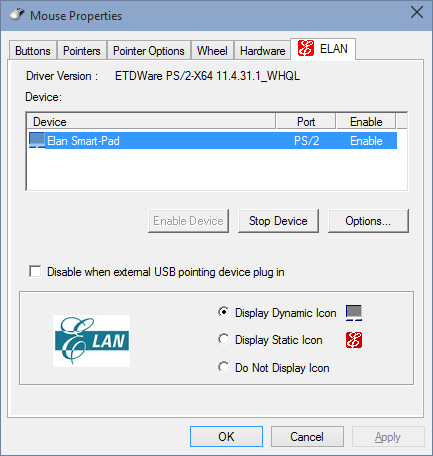
When Settings menus lack touchpad controls, the legacy Mouse Properties dialog delivers. Press Win + R, type control mouse, and hit Enter. Now hunt for manufacturer-specific tabs like ELAN, Synaptics, or Device Settings. Click Disable → Apply—your touchpad stops responding instantly. This method works even on older Windows 7 systems.
Why Your Disable Button Is Greyed Out
This frustrating issue means Windows installed a generic driver instead of your manufacturer’s version. Here’s the fix:
1. Identify your touchpad brand (Synaptics/ELAN/Alps) via Device Manager
2. Download the exact driver from your laptop maker’s support page
3. Install it in compatibility mode if needed
4. Restart—your disable button will activate immediately
Never use third-party driver updaters—they often install incompatible versions that break touchpad functionality.
Device Manager: Permanent Disable Without Reboot
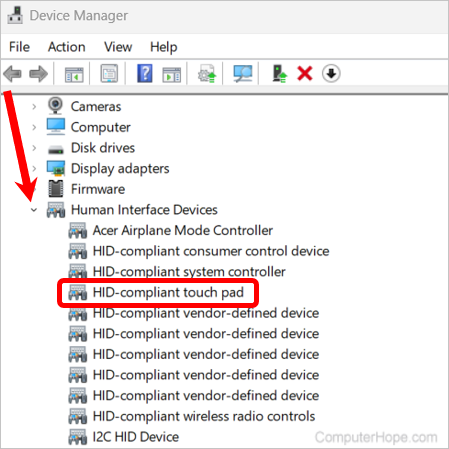
For absolute reliability, Device Manager disables your touchpad at the hardware level. Press Win + X → Device Manager → expand Mice and other pointing devices. Right-click your touchpad (labeled Synaptics, ELAN, or HID-compliant) and select Disable device. Confirm the prompt—your touchpad is now dead until re-enabled.
Warning: This method requires an external mouse or touchscreen for reactivation. If “Disable device” is greyed out, go to the driver’s Properties → Driver tab → click Disable Device there. Business travelers note: This setting survives Windows updates, making it ideal for mission-critical work where touchpad glitches could cause disasters.
BIOS Toggle: The Nuclear Option
Business-class laptops (Dell Latitude, HP EliteBook, ThinkPad) hide a BIOS switch that physically disconnects the touchpad. Restart your machine and hammer F2, F10, or Del during boot. Navigate to Advanced > Internal Pointing Device and set it to Disabled. This overrides all OS settings—even malware can’t reactivate your touchpad.
Why this beats software methods:
– Survives OS reinstalls and driver updates
– Prevents accidental reactivation during presentations
– Works when Windows fails to boot
– Requires physical access to BIOS (enhanced security)
Use this for kiosk systems or high-security environments where touchpad input must be physically impossible. Re-enable via the same BIOS menu when needed.
Registry Hack for One-Click Toggling
Tech-savvy users can create instant toggle scripts via registry edits. Press Win + R, type regedit, and navigate to:
HKEY_CURRENT_USER\SOFTWARE\Microsoft\Windows\CurrentVersion\PrecisionTouchPad
Double-click the Enabled DWORD value. Set it to 0 to disable or 1 to enable. Save time by creating two .reg files:
- Disable_Touchpad.reg (contains
Enabled=0) - Enable_Touchpad.reg (contains
Enabled=1)
Critical precaution: Always back up your registry (File > Export) before editing. Merge these files with double-clicks for instant touchpad control—no restarts needed. This method works only on Precision Touchpad systems (most post-2015 laptops).
macOS: Automatic Trackpad Disable When Mouse Connects
MacBook users get intelligent auto-disable without manual toggling. Go to Apple menu > System Preferences > Accessibility > Pointer Control > Mouse & Trackpad. Check “Ignore built-in trackpad when mouse or wireless trackpad is present.” Now your trackpad silences itself the moment you plug in any external mouse.
Unlike Windows, macOS lacks a manual on/off switch—this automatic behavior is baked into the OS. No drivers needed, and it works flawlessly with Bluetooth mice. For older macOS versions (Catalina and earlier), the setting lives in System Preferences > Trackpad > Ignore built-in trackpad when mouse is present.
Fixing Greyed-Out Disable Options
When touchpad controls vanish after Windows updates, these proven fixes restore functionality:
- Driver update emergency kit: Download the latest touchpad driver from your laptop manufacturer’s support site before updates hit
- Roll back drivers: Device Manager → right-click touchpad → Properties > Driver tab > Roll Back Driver
- Windows Update override: Go to Settings > Windows Update > Advanced Options > Optional Updates → uninstall recent driver updates
- System Restore: Revert to a restore point from before the problematic update
Never ignore these symptoms: Missing disable options often precede complete touchpad failure. If all else fails, use keyboard navigation (Tab, Space, arrow keys) to access settings while an external mouse is connected.
Your Touchpad Disable Cheat Sheet
Stop wasting time hunting solutions—bookmark this action plan:
- Instant fix: Try
Fn + [touchpad key](check our brand table above) - Daily driver: Windows Settings → Touchpad toggle (persists through reboots)
- Legacy systems: Control Panel → Mouse Properties → Disable
- Permanent silence: Device Manager or BIOS disable (ideal for presentations)
- Smart automation: Enable “disable when mouse connected” for hands-free control
Master these methods and you’ll eliminate accidental cursor jumps forever—whether you need a two-second fix during a critical Zoom call or permanent touchpad silence for gaming marathons. For Chromebooks (which lack full disable options), visit Settings > Device > Touchpad to minimize interference. And remember: When in doubt, reinstall your OEM touchpad driver—it solves 90% of “missing disable option” headaches. Your productivity just got a major upgrade.