How to Sign Out of Gmail on Laptop
You’re at a coworker’s desk, library computer, or coffee shop terminal, and suddenly remember you left your Gmail account wide open. That sinking feeling hits—you need to sign out now before someone accesses your emails, contacts, or sensitive attachments. Unlike mobile apps with obvious logout buttons, Gmail’s laptop sign-out process is buried in menus and complicated by Google’s ecosystem integration. Whether you’re using Chrome, Firefox, or Safari on Windows or Mac, this guide cuts through the confusion with precise, actionable steps. You’ll learn exactly how to fully disconnect your account—even when juggling multiple profiles—and secure your data in under 60 seconds.
Here’s what most tutorials miss: Signing out of Gmail automatically logs you out of all Google services (Drive, Photos, Maps) in that browser session. Plus, if you use multiple accounts, Google intentionally removed single-account sign-out options in 2021. This isn’t a glitch—it’s by design. We’ll navigate these quirks while addressing critical security gaps like forgotten devices and shared computers. By the end, you’ll master both immediate sign-outs and emergency remote logouts when you’re miles from the compromised laptop.
Quick Gmail Sign-Out Steps
Single Account Users
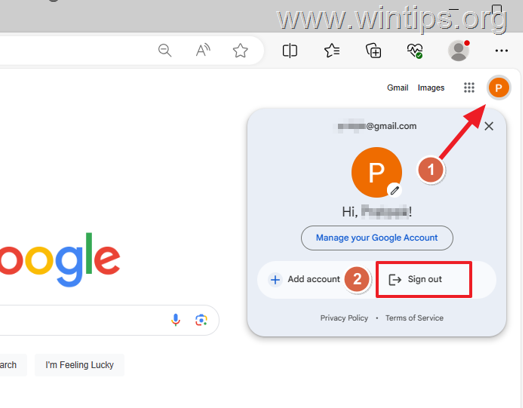
Don’t waste time hunting through menus. For solo Gmail users, the fastest logout path takes 12 seconds: Open Gmail.com, click your profile photo (top-right corner), and select “Sign out” from the dropdown. Chrome users will see a sync warning—”Your bookmarks, history, passwords, and more are no longer being synced”—click “Continue” to confirm. This instantly terminates access to Gmail, Drive, and all Google services in that browser window. Crucially, your local browser data (saved passwords, bookmarks) remains intact but stops syncing to Google’s servers until you log back in.
Multiple Account Users
If you manage work and personal accounts simultaneously, brace for Google’s limitation: You cannot sign out of just one Gmail profile. The only option is “Sign out of all accounts,” which logs you out of every linked Google service across all accounts. Click your profile icon, then select this nuclear option at the menu bottom. After signing out, revisit Gmail.com to selectively log back into needed accounts. Pro tip: Always use separate browsers (e.g., Chrome for work, Firefox for personal) to avoid this all-or-nothing scenario.
Gmail Sign-Out Process Explained
:max_bytes(150000):strip_icc()/009-how-to-sign-out-of-gmail-1172003-4a9cd9bd3f994fd58b0b1757c67a820a.jpg)
When you click “Sign out,” Google severs your active session across its entire ecosystem—not just Gmail. This means:
– Google Drive files become inaccessible until re-login
– Maps navigation sessions pause mid-route
– Photos uploads halt abruptly
– Chrome sync (passwords, history, extensions) freezes locally
The reverse is equally true: Signing into Gmail auto-signs you into all Google services. This integration explains why you can’t log out of Gmail alone—it’s a gateway to your unified Google identity. For Chrome users, the sync interruption message isn’t a bug; it’s a security feature preventing local data from transmitting to Google’s servers while signed out. Your locally stored passwords and bookmarks stay on the device but become “orphaned” from cloud backups.
Sign Out from Gmail Interface
Single Account Method
Follow these verified steps for foolproof logout:
1. Open Gmail → Navigate to gmail.com in your browser (works identically on Windows, Mac, or Linux)
2. Locate your profile picture → Find the circular icon with your initial/photo in the top-right corner (if missing, you’re already signed out)
3. Click the profile icon → This reveals account-specific actions like “Add another account”
4. Select “Sign out” → Not “Turn off” or “Manage accounts”—this is the critical logout trigger
5. Confirm sync pause → Chrome users must click “Continue” on the sync interruption alert
Common mistake: Clicking the gear icon (Settings) instead of your profile photo. Settings only adjust email preferences—they won’t log you out.
Multiple Account Reality Check
Google’s 2021 policy change eliminated individual account sign-outs. When multiple profiles appear in the top-right menu (e.g., your work and personal icons), clicking any profile photo only shows “Sign out of all accounts.” There are no workarounds—this applies universally across Chrome, Edge, Firefox, and Safari. If you need to keep one account active while logging out of another, your only option is to:
1. Sign out of all accounts
2. Immediately sign back into the account you want to retain
3. Repeat for each session where selective access is needed
Remove Account from Sign-In Screen
Signing out doesn’t erase your digital footprint. Your email often lingers on the Gmail login screen, tempting prying eyes. Erase this trace in 3 clicks:
1. After signing out, click “Remove an account” below the login fields
2. Hover over your email address and click the red minus (-) icon
3. Confirm with “Yes, remove” when prompted
Why this matters: On shared computers (libraries, offices), this prevents accidental logins or shoulder-surfing. Unlike signing out, this step doesn’t affect your actual Google account—it merely cleans the browser’s local cache. Your account remains fully functional elsewhere.
Remote Sign-Out Security
When You’re Not at Your Laptop
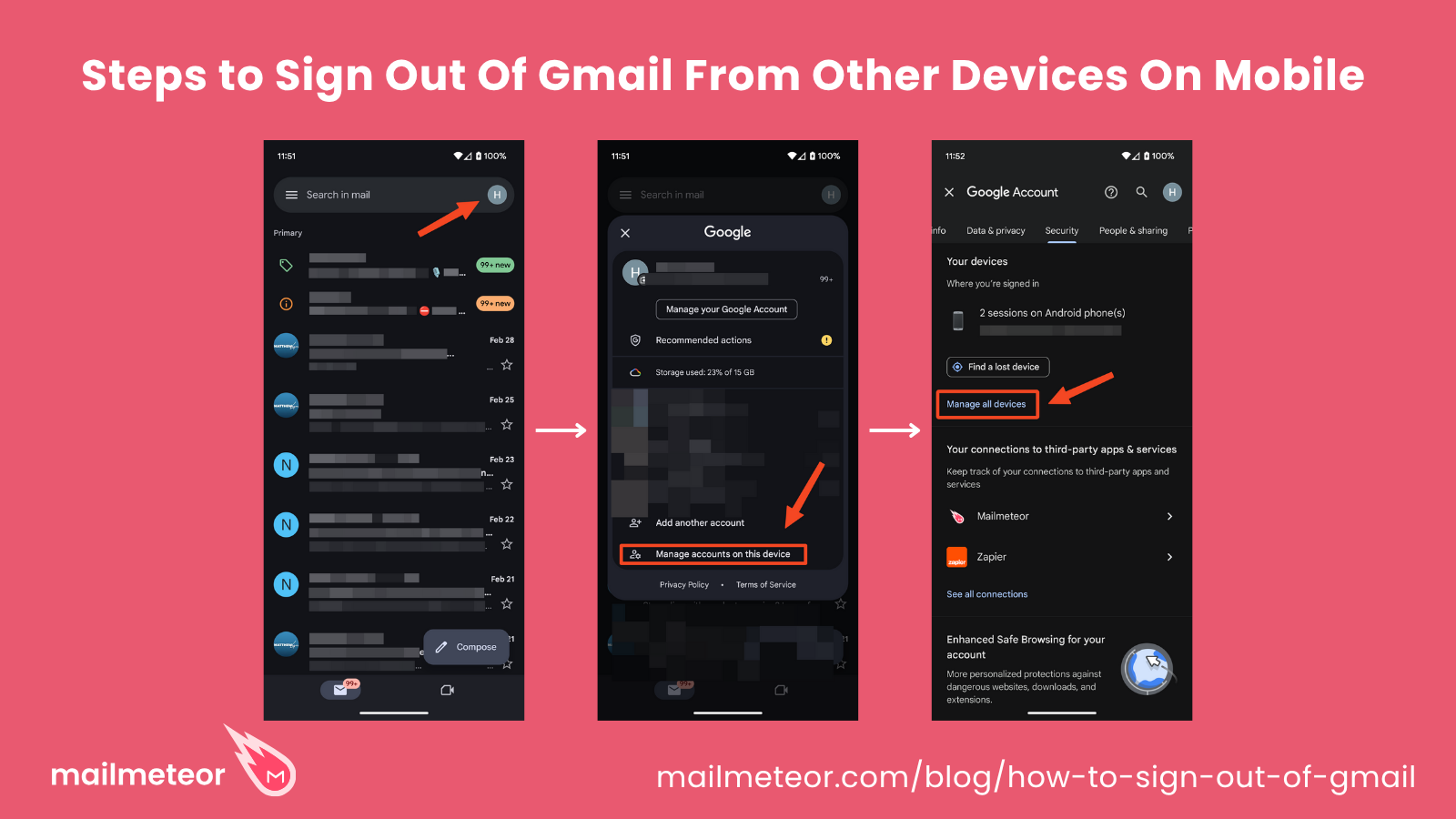
Realized you left Gmail open on a public computer? Remotely terminate the session from your phone:
1. Visit myaccount.google.com/device-activity on any device
2. Review devices → Locate the suspicious laptop under “Windows computers” or “Mac computers”
3. Click the device → Verify identity if prompted (2FA, password)
4. Select “Sign out” → Instantly kills all Google service access on that machine
Critical note: This signs you out of all accounts active on that laptop. If you use multiple profiles, remote logout affects every linked identity.
Emergency Remote Access
For targeted sign-outs when multiple accounts are involved:
1. Log into the compromised account from your phone or tablet
2. Go to device activity → myaccount.google.com/device-activity
3. Find the rogue laptop in “Your devices” (check location/timestamp clues)
4. Click “Sign out” beside that specific device
Pro tip: Bookmark this URL on your phone: myaccount.google.com/device-activity?utm_source=remote_signout. It skips Google’s homepage for faster emergency access.
Common Sign-Out Issues
Missing Individual Account Options
If you don’t see separate “Sign out” buttons per account, don’t panic—Google removed this intentionally. The single “Sign out of all accounts” option isn’t a bug; it’s permanent policy. Forcing individual sign-outs via browser extensions or developer tools risks account suspension.
Default Account Confusion
Your first-signed-in account becomes the “default” profile, controlling permissions for shared documents and YouTube subscriptions. When signing back in after logout, the order you log in determines your new default. To reset this:
1. Sign out completely
2. Log into your preferred primary account first
3. Then add secondary accounts
Chrome Sync Messages
Chrome’s persistent “sync paused” warning after logout indicates local data isolation. This isn’t an error—it means your passwords/bookmarks won’t transmit to Google’s servers until re-login. To resume syncing: Simply sign back in; data automatically re-syncs within 30 seconds.
Security Best Practices
Shared Computer Protocol
- Always click “Sign out of all accounts” on public devices—not just “Sign out”
- Remove your account from the sign-in screen using the red minus icon
- Check device activity weekly via myaccount.google.com/security-checkup to spot unrecognized logins
Work Account Separation
Use Chrome’s built-in profile system: Create separate browser profiles for work (blue icon) and personal (green icon) accounts. Each profile maintains independent sign-in states—logout from one won’t affect the other. Access via Chrome menu > “Turn on sync” > “Add” new profile.
Quick Security Check
Run Google’s automated security scan monthly:
1. Visit myaccount.google.com/security-checkup
2. Click “Review devices” under “Your devices & activity”
3. Terminate suspicious sessions with one click
Key Takeaway
Signing out of Gmail on a laptop isn’t about Gmail alone—it’s a full Google ecosystem logout affecting Drive, Photos, and Chrome sync. Whether managing one account or five, the process is identical across all browsers and operating systems. For true security, always combine local sign-out with remote device checks. If you’ve forgotten to log out elsewhere, myaccount.google.com/device-activity is your emergency kill switch. Remember: On shared computers, “Sign out of all accounts” plus account removal from the login screen is your non-negotiable two-step safety ritual. Bookmark Google’s security dashboard today—it could save your inbox tomorrow.