How to Screenshot on Samsung Laptop
Your Samsung laptop screen holds valuable information you need to capture right now—maybe it’s an error message for tech support, a work document you need to share, or a social media post you want to save. Knowing exactly how to screenshot on Samsung laptop models like Galaxy Book or Notebook series is crucial when time matters. This guide cuts through the confusion with 12 proven methods that work on any Samsung Windows laptop, so you’ll never miss capturing what’s on your screen again.
Unlike generic Windows laptops, Samsung devices offer unique screenshot capabilities—especially Galaxy Book models with S Pen functionality. You’ll discover which method saves automatically versus copying to clipboard, how to capture specific screen regions, and solutions when standard shortcuts fail. By the end, you’ll have the perfect screenshot technique for every scenario.
Capture Full Screen in One Second Flat
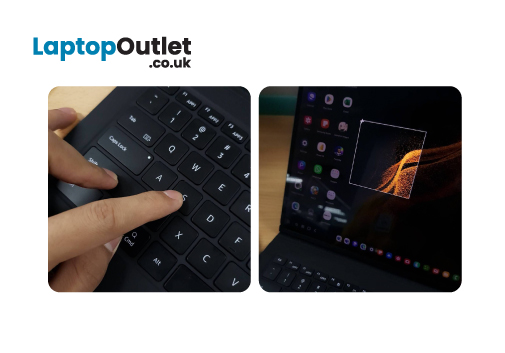
Press Windows + PrtScn for Instant Auto-Save
When you need the entire screen captured immediately, press Windows + PrtScn together. Your display will dim briefly—this visual confirmation means your screenshot saved successfully. Unlike basic PrtScn method, this combination automatically stores your image as a PNG file in Pictures > Screenshots folder, named sequentially as “Screenshot (1).png”, “Screenshot (2).png”, and so on.
Pro tip: This method works identically across all Samsung Windows laptops including Galaxy Book Pro, Galaxy Book2, and older Notebook models. No setup required—just press and forget.
Fix When Full Screen Capture Fails
If your screen doesn’t dim after pressing Windows + PrtScn:
– Check for stuck Windows key (press it firmly once to release)
– Update Windows through Settings > Windows Update
– Restart File Explorer via Task Manager if screenshots won’t save
– Try Fn + Windows + PrtScn on compact keyboard layouts
Grab Active Windows Without Clutter
Alt + PrtScn for Single-Window Captures
When multiple applications clutter your screen but you only need one window, press Alt + PrtScn. This copies just the active window to your clipboard—perfect for capturing browser tabs or dialog boxes without desktop background distractions. Open Paint, Word, or any image editor and press Ctrl + V to paste and save your selection.
Critical detail: This method won’t show visual confirmation like screen dimming, so always check your clipboard by pasting immediately after capture.
Windows + Alt + PrtScn for Gaming Screenshots
Gamers using Samsung Galaxy Book models should press Windows + Alt + PrtScn during gameplay. This saves the active game window directly to Videos > Captures folder as MP4 video frames, preserving high-quality visuals better than standard screenshots. Works seamlessly with full-screen games where other shortcuts might not respond.
Select Custom Screen Regions Precisely
:max_bytes(150000):strip_icc()/002-how-to-use-snip-and-sketch-to-take-a-screenshot-in-windows-10-47dfaf7cfc044c1e84fc79fe5fddc26e.jpg)
Windows + Shift + S for Pinpoint Selection
Press Windows + Shift + S to activate the Snip & Sketch toolbar with four selection options:
– Rectangular snip: Drag to select perfect rectangles
– Freeform snip: Draw custom shapes around irregular content
– Window snip: Click any open window for instant capture
– Fullscreen snip: Grab everything visible immediately
After selecting your area, the screenshot copies to clipboard. A notification thumbnail appears in your corner—click it to annotate or save without opening separate apps.
Common mistake: Users often miss the tiny notification that appears for 3 seconds. Train yourself to glance at the bottom-right corner immediately after capturing.
Galaxy Book S Pen Screen Write Method
On S Pen-compatible Galaxy Books (like Galaxy Book3 Ultra), hover your pen over the screen and press the side button. Select Screen Write from Air Command menu for full-screen capture with instant annotation capabilities. Draw arrows, highlight text, or add notes directly on your screenshot before saving—ideal for collaborative work or explaining technical issues.
Save Screenshots to Correct Locations
Find Missing Screenshots in 30 Seconds
Can’t locate your captures? Check these specific folders:
– Windows + PrtScn: C:\Users\[YourName]\Pictures\Screenshots
– Windows + Alt + PrtScn: C:\Users\[YourName]\Videos\Captures
– Clipboard captures: Paste into Paint with Ctrl + V
– S Pen screenshots: Default to Pictures folder unless you specified otherwise
Urgent fix: If screenshots disappear after capture, disable OneDrive’s “Files On-Demand” feature which sometimes hides recently saved images.
Organize Screenshots Like a Pro
Stop drowning in “Screenshot (47).png” files by implementing this system:
1. Create project-specific folders within Pictures directory
2. Rename files immediately using descriptive names (e.g., “Budget_Report_Error_2023”)
3. Enable automatic timestamp naming through third-party tools like Greenshot
4. Set up OneDrive sync for cloud backup across all devices
Troubleshoot Dark or Missing Screenshots
Fix Black Screenshots on Galaxy Books
Samsung laptop users often report dark or black screenshots when:
– Battery Saver mode is active (dimming screen brightness)
– Display scaling exceeds 100% (Settings > System > Display)
– Using remote desktop applications
Immediate solution: Disable Battery Saver, set display scaling to 100%, and capture while viewing local content only.
Handle Multi-Monitor Capture Issues
When using dual monitors with your Samsung laptop:
– PrtScn alone: Captures all connected displays
– Alt + PrtScn: Targets only the active window’s monitor
– Windows + Shift + S: Lets you select across both screens
– For monitor-specific captures, temporarily disconnect secondary display
Pro technique: Press Windows + P and select “Second screen only” before capturing to isolate content on your external monitor.
Leverage Galaxy Book Exclusive Features
Windows + Volume Down Shortcut for Mobile Users
Samsung Galaxy Book S owners can use Windows + Volume Down—the same gesture as Samsung phones. This captures your entire screen and saves to Pictures > Screenshots instantly. Perfect if you’re transitioning from Galaxy phone to laptop and want muscle memory consistency.
Note: This shortcut works only on select Galaxy Book S models (check your keyboard for volume icons).
Smart Select for Text Extraction
Access Smart Select from Air Command menu with your S Pen to:
– Capture irregular screen regions
– Convert on-screen text to editable format
– Save selections directly to Samsung Notes
– Share annotated captures via Quick Share
Quick Reference: Samsung Laptop Screenshot Cheat Sheet
| Method | Keys | Best For | Save Location |
|---|---|---|---|
| Full Screen Save | Windows + PrtScn | Everything visible | Pictures\Screenshots |
| Active Window | Alt + PrtScn | Single application | Clipboard |
| Custom Region | Windows + Shift + S | Precise selections | Clipboard |
| Gaming Capture | Windows + Alt + PrtScn | Full-screen apps | Videos\Captures |
| S Pen Annotation | Hover + Button | Edited captures | User choice |
| Galaxy Book S | Windows + Volume Down | Mobile users | Pictures\Screenshots |
Master these techniques to handle any screenshot scenario on your Samsung laptop. Start with Windows + PrtScn for emergency full-screen captures, then explore Windows + Shift + S for precision work. Galaxy Book owners should prioritize S Pen methods for the most intuitive experience. When standard tools fail, Lightshot provides reliable fallback with one-click sharing—download it now to avoid future capture crises. Remember: the right screenshot method saves minutes daily, prevents missed information, and makes you look tech-savvy to colleagues.