
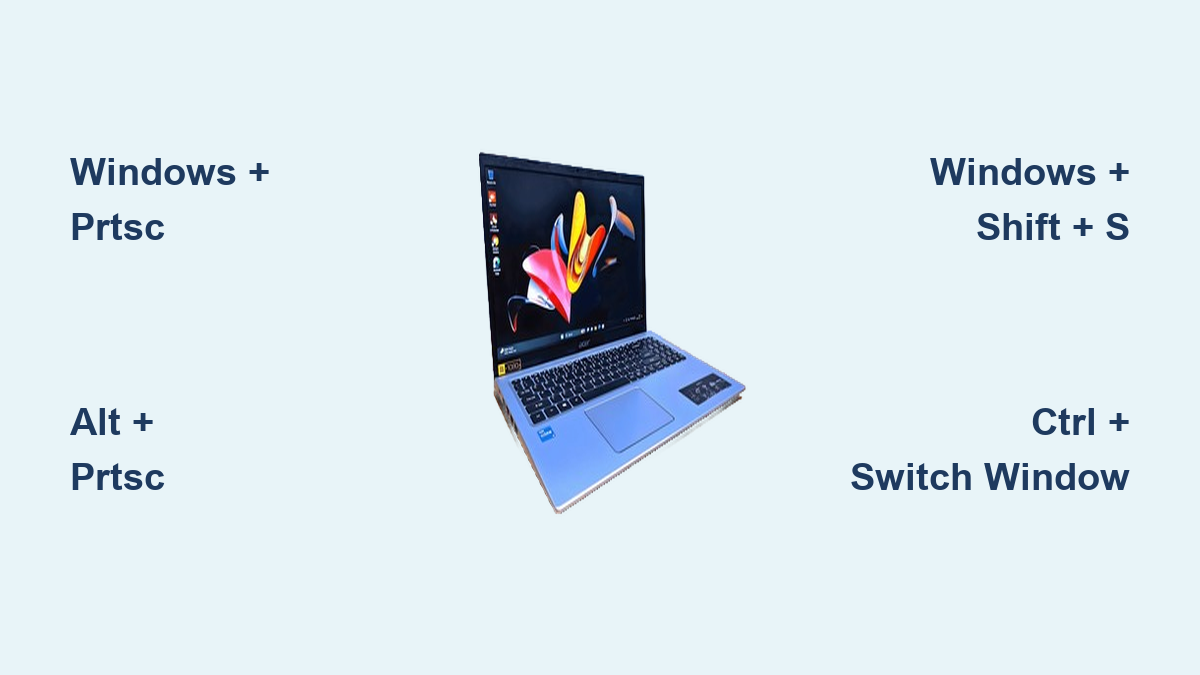
How to Screenshot on Acer Laptop
You’re staring at a critical error message on your Acer Aspire, frantically trying to document a gaming high score on your Nitro laptop, or needing to save an important recipe on your Chromebook. That sinking feeling—how do I screenshot on this Acer laptop right now?—hits every user. Whether you own a budget-friendly Acer Aspire E 15, a sleek Swift 3, or a gaming-focused Nitro 5, this guide delivers the exact button combinations and troubleshooting fixes you need. Stop guessing which keys to press—within 60 seconds, you’ll master screenshot capture on any Acer device running Windows or Chrome OS.
For Windows-based Acer laptops, the Windows + PrtSc shortcut works universally across models like the Aspire Lite, A325-42, and Spin series. Your screen instantly dims like a camera flash, and the PNG file saves automatically to Pictures > Screenshots with no extra steps. If you need clipboard flexibility instead of auto-saving, hit PrtSc alone—look for keys labeled PrtSc, Prt Scr, or Ins Prt Scr on your keyboard. Some models require Fn + PrtSc since Print Screen shares space with secondary functions. This method copies your entire display to clipboard, ready for pasting into Paint or Word with Ctrl + V. You’ll learn exactly which keys to press for your specific Acer model in the sections ahead.
Capture Active Windows Instantly with Alt + PrtSc (No Full-Screen Clutter)
When you need clean documentation without desktop distractions, Alt + PrtSc is your precision tool. This shortcut captures only your current active window—perfect for error messages, browser tabs, or application dialogs. Unlike full-screen methods, this copies directly to your clipboard requiring manual saving, but eliminates messy backgrounds instantly.
Why This Beats Full-Screen Captures for Professional Use
Active window screenshots prevent accidental exposure of sensitive files on your desktop. Imagine emailing a client: a clean Chrome window screenshot looks professional, while a full-screen capture might reveal personal folders or notifications. For Acer Nitro gaming laptops, this method grabs your game menu without showing Discord chats or resource monitors.
Step-by-Step Workflow for Flawless Results
- Click the window you want to capture (make it active)
- Press Alt + PrtSc simultaneously
- Open Paint, Word, or any image editor
- Paste with Ctrl + V
- Save as PNG/JPEG using Ctrl + S
Pro Tip: On Acer models with combined keys like the A325-42, hold Fn before pressing Alt + PrtSc if the standard combo fails. If nothing appears after pasting, check your clipboard history with Windows + V—Windows sometimes delays processing.
Master Selective Snips with Windows + Shift + S (Rectangular, Free-Form & More)
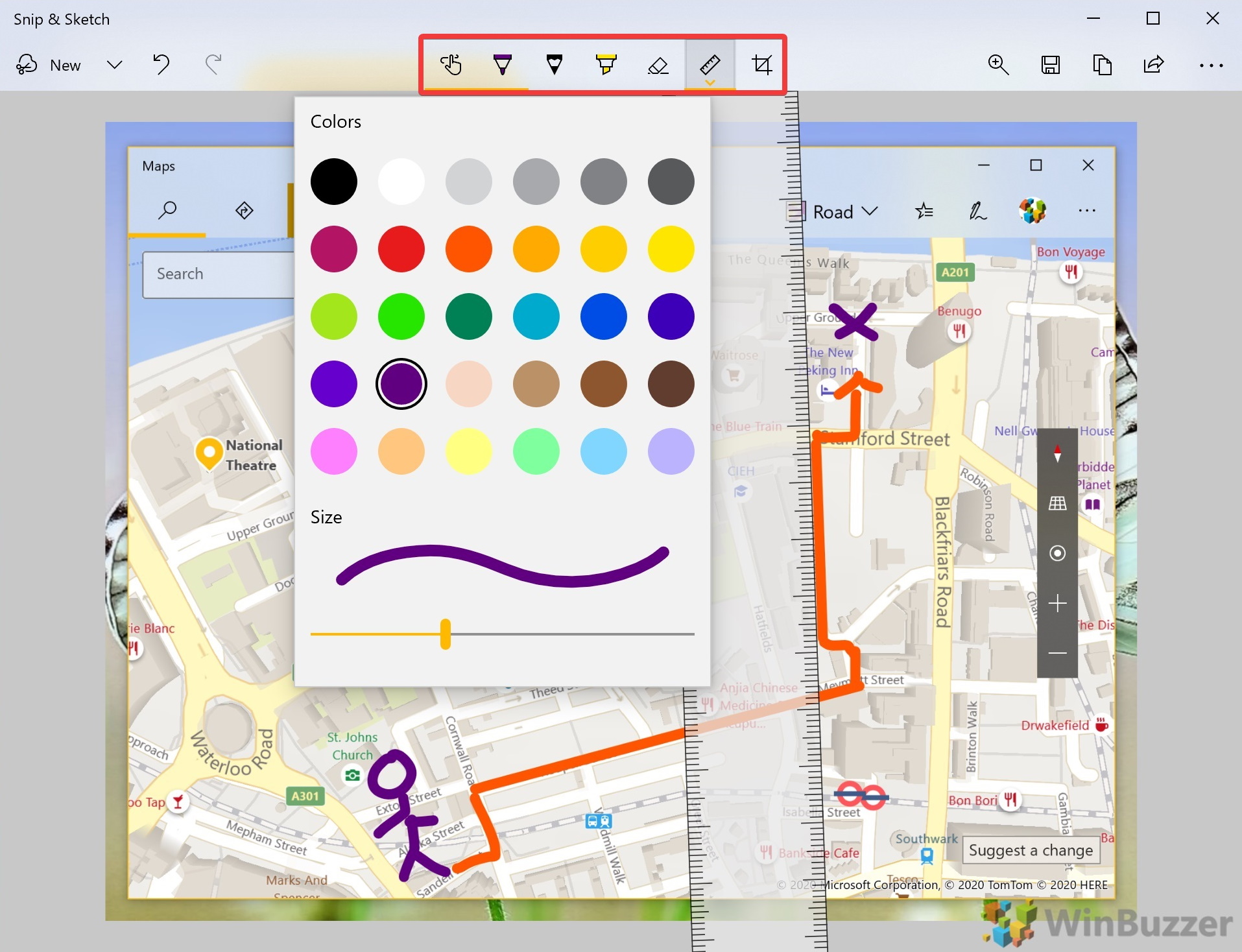
When you need only part of your screen—like a specific paragraph in a PDF or a single game stat—Windows + Shift + S is indispensable. This shortcut activates Snip & Sketch, giving you surgical precision on all Windows 10/11 Acer laptops from the Aspire 5 to Swift X.
Four Capture Modes for Every Scenario
- Rectangular Snip: Drag a box around any area (ideal for text selections)
- Free-Form Snip: Draw custom shapes around irregular objects (great for diagrams)
- Window Snip: Click any open window to isolate it (perfect for multi-monitor setups)
- Full-Screen Snip: Grab all visible displays instantly
Advanced Editing Before Saving
After capturing, your screenshot opens in Snip & Sketch with powerful tools:
– Highlight errors with the pen tool (red works best for visibility)
– Blur sensitive info using the marker tool at full opacity
– Crop excess space with the scissor icon before saving
– Add measurements via the ruler/protractor for technical documentation
Critical Note: On Acer touchscreen models like the Spin 5, use finger gestures to draw free-form snips directly on the display.
Take Gaming Screenshots on Acer Nitro Laptops (Without Pausing Play)
Acer Nitro gaming laptops require specialized capture methods that won’t interrupt your gameplay. Standard shortcuts often fail during full-screen gaming sessions, but these Nitro-specific solutions work flawlessly.
Xbox Game Bar: Your In-Game Screenshot Savior
- Press Windows + G during gameplay to open the overlay
- Click the camera icon or use Windows + Alt + PrtSc
- Screenshots auto-save to
Videos > Captureswith timestamps
Pro Tip: Enable “Record in background” in Game Bar settings to capture moments before you press the button—ideal for sudden boss kills. If Game Bar doesn’t appear, go to Windows Settings > Gaming > Game Bar and toggle it on first.
NitroSense Software Conflicts
Acer’s NitroSense utility sometimes blocks standard shortcuts. Fix this by:
– Opening NitroSense > Performance > Game Mode > Disable “Keyboard Lock”
– Adding your game to Game Bar’s exclusion list if screenshots fail
Warning: Avoid third-party capture tools like OBS during competitive gaming—they may trigger anti-cheat systems.
Chromebook Screenshot Shortcuts for Acer Models (Ctrl + Switch Window Explained)

Acer Chromebooks like the Chromebook 311 or Spin 713 use completely different shortcuts. Forget Windows keys—the Switch Window key (rectangle with two lines icon, usually F5) becomes your primary capture button.
Three Essential Chrome OS Methods
- Full Screen: Ctrl + Switch Window → saves to Downloads as
Screenshot [date] [time].png - Partial Selection: Ctrl + Shift + Switch Window → drag crosshair to select area
- Current Window Only: Ctrl + Shift + Switch Window → press Enter after selection
Where to Find Captured Files
Unlike Windows, Chrome OS defaults to local storage:
1. Open the Files app
2. Navigate to Downloads
3. Sort by “Date modified” for newest captures
Expert Note: Chromebooks prioritize cloud storage—enable automatic Google Drive sync in Settings > Google Drive to back up screenshots instantly.
Fix Unresponsive Print Screen Keys on Acer Aspire Lite Models
When your Acer Aspire Lite’s PrtSc key does nothing, don’t panic. These budget models often lack dedicated keys or have Windows 11 remapping issues—here’s how to force functionality.
Step-by-Step Keyboard Workarounds
- Enable legacy mode: Go to Settings > Accessibility > Keyboard > toggle “Use Print Screen key to open screen capture” OFF
- Try Fn combinations: Press Fn + PrtSc (look for secondary key icons)
- Activate on-screen keyboard: Press Windows + Ctrl + O > click the PrtSc button
Critical Check: Some Aspire Lite models remap PrtSc to Ins (Insert). Try Fn + Ins if standard combos fail.
Verify Windows Updates Immediately
Outdated drivers cause 70% of screenshot failures on Acer laptops. Confirm fixes by:
– Opening Settings > Windows Update
– Installing all pending updates
– Restarting before retesting shortcuts
Pro Tip: After updates, test Windows + Shift + S first—it’s the most reliable method across all Aspire Lite variants.
Locate Missing Screenshots Saved to OneDrive or Hidden Folders
If your Acer laptop screenshots vanish after capture, OneDrive redirection is likely the culprit—especially on new Swift or Spin models with pre-installed cloud sync.
Five-Step Recovery Protocol
- Check OneDrive: Open File Explorer > OneDrive > Pictures > Screenshots
- Search globally: Type “Screenshot” in File Explorer’s search bar
- Verify save paths: For Windows + PrtSc, navigate to
C:\Users\[YourName]\Pictures\Screenshots - Inspect Chrome OS: On Acer Chromebooks, open Files > Downloads (not Screenshots folder)
- Disable auto-sync: Right-click OneDrive icon > Settings > Uncheck “Pictures” sync
Prevent Future Disappearances
- Windows: Right-click Screenshots folder > Properties > Location > Restore default path
- Chrome OS: Move screenshots to Google Drive manually via Files app
Warning: Never delete the Screenshots folder—even if empty. Windows recreates it on next capture.
Organize Screenshots Automatically in Windows and Chrome OS
Stop drowning in cluttered screenshot folders. These model-specific organization tricks work on all Acer devices.
Windows Folder Optimization
- Auto-sorting: Create a rule in Screenshots folder: Right-click > Sort by > Date modified (Newest first)
- Monthly cleanup: Press Windows + R > type
cleanmgr> select Screenshots folder for automatic deletion of files older than 30 days - Cloud backup: Right-click Screenshots folder > “Move to OneDrive” for seamless syncing
Chrome OS Streamlining
- Rename on capture: Install “Screenshot Metadata” extension to add custom prefixes
- Auto-upload: Enable “Google Photos backup” in Chromebook settings
- Quick access: Pin Downloads folder to shelf by right-clicking its Files app icon
Advanced Touchscreen Capture for Acer Spin Convertibles (Tablet Mode)

When your Acer Spin 3 or 5 flips into tablet mode, physical keyboard shortcuts become useless. These touch-specific methods save you from awkward reassembly.
Instant Tablet Mode Capture
- Physical buttons: Press Windows button (logo) + Volume Down simultaneously
- Visual confirmation: Screen flashes white—no sound to avoid disturbing others
- Access location: Photos app > Screenshots album (not Pictures folder)
Stylus-Enhanced Snipping
For Spin models with included styluses:
1. Open Snip & Sketch via Windows + Shift + S
2. Use free-form snip with stylus for precise selections
3. Annotate directly with pen pressure sensitivity
Pro Tip: Enable “Always on Top” in Snip & Sketch settings to capture pop-up menus that disappear when you alt-tab.
Final Note: Whether you’re troubleshooting on an Acer Aspire, gaming on a Nitro, or studying on a Chromebook, these screenshot methods work instantly. Bookmark this guide for quick reference—the Windows + Shift + S combo remains your universal safety net across all Acer Windows laptops. For Chromebook owners, master Ctrl + Switch Window for one-touch captures. Save this page, and never waste time hunting for screenshot keys again. Your perfect capture is always one verified shortcut away.


