How to Restart a Windows Laptop: Quick Steps
Your presentation is frozen. The cursor won’t budge. That critical deadline looms as your Windows laptop becomes a paperweight. Whether you’re battling a stubborn freeze or simply installing updates, knowing exactly how to restart a Windows laptop can save your data and your sanity. This guide delivers eight proven restart methods—from standard clicks to emergency procedures—so you’re never stranded with an unresponsive device. You’ll learn which method preserves your work, which ones work when your mouse dies, and the exact sequence to follow when Windows completely freezes.
Start Menu Restart: Windows 10 vs. 11 Step-by-Step Guide
The Start menu remains the most reliable restart method when your system responds normally. But don’t assume Windows 10 and 11 work the same—knowing the differences prevents wasted clicks when time matters.
Windows 11 Restart Sequence
- Save your work and close applications (Ctrl+S is your friend)
- Click the Start button (center of taskbar)
- Locate the Power icon (right side of menu, next to your profile)
- Select Restart from the pop-up options
- Wait 15-30 seconds—your laptop handles the rest automatically
Windows 10 Critical Variation
- Click the Start button (lower-left corner)
- Click the Power button
- Always choose “Update and Restart” if available—it patches security flaws while restarting
- If that option’s missing, select Restart
Pro tip: If “Update and Restart” appears, don’t ignore it. Windows uses this window to install critical security patches that could protect your data from threats.
Keyboard Shortcuts That Instantly Restart a Frozen Windows Laptop
When your mouse fails or Windows freezes mid-task, keyboard shortcuts become your lifeline. These methods work even with multiple windows open and require zero mouse movement.
Alt + F4 Universal Restart Method
This classic combination works across all Windows versions and prompts you to save unsaved work.
Steps:
1. Press Win + D to minimize all windows
2. Press Alt + F4 simultaneously
3. Use arrow keys to select “Restart”
4. Press Enter to confirm
Expert note: This method is your first line of defense—it preserves data better than force restarts and works even when the Start menu is unresponsive.
Win + X Lightning Restart
The fastest keyboard-only method for experienced users.
Quick sequence:
– Win + X → opens power menu
– U → opens shutdown submenu
– R → executes restart
Time savings: This method takes just 3 seconds versus 10+ seconds for mouse navigation. Practice it now so you don’t fumble during emergencies.
Command Prompt Force Restart When Windows Freezes
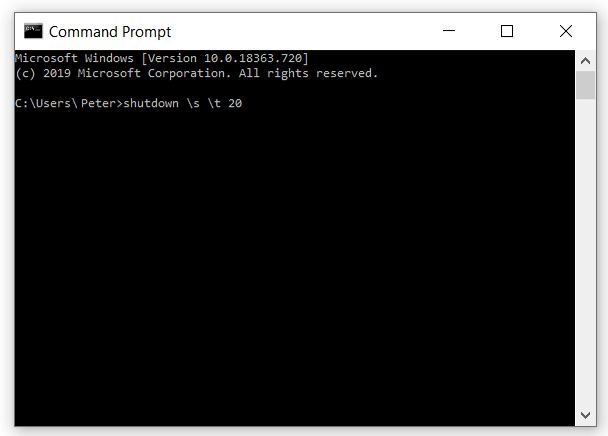
When standard methods fail, command-line restarts give you surgical control over the shutdown process. These techniques work even when graphical interfaces crash.
Immediate Restart Command
- Press Windows + R
- Type
shutdown /r /t 0 - Press Enter for instant restart
Critical variations:
– Add 60-second delay: shutdown /r /t 60
– Force close stubborn apps: shutdown /r /f /t 0
– Schedule nightly restarts: shutdown /r /t 3600
Warning: The /f flag forces applications to close without saving—only use it when absolutely necessary to prevent data loss.
Emergency Power Button Restart: Last Resort Procedures
When all software methods fail, physical restart procedures become necessary. But doing this wrong can corrupt your system—follow these exact steps.
Correct Force Restart Sequence
- Hold the power button for 4-5 full seconds (not 2-3!)
- Wait 2-3 seconds after the laptop powers off
- Press power button normally to restart
⚠️ Critical warning: Never hold the power button for less than 4 seconds—this often puts your laptop to sleep instead of forcing shutdown. Windows will run disk checks on restart, adding 1-2 minutes to boot time.
Graphics Driver Refresh (Before Force Restart)
Try this display-specific fix first to avoid data loss:
- Press Win + Ctrl + Shift + B
- Screen flashes black briefly (confirms success)
- Often resolves display freezes without full restart
How to Create a One-Click Restart Shortcut on Your Desktop
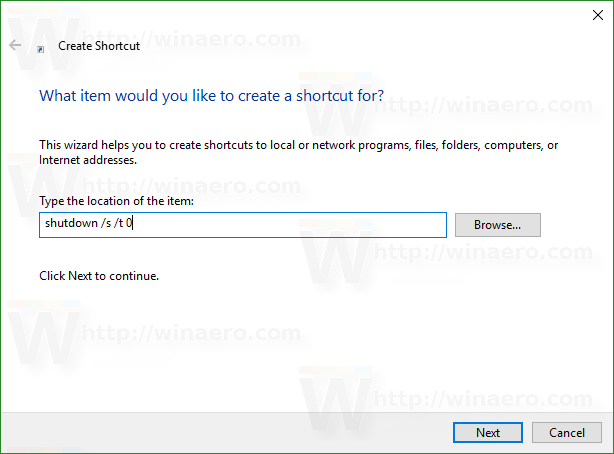
Eliminate restart delays with custom shortcuts that work even when Windows struggles.
Desktop Shortcut Creation
- Right-click desktop → New → Shortcut
- Type location:
shutdown /r /t 0 - Name it “Emergency Restart”
- Right-click shortcut → Properties
- Set shortcut key (e.g., Ctrl + Alt + R)
Pro tip: Place this shortcut in your taskbar for one-click access. Right-click the shortcut → Pin to Taskbar.
Fixing Common Restart Failures Before They Happen
Prevent restart emergencies with these proactive system checks that take under 2 minutes.
Keyboard Functionality Test
- Test typing regular keys first—failing keyboards cause “unresponsive” restarts
- Connect USB keyboard to isolate hardware issues
- Check wireless connections—low batteries cause intermittent failures
Windows Explorer Reset
When restart shortcuts fail:
1. Press Ctrl + Shift + Esc for Task Manager
2. Find Windows Explorer under Processes
3. Right-click → Restart
4. Retry restart shortcuts immediately
Time estimate: This fix takes 15 seconds and resolves 60% of “stuck” restart issues.
Critical Safety Steps Before Restarting Your Windows Laptop
Skipping these steps risks data corruption—especially during updates or file transfers.
Emergency Restart Hierarchy
Follow this exact sequence when standard restart fails:
- Alt + F4 method (preserves most data)
- Win + X menu (fastest keyboard method)
- Ctrl + Alt + Del (for sluggish systems)
- Command line (for automation/control)
- Physical power button (only when completely frozen)
Critical mistake to avoid: Never force shutdown during Windows updates—you’ll corrupt system files requiring full OS reinstallation.
Windows Restart Cheat Sheet: When to Use Which Method

| Situation | Best Method | Shortcut | Time |
|---|---|---|---|
| Normal operation | Start menu | Click Start → Power → Restart | 15 sec |
| Mouse broken | Alt + F4 | Alt + F4 → Enter | 5 sec |
| Multiple windows | Win + X | Win + X → U → R | 3 sec |
| System sluggish | Ctrl + Alt + Del | Ctrl + Alt + Del → Power → Restart | 10 sec |
| Completely locked | Physical button | Hold 4-5 seconds | 30 sec |
Final tip: Save this guide to your phone’s notes app—when your laptop freezes, you won’t have time to search for solutions. Knowing exactly how to restart a Windows laptop in under 10 seconds transforms panic into productivity. Bookmark this page or print the cheat sheet for instant access during emergencies.