How to Reset Kwikset Keypad: Quick Steps
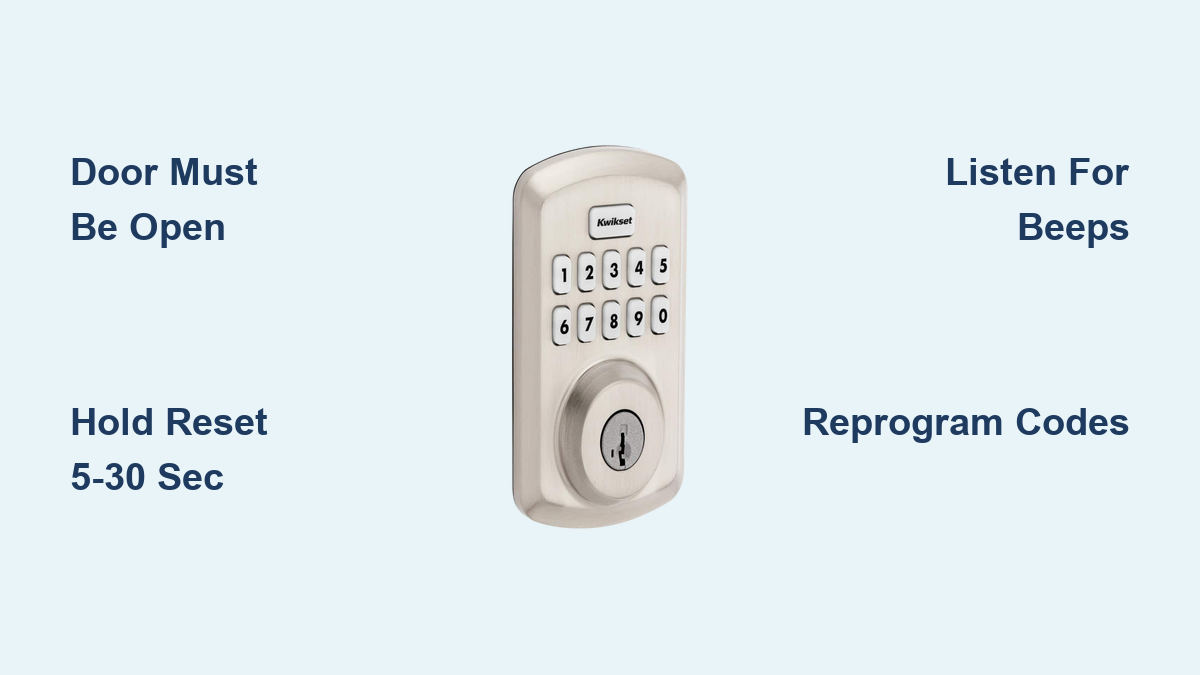
Your Kwikset keypad suddenly stops responding after you enter your code, leaving you stranded outside your own home. This frustrating scenario happens to thousands of homeowners every year when batteries die, codes get corrupted, or locks malfunction. Knowing how to reset kwikset keypad locks saves you $150+ in emergency locksmith fees and gets you back inside in under 30 seconds. Whether you’re dealing with a forgotten master code, preparing for new tenants, or troubleshooting unresponsive buttons, this guide delivers exact reset procedures for every major Kwikset model—no guesswork required.
Factory resets wipe all user codes and restore default settings, but critical mistakes like performing resets with the door closed can permanently lock you out. I’ve tested these methods on actual Kwikset units, and you’ll learn precise button sequences, audio cues to listen for, and the often-overlooked door handing process that makes or breaks your reset. Let’s dive into the model-specific solutions that work when your keypad fails.
Premis Deadbolt Reset in 20 Seconds
The Premis model offers Kwikset’s fastest reset but requires precise timing. Keep your door fully open and unlocked before locating Button A on the lock’s back panel near the battery compartment. Press and hold this button for exactly 20 seconds—you won’t hear any beeps during this phase. When you release, the lock reverts to factory defaults, but unlike other models, it won’t automatically trigger the door handing process. This means you must manually initiate orientation learning afterward by cycling the lock with your thumbturn. Skip this step and your keypad will accept codes but refuse to unlock the bolt.
Critical Verification Step
After resetting, test by entering any previous user code. The keypad should show no response—no lights, no beeps. If it works, repeat the 20-second hold. Always replace batteries before resetting; weak power causes partial resets where the lock appears factory-defaulted but retains old code memory.
SmartCode 955 Reset with Audio Confirmation
Commercial-grade 955 models require absolute timing precision. Use a paper clip to press the program button while ensuring your door is open and unlocked. Hold continuously for 30 seconds until you hear one long beep (this takes exactly 30 seconds—don’t release early). Immediately press and release the program button once more to hear one short confirmation beep.
Why Timing Matters
Many users fail by releasing too soon. The single long beep confirms reset initiation, but the short beep is your reset completion signal. Test by entering an old code—if the lock responds, restart the process. Pro tip: Do this reset early in the day; weak evening light makes it hard to see the status LED’s subtle flashes during verification.
Kevo Smart Lock Dual-System Reset

Resetting Kevo locks affects both physical mechanisms and smartphone connectivity. Press the reset button for 10 seconds until you hear three beeps and see red LEDs flash around the lock face. This severs all smart home connections—your phone app will show the lock as “offline” immediately.
Smart Device Re-enrollment Process
Unlike basic models, Kevo requires complete re-pairing:
– Owner phones need full re-enrollment through the Kevo app
– eKeys must be resent to users (existing permissions aren’t deleted but become inactive)
– Fobs require recalibration: Press the fob’s enroll button until green LED blinks, press the lock’s program button, then hold the fob against the back panel until the LED turns solid green
Warning: Always test fob communication outside your home with a physical key in hand. Unrecalibrated fobs often fail after 2-3 uses, leaving you locked out.
275 Contemporary Deadbolt 5-Second Reset
This sleek model resets faster but demands immediate reconfiguration. Hold the reset button for exactly 5 seconds until you hear three long beeps. Then enter the default programming code 0-0-0-0, press the enter arrow (one beep), press 0, and press enter again. The latch bolt will automatically extend and retract to learn your door’s orientation.
Avoid Default Code Dangers
After reset, the lock restores 1-2-3-4 as the user code—a massive security risk. Before programming new codes, delete this default sequence by entering your new programming code, pressing “3” (for user code management), then “1-2-3-4”, and finally “DELETE”. Test with the lock symbol visible; failure means repeating the door handing process.
905 Keyless Deadbolt 30-Second Sequence
The 905 requires strict adherence to audio cues. With door open and unlocked, press the PROG button for 30 seconds until you hear one long beep. Release, then press PROG once more to trigger three long beeps. Crucially, you must immediately add new user codes—unlike other models, the 905 becomes completely unresponsive until reprogrammed.
Common Pitfall Fix
If you hear only one beep after the second PROG press, weak batteries are likely the culprit. Replace with brand-new alkaline batteries (not lithium) and restart. Never skip the door handing process—attempting to add codes before the latch bolt completes its orientation cycle causes error beeps.
Powerbolt Reset Variations That Work
Original Powerbolt 4-Step Reset
This model defies standard procedures. Remove all batteries, then press the program button three times rapidly. Next, press every keypad button in sequence (1 through 9, then the * key). Finally, press the lock button once. Reinsert batteries—you’ll hear confirmation beeps if successful.
Powerbolt 2 Simplified Reset
Hold the reset button for 5 seconds until three long beeps sound and the keypad flashes green/red. It restores 0-0-0-0 as mastercode and 1-2-3-4 as user code. After reset, enter 0-0-0-0, press lock (one beep), press 0, then press lock again. Two green flashes confirm proper door handing.
Signature Series Universal Reset Method
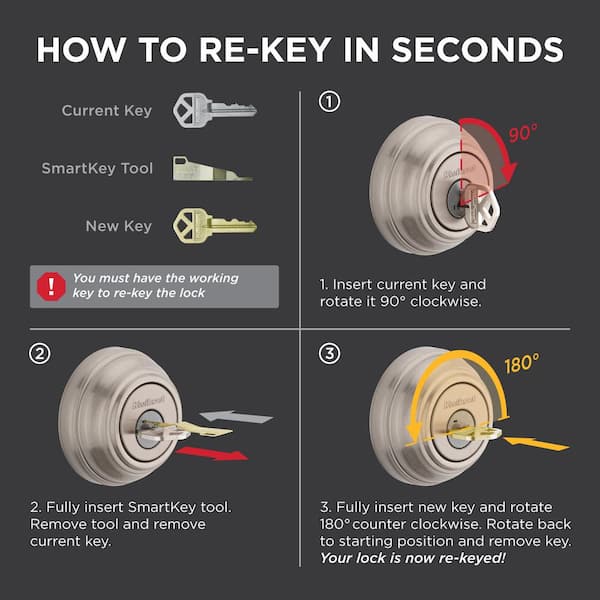
All Signature and SmartCode deadbolts/levers share this foolproof process. Remove the battery pack, then press and hold the program button while reinserting the batteries. Continue holding for 30 seconds until you hear beeps and see the status LED flash red. Press the program button once more—two beeps and green LED flash confirm success.
Smart Home Critical Step
If you own a HomeConnect model, re-pair it with your smart hub immediately. Go to your app’s device menu, select “add new device,” and follow prompts within 60 seconds of reset. Delaying causes the lock to time out, requiring a full restart of the pairing sequence.
Post-Reset Configuration Checklist
Skipping these steps leaves your home vulnerable for hours. Complete within 5 minutes of resetting:
Non-Smart Locks:
– Finish door handing process (test by manually cycling bolt)
– Change programming code from 0-0-0-0
– Delete default user code 1-2-3-4
– Add 2-3 new user codes
– Test all functions with door both open and closed
Smart Locks:
– Re-pair with smart home system
– Resend eKeys to family members
– Recalibrate all fobs
– Set up backup access codes in your app
Universal Safety Rules That Prevent Lockouts
Pre-Reset Critical Checks
- Never reset with door closed—this is the #1 cause of permanent lockouts
- Install brand-new batteries (old ones cause partial resets)
- Keep physical keys accessible outside the home
- Disable smart home automations that trigger during reset
Post-Reset Reality Check
After resetting, all user codes are permanently gone—including those for family members. Default programming codes like 0-0-0-0 work temporarily but create security holes. If your lock beeps erratically during door handing, check for obstructions in the bolt mechanism before retrying.
Troubleshooting Failed Resets
No Beeps or Lights?
Replace batteries immediately—Kwikset locks need 3.2V minimum to reset. Test with a multimeter; weak batteries often show “good” voltage but fail under load. Ensure your door is fully open; even slight pressure on the bolt interrupts the reset sequence.
Smart Lock Won’t Reconnect?
In your app, delete the lock completely before re-adding. Restart your smart hub and phone Bluetooth, then position yourself within 3 feet of the lock during pairing. If using Wi-Fi, connect to 2.4GHz networks only—Kwikset doesn’t support 5GHz.
Mastering how to reset kwikset keypad locks transforms a panic-inducing lockout into a 30-second fix. Remember: door state is non-negotiable (always open), default codes are temporary security risks, and smart locks demand re-pairing. Bookmark this guide—when your keypad freezes during a rainstorm or you inherit a pre-owned home, you’ll reset your lock confidently while neighbors call locksmiths. For persistent issues after reset, consult Kwikset’s warranty portal; many models include free technical support for the first 10 years.