How to Reset Apple Laptop: Quick Steps
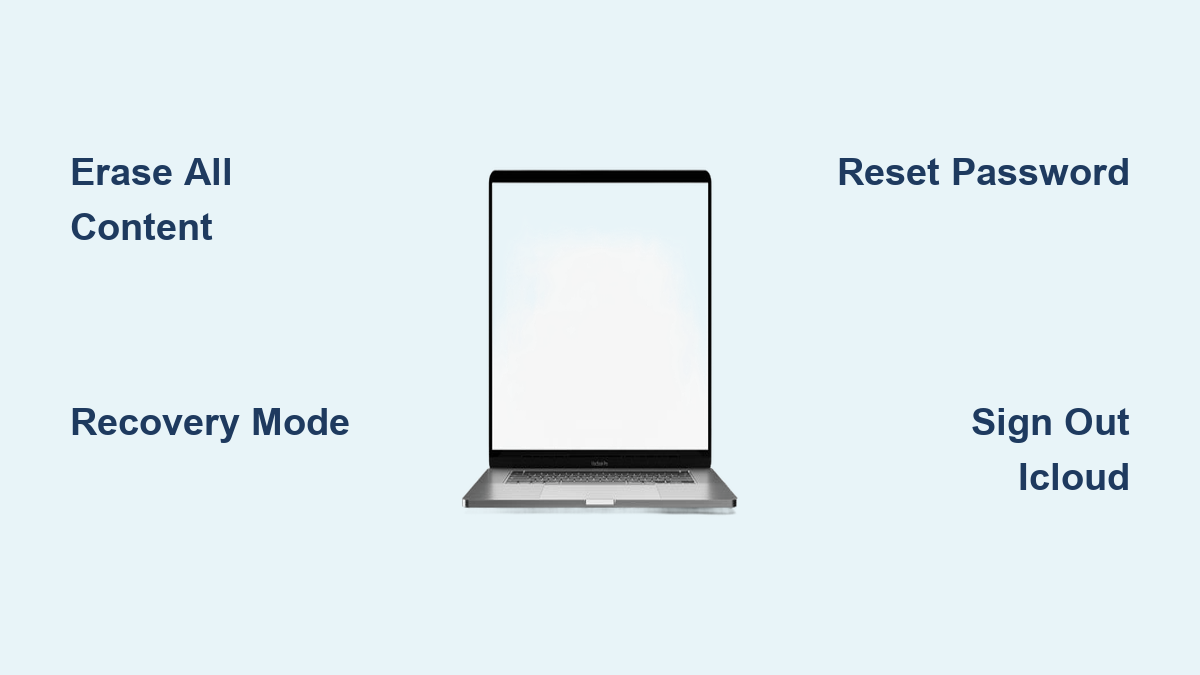
Your MacBook freezes during a critical work session, or you’re preparing to sell it and need a clean slate. Knowing how to reset Apple laptop properly avoids data leaks and wasted hours—especially when you’re locked out without a password. This guide cuts through Apple’s confusing menus to deliver the exact steps for every scenario: quick factory resets, password recovery, and pre-sale preparation. You’ll learn the fastest method (under 10 minutes for newer models) and universal fallbacks for older Macs—all verified against Apple’s latest documentation.
Factory Reset Apple MacBook in Under 10 Minutes
Use Erase All Content and Settings (Monterey 12+ Only)
Skip lengthy macOS reinstalls with Apple’s built-in erase assistant—it’s the fastest way to reset Apple laptop models with Apple silicon (M1/M2/M3) or Intel chips with T2 Security Chip running macOS Monterey or later.
For macOS Ventura/Sonoma:
1. Click Apple menu → System Settings
2. Select General → Transfer or Reset → Erase All Content and Settings
3. Confirm data removal (your Apple ID, passwords, and files will vanish)
4. After restart, stop at Setup Assistant if selling—hold power button to shut down
For macOS Monterey:
1. Apple menu → System Preferences → Erase All Content and Settings
2. Follow prompts until Setup Assistant appears
Why this beats Recovery Mode:
– Keeps macOS pre-installed (no download wait)
– Completes in 8 minutes vs. 45+ for manual wipes
– Critical visual cue: If you see “Other volumes need to be erased,” Boot Camp Windows is blocking the reset—remove it first via Boot Camp Assistant.
When Erase Option Is Missing
If “Erase All Content and Settings” doesn’t appear:
– Your Mac runs Big Sur or older (pre-2020 Intel models)
– It lacks Apple silicon/T2 chip (check via → About This Mac → System Report → Hardware)
– Boot Camp Windows partitions exist
Immediate fix: Use Recovery Mode wipe (next section). Never force shutdown—this triggers Activation Lock.
Recovery Mode Reset: Works on Every Apple Laptop
Enter Recovery Mode by Model
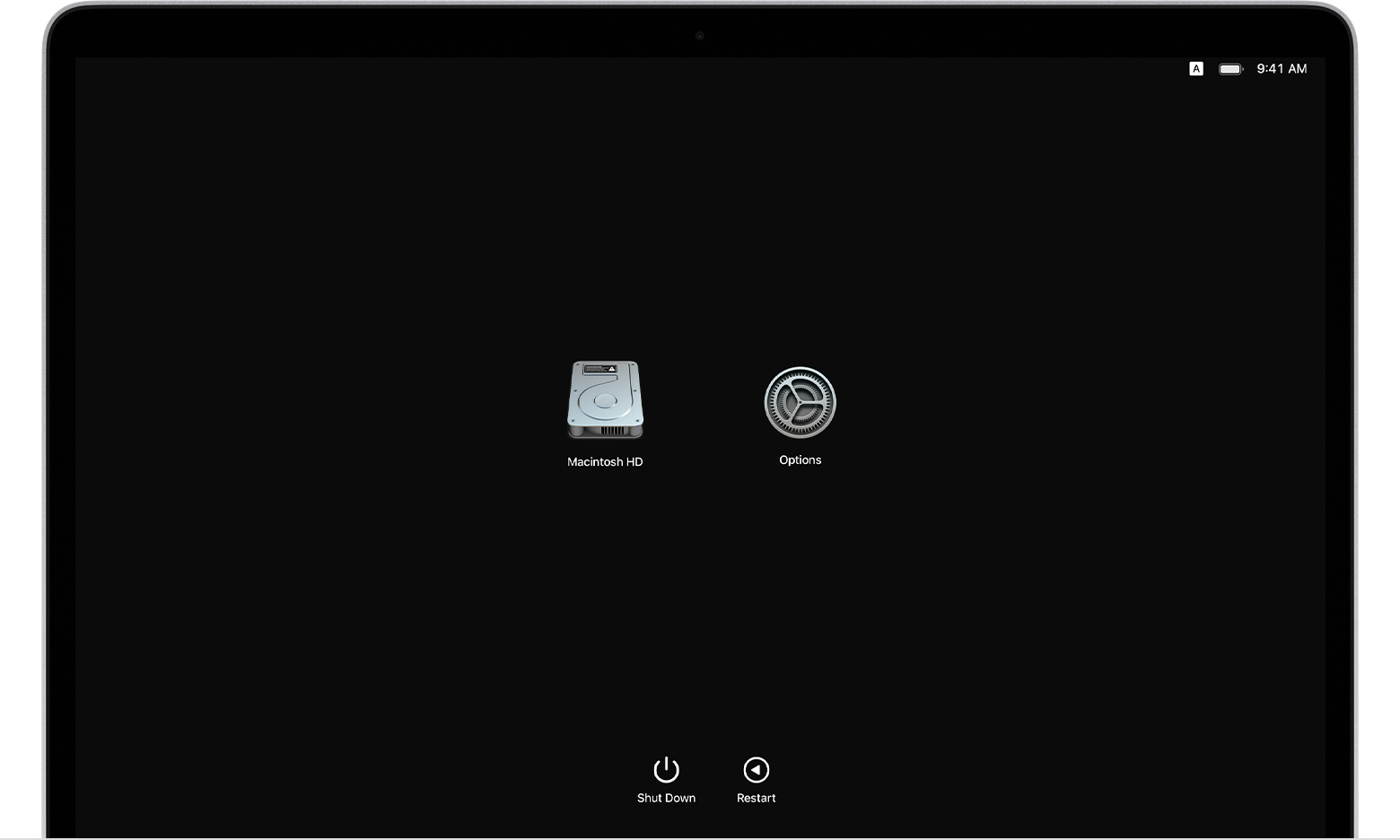
Apple silicon Macs (M1/M2/M3):
1. Shut down completely
2. Hold power button 10+ seconds until “Loading startup options” appears
3. Select Options → Continue
Intel Macs (2017-2020):
1. Restart while holding Command-R
2. Release when Apple logo appears
3. Stuck? Try Option-Command-R for Internet Recovery
Pro tip: If you see a flashing question mark, your Mac can’t find the OS—proceed to reinstall macOS in Recovery.
Wipe and Reinstall Steps
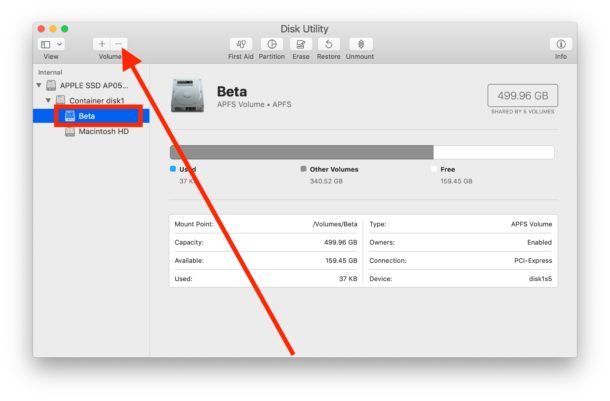
Once in Recovery:
1. Open Disk Utility → Select internal drive (not “Macintosh HD Data”)
2. Click Erase → Set:
– Name: Macintosh HD (required for reinstall)
– Format: APFS (SSDs) or Mac OS Extended (older HDDs)
3. Quit Disk Utility → Choose Reinstall macOS
4. Time estimate: 30-60 minutes (depends on internet speed)
Warning: If “Erase” is grayed out, you’re selecting a volume—not the top-level drive. Back out to see “APPLE SSD” or similar.
Reset MacBook Without Password: Regain Access Now
Login Window Reset
Locked out but see the login screen?
1. Enter wrong password three times
2. Click the ? icon in password field
3. Choose:
– Apple ID reset (requires internet)
– Recovery Key reset (if enabled)
– Restart to password options
Success sign: A new password field appears—create one and reboot. Skip this if selling; wipe completely instead.
Recovery Mode Password Reset
When login reset fails:
1. Boot into Recovery (Command-R or power button hold)
2. At user prompt, click “Forgot all passwords?”
3. OR open Terminal → type resetpassword → Return
4. Follow prompts to create new credentials
Critical mistake to avoid: Don’t skip Apple ID verification—this triggers Activation Lock.
Complete Erase When Locked Out
Last resort for forgotten passwords:
1. In Recovery Assistant menu → Erase Mac
2. Confirm twice → Mac wipes itself
3. Reinstall macOS via Reinstall macOS option
Consequence: All data is permanently deleted—only use if backups exist.
Essential Pre-Reset Checklist: Avoid Activation Lock
Back Up Your Data in 5 Minutes
Time Machine method:
– Connect drive → → System Settings → Time Machine → Back Up Now
– Visual cue: Blue progress bar in menu bar confirms active backup
iCloud sync:
– Disable Optimize Mac Storage → Enable Desktop & Documents Folders
– Verify sync: Check iCloud storage usage at Settings → Apple ID → iCloud
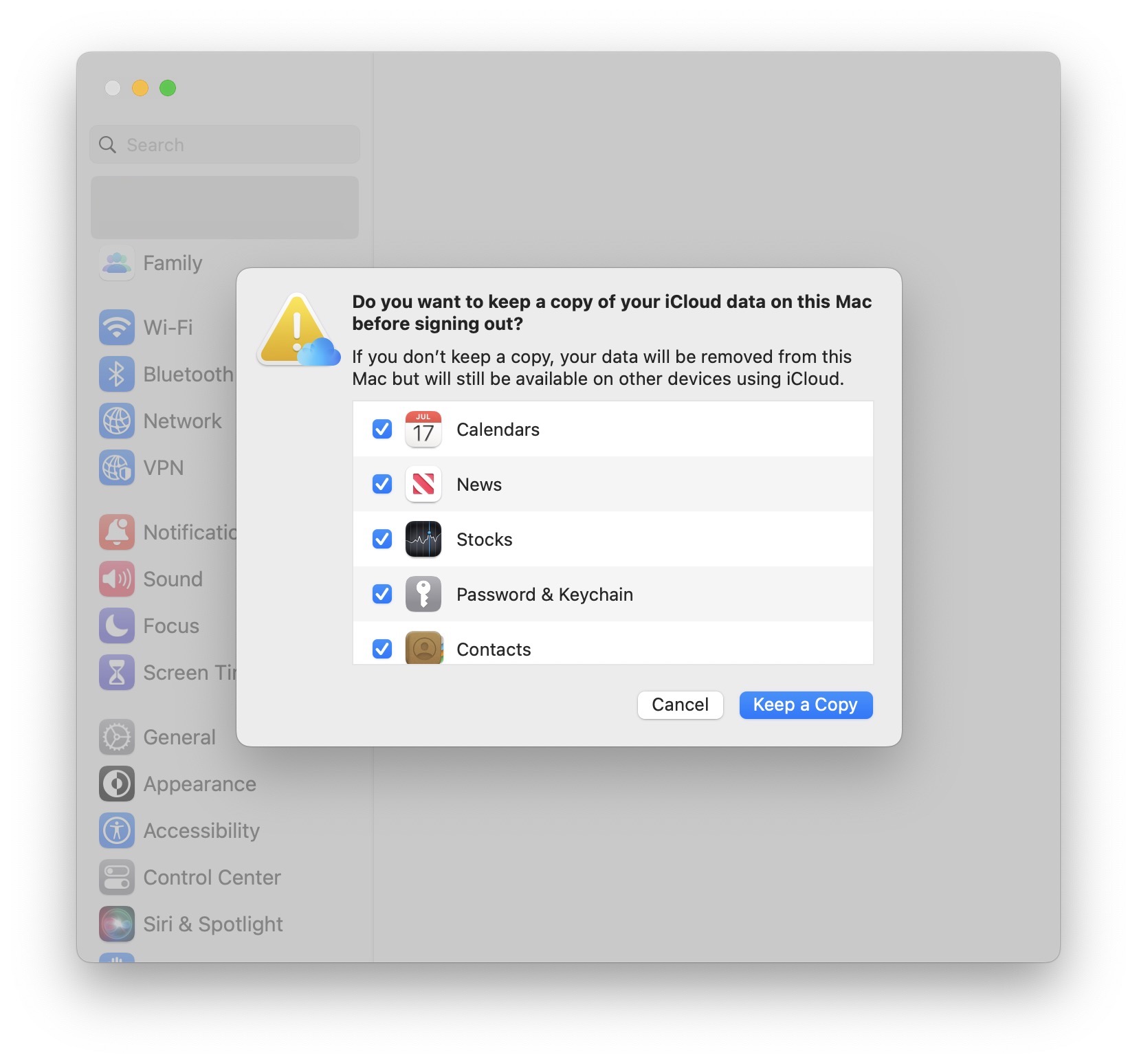
Sign Out Critical Services
Skip these = Activation Lock:
– iCloud: → System Settings → Apple ID → Sign Out
– Messages: Messages → Preferences → iMessage → Sign Out
– Media apps: Deauthorize in Music → Account → Deauthorize
Pro tip: Remove Bluetooth devices ( → System Settings → Bluetooth → X icon) to prevent pairing conflicts for new owners.
Intel-Specific: Reset NVRAM
- Shut down → Power on while holding Option-Command-P-R
- Release after second Apple logo appearance (20+ seconds)
- Fixes startup glitches like distorted sound or display issues
Post-Reset Actions by Scenario
Keeping Your MacBook
- Complete Setup Assistant → Restore from Time Machine backup
- Time-saving shortcut: Hold Option during restore to skip app reinstalls
Selling or Trading
- Stop at Setup Assistant screen → Hold power button to shut down
- Verification: Mac powers on to “Hello” screen with no account data
Family Hand-Me-Down
- Let recipient run Setup Assistant as new user
- No extra steps needed—they’ll create fresh Apple ID
Troubleshooting Reset Issues

“Activate Mac” Screen Appears
- Cause: iCloud not signed out pre-reset
- Fix: Connect to Wi-Fi → Enter Apple ID (not password) → Click Exit to Recovery → Reinstall macOS
Boot Camp Partition Blocks Erase
- Visual cue: “Other volumes need to be erased” error
- Solution: Open Boot Camp Assistant → Remove Windows → Retry reset
Recovery Mode Won’t Start
- Intel Macs: Hold Option-Command-R for Internet Recovery (requires Ethernet)
- Apple silicon: Hold power button continuously for 15+ seconds
Quick Reference: Reset Methods by Mac Model
| Mac Type | Best Reset Method | Time Required |
|---|---|---|
| M1/M2/M3 (Ventura+) | Erase All Content and Settings | 8-12 minutes |
| T2 Intel (Monterey+) | Erase All Content and Settings | 10-15 minutes |
| Pre-2017 Intel | Recovery Mode wipe | 45-60 minutes |
| Locked Out (Any Model) | Recovery Mode password reset | 20 minutes |
Pro tip: Check your chip type instantly via → About This Mac → System Report → Hardware Overview.
Key takeaway: Resetting your Apple laptop correctly takes under 15 minutes for modern models when you follow the right path. Always back up data and sign out of iCloud before wiping—this prevents Activation Lock headaches. For immediate action: Use “Erase All Content and Settings” if available (Monterey+), otherwise boot into Recovery Mode. Keep this guide bookmarked; you’ll never fumble through reset menus again. If stuck, remember Apple’s one universal fallback: Hold power until startup options appear, then reinstall macOS.