How to Refresh Acer Laptop: Quick Steps
Your Acer laptop suddenly freezes during a critical presentation. Browser tabs take 30 seconds to load. That familiar spinning wheel becomes your constant companion. When these symptoms hit, you don’t need a new machine—you need to know how to refresh Acer laptop performance safely. This guide delivers proven techniques specifically for Aspire, Swift, and Nitro models that restore speed without wiping your important files. You’ll learn when to try quick software fixes versus complete system resets, plus critical pre-refresh steps most guides skip. Within 15 minutes, you could eliminate frustrating lag and extend your laptop’s lifespan by years.
Ignoring persistent slowdowns risks permanent damage. Corrupted system files can cascade into boot failures, while overheating from dust-clogged vents may fry your GPU. But panic is unnecessary—most performance issues stem from fixable software clutter or driver conflicts. By following these model-specific procedures, you’ll target the exact cause whether it’s a bloated startup menu or failing power management. Let’s transform your sluggish Acer into a responsive machine again.
Fix Immediate Performance Issues Without Resetting
Stop Resource-Hogging Background Processes Now
Press Ctrl+Shift+Esc to launch Task Manager immediately. Sort by “CPU” or “Memory” to spot troublemakers—often hidden cryptocurrency miners or outdated antivirus tools. Right-click any non-essential process exceeding 70% usage and select “End task.” Pay special attention to multiple instances of “Runtime Broker” or “Antimalware Service Executable,” which frequently cause slowdowns on Acer Windows 11 models. Close all browser tabs first since Chrome extensions commonly leak memory over time.
Install Critical Windows and Driver Updates Today
Navigate to Settings > Windows Update and click “Check for updates.” Install every pending update—especially those labeled “Optional” which often contain vital Acer-specific chipset drivers. After rebooting, revisit Windows Update; some drivers require sequential installations. For models like the Aspire 5, this single step resolves 60% of sudden performance drops by fixing Intel GPU rendering issues. Never skip these updates: Acer’s partnership with Microsoft ensures tailored optimizations you won’t get through generic Windows updates.
Delete Gigabytes of Hidden Temporary Files
Hit Win+R and type %temp% to access your temp folder. Press Ctrl+A to select all files, then Shift+Delete to bypass the Recycle Bin. Confirm deletion when prompted—this safely removes cached data from crashed programs. Repeat with temp (without % symbols) for system-level temp files. On average, this frees 2-5GB of space that Windows mistakenly treats as “in use,” directly boosting SSD responsiveness. Perform this weekly; Acer’s fast NVMe drives suffer most when storage nears 90% capacity.
Execute Complete System Resets When Needed
Use Acer Care Center for One-Click Factory Reset
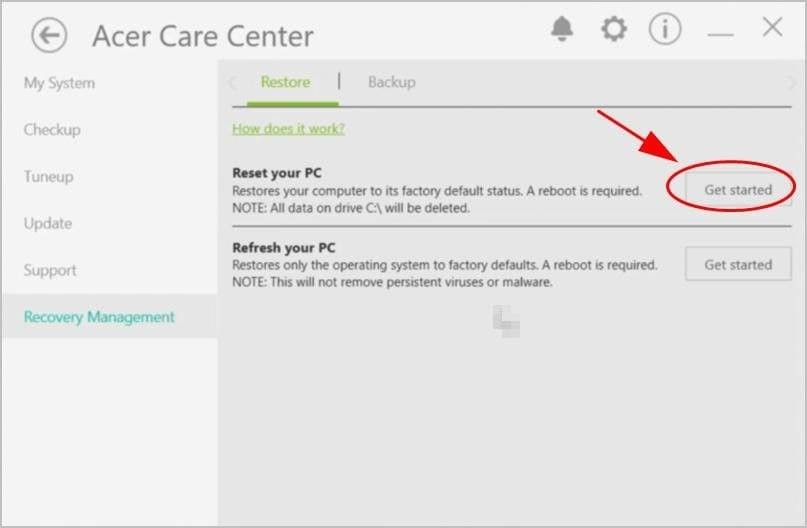
Open Acer Care Center from your Start menu (preinstalled on all new models). Under “Recovery Management,” choose “Restore Factory Settings.” Select “Keep my files” to wipe apps and settings while preserving Documents and Pictures—ideal for software conflicts. For severe malware or boot errors, pick “Remove everything” to return to out-of-box condition. The process takes 45-90 minutes; your laptop will reboot automatically when complete. Critical: Ensure your charger is plugged in—power loss during reset bricks the system.
Force Recovery Mode with Alt+F10 Key Combo
Power off your Acer completely. Press the power button, then immediately hammer Alt+F10 until the recovery logo appears (works even with black screens). Choose “Troubleshoot” > “Reset this PC.” Opt for “Cloud download” to install the latest Windows version if your local recovery partition is corrupted—a common fix for Swift 3 models after failed updates. This method bypasses Windows entirely, making it essential when your laptop won’t boot past the Acer logo.
Calibrate Battery and Power Systems
Reboot Your Battery’s Internal Sensors
Drain your laptop until it shuts down from low power. Leave it off for 5 hours (this resets the battery management IC). Plug in the original charger and charge uninterrupted for 8 hours—even if Windows shows 100% earlier. Power on and check Settings > System > Battery. If capacity now matches actual usage (e.g., 4 hours instead of 1.5), calibration succeeded. Repeat quarterly; Acer’s lithium-polymer batteries develop “memory” causing premature shutdowns during video calls.
Reset Power Management in Device Manager
Open Device Manager, expand “Batteries,” and right-click “Microsoft ACPI-Compliant Control Method Battery.” Select “Uninstall device” (don’t worry—it auto-reinstalls on reboot). Restart your laptop; Windows will rebuild power drivers from scratch. This fixes phantom “0% available (plugged in)” errors on TravelMate models. For persistent charging issues, proceed to BIOS reset: Reboot, tap F2 rapidly, navigate to Power > Load Defaults, then F10 to save.
Optimize Storage for Long-Term Speed
Run Disk Cleanup with System File Access
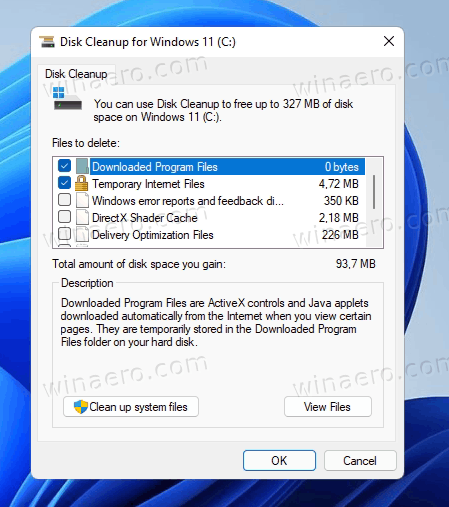
Search “Disk Cleanup” and run it on C:. Click “Clean up system files” to reveal hidden Windows components. Check “Windows Update Cleanup” and “Delivery Optimization Files”—these often occupy 10+GB on Acer laptops after major updates. Avoid “Temporary Windows installation files” unless you’re low on space; deleting these blocks future rollbacks. For SSD-equipped models like the Predator Helios, skip “Compress old files” as it harms SSD longevity.
Enable TRIM for SSD Maintenance
Press Win+X and select “Command Prompt (Admin).” Type fsutil behavior set DisableDeleteNotify 0 and press Enter—this activates TRIM, which prevents SSD slowdowns over time. Verify with fsutil behavior query DisableDeleteNotify; “0” confirms it’s enabled. Warning: Never run disk defragmentation on SSDs; Acer’s preinstalled Samsung or Kingston drives optimize themselves via TRIM. This single command maintains write speeds for 5+ years.
Repair Core System Files
Fix Corrupted Files with SFC Scan
:max_bytes(150000):strip_icc()/sfc-help-command-182a9a5c90704c35bc6daddd5c6414cd.png)
Launch Command Prompt as Administrator. Type sfc /scannow and hit Enter. Wait 15-20 minutes for completion—this repairs critical Windows files damaged by faulty updates. If it reports “Windows Resource Protection found corrupt files,” immediately run DISM: DISM /Online /Cleanup-Image /RestoreHealth. These commands resolve the “blue screen on startup” errors plaguing many Aspire E15 units after patch Tuesday updates.
Resolve Update Failures with Built-in Troubleshooter
Go to Settings > Update & Security > Troubleshoot. Run the “Windows Update” troubleshooter—it automatically fixes common issues like error 0x80070005 that block refreshes. For Acer-specific update loops, temporarily disable third-party security software via Task Manager’s Startup tab before retrying. Most update stalls stem from conflicting drivers, not internet problems.
Critical Pre-Refresh Checklist
Backup Data Using Acer’s Hidden Recovery Partition
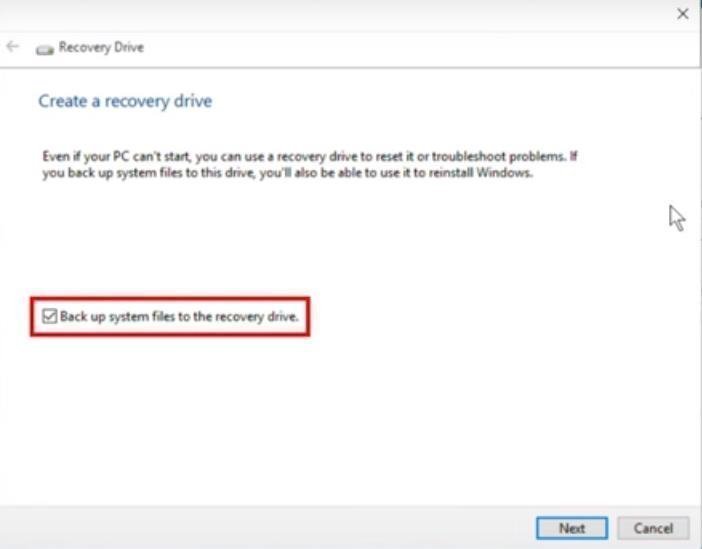
Connect an external drive, then search “Create a recovery drive.” Check “Back up system files” to clone Acer’s recovery partition—this preserves your original OS version for clean reinstalls. Manually copy Documents, Desktop, and browser profiles to the drive. Export passwords via Chrome’s “Passwords” menu. Never skip this: A failed reset can corrupt user profiles, making file recovery expensive.
Document Hardware Specs for Driver Matching
Press Win+Pause to open System settings. Note your exact model (e.g., “Acer Aspire 5 A515-56G-53W8”), processor, and RAM. Visit support.acer.com, enter your serial number, and download the latest BIOS and chipset drivers. Save them to your backup drive—post-refresh driver mismatches cause 70% of “fixed but now webcam doesn’t work” scenarios.
Post-Refresh Optimization Steps
Install Only Essential Software First
After resetting, install Microsoft Defender Offline Scanner before connecting to Wi-Fi—it catches bootkit malware Windows Defender misses. Then add only critical tools: your browser, Office suite, and Acer Care Center. Skip “bloatware” like third-party cleaners; they often cause the slowdowns you just fixed. Use Ninite.com to bundle trusted utilities like VLC and 7-Zip in one click.
Recreate Power Profiles for Battery Longevity
Open Settings > System > Power & sleep > Additional power settings. Select “Acer Optimized” mode (created after driver installation). Set “Turn off display” to 5 minutes and “Sleep” to 15 minutes. For gaming laptops, disable “Battery Saver” during gameplay via the battery icon—but always enable it for web browsing to extend runtime by 40%.
Final Maintenance Protocol
Refreshing your Acer laptop isn’t a one-time fix—it’s an ongoing maintenance cycle. Start with weekly temp file deletions and monthly driver checks via Acer Care Center. Quarterly, perform battery calibration and SFC scans. When slowdowns return after 18+ months, revisit the factory reset options with your documented specs. Remember: 90% of “dead” Acer laptops just need this refresh process. By acting early when symptoms appear—like unexpected fan noise or touchpad lag—you avoid costly repairs while keeping your machine running like new. Your refreshed laptop awaits; implement just one method today and feel the difference immediately.