How to Reassign Keyboard Keys: Easy Guide
Your keyboard’s Caps Lock key has betrayed you for the last time. That accidental press during an important email, the missing Windows key on your sleek gaming laptop, or the constant struggle to access special characters—you’ve had enough. The good news? You don’t have to live with your keyboard’s limitations. Learning how to reassign keyboard keys transforms your typing experience from frustrating to fluid in just minutes. This guide delivers exactly what you need: professional-grade remapping techniques that work immediately on Windows systems, without coding skills or expensive software.
Most users don’t realize Windows lacks built-in key remapping capabilities—but Microsoft’s free PowerToys utility fills this gap perfectly. By the time you finish this guide, you’ll confidently remap troublesome keys, create custom shortcuts that save hours weekly, and troubleshoot common issues that stump most beginners. No more settling for a keyboard layout that fights your workflow.
Install PowerToys: Windows Key Remapping Made Simple
Skip third-party apps that promise key remapping but deliver malware or limited functionality. PowerToys, developed and maintained by Microsoft, provides enterprise-grade keyboard customization that works reliably across all Windows versions.
Download and Activation Process
1. Visit the Microsoft Store or GitHub releases page for PowerToys
2. Download the latest stable version matching your Windows edition
3. Right-click the installer and select “Run as administrator”
4. Launch PowerToys from your Start Menu after installation completes
Enable Keyboard Manager
– Navigate to the Keyboard Manager section in the left sidebar
– Toggle “Enable Keyboard Manager” to the ON position
– Verify the PowerToys icon appears in your system tray (near clock)
Pro Tip: Pin PowerToys to your taskbar for one-click access. Unlike registry hacks, PowerToys changes take effect instantly without requiring system restarts—test your remappings immediately in Notepad to confirm functionality.
Remap Problem Keys in Under 60 Seconds
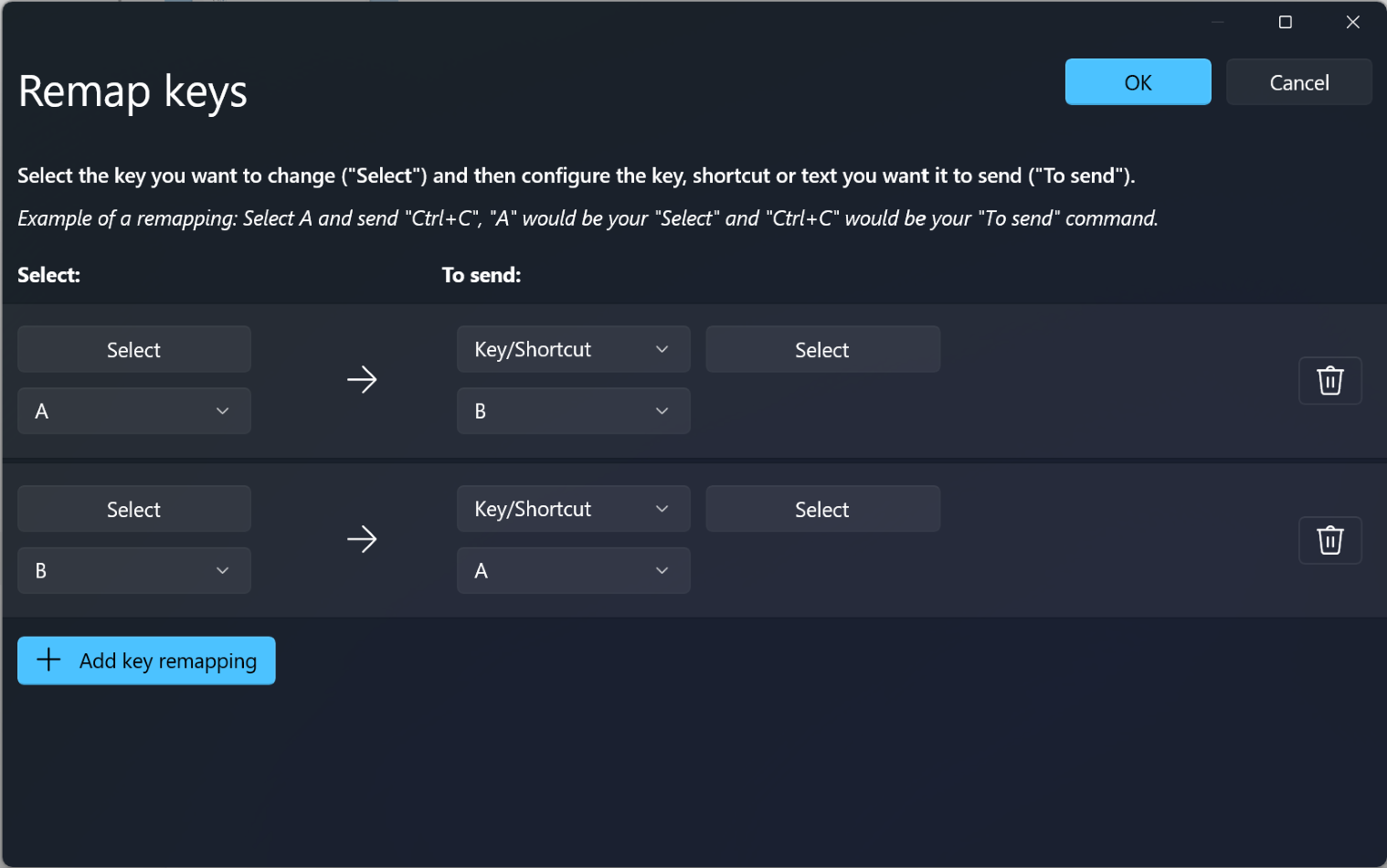
PowerToys eliminates the most common keyboard frustrations with visual, drag-and-drop remapping that even beginners can master.
Execute Single-Key Remapping
1. Click “Remap a key” in Keyboard Manager
2. Select the “+” button to create a new mapping
3. Press your problem key (e.g., Caps Lock) in the “Physical key” field
4. Choose its new function from the dropdown menu (e.g., Left Ctrl)
Top 4 Remapping Solutions for Daily Pain Points
| Problem Key | Recommended Remap | Time Saved Daily |
|————-|——————-|——————|
| Caps Lock | Left Ctrl | 2-5 minutes (reducing accidental caps) |
| Right Alt | Windows Key | 30+ seconds (accessing Start menu) |
| Insert | Ctrl+V | 1-2 minutes (faster pasting) |
| Scroll Lock | Volume Up | Variable (eliminating useless key) |
Critical Check: Always test remapped keys in multiple applications. Some programs (like Photoshop) override system-level remappings. If your new mapping doesn’t work in a specific app, you’ll need app-specific remapping—covered in the next section.
Create Custom Shortcuts That Boost Productivity
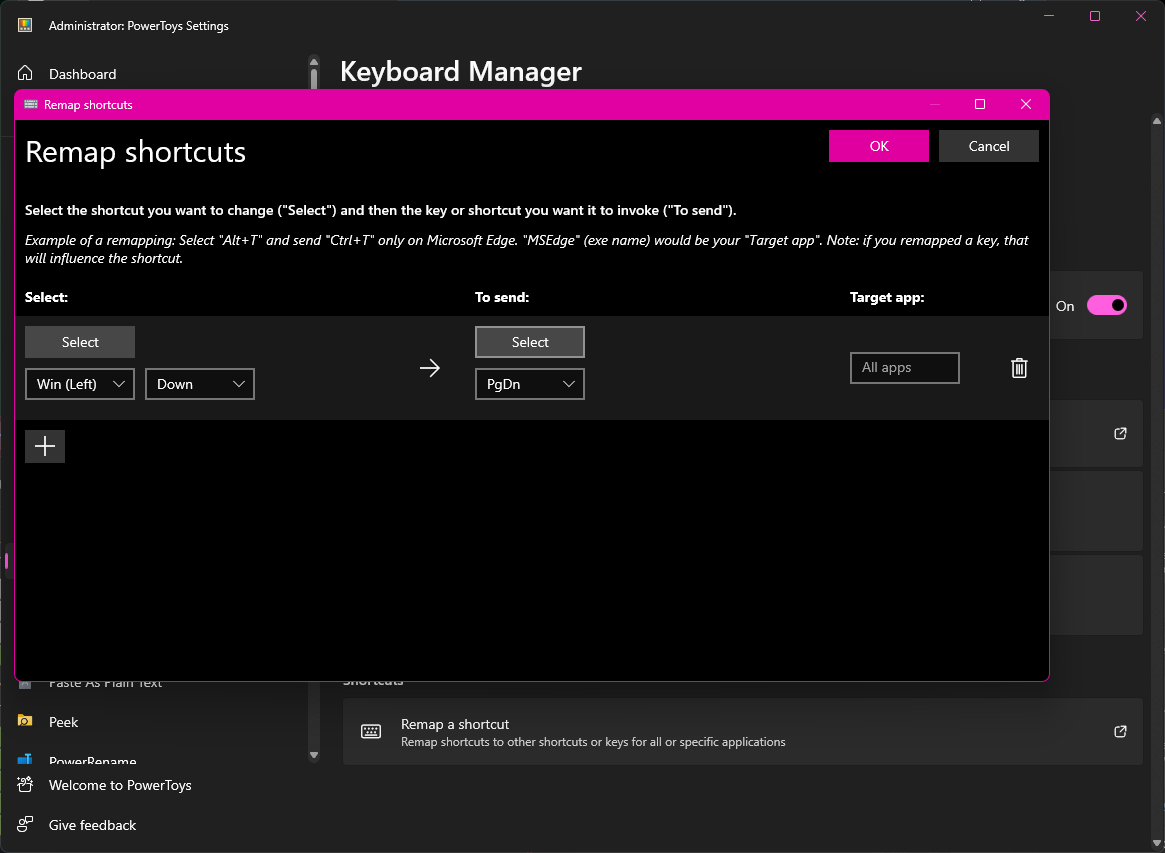
Go beyond simple key swaps to create shortcuts that launch apps, insert text, or trigger complex actions with one keystroke combination.
Build Your First Text Shortcut
1. Click “Remap a shortcut” in Keyboard Manager
2. Set “Shortcut” to Ctrl+Shift+E
3. Choose “Text” from the action dropdown
4. Enter your frequently used email address
5. Leave “Target app” blank for system-wide availability
High-Value Shortcut Examples
– Win+T → Launch your task management app
– Ctrl+Shift+D → Insert current date (2023-11-15)
– Alt+P → Paste as plain text (Ctrl+Shift+V)
– Win+F1 → Open calculator for quick math
Pro Tip: Start with just 2-3 high-impact shortcuts. Over-remapping creates cognitive load as you struggle to remember which keys do what. Focus first on shortcuts that replace repetitive actions you perform 10+ times daily.
Fix Application-Specific Key Conflicts
Different programs often hijack the same shortcuts for different functions—PowerToys solves this with surgical precision targeting.
Identify Target Applications
1. Open the problematic application (e.g., VS Code)
2. Press Ctrl+Shift+Esc to open Task Manager
3. Find the exact .exe name under “Processes” (Code.exe for VS Code)
Create App-Limited Remapping
1. Click “Remap a shortcut”
2. Set your desired shortcut (e.g., Ctrl+T)
3. Click “Target app” and enter the .exe name (Code.exe)
4. Configure the new action (e.g., launch terminal)
Real-World Fix: Remap Ctrl+T in VS Code to open a terminal while keeping it as “new tab” in browsers. This eliminates the constant context-switching between applications that disrupts your flow state.
Troubleshoot Failed Remappings Like a Pro
When remapped keys stop working or behave unexpectedly, these targeted fixes will restore functionality in minutes.
Immediate Fixes Checklist
– ✅ Right-click PowerToys tray icon → “Run as administrator”
– ✅ Toggle Keyboard Manager OFF then back ON
– ✅ Test in Notepad first—some security software blocks remapping in password fields
– ✅ Check for orphaned keys (e.g., if you mapped A to B but not B to A)
Critical Limitations to Know
– Remapping doesn’t work on Windows login screens
– Gaming applications often bypass system-level remapping
– PowerToys must be running at startup for persistent changes
– Multiple keyboards share the same remapping configuration
Pro Tip: When remapping fails completely, export your settings (Settings → General → Backup), uninstall PowerToys, then reinstall the latest version before restoring your configuration.
Host On-Demand Terminal Key Remapping
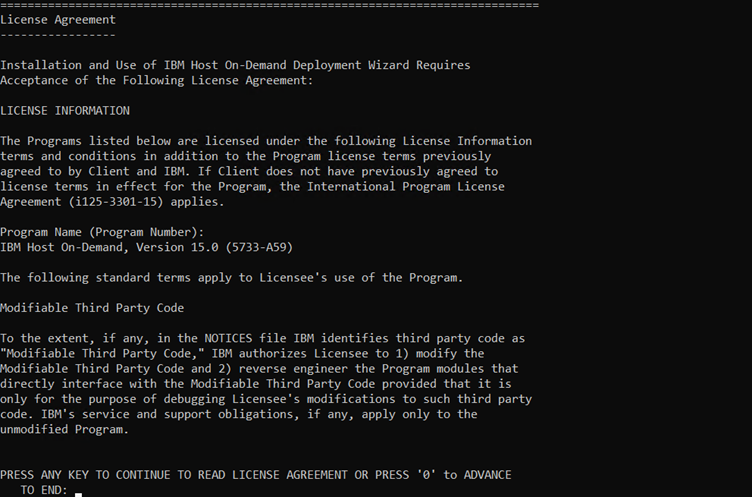
For IT professionals working with mainframe terminals, Host On-Demand provides specialized remapping capabilities beyond standard Windows tools.
Access Terminal Remapping
– Click the “Remap” button in your terminal session toolbar
– OR navigate to Edit → Preferences → Keyboard
– OR open Session Properties → Keyboard
Terminal-Specific Remapping Options
– Map keys to host functions like PF1-PF24
– Assign custom macros for repetitive terminal tasks
– Create APL keyboard layouts with Ctrl+F8 toggle
– Differentiate between left/right modifier keys (requires Java 1.4.2+)
Critical Consideration: Terminal remapping depends heavily on Java version compatibility. Verify your Java version matches Host On-Demand requirements before troubleshooting remapping failures.
Backup and Restore Your Key Configurations
Losing carefully crafted remappings after a system update is devastating—prevent this with proper configuration management.
Create Bulletproof Backups
1. Open PowerToys Settings → General
2. Scroll to “Backup & Restore” section
3. Click “Backup Settings” and save the .json file to cloud storage
4. Test restoration on a secondary machine before relying on backups
Pro Tip: Document your top 5 most valuable remappings in a separate text file. When migrating to a new computer, restore these first before implementing your full configuration.
Avoid These Critical Remapping Mistakes
Even experienced users make these dangerous errors that can lock you out of critical functions.
Never Remap These Keys
– Ctrl+Alt+Delete (system security function)
– Both Ctrl keys simultaneously
– Esc key in terminal environments
– Any key required for your remote desktop software
Test Remappings Properly
– Always verify functionality in Notepad first
– Test in password fields only after confirming basic functionality
– Check behavior across different applications
– Disable gaming overlays when testing in games
Optimize Your Remapping Workflow Strategically
Transform key remapping from a one-time fix to an ongoing productivity multiplier with this proven adoption framework.
30-Day Remapping Plan
– Week 1: Fix 2-3 most annoying key issues (Caps Lock → Ctrl)
– Week 2: Implement 2-3 high-value text shortcuts (email signature)
– Week 3: Create app-specific shortcuts for your primary work tools
– Week 4: Add advanced chord shortcuts for specialized workflows
Pro Tip: When adopting new remappings, place sticky notes on affected keys for the first 48 hours. This visual reminder accelerates muscle memory formation without disrupting your workflow.
Mastering how to reassign keyboard keys isn’t just about convenience—it’s about reclaiming hundreds of hours lost to inefficient workflows. Start today with PowerToys to fix your most frustrating key issues, then gradually build a personalized system that makes every keystroke work for you. Your future self will thank you for those saved seconds that add up to hours each week. Remember to back up your configurations regularly, and never remap critical system keys that could lock you out of essential functions. With these techniques, your keyboard finally works the way your brain thinks.