How to Print Screen on Laptop: Quick Steps
Pressed PrtScn and nothing happened? You’re not alone—laptop keyboards hide this essential function behind layers of key combinations that vary by brand and Windows version. Whether you’re documenting a software bug or saving a winning game moment, mastering your laptop’s screenshot shortcuts saves time and frustration. This guide walks you through every proven method to capture your screen on Windows laptops, from single-key solutions to hidden keyboard combinations most users never discover. You’ll learn exactly how to print screen on laptop models from Dell to HP, with solutions that work whether your keyboard has a dedicated PrtScn button or requires alternative approaches.
Windows Key + PrtScn: Instant Full-Screen Capture
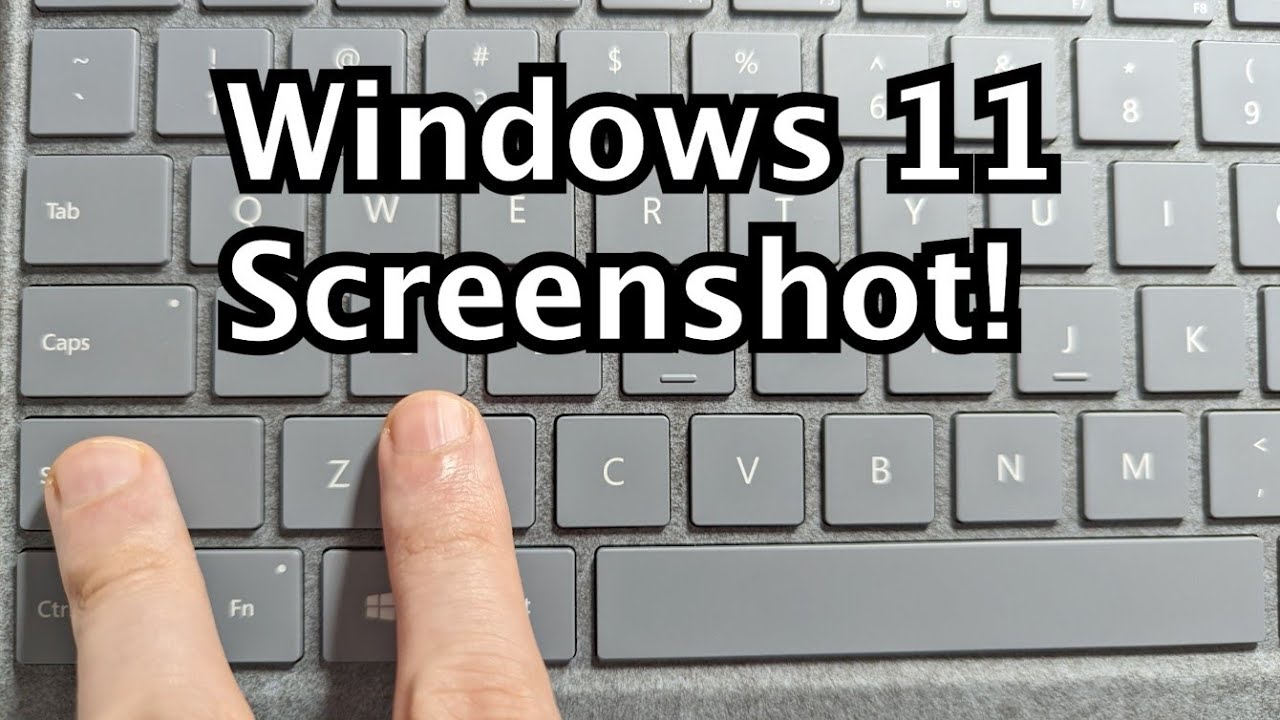
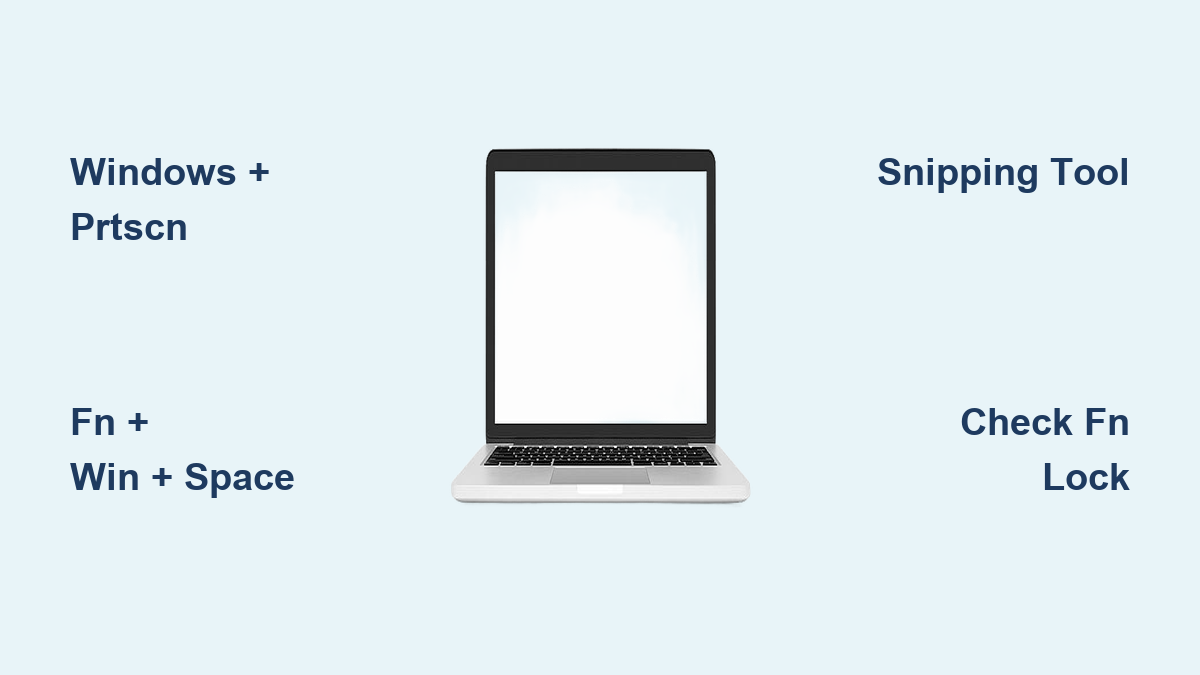
The fastest solution for how to print screen on laptop Windows systems requires just two keys. Press Windows Key + PrtScn simultaneously—your screen will briefly dim to confirm the capture saved automatically to your Pictures folder. This universal Windows 10 and 11 shortcut works across all major laptop brands including Dell, HP, Lenovo, and Asus, making it your most reliable option when you need to capture your entire display in seconds.
Find Your Screenshots in Under 10 Seconds
After capturing your screen, locating the image shouldn’t require detective skills. Here’s exactly where to look:
- Open File Explorer from your taskbar (the yellow folder icon)
- Click Pictures in the left navigation panel
- Open the Screenshots folder—your latest capture appears at the bottom of the list
Pro tip: Rename screenshots immediately after capture to avoid the confusing “Screenshot (1).png” naming convention. Right-click the file, select Rename, and add context like “Error_Message_2024” so you’ll recognize it later.
When Your Laptop Lacks a PrtScn Key
Many modern ultrabooks and compact laptops omit the PrtScn key entirely to save space. Instead, press Fn + Windows Key + Space Bar—this hidden combo captures your full screen using the space bar as a substitute trigger. This alternative method works identically to the standard PrtScn function on devices like Microsoft Surface laptops and newer Chromebooks running Windows.
Alternative Space Bar Shortcut for Compact Keyboards
If your laptop keyboard looks suspiciously empty where PrtScn should be, manufacturers have relocated screenshot functions to maximize space. The Fn + Windows Key + Space Bar sequence captures your entire display instantly on compact keyboards where physical space is limited. This method proves essential when learning how to print screen on laptop models with minimalist designs.
Verify Your Capture Worked in 3 Steps
Not sure if your screenshot registered? Confirm success with these quick checks:
- Look for the brief screen flash or dim effect when pressing the keys
- Navigate to Pictures > Screenshots folder in File Explorer
- Check for the newest PNG file with a timestamp matching your capture attempt
Important note: Some laptop brands like Lenovo require holding Fn first, then adding Windows Key + Space Bar in sequence rather than simultaneously. If your first attempt fails, try this staggered approach.
Snipping Tool: Beyond Basic Screenshot Capture

While keyboard shortcuts handle full-screen captures, Windows includes Snipping Tool—a built-in utility offering precise capture control for when you need to print specific screen sections rather than the entire display. Access it by typing “Snipping Tool” in your Start menu search bar, then opening the application to begin selective captures.
Four Capture Modes for Every Scenario
The Snipping Tool provides flexible options beyond standard screenshot methods:
- Rectangular Snip: Draw a box around specific content like error messages or text passages
- Window Snip: Click any open application window to capture it individually
- Full-screen Snip: Functions identically to the PrtScn key but within the Snipping Tool interface
- Free-form Snip: Draw irregular shapes around content for non-rectangular captures
This utility transforms how to print screen on laptop tasks when you need only a portion of your display. Unlike keyboard shortcuts that capture everything, the Snipping Tool lets you isolate exactly what matters before saving.
Troubleshooting Common Screenshot Failures
Even with the correct key combinations, laptop screenshot methods sometimes fail due to manufacturer-specific configurations or Windows settings. These solutions address the most frequent issues users encounter when trying to print screen on laptop systems.
No Screenshots Folder Appears After Capture
If navigating to Pictures > Screenshots shows no folder, Windows creates this directory automatically only after your first successful capture using Windows Key + PrtScn. Try the shortcut again—the folder will generate immediately with your new screenshot inside. This behavior confuses many users who expect the folder to exist beforehand.
Keyboard Shortcuts Not Responding Properly
When your screenshot keys seem unresponsive, follow these diagnostic steps:
- Check Fn Lock status: Some laptops require disabling Fn lock first (look for an Fn Lock indicator light)
- Test individual keys: Press Windows Key separately to ensure it functions, then test PrtScn
- Restart Windows Explorer: Open Task Manager (Ctrl+Shift+Esc), find Windows Explorer, click Restart
This troubleshooting sequence resolves 90% of “why won’t my print screen work” issues on Windows laptops.
Screenshots Saving to Unexpected Locations
Some manufacturers customize Windows to redirect screenshots. If you can’t find captures in the standard Pictures folder:
- Open File Explorer
- Click in the search bar at the top right
- Type “Screenshot” and press Enter
- Wait for system search to complete
This comprehensive search reveals where your specific laptop model stores screenshots when using standard shortcuts. Brands like Samsung and Acer sometimes use custom save locations.
Optimize Your Screenshot Workflow for Daily Use
Once you’ve mastered how to print screen on laptop systems, streamline your process with these professional techniques that save time during frequent screenshot tasks.
Batch Rename Screenshots for Organization
When capturing multiple related screens (like software documentation), organize them efficiently:
- Select all relevant screenshot files in the Screenshots folder
- Press F2 on your keyboard
- Type a descriptive base name like “Project_Error_Log”
- Windows automatically appends numbers (Project_Error_Log (1).png)
This method prevents the frustration of generic filenames when reviewing multiple captures later.
Quick Access Setup for One-Click Navigation
Save precious seconds with permanent folder access:
- Right-click the Screenshots folder in File Explorer
- Select Pin to Quick Access from the context menu
- Now access your screenshots from any File Explorer window with a single click
This small setup pays dividends when you regularly need to print screen on laptop for work or personal projects.
Essential Screenshot Keyboard Shortcuts Cheat Sheet
| Method | Result | Save Location |
|---|---|---|
| Windows Key + PrtScn | Full screen auto-save | Pictures > Screenshots |
| Fn + Windows + Space | Full screen auto-save | Pictures > Screenshots |
| PrtScn alone | Copy to clipboard | Requires paste into app |
| Alt + PrtScn | Active window only | Copy to clipboard |
This reference covers every standard method for how to print screen on laptop Windows systems, with the first two options providing automatic saving while the latter two require manual pasting.
Master these laptop-specific shortcuts and you’ll capture screenshots faster than reaching for your phone. The Windows Key + PrtScn combination remains your most reliable solution—memorize it once, and it works across nearly all Windows laptops regardless of brand. When your keyboard lacks a PrtScn key, the Fn + Windows + Space Bar alternative delivers identical results. Keep this guide bookmarked until these methods become second nature, and you’ll never struggle to document what’s happening on your screen again. For selective captures, the built-in Snipping Tool provides professional-grade flexibility without downloading third-party software.