How to Fix iPhone Keyboard Issues
Your iPhone keyboard suddenly stops working mid-text, autocorrect changes every word into something embarrassing, or keys become completely unresponsive—sound familiar? These frustrating issues can bring your productivity to a grinding halt whether you’re texting friends, replying to work emails, or simply trying to search online. The good news? Most iPhone keyboard problems have quick solutions you can implement right now without visiting an Apple Store or spending money on repairs.
This guide walks you through proven troubleshooting steps for the most common iPhone keyboard issues, from frozen keyboards to persistent autocorrect failures. You’ll learn exactly what causes these problems and how to fix them permanently using built-in iOS features and simple settings adjustments—no technical expertise required.
Why Your iPhone Keyboard Suddenly Stops Responding
When your iPhone keyboard refuses to appear or becomes completely unresponsive during texting, the culprit is often a temporary software glitch rather than hardware failure. This frequently happens after iOS updates or when too many apps run simultaneously in the background. The keyboard may freeze in specific apps like Messages or Notes while working fine elsewhere, indicating an app-specific conflict rather than a system-wide issue.
Immediate actions that restore functionality:
– Force-close the problematic app by swiping up from the bottom of the screen and swiping the app away
– Restart your iPhone by holding the power button and volume button until the Apple logo appears
– Test keyboard responsiveness in multiple apps to determine if the issue is widespread or isolated
If the keyboard works in some apps but not others, the problem likely stems from that specific app’s compatibility with your iOS version. Update the problematic app through the App Store, as developers frequently release patches to address keyboard compatibility issues after major iOS updates.
Keys Typing Wrong Characters: Quick Diagnosis and Repair

Nothing’s more confusing than pressing “A” and seeing “S” appear on screen consistently. This frustrating issue usually indicates a language or keyboard setting mismatch rather than physical damage to your device. The problem often emerges after accidental settings changes or iOS updates that reset your keyboard preferences.
Step-by-step correction process:
1. Navigate to Settings > General > Keyboard > Keyboards
2. Verify your primary language matches what you’re trying to type
3. Remove problematic keyboards by swiping left and tapping “Delete”
4. Re-add your preferred keyboard language
5. Test typing in Notes app to confirm resolution
If you use multiple keyboard languages, ensure you’re not accidentally switching between them by tapping the globe icon. For users who rely on third-party keyboards like Gboard or SwiftKey, completely removing and reinstalling these apps often resolves character mismatch issues caused by update conflicts.
How to Permanently Fix Autocorrect Failures on iPhone
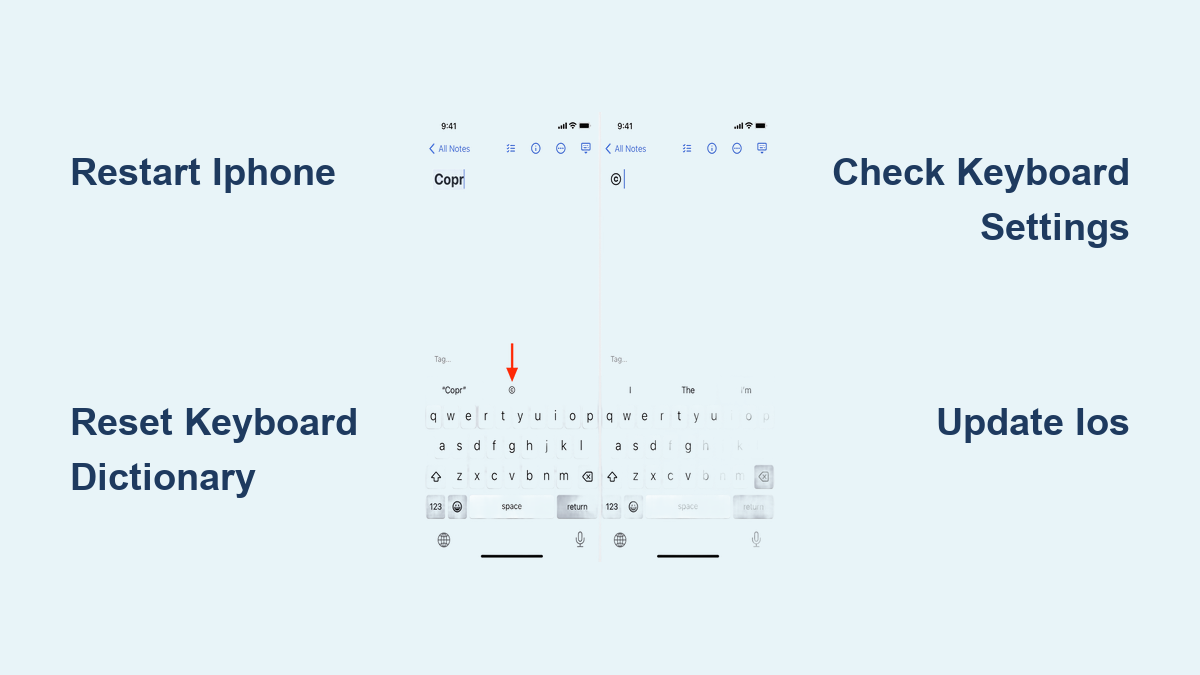
When autocorrect stops working or becomes overly aggressive—changing “meet” to “meat” in professional emails—your typing speed plummets and frustration rises. This typically happens after iOS updates corrupt your keyboard dictionary or when you’ve accidentally disabled predictive text features.
Complete autocorrect restoration:
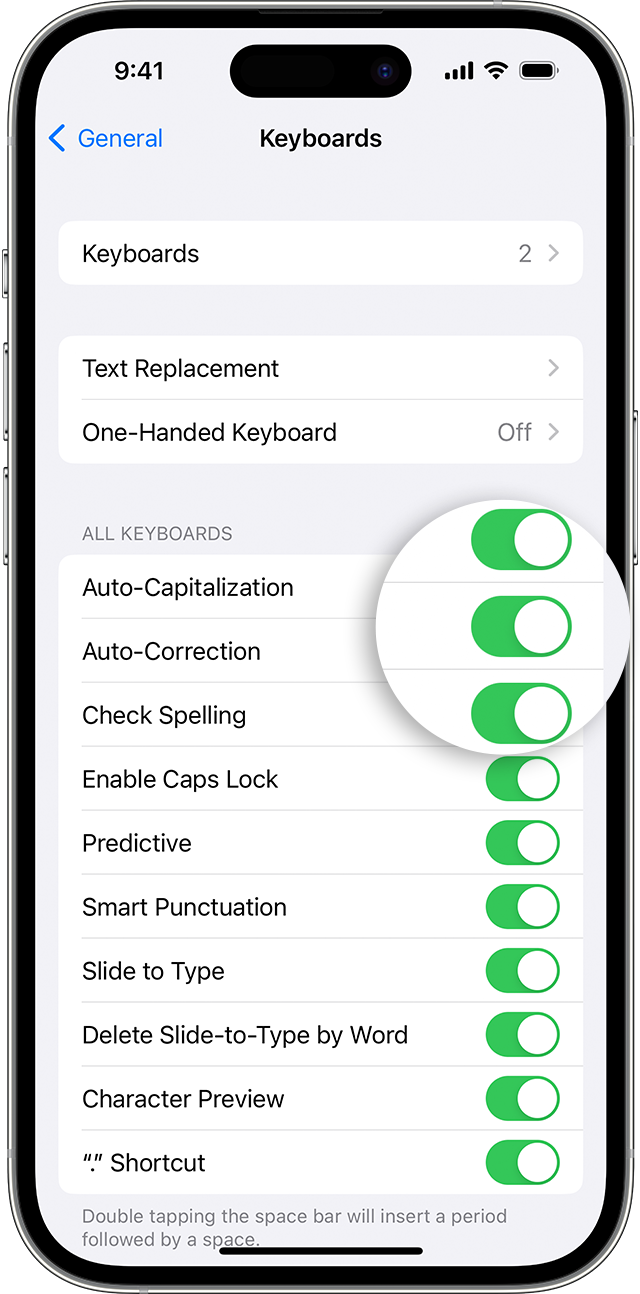
– Go to Settings > General > Keyboard
– Toggle “Predictive” ON if disabled
– Toggle “Auto-Correction” ON if disabled
– Reset keyboard dictionary (Settings > General > Transfer or Reset iPhone > Reset > Reset Keyboard Dictionary)
After resetting your keyboard dictionary, your iPhone will relearn your vocabulary patterns. Type slowly and deliberately for the first few days to help the system rebuild an accurate prediction model. If specific words continue getting changed incorrectly, add them to your keyboard dictionary by long-pressing the suggested word and selecting “Learn.”
Third-Party Keyboard Repair: SwiftKey, Gboard, and More
Third-party keyboards like SwiftKey or Gboard sometimes conflict with iOS updates, causing persistent issues that built-in keyboards don’t experience. These problems often manifest as missing predictive text, failed autocorrect, or complete keyboard unresponsiveness within certain apps.
Effective third-party keyboard troubleshooting:
1. Remove problematic keyboards via Settings > General > Keyboard > Keyboards
2. Restart your iPhone completely
3. Reinstall the keyboard app from the App Store
4. Grant full access permissions in Settings > General > Keyboard > Keyboards
Critical permission check: Without “Allow Full Access” enabled for third-party keyboards, predictive text and autocorrect features will fail. Toggle this setting off and back on if already enabled, as this often refreshes the connection between the keyboard app and iOS.
Screen Protector and Cleaning Fixes for Unresponsive Keys
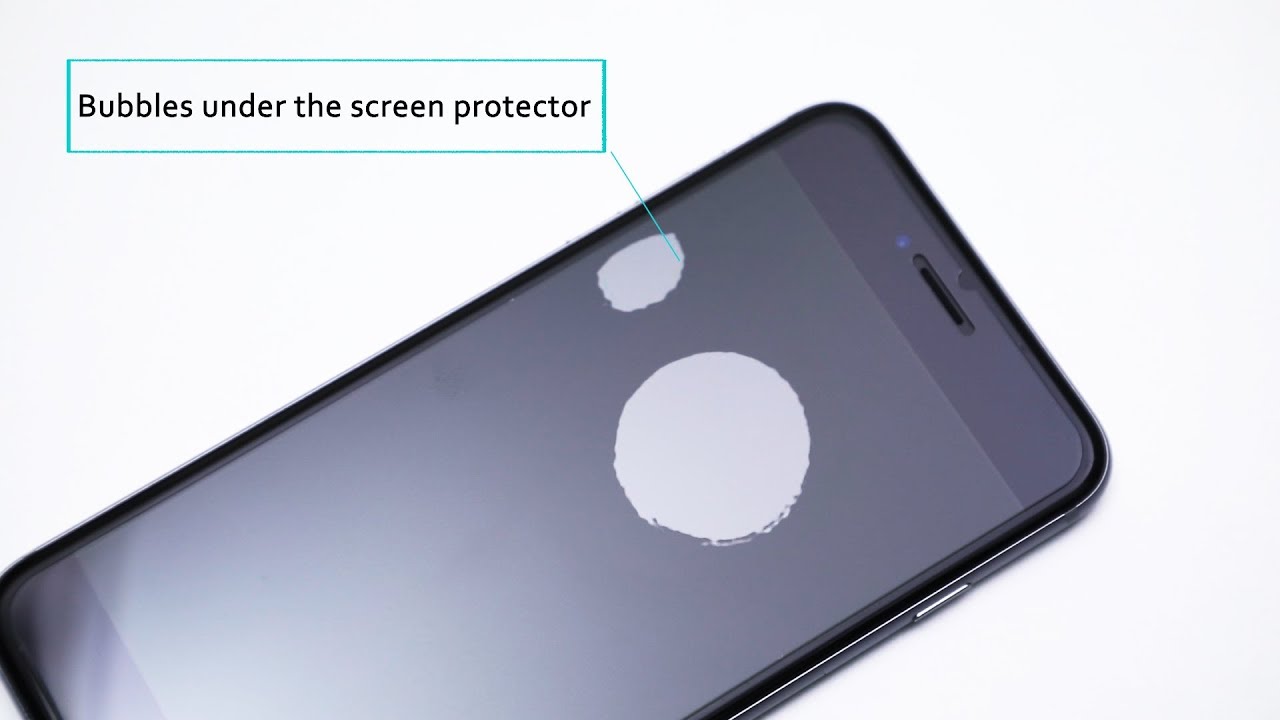
Thick or poorly applied screen protectors create dead zones on your touchscreen, making specific keyboard areas unresponsive. This issue often appears suddenly after installing a new protector, with certain keys (like spacebar or backspace) becoming unreliable while others work perfectly.
Screen protector troubleshooting:
– Temporarily remove your screen protector
– Test keyboard responsiveness across all keys
– If improved, replace with a thinner, high-quality protector
– Consider tempered glass protectors with oleophobic coating
For general screen cleaning, power off your iPhone first to avoid accidental inputs. Use a microfiber cloth slightly dampened with water (never spray liquid directly on screen). Focus on the lower third of the screen where the keyboard appears, wiping in circular motions to remove oil buildup that interferes with touch sensitivity.
iOS Update Fixes for Keyboard Bugs

Apple frequently introduces keyboard-related bugs in new iOS versions that get patched in subsequent updates. If your keyboard problems began immediately after an iOS update, you’re likely experiencing a known issue already addressed in a newer version.
Update verification process:
1. Go to Settings > General > About to check current iOS version
2. Visit Settings > General > Software Update
3. Install any available updates (requires Wi-Fi and 50%+ battery)
4. Restart your iPhone after installation completes
Many users report keyboard functionality returning immediately after installing the latest iOS patch. If you’re unable to update immediately, temporarily disable problematic features like predictive text until you can install the update.
Touchscreen Calibration Techniques for Keyboard Accuracy
When keyboard issues affect only specific screen areas, your touchscreen may need recalibration. Test this by opening Notes and drawing diagonal lines across your entire screen—if lines break in the keyboard area, you’ve identified a touch sensitivity problem.
Touch accommodation settings:
– Navigate to Settings > Accessibility > Touch
– Enable “Touch Accommodations”
– Adjust “Hold Duration” to 150ms to prevent accidental key presses
– Toggle “Ignore Repeat” ON if holding keys produces multiple characters
These accessibility settings compensate for minor touchscreen calibration issues without requiring hardware service. For persistent dead zones affecting keyboard use, visit an Apple Store as this may indicate hardware damage requiring professional repair.
Complete iPhone Restoration as Last Resort
When all other methods fail, restoring your iPhone as a new device often resolves deep-seated keyboard issues caused by corrupted system files. This nuclear option erases all data, so proper backup is essential before proceeding.
Safe restoration process:
1. Back up to iCloud (Settings > [Your Name] > iCloud > iCloud Backup)
2. Or back up to computer via Finder/iTunes
3. Go to Settings > General > Transfer or Reset iPhone > Erase All Content and Settings
4. Set up iPhone as new (don’t restore from backup initially)
5. Test keyboard functionality with fresh iOS installation
If the keyboard works properly after this clean setup, selectively restore data from your backup rather than doing a complete restore, as the issue may reside in corrupted backup files.
Prevent Future Keyboard Issues with Proactive Maintenance
Avoid recurring keyboard problems through consistent device maintenance. Clean your screen weekly with a microfiber cloth, restart your iPhone every 3-4 days to clear temporary glitches, and install iOS updates promptly when available.
Monthly keyboard health checklist:
– Remove and clean screen thoroughly
– Check for and install iOS updates
– Restart device to refresh system processes
– Review and delete unused third-party keyboards
– Verify keyboard settings haven’t changed unexpectedly
Pay special attention to apps that consistently trigger keyboard issues. Some applications have known compatibility problems with certain iOS versions—update these apps immediately when fixes become available.
Key Takeaway: Most iPhone keyboard problems resolve through simple software fixes rather than hardware replacement. Start with the quickest solutions—restarting your device and checking settings—before progressing to more involved steps like resetting dictionaries or restoring your device. Keep your iOS updated and maintain clean screen conditions to prevent future issues from developing. If problems persist after trying all these solutions, contact Apple Support as you may be dealing with a hardware issue requiring professional service.