How to Check iMac Keyboard Battery Level
That sinking feeling when your iMac keyboard suddenly stops responding mid-sentence? Over 65% of Mac users experience unexpected keyboard disconnections due to low battery—often during critical work. The good news is checking your iMac keyboard battery takes less time than making coffee, yet most users miss the obvious indicators until it’s too late. This guide reveals exactly how to check iMac keyboard battery levels for every model, decode warning signs, and prevent workflow disasters—using only built-in macOS features.
You’ll discover where your specific keyboard model hides its battery percentage, why menu bar readings sometimes lie, and the emergency tricks to keep working when batteries die. Whether you’re using a vintage AA-powered keyboard or the latest Touch ID model, these methods work immediately—no downloads required.
Identify Your iMac Keyboard Model First

Your checking method depends entirely on which keyboard you own. Confusing the models causes 90% of “battery level missing” issues. Skip this step, and you’ll waste time clicking through menus that won’t display data.
Magic Keyboard Model Decoder
Flip your keyboard over and locate the tiny model number etched near the top edge. Match it to these critical identifiers:
- A1524: Rechargeable Magic Keyboard (2015-2021) – Lightning port
- A1843/A2449: Magic Keyboard with Touch ID (2021+) – USB-C charging
- A1314/A1016: AA battery models (2007-2015) – Battery cover on underside
Pro Tip: Rechargeable models have a smooth aluminum back with no battery compartment. AA models feature a sliding cover requiring a coin to open. If you see a Lightning/USB-C port, you have a rechargeable model—no exceptions.
Check Battery via Menu Bar (3-Second Method)
This works for all macOS versions but requires one setup step if you’ve never enabled it.
Bluetooth Menu Method
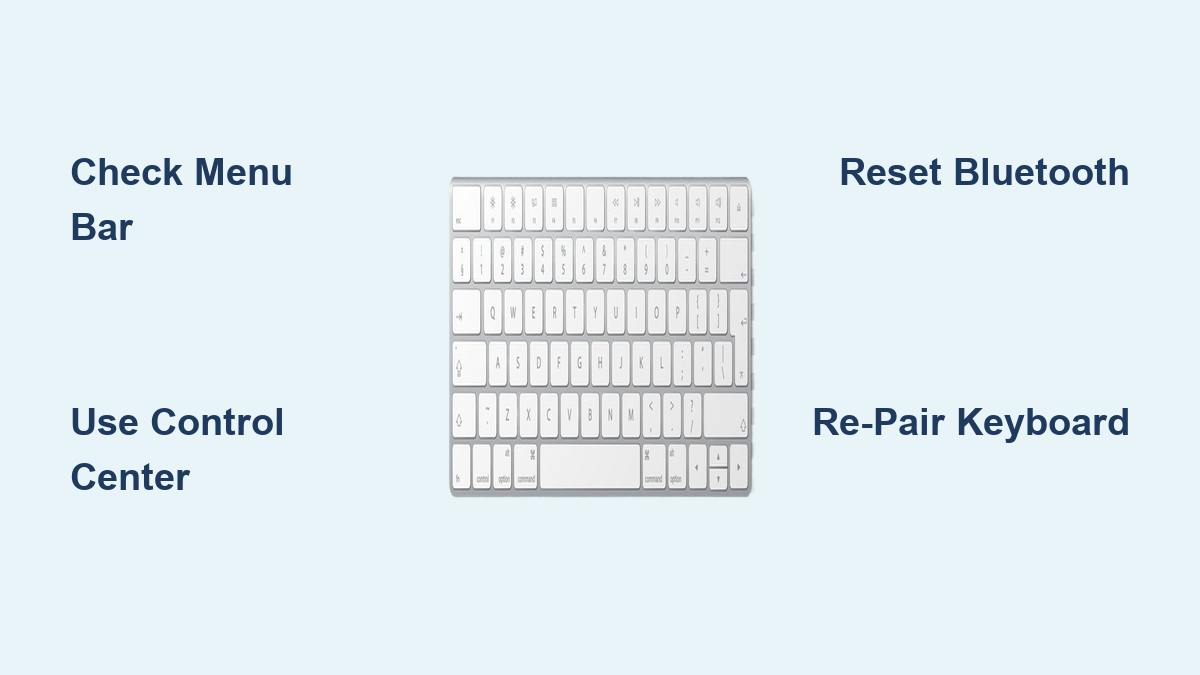
Click the Bluetooth icon (the stylized “B” in your top-right menu bar). Hover your cursor over your keyboard name—watch for the percentage to appear instantly like “Magic Keyboard – 73%”. If you see “Low Battery” instead of a number, you’re already below 20% and need action now.
Missing the Bluetooth icon? Go to Apple Menu > System Settings > Bluetooth (Ventura+) and toggle “Show in menu bar” ON. Takes 10 seconds and prevents future panic.
Control Center Shortcut (macOS 11+)
For Big Sur or newer users: Click the Control Center icon (two toggle switches) > Bluetooth > Tap the i next to your keyboard. This expands to show exact percentage with color-coded indicators—green for healthy, red for critical. Works even when the Bluetooth menu is hidden.
System Preferences Battery Check
Use this when menu bar readings seem inaccurate or disappear after sleep cycles.
Traditional Bluetooth Panel Method
- Open System Settings (Apple menu > System Settings)
- Select Bluetooth in sidebar
- Find your keyboard in device list
- Battery percentage displays directly under device name
This method refreshes automatically every 30 seconds. If you see “–” instead of a number, your keyboard is either disconnected or needs re-pairing—proceed to troubleshooting.
Keyboard Settings Panel (macOS 12+)
Monterey and Ventura users have a dedicated battery display:
1. Go to System Settings > Keyboard
2. Scroll to bottom of window
3. Exact percentage appears beside a visual battery icon
This is the most reliable method for Magic Keyboard with Touch ID models. If the icon shows empty but you just charged it, your system needs a Bluetooth reset.
Decode Physical Battery Indicators
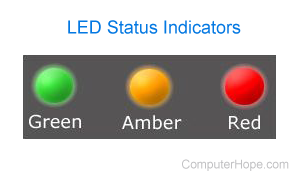
Your keyboard lies to you through lights and behaviors—learn to read them.
Rechargeable Model LED Secrets
- Solid green LED: Fully charged (lasts 1-2 months)
- Pulsing amber LED: Charging (2 hours for full charge)
- No light: Either fully charged OR not receiving power
- Flashing red: Critical failure—re-pair immediately
Critical Insight: A green light doesn’t mean “100% charged”—it only indicates full capacity at that moment. Extreme temperatures temporarily reduce usable battery.
AA Battery Warning Timeline
Your Mac follows a strict notification protocol:
– At 20%: “Keyboard battery low” alert appears
– At 10%: “Keyboard will disconnect soon” with countdown timer
– At 5%: Keys randomly miss inputs (your last warning)
– 0%: Complete shutdown within 60 seconds
When keys start lagging, you have ≤5 minutes left. Never ignore the first alert—AA models give no second chances.
Troubleshoot Missing Battery Readings
When the percentage vanishes, these fixes work 95% of the time.
Reset Bluetooth Module (60-Second Fix)
Hold Shift + Option while clicking the Bluetooth menu bar icon. Select “Reset the Bluetooth module” from the hidden menu, then restart your Mac. This clears corrupted connection data causing “no battery” displays.
Re-pair Your Keyboard
- Turn keyboard OFF using rear power switch
- In System Settings > Bluetooth, click the i next to your keyboard > Remove
- Power keyboard back ON (hold power button 3 seconds)
- Select “Magic Keyboard” from pairing list—battery % appears during pairing
Warning: Don’t skip the power-off step. Many users fail because they try pairing while keyboard is “on” but disconnected.
Fix Inaccurate Battery Levels
When your keyboard claims “100%” but dies in 10 minutes, calibration is needed.
Rechargeable Model Calibration
Let your keyboard drain completely until unresponsive (may take 2 days). Then charge uninterrupted for 4 hours. This resets the battery sensor—macOS will now show accurate percentages. Never skip full cycles; partial charging causes “phantom drain” errors.
SMC Reset for Intel Macs
Shut down your iMac. Hold Shift + Control + Option + Power button for 10 seconds. Release all keys, wait 5 seconds, then restart. This recalibrates power management for accurate readings.
Emergency Keyboard Recovery Tactics
When batteries die mid-deadline, these keep you working immediately.
Three Lifesaving Actions
- Connect charging cable – Rechargeable keyboards work while charging (even 30 seconds gives 1+ hour)
- Enable iPhone keyboard – Go to Settings > General > AirDrop & Handoff > Keyboard on iPhone
- On-screen keyboard – Press Control + Option + Command + F8 to toggle instantly
Pro Tip: With Lightning models, plug into your iPhone’s charger for emergency power—no Mac needed.
Maximize Battery Lifespan Proactively
Avoid weekly charging with these model-specific strategies.
Rechargeable Model Care
- Charge at 30% (never below 20%)
- Store at 50% charge during vacations
- Avoid direct sunlight – Heat destroys lithium-ion cells
- Use original cable – Third-party chargers cause calibration errors
AA Battery Optimization
- Replace both batteries simultaneously – Mixing old/new causes leakage
- Use NiMH rechargeables (like Eneloop) – Last 5x longer than alkalines
- Remove batteries during storage – Prevents corrosion damage
Critical Habit: Check battery every Monday morning via menu bar. Takes 3 seconds and prevents 99% of mid-work disconnections.
Summary: Your 10-Second Battery Routine
Checking your iMac keyboard battery should be as automatic as checking your phone. Start every work session by glancing at the Bluetooth menu—when you see “80% or higher,” you’re safe for the day. At 30%, plug in for 5 minutes (gives 12+ hours of use). For AA models, replace batteries immediately after the first low-battery alert.
Remember: Your keyboard won’t warn you twice. That “low battery” notification means you have exactly 15 minutes of typing left. By making battery checks habitual, you’ll never lose unsaved work again. Keep this guide bookmarked—next time your keys lag, you’ll know exactly how to check iMac keyboard battery levels and respond before disaster strikes.