How to Change Keyboard Function Keys
Your F-keys keep launching Netflix instead of refreshing your browser? You’re not alone. Most modern keyboards ship with multimedia keys as the default behavior, forcing you to hold the Fn key just to access traditional F1-F12 functions. Whether you’re a developer who needs F5 to refresh pages, a gamer seeking quick weapon switches, or simply want volume control without memorizing key combinations, knowing how to change function keys on keyboard can transform your daily workflow. This frustration affects millions of users who purchased keyboards expecting standard function key behavior only to discover they must constantly hold the Fn modifier.
This guide delivers every proven method to change function keys on keyboard across Windows, macOS, and Linux systems—no more accidental media launches during critical work moments. You’ll learn BIOS-level toggles, software solutions, and advanced remapping techniques that restore your F-keys to their intended functionality while maintaining access to multimedia controls when needed.
Switch Function Keys Without Software Using BIOS
Find Your Manufacturer’s BIOS Toggle Setting
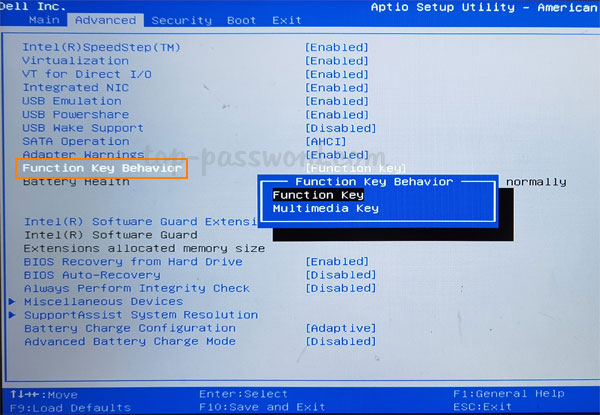
Restart your computer and press the correct key during boot (F2 for Dell, F1 for Lenovo, F10 for HP, or Del for most others). If you miss the timing, use Windows’ recovery menu: Settings → Update & Security → Recovery → Advanced Startup → Troubleshoot → Advanced Options → UEFI Firmware Settings. Once inside BIOS, navigate to System Configuration or Advanced tabs and locate the exact setting for your brand:
- Dell: “Function Key Behavior” (set to Function Key)
- HP: “Action Keys Mode” (set to Disabled)
- Lenovo: “Hotkey Mode” (set to Disabled)
- ASUS: “Function Key Lock” (set to Function Key)
Press F10 to save changes and reboot. This method changes how to change function keys on keyboard at the firmware level, making it system-wide and persistent across OS reinstalls. Test immediately by pressing F5 in your browser—no Fn key required.
Windows Software Remapping Solutions
PowerToys Keyboard Manager for Application-Specific Control
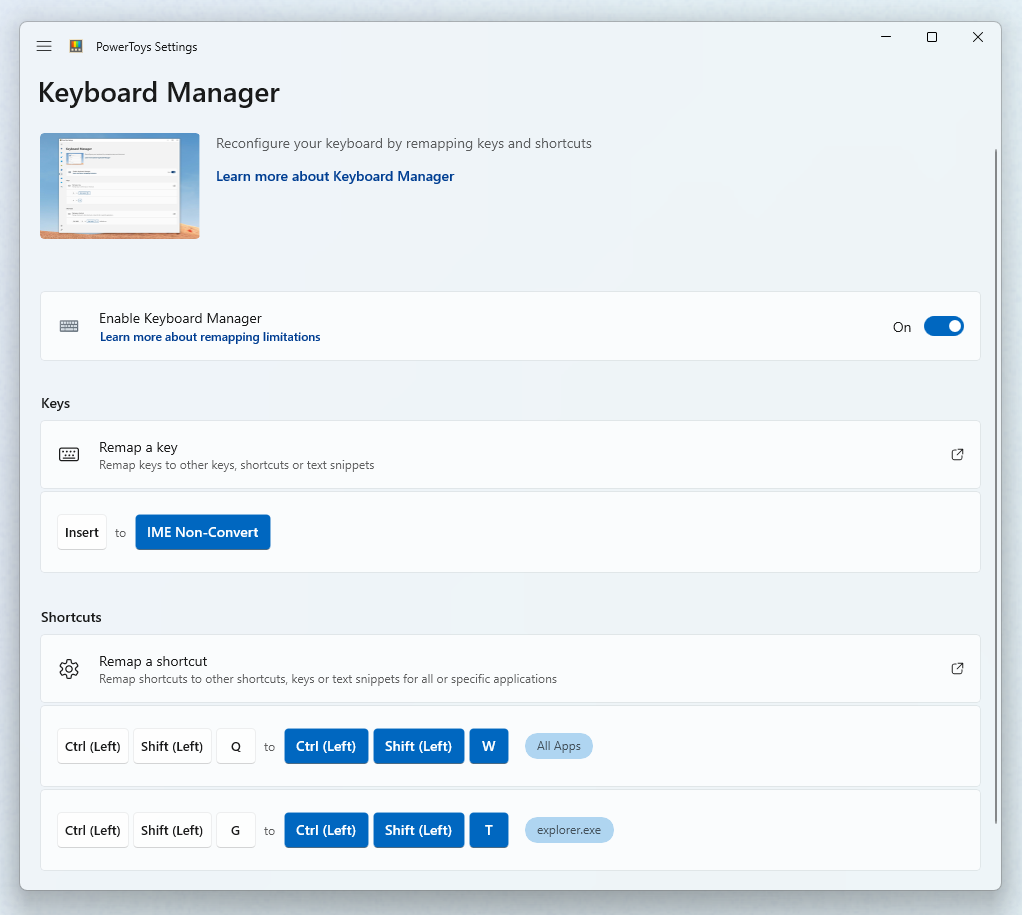
Microsoft’s free PowerToys offers the most user-friendly approach to change function keys on keyboard with application-specific profiles. Download from Microsoft Store, then:
- Open PowerToys → Keyboard Manager
- Click “Remap a key” and select your problematic F-key
- Choose its new function (F5 for browser refresh, F11 for fullscreen, etc.)
- Create separate profiles for gaming versus productivity work
Pro tip: Remap F13-F24 to handle overflow functions—most keyboards can recognize these extended keys through software remapping.
AutoHotkey for Complex Remapping Logic
For advanced users needing conditional remapping, AutoHotkey scripts provide ultimate flexibility. Create a .ahk file with commands like:
; Make F1-F4 control volume/brightness

F1::Send {Volume_Mute}

F2::Send {Volume_Down}

F3::Send {Volume_Up}

F4::Send {BrightnessDown}

F5::Send {F5}  ; Restore browser refresh
Save this to your startup folder (Windows + R → shell:startup) for automatic loading. This method of how to change function keys on keyboard persists through reboots and works across all Windows versions from 7 to 11.
macOS Function Key Customization
System Preferences Toggle for Instant Results
Apple’s built-in solution reverses default behavior with one checkbox. Navigate to Apple Menu → System Preferences → Keyboard and check “Use F1, F2, etc. keys as standard function keys.” When enabled, F-keys behave traditionally across all applications, requiring the Fn key for brightness and volume controls. This change applies system-wide without third-party tools.
Karabiner-Elements for Granular Control
For selective remapping, install Karabiner-Elements via Homebrew (brew install karabiner-elements). Its interface allows:
- Device-specific configurations (crucial for external keyboards)
- Application-specific rules (different mappings for Final Cut Pro vs. Excel)
- Complex modifications like “F1-F12 become media keys ONLY in Spotify”
Warning: Karabiner requires System Preferences → Security & Privacy → Accessibility permissions—don’t skip this step or it won’t work.
Linux Function Key Configuration
GNOME Desktop Remapping
Ubuntu and other GNOME-based distributions offer built-in customization:
- Open Settings → Keyboard
- Click “+” to add custom shortcuts
- Name your shortcut (e.g., “Browser Refresh”)
- Enter command:
xdotool key F5 - Assign to F5 key
For persistent changes, create a .Xmodmap file in your home directory with mappings like keycode 67 = F1 XF86AudioRaiseVolume, then load it with xmodmap ~/.Xmodmap in your startup scripts.
Gaming Keyboard Software Solutions
Razer Synapse Per-Application Profiles
Razer keyboards provide the most sophisticated approach to how to change function keys on keyboard for gaming scenarios:
- Open Synapse → Keyboard → Customize
- Select a function key and click “Remap”
- Choose between standard function, media control, or macro
- Create game-specific profiles that auto-activate when Steam launches
Critical step: Save profiles to onboard memory—this ensures your remappings work even on friends’ computers during LAN parties.
Logitech G Hub Quick Toggle
Logitech’s solution includes a game-changing feature: press Fn + C to cycle through profiles without opening software. Configure it by:
- Launching G Hub → Selecting your keyboard
- Clicking “Assignments” and dragging functions to F-keys
- Creating “Game Mode” profiles that disable the Windows key
- Setting up profile switching based on running applications
This method maintains ultra-low latency since remapping happens at the hardware level.
Troubleshooting Common Remapping Failures
Function Keys Still Trigger Media Controls
When your attempts to change function keys on keyboard fail, check these specific culprits:
- BIOS override: Some laptops force media keys regardless of OS settings
- Driver conflicts: Update keyboard drivers via Device Manager
- Fn Lock indicator: Many keyboards have physical Fn Lock keys (try Fn + Esc)
- Software hierarchy: Gaming software often overrides system-level remapping
Quick fix: Boot into Safe Mode to test if third-party software is interfering with your remapping.
Remapping Disappears After Windows Update
Preserve your customizations through updates:
- Export PowerToys profiles regularly (Settings → Export)
- Save AutoHotkey scripts to cloud storage with version history
- For SharpKeys, document registry changes before major updates
- Add remapping tools to antivirus exclusions
Most users who struggle with how to change function keys on keyboard lose configurations after updates because they didn’t document their setup.
Advanced Cross-Platform Techniques
Registry-Level Remapping for Windows Power Users
For permanent, low-level changes that survive OS reinstalls:
- Open Registry Editor (regedit.exe)
- Navigate to
HKEY_LOCAL_MACHINE\SYSTEM\CurrentControlSet\Control\Keyboard Layout - Create new binary value named “Scancode Map”
- Enter hex values for your desired remapping (search online for specific codes)
Warning: Backup your registry first—incorrect edits can make your keyboard unusable until reboot.
QMK Firmware for Custom Mechanical Keyboards
If you own a programmable mechanical keyboard (like those from Drop or Massdrop), flash custom firmware:
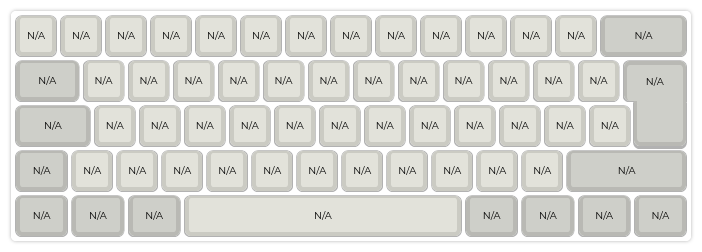
- Visit QMK Configurator online
- Select your keyboard model
- Drag functions onto F-keys visually
- Download and flash the firmware
This method of how to change function keys on keyboard gives you complete control down to the hardware level, including layer switching and tap/hold functionality.
Final Configuration Checklist
Before considering your function key remapping complete, verify these critical points:
- Test in primary applications: Check F5 in browsers, F12 in developer tools
- Confirm media keys still work: Hold Fn to access volume/brightness
- Check gaming performance: Ensure no input delay in competitive games
- Document your setup: Take screenshots of software configurations
When you successfully change function keys on keyboard, you’ll notice immediate productivity gains—no more frantic Fn key hunting during presentations or coding sessions. Start with BIOS changes for system-wide behavior, then layer software solutions for application-specific needs. Your perfect keyboard configuration is just a few settings away, transforming frustrating media launches into productive workflow enhancements. Remember: the best setup makes your F-keys work for you, not against you.