How to Fix Apple Keyboard Light Not Working
You’re typing late into the night when suddenly your Mac’s keyboard goes dark. The familiar glow that guided your fingers through countless projects has vanished, leaving you struggling to find the right keys in the dim lighting. This frustrating scenario affects countless Mac users who rely on their keyboard backlight for nighttime productivity, but the solution is often simpler than you think.
Apple’s backlit keyboard feature automatically illuminates your keys based on ambient light conditions and your typing activity. When it stops working properly, the problem typically falls into one of three categories: misconfigured settings, obstructed sensors, or system-level issues. This comprehensive guide walks you through every possible fix—from quick brightness adjustments to deeper troubleshooting steps—so you can regain proper keyboard illumination without unnecessary stress or expense.
Quick Keyboard Brightness Check
Before diving into complex troubleshooting, verify your keyboard brightness isn’t simply turned all the way down. This common oversight takes less than a minute to resolve and solves most “keyboard light not working” complaints immediately.
Access Keyboard Brightness Slider
- Click the Apple menu () in your screen’s top-left corner
- Select System Settings from the dropdown menu
- Choose Keyboard from the sidebar (you may need to scroll down to find it)
- Locate the Keyboard brightness slider below the keyboard preview image
- Drag right to increase brightness or left to decrease/turn off the backlight
Pro tip: If the brightness slider appears grayed out or unresponsive, your Mac likely detects sufficient ambient light, causing the system to automatically disable backlighting. Try moving to a darker environment before adjusting settings.
Test Manual Brightness Keys
Most Mac laptops feature dedicated function keys for instant brightness control:
– Press F5 to decrease keyboard brightness
– Press F6 to increase keyboard brightness
– Hold the Fn key while pressing F5/F6 if your Mac uses standard function keys by default
If these keys don’t respond, check your Keyboard settings for the “Use F1, F2, etc. keys as standard function keys” option—disabling this setting restores the special function key behavior.
Enable Automatic Light Adjustment
Your Mac’s ambient light sensor near the camera detects surrounding brightness levels to automatically adjust keyboard illumination. When this feature is disabled, your keyboard won’t respond to changing lighting conditions.
Turn On Low Light Detection
- Open System Settings > Keyboard as previously described
- Toggle Adjust keyboard brightness in low light to the ON position
- Test functionality by moving to a darker room or briefly covering the camera area
Important note: The ambient light sensor responsible for this automatic adjustment is located at the top of your Mac’s screen near the camera. Any obstruction to this area will prevent proper light detection and affect backlight functionality.
Set Inactivity Timer
Prevent your keyboard from turning off too quickly during late-night work sessions:
1. In System Settings > Keyboard
2. Click Turn keyboard backlight off after inactivity
3. Choose a longer interval: 5 minutes, 10 minutes, or select Never for continuous illumination
Clean Ambient Light Sensor
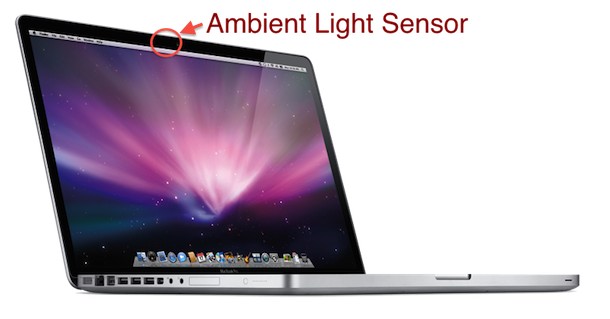
A dirty or obstructed ambient light sensor causes the majority of automatic backlight failures. This small component sits discreetly near your Mac’s camera at the top of the screen bezel and requires regular maintenance.
Visual Sensor Inspection
What to look for during inspection:
– Dust accumulation around the sensor opening
– Screen protectors extending too close to the camera area
– Stickers or decorative elements covering the top bezel
– Fingerprints or smudges directly over the sensor
Safe Cleaning Process
- Power off your Mac completely to prevent accidental key presses
- Use a lint-free cloth slightly dampened with distilled water
- Gently wipe the camera area and surrounding bezel in circular motions
- Dry thoroughly with a clean microfiber cloth
- Restart your Mac and test backlight functionality in a dimly lit environment
Critical warning: Never use alcohol-based cleaners, window sprays, or abrasive materials near your Mac’s camera or screen, as these can permanently damage the anti-reflective coatings.
Reset Keyboard Settings
Corrupted keyboard preferences sometimes disable backlight controls entirely. Resetting these settings often resolves mysterious backlight failures without affecting your typing experience.
Create New Keyboard Preferences
- Open Finder and press Command+Shift+G
- Type
~/Library/Preferences/and press Enter - Locate files containing “keyboard” or “backlight” in the name
- Move these preference files to a backup folder on your desktop (do not delete them)
- Restart your Mac to allow the system to generate fresh preference files
Test Reset Results
After restarting your Mac:
– Check if keyboard lights automatically activate in dark environments
– Verify that both manual brightness keys and slider controls respond properly
– Confirm automatic adjustment works when moving between different lighting conditions
Check System Software Updates
Outdated macOS versions sometimes contain keyboard backlight bugs that Apple addresses in subsequent software updates.
Update macOS Immediately
- Click Apple menu > System Settings
- Select General > Software Update
- Install any available updates, including minor point releases
- Restart your Mac after installation completes
Verify Update Success
After updating your operating system:
– Test keyboard backlight functionality in various lighting environments
– Check if brightness controls feel more responsive and consistent
– Monitor performance for 24-48 hours to confirm the issue remains resolved
Hardware Diagnostic Check
https://support.apple.com/guide/mac-help/run-apple-diagnostics-on-your-mac-mh35701/mac
When software fixes fail to restore keyboard illumination, physical issues may be preventing proper functionality.
Run Apple Diagnostics
- Disconnect all external devices and peripherals
- Shut down your Mac completely
- Turn on your Mac and immediately hold the D key
- Follow on-screen instructions to complete the diagnostic test
- Note any reference codes specifically mentioning keyboard or backlight issues
External Keyboard Test
Connect a USB or Bluetooth keyboard to your Mac:
– If the external keyboard’s backlight works properly, your built-in keyboard likely needs service
– If no keyboards illuminate correctly, the issue might be system-wide rather than keyboard-specific
When to Contact Apple Support
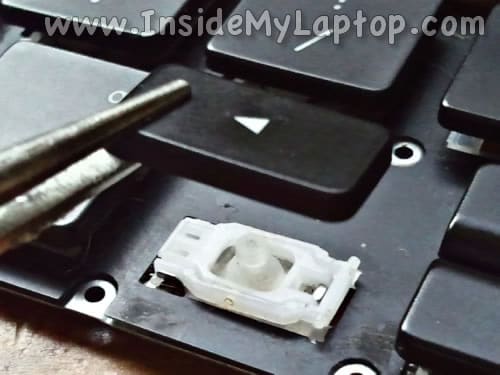
Recognize hardware failure signs that require professional repair rather than continued troubleshooting:
Contact Apple Support immediately if you notice:
– Keyboard lights flicker inconsistently or pulse erratically
– Only specific sections or key zones illuminate properly
– Visible physical damage to keys or surrounding keyboard area
– Apple Diagnostics reports specific keyboard hardware errors
– Backlight issues began after any liquid exposure or physical impact
Before your Apple Store appointment:
– Back up your data using Time Machine
– Document when the issue first appeared
– Note any specific patterns (works sometimes, fails in particular applications)
Prevent Future Backlight Issues
Maintain your Mac’s keyboard lighting system with these proactive habits to avoid recurring problems.
Monthly Maintenance Routine
- Clean the camera/sensor area weekly with a dry microfiber cloth
- Avoid covering the top screen bezel with stickers, tape, or protective films
- Update macOS promptly when notifications appear in System Settings
- Keep liquids well away from your keyboard area during use
Optimal Usage Settings
- Set reasonable inactivity timeout (2-5 minutes) to balance convenience and battery life
- Avoid keeping brightness at maximum levels constantly, which can strain LED lifespan
- Prefer automatic adjustment over manual overrides for optimal lighting conditions
- Store your Mac in protective cases when transporting to prevent sensor obstruction
Your Mac’s keyboard backlight should now respond appropriately to changing lighting conditions and manual controls. Most users resolve “apple keyboard light not working” issues within minutes using the brightness slider or by cleaning the ambient light sensor. If problems persist after trying all software solutions, Apple’s keyboard service can address hardware failures efficiently—often within a single store visit. Remember that regular maintenance and timely software updates prevent most backlight issues from occurring in the first place, keeping your typing experience illuminated and productive regardless of lighting conditions.