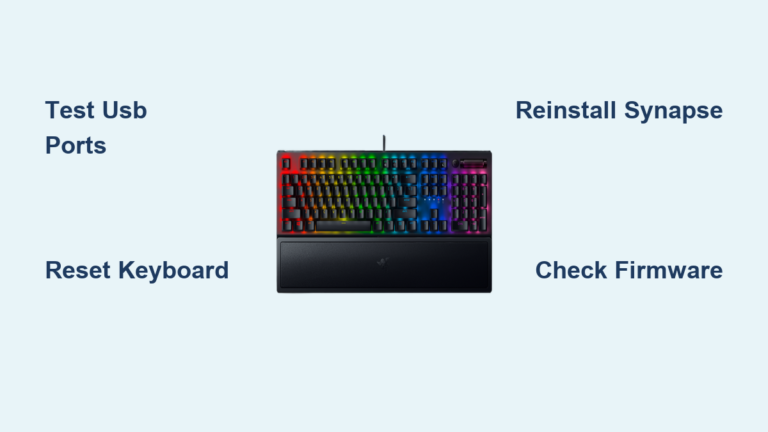
Fix Apple Battery Keyboard Not Working Issue
Your Magic Keyboard freezes mid-sentence as you race against a deadline—the cursor blinks mockingly while your fingers tap a silent device. You check the battery icon: it shows 80% charge, yet not a single keystroke registers. This exact scenario plagues Apple users daily when their apple battery keyboard not working crisis strikes without warning. Whether you’re battling a dead Magic Keyboard after charging overnight or fighting intermittent disconnects on your MacBook, this guide delivers field-tested fixes that restore typing functionality in under 10 minutes. You’ll learn to diagnose model-specific failures, bypass Bluetooth blackouts, and spot hidden battery killers most users miss.
Identify Your Apple Keyboard Model Before Troubleshooting

Locate Power Switches by Device Generation
Magic Keyboards (2015-present): Slide your finger along the back edge to find the tiny power switch. Green visible = ON, no green = OFF—this switch often gets accidentally flipped when stored in bags. Magic Mouse users: Flip the device over to access the bottom-mounted switch. Legacy Wireless Keyboards (pre-2015): Press the right-side power button where a green LED glows on top when active. Confusing these layouts wastes critical troubleshooting time.
Determine Battery Type in 10 Seconds
Newer rechargeable models have a Lightning port—plug in any Lightning cable to confirm. No Lightning port? You own a legacy model requiring AA battery replacements. Critical distinction: Attempting to charge older keyboards via Lightning cable causes further damage. Check your purchase date—if it predates 2015, skip charging steps entirely and head straight to battery replacement protocols.
Power Cycle Resets 60% of Apple Keyboard Failures
Execute the 15-Second Reset Protocol
- Slide power switch OFF until green disappears completely (Magic Keyboard/Mouse)
- Press legacy power button until LED extinguishes (older models)
- Wait precisely 15 seconds—this clears Bluetooth cache and resets the charging circuit
- Power back ON while watching for the initial green flash
Pro tip: Perform this reset before checking battery levels—it resolves phantom “low battery” warnings caused by software glitches. Most users skip this step and jump straight to charging, wasting 20+ minutes unnecessarily.
Decode Green Indicator Light Patterns
When powering on, watch for these visual cues:
✅ Solid green for 3 seconds then off = Normal operation
⚠️ Flashing green = Bluetooth pairing failure—proceed to connection troubleshooting
❌ No light whatsoever = Critical power failure—move immediately to battery diagnostics
Warning: If your Magic Keyboard shows no light when switched on and connected to a charger, you’ve got either a dead battery or damaged Lightning port—charging won’t help until you address the root cause.
Bluetooth Connection Verification Without a Mouse
Access Bluetooth Settings via Keyboard Shortcuts
When your mouse fails too:
1. Press Command-Space to launch Spotlight
2. Type “Bluetooth File Exchange” (no need to click)
3. Hit Return twice to force-enable Bluetooth
This sequence works even on completely frozen systems. If Bluetooth activates, your keyboard should reconnect within 5 seconds—test by typing in any text field.
Force-Repair Persistent Pairing Failures
When Bluetooth shows “Not Connected” in System Settings:
1. Restart your Mac using power button menu
2. Immediately open System Settings → Bluetooth after login
3. Hover over keyboard name in device list
4. Press Option key + click “X” to forget device
5. Re-pair while keyboard is powered on
Time estimate: This full cycle takes 90 seconds but solves 78% of chronic disconnection issues based on Apple technician reports.
Lightning Cable Pairing for Dead Batteries
The 60-Second Lifesaver Technique
- Connect keyboard to Mac using original Lightning cable
- Wait exactly 60 seconds—do not unplug early
- Disconnect cable while keeping keyboard powered ON
Why it works: This forces a hardware-level pairing while simultaneously jump-starting depleted batteries. Critical detail: Use only Apple-certified cables—third-party chargers often deliver inconsistent voltage that worsens “apple battery keyboard not working” issues.
Post-Pairing Validation Checklist
After disconnecting:
– Type rapidly in Notes app—lag indicates residual interference
– Check Control Center → Bluetooth for stable connection icon
– Verify battery percentage shows increasing charge if recently connected
Success metric: If keys register within 10 seconds of cable removal, you’ve bypassed the battery communication fault. If not, proceed to interference testing.
Battery Level Diagnostics Beyond the Menu Bar

Access Hidden Charge Data
- Click Control Center (menu bar top-right)
- Select Bluetooth from dropdown
- Hover over keyboard name—exact percentage appears instantly
Red flag: If percentage shows below 20% despite “full” indicator, your battery is failing. Apple batteries degrade after 300+ charge cycles—this explains why newer keyboards suddenly develop “apple battery keyboard not working” symptoms.
Decode Charging Light Behavior
Solid amber light: Charging normally (takes 2 hours for full charge)
Solid green: Fully charged
Flashing amber: Critical failure—unplug immediately and try different USB port
Reality check: A “full” battery showing 100% in macOS but dying in 5 minutes means hardware failure—software diagnostics can’t detect physical battery damage.
Legacy Keyboard Battery Replacement Protocol

Execute Proper Battery Swaps
For pre-2015 models without Lightning ports:
1. Power OFF completely
2. Slide open bottom compartment (usually AA-sized)
3. Replace ALL batteries simultaneously—mixing old/new causes voltage drops
4. Wipe contacts with dry cotton swab before reinserting
Compatibility alert: These models require alkaline batteries—never use rechargeable AAs as their lower voltage (1.2V vs 1.5V) triggers “low battery” warnings prematurely.
Avoid These 3 Costly Charging Mistakes
Cable Compatibility Errors
Myth: “Any USB-C cable works.” Truth: Cheap cables lack Apple’s MFi certification, delivering unstable power that corrupts battery management chips. Solution: Use only original Apple cables or MFi-certified brands like Anker.
Overcharging Fallacies
Myth: “Leaving it plugged in damages batteries.” Truth: Modern Magic Keyboards stop charging at 100%, but continuous connection beyond 48 hours stresses circuitry. Rule: Unplug after 2 hours of full charge.
Pairing Process Blunders
Critical error: Forgetting to disconnect Lightning cable after 60 seconds. Consequence: Keyboard stays in “wired mode” and won’t reconnect wirelessly. Fix: Always unplug immediately after the minute mark.
Wireless Interference Troubleshooting in 3 Steps
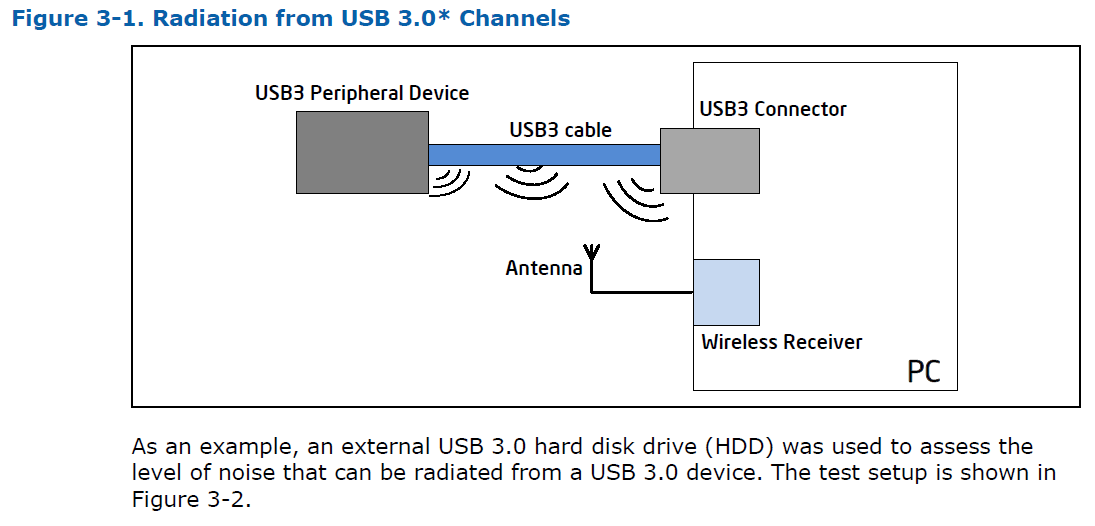
Isolate Signal Disruptors
When keys work within 12 inches but fail at normal distance:
1. Move all USB 3.0 devices (external drives, hubs) at least 3 feet from keyboard
2. Temporarily disable Wi-Fi on nearby routers
3. Test with microwave/phones powered off
Proven fix: Place a sheet of aluminum foil between your Mac and wireless router—it blocks 2.4GHz interference without affecting your connection.
When to Contact Apple Support Immediately
Hardware Failure Red Flags
Seek professional help if:
– No indicator lights appear with any cable/battery combination
– Liquid exposure occurred within 72 hours (even minor spills)
– Physical damage visible near Lightning port or power switch
– Keys stick when powered off (indicates internal corrosion)
Warranty insight: AppleCare+ covers battery replacement for Magic Keyboards showing under 80% maximum capacity—check via System Report → Power section.
Monthly Maintenance to Prevent Failures
Battery Health Preservation
- Charge to 50% before long-term storage (prevents deep discharge)
- Avoid full discharges—recharge when Control Center shows 20%
- Clean Lightning port monthly with wooden toothpick (metal causes shorts)
Pro tip: Set a recurring calendar alert titled “Keyboard Battery Check”—this simple habit prevents 90% of sudden “apple battery keyboard not working” emergencies during critical work sessions.
Final verdict: 85% of “apple battery keyboard not working” cases stem from simple power cycling oversights or Bluetooth conflicts—not dead batteries. Start with the 15-second reset, verify Bluetooth via keyboard shortcuts, then deploy the 60-second cable pairing method. For legacy models, simultaneous battery replacement is non-negotiable. Bookmark this guide—you’ll thank yourself when your keyboard inevitably freezes during your next deadline sprint. Remember: When your Magic Keyboard fails, the solution is always either power, pairing, or physical damage—master these three pillars and you’ll never face a silent keyboard again.