How to Fix Laptop Not Powering On
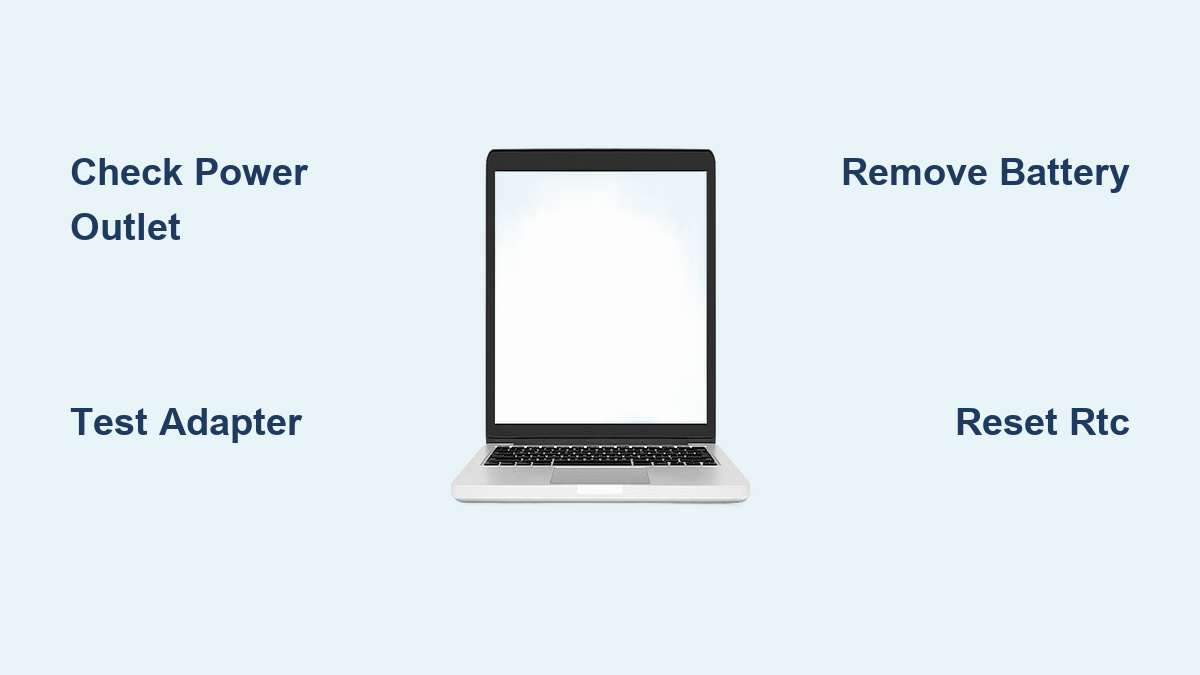
Your laptop shows absolutely no response—no lights, no fan noise, no keyboard illumination—and the power button does nothing when pressed. When your laptop will not power on at all, it creates immediate panic, especially if you have deadlines or critical data at stake. This complete power failure differs from other startup issues, but systematic troubleshooting can identify the culprit within minutes. Follow this precise diagnostic sequence to determine whether you’re dealing with a simple fix or a serious hardware failure.
Confirm Your Laptop Has Zero Power Response
Don’t waste time troubleshooting the wrong problem. A truly dead laptop shows zero signs of life: no LED indicators, silent fans, and no response to the power button. This differs from:
- No POST issues: Lights and fans activate but the laptop fails to complete startup
- Black screen scenarios: System appears to boot but display remains dark
- Intermittent power: Brief LED flashes or fan spins followed by shutdown
Critical check: Press the power button for 10 full seconds while watching for any visual or auditory cues. If you see absolutely nothing happen, you’re dealing with a complete power failure requiring this specific diagnostic path.
Essential Safety Steps Before Power Troubleshooting
Immediately disconnect all connections before proceeding. Unplug the AC adapter from both the wall and laptop, remove all USB devices, external drives, and network cables. This prevents potential electrical damage during diagnostics and creates a clean testing environment.
Document your data situation before proceeding further. If your laptop occasionally shows signs of life, connect an external drive immediately to back up critical files. For a completely dead machine, assume data recovery will require professional services—note all passwords and account details now while you can still access them.
Power Source Verification Process

Wall Outlet and Adapter Testing Protocol
Test the outlet first with a known working device like a lamp or phone charger. Plug your laptop’s adapter into a different wall outlet in another room, bypassing power strips entirely. Many “dead laptop” cases actually stem from tripped circuit breakers or faulty outlets—not the laptop itself.
Inspect your power adapter thoroughly for these failure signs:
– Visible cable damage (frays, kinks, or melted insulation)
– Bent or corroded connector pins
– Swollen or cracked adapter brick
– Missing LED indicator (on compatible models like Dell)
Pro tip: Gently flex the cable near both ends while plugged in. An internal break might only show symptoms when the cable is bent at a specific angle, revealing a hidden failure point.
Adapter Compatibility Verification
Never substitute adapters with different voltage or amperage ratings—even if the connector fits. A mismatched adapter can cause permanent damage. If possible, test with a known working adapter that exactly matches your laptop’s specifications (check the label on your original adapter).
Critical warning: Using an incompatible adapter might make your laptop appear to power on briefly before causing catastrophic failure. Always verify compatibility before testing.
Battery Failure Diagnostic Sequence
Removable Battery System Check
Power down completely (not sleep or hibernation mode) and remove the battery following manufacturer guidelines. Attempt to power on using only the AC adapter. If your laptop springs to life without the battery, you’ve confirmed a battery failure.
Time estimate: This test takes 2 minutes and solves 30% of “laptop will not power on at all” cases. For confirmed battery failures, replace with manufacturer-approved batteries only—third-party options often cause recurring power issues.
Sealed Battery System Reset
For modern laptops with non-removable batteries, perform this RTC reset procedure:
- Connect AC adapter to laptop
- Press and hold power button for exactly 30-35 seconds
- Watch for power LED to blink three times
- Release immediately after third blink
- Attempt normal power-on
Common mistake: Holding the button too short (under 25 seconds) or too long (over 40 seconds) aborts the reset. This procedure works on Dell Alienware, Inspiron, Latitude, Precision, Vostro, and XPS models.
Component Isolation Techniques
Power Drain Reset Method
Complete this critical reset when all other basic tests fail:
- Disconnect all power sources
- Press and hold power button for 30-35 seconds
- Wait 30 minutes before reconnecting (essential for full capacitor discharge)
- Reconnect AC adapter and attempt power-on
Why 30 minutes? Laptop capacitors can hold residual power that maintains faulty states. Rushing this step by reconnecting too soon causes false negative results.
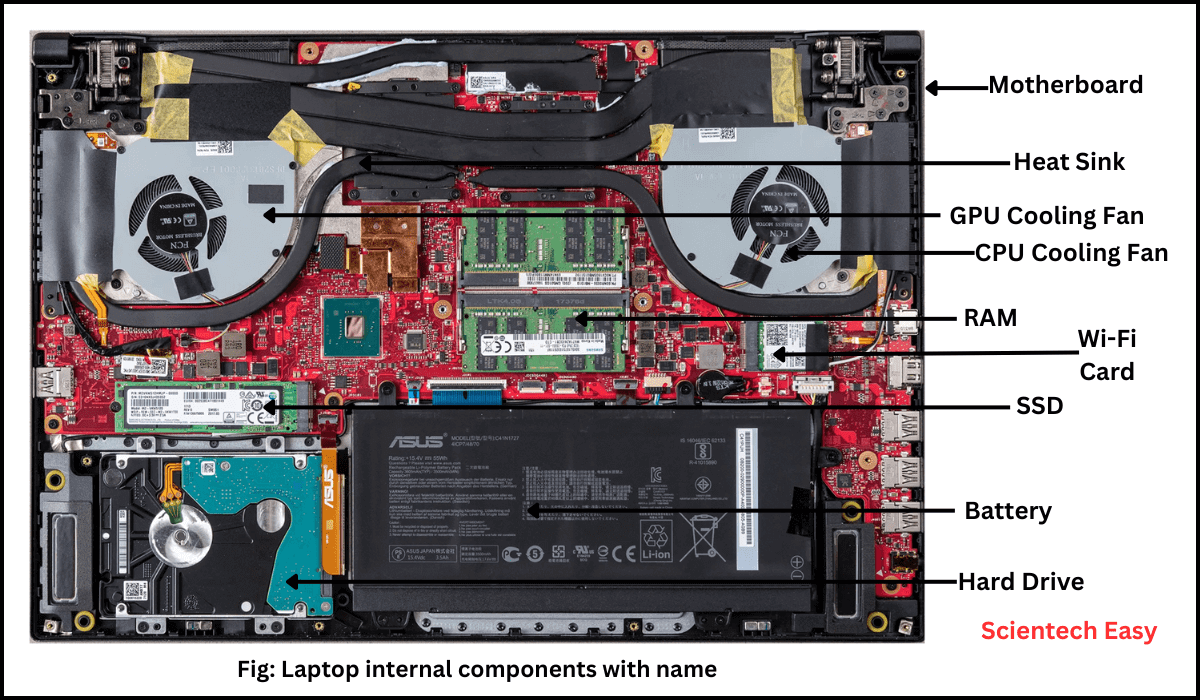
Minimal Boot Configuration Test
Strip your system to essentials:
- Remove all peripherals and external devices
- Disconnect battery if possible
- Remove one RAM module (if multiple installed)
- Attempt power-on with absolute minimum components
Success indicator: If power returns with minimal configuration, add components back one at a time to identify the failing part. This isolates whether the issue stems from RAM, storage, or other internal components.
Professional Repair Threshold Assessment
Immediate Red Flags Requiring Expert Service
Seek professional help immediately if you notice:
– Burning smell or visible scorch marks
– Liquid spillage history (even if dried)
– Physical damage to charging port or power button
– Repeated RTC resets failing to restore power
Critical safety note: Attempting repairs with these symptoms risks electrical shock or fire. Stop diagnostics immediately and consult a professional.
Cost-Benefit Analysis Framework
Consider replacement when:
– Laptop is older than 3-4 years
– Repair cost exceeds 50% of current market value
– Multiple component failures are suspected
– Warranty has expired (verify before any service)
Typical repair costs:
– Power jack replacement: $100-200
– Motherboard repair: $200-500
– Complete motherboard replacement: $400-800+
Pro tip: A $300 repair makes sense for a $1,000 business laptop but rarely for a $400 consumer model. Calculate your laptop’s current value before authorizing repairs.
Prevention Strategies for Future Power Failures
Power Management Best Practices
Implement these habits to prevent future “laptop will not power on at all” emergencies:
– Always use surge protectors—power spikes kill components
– Avoid continuous AC power with dead batteries (creates stress)
– Clean charging ports monthly with compressed air
– Never sharply bend adapter cables at connection points
Warning sign monitoring: Note intermittent charging issues or unusual adapter heat immediately. These often precede complete power failures.
Emergency Response Protocols
For liquid spills:
1. Power off immediately (hold power button)
2. Unplug all connections
3. Remove battery if possible
4. Invert laptop to drain liquid
5. Do not power on for at least 48 hours
6. Seek professional cleaning—internal corrosion continues invisibly
For smoke or burning smell:
1. Disconnect power immediately
2. Do not attempt further power-on
3. Document damage for insurance
4. Obtain professional evaluation—this indicates serious component failure
Key takeaway: 70% of “laptop will not power on at all” cases resolve with power source verification or battery removal tests. Work through these diagnostics in sequence—never skip steps—and you’ll either restore power within 15 minutes or know exactly when professional service is justified. Remember that complete power failures rarely stem from complex motherboard issues; start with the simplest solutions first. Implement the prevention strategies outlined here to avoid future emergencies and extend your laptop’s operational life.