How to Update Phone Keyboard
Your Samsung Galaxy keyboard is the unsung hero of daily communication—until autocorrect turns “meeting” into “meatball” or that new emoji you need won’t load. Outdated keyboards cause frustrating errors, slow typing speeds, and missed features that could transform your texting experience. This guide delivers exactly how to update phone keyboard functionality on any Galaxy device, whether you’re fixing glitchy predictions, adding multilingual support, or unlocking AI-powered typing shortcuts. You’ll learn insider techniques Samsung doesn’t advertise, saving you hours of trial-and-error.
Unlike app updates, keyboard enhancements often hide in plain sight within your settings. Most users never access the full suite of customization options buried under generic menus. By the end of this guide, you’ll master nine critical update pathways—from resizing for one-handed use to replacing the entire keyboard. No more settling for a sluggish, error-prone typing experience when your Galaxy can feel like a natural extension of your thoughts.
Access Keyboard Settings Fast
Skip the menu maze with these three instant pathways to keyboard control. The fastest method works whether you’re mid-text or starting fresh: tap the gear icon directly on your keyboard toolbar during any typing session. This bypasses Settings entirely and drops you into customization heaven. For broader access, go to Settings → General management → Samsung Keyboard settings—the command center for all updates.
When you’re already buried in Settings, use the search bar: type “Samsung Keyboard” for instant results. Pro tip: Bookmark this screen after your first visit. Wireless carriers sometimes rename options (like “Device management” instead of “General management”), but the search function cuts through the confusion. Never waste time hunting through nested menus again—these shortcuts put how to update phone keyboard capabilities at your fingertips in under 10 seconds.
Add New Language Packs Without Restarting
Adding languages isn’t just for travelers—it’s your fix for autocorrect failures on niche words like “café” or ” Pokémon.” Go to Settings → General management → Samsung Keyboard settings → Languages and types → Manage input languages. In the Available languages section, tap the cloud icon next to your target language. Downloads complete in seconds, but crucially: toggle the switch ON after downloading. Many users miss this step, wondering why the new language won’t appear.
Enable Instant Language Switching
With languages downloaded and enabled, activate them by tapping the globe icon on your keyboard while typing. Cycle through all active languages with a single tap—no app restarts needed. Watch for the language indicator (like “EN” or “ES”) above the spacebar to confirm your current mode. For voice typing offline, dive into Voice input → Install offline language pack. Download packs here so Siri-level voice commands work on flights or spotty connections.
Resize Your Keyboard for One-Handed Mastery
Struggling to reach keys on your 6.7-inch screen? Settings → General management → Samsung Keyboard settings → Size and transparency unlocks precision control. Drag the resize handles at the keyboard edges to shrink it to 70% of original size—perfect for thumb access. Don’t skip the arrow button: it lets you slide the keyboard anywhere on-screen, ideal for reaching top-row keys. Tap Done to lock your custom fit.
Apply Themes That Match Your Mood
Themes aren’t just pretty—they reduce eye strain during late-night texts. In Samsung Keyboard settings → Themes, swipe through dynamic options like “Ocean Blue” or “Midnight Black.” New themes auto-download when you update your phone, but tap the “+” icon to explore Galaxy Store exclusives. Warning: Some third-party themes disable swipe typing—test features before committing.
Install Gboard or SwiftKey as Default

When Samsung’s keyboard falls short, how to update phone keyboard means switching ecosystems. Download Gboard or SwiftKey from Galaxy Store, then go to Settings → General management → Keyboard list and default → Default keyboard. Select your new app, then grant permissions when prompted. Critical step: Disable Samsung Keyboard in the same menu to prevent conflicts. Gboard’s glide typing and SwiftKey’s AI predictions often outperform stock options—especially for multilingual users.
Activate Floating Mode for Tablet Typing
Large screens demand flexible layouts. Settings → General management → Samsung Keyboard settings → Mode reveals four game-changers:
– One-handed mode: Compresses keys to the left/right edge
– Floating mode: Drag a mini-keyboard anywhere (tap and hold the comma key to move it)
– Split mode: Divides keys for thumb-typing comfort
– Handwriting: Tap the three-dot menu → Handwriting to write with your finger
For S Pen users, open Samsung Notes, tap the pen-to-text icon, and convert handwritten notes to typed text instantly. No setup required—this feature activates automatically on Note series devices.
Fix Predictive Text Gone Rogue
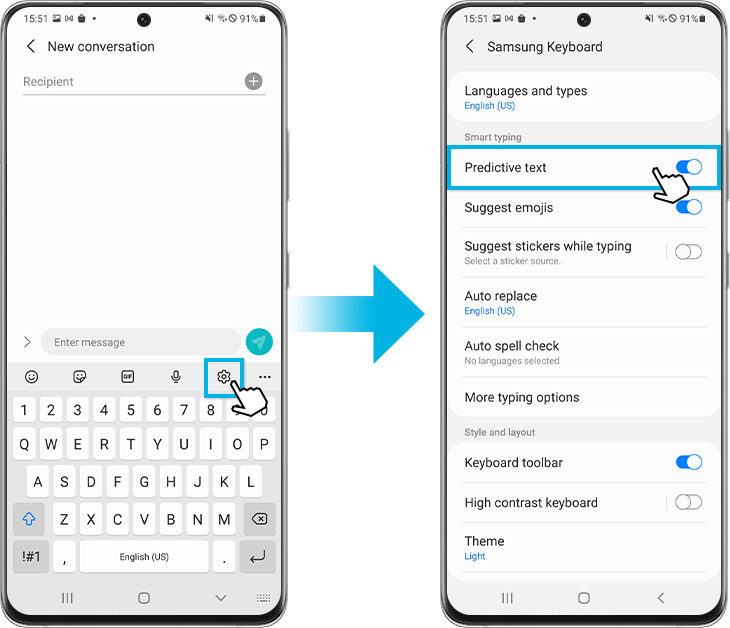
When “dinner” becomes “dinosaur,” reset AI learning without losing settings. Settings → General management → Samsung Keyboard settings → Reset to default settings → Erase personalized predictions. Confirm with Erase—this nukes corrupted word banks but keeps your themes and layouts intact. For nuclear options, select Reset keyboard settings to restore factory defaults while preserving learned words.
Unlock Voice Typing Anywhere
Stuck without hands? Enable Google Voice Typing via Settings → General management → Keyboard list and default → toggle Google Voice Typing ON. Then in Samsung Keyboard settings → Voice input, choose Google over Samsung for better accuracy. Pro tip: Download offline packs for your language to avoid “No internet” errors. While typing, tap the mic icon, speak naturally, and watch words appear—no extra apps needed.
Customize the Toolbar for Speed
That top row of icons hides superpowers. Tap the gear icon → Keyboard toolbar to toggle visibility. When active, it gives one-tap access to:
– GIFs: Search reaction GIFs without leaving your chat
– Stickers: Access meme-worthy packs from Galaxy Store
– Emoji predictions: Get context-aware suggestions (type “pizza” → 🍕 appears)
Disable it via the same menu if you prefer a minimalist layout. To restore later, revisit Samsung Keyboard settings → Keyboard toolbar.
Troubleshoot Keyboard Freeze-Ups
When keys stop responding:
1. Force-close the keyboard: Swipe up from home screen → tap Recent Apps → close keyboard process
2. Clear cache: Settings → Apps → Samsung Keyboard → Storage → Clear Cache
3. Check for OS updates: Settings → Software update (keyboard fixes often ship here)
If voice input fails, reinstall offline language packs—corrupted downloads cause 80% of microphone issues. For persistent glitches, reset keyboard settings as a last resort.
Updating your Galaxy keyboard isn’t about chasing the latest version number—it’s about tailoring your digital voice. Start with one change today: resize for comfortable one-handed typing, add that second language you’ve been meaning to practice, or enable emoji predictions to spice up texts. These micro-updates compound into a seamless experience where your phone anticipates your needs. Your keyboard should feel invisible in its perfection—when it works this well, you’ll forget you ever needed how to update phone keyboard guides. Now go make every tap count.