How to Turn On Touch Keyboard
Your finger hovers over a text field on your Windows tablet, but nothing happens. No keyboard appears, leaving you stranded without a way to type. This frustrating scenario affects thousands of Windows touchscreen users daily who need to know exactly how to turn on touch keyboard functionality. Whether you’re using a Surface Pro, Lenovo Yoga, or any Windows tablet or 2-in-1 device, mastering touch keyboard activation transforms your device from a frustrating brick into a productive tool.
The touch keyboard in Windows 10 and 11 provides essential text input when physical keyboards aren’t available or practical. This virtual keyboard automatically adapts to your screen orientation and typing preferences, offering multiple layouts optimized for different scenarios. Knowing how to turn on touch keyboard access reliably ensures you can type emails, documents, and messages whenever you need to—no physical keyboard required.
Fix Touch Keyboard Not Appearing in Text Fields
Windows designed the touch keyboard to activate automatically when you need it most, but sometimes it fails to appear when you tap text input areas. Understanding why this happens helps you fix it immediately.
Why Your Touch Keyboard Won’t Show in Input Boxes
The touch keyboard should spring to life whenever you tap any text field—search boxes, browser address bars, document editors, login screens, and messaging apps. Windows detects when a text input area gains focus and automatically displays the keyboard. If it’s not appearing:
- Check your screen responsiveness: Tap other areas to verify your touchscreen is working properly
- Try longer press duration: Some applications require holding your finger on the text field for 1-2 seconds
- Restart Windows Explorer: Press Ctrl+Shift+Esc, find Windows Explorer in Task Manager, and select Restart
Critical Warning: If your touchscreen works everywhere except text fields, your keyboard settings might be misconfigured—proceed to the next section immediately.
Restore System Tray Keyboard Access
When automatic activation fails, the system tray keyboard icon provides instant manual access:
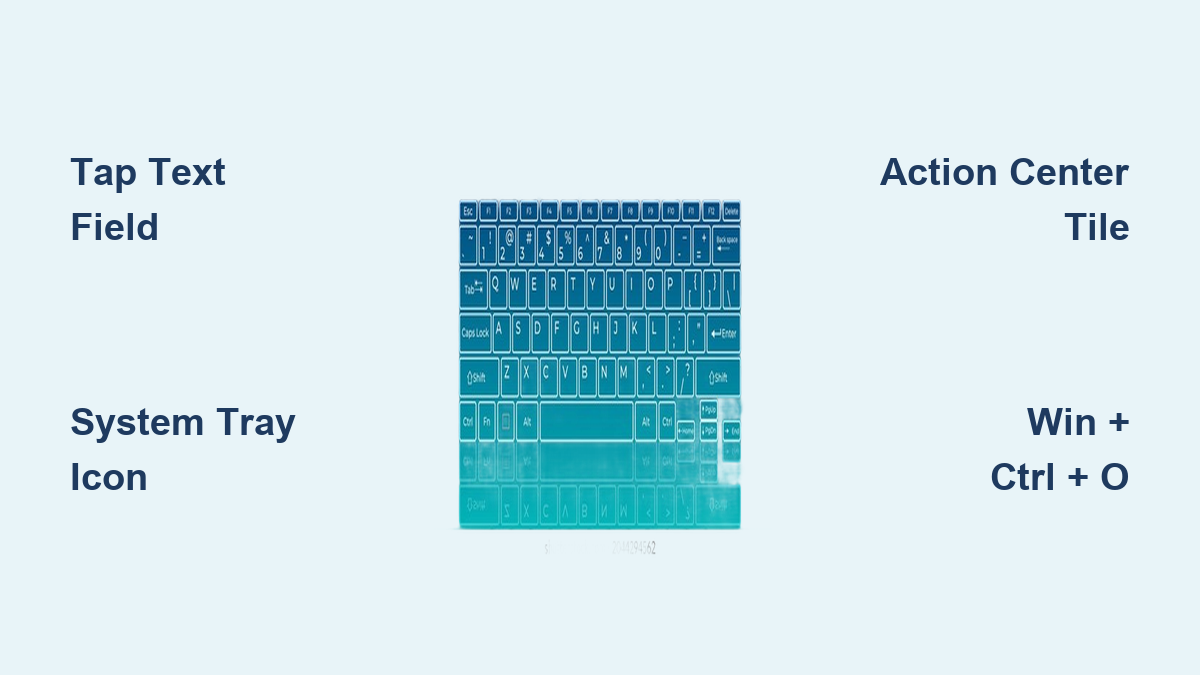
- Look for the keyboard icon in your taskbar notification area near the clock
- Tap this icon to force the touch keyboard to appear
- If the icon is missing, right-click your taskbar and select Taskbar settings
- Click Turn system icons on or off and toggle Touch keyboard to On
Pro Tip: After enabling the system tray icon, restart your device if the keyboard still won’t appear. This refreshes the system’s touch input services without requiring a full Windows reinstall.
Force Touch Keyboard Activation When Automatic Fails
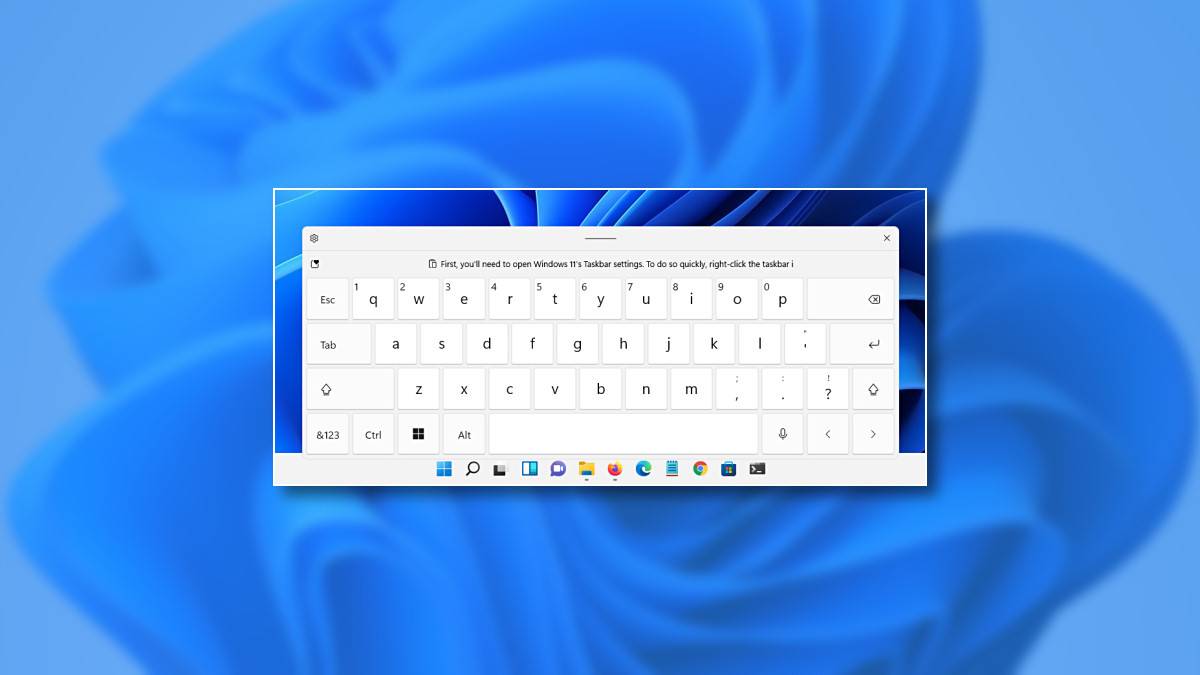
When Windows doesn’t automatically show the keyboard in text fields, you need reliable manual methods to turn on touch keyboard functionality immediately.
Manual Activation Through Action Center
Windows 10 and 11 include a dedicated touch keyboard button in the Action Center:
- Swipe in from the right edge of your screen (or click the notification icon near your clock)
- Locate the Touch keyboard tile in your quick settings
- Tap the tile to instantly display the keyboard
- Pin this tile for permanent access by right-clicking it and selecting Pin to quick settings
Troubleshooting Alert: If the Touch keyboard tile is missing, navigate to Settings > System > Notifications & actions > Add or remove quick actions and enable the keyboard toggle.
Keyboard Shortcut for Instant Access
Press the Windows key + Ctrl + O keyboard shortcut to toggle the touch keyboard on and off instantly. This works regardless of whether you’re in a text field or what application you’re using.
Important Note: This shortcut remains consistent across both Windows 10 and 11, making it the most reliable method to turn on touch keyboard when other methods fail.
Switch Between Touch Keyboard Layouts for Better Typing
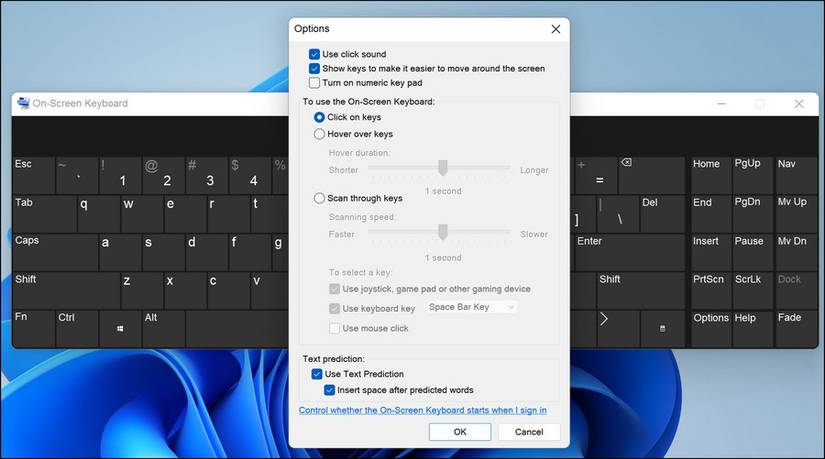
Windows offers five distinct keyboard layouts optimized for different scenarios—knowing how to access them improves your typing experience significantly.
Access All Keyboard Layout Options
To change your keyboard layout while typing:
- Open the touch keyboard using any method described above
- Tap the Keyboard settings icon (gear symbol) in the upper-left corner
- Select Keyboard layout from the menu
- Choose from available options: Standard, Split, Compact, Traditional, or Handwriting
Pro Tip: The Split layout positions keyboard sections at screen edges for comfortable two-handed typing while holding your tablet—ideal for extended writing sessions.
Fix Missing Layout Options
If certain layouts like Split or Compact don’t appear in your options:
- Verify language support: Some layouts aren’t available in all languages
- Add English (United States): Go to Settings > Time & language > Language & region and add English temporarily
- Restart the keyboard: Close and reopen the touch keyboard after changing languages
Critical Warning: Japanese language users have access to two additional layouts (12-Key and 50-On), but these won’t appear when using other languages.
Position and Resize Your Touch Keyboard Properly
The touch keyboard’s positioning flexibility lets you optimize screen space while maintaining typing functionality—essential for productivity on smaller screens.
Dock and Undock for Maximum Flexibility
The touch keyboard operates in two positioning modes:
- Docked Mode: Fixed at screen bottom (default position)
- Undocked Mode: Floating window you can move anywhere
How to switch modes: While the keyboard is open, tap the dock/undock icon next to the Close button in the upper-right corner. When undocked, the keyboard automatically switches to Compact layout for better screen visibility.
Pro Tip: Undock the keyboard when you need to see specific content behind it—simply drag it to your preferred screen position.
Customize Keyboard Size and Transparency
Windows 11 offers enhanced keyboard customization:
- Open the touch keyboard
- Tap the three-dot menu icon in the upper-left corner
- Select Settings then adjust Keyboard size and Transparency
- Choose from small, medium, or large keyboard sizes based on your screen
Important Note: Windows 10 provides fewer customization options—consider upgrading to Windows 11 for more layout control and visual adjustments.
Resolve Persistent Touch Keyboard Issues on Windows 10
Windows 10 users face unique challenges since Microsoft ended official support on October 14, 2025, but you can still fix common keyboard problems.
Update Touchscreen Drivers Manually
Outdated drivers often cause keyboard activation failures:
- Press Windows key + X and select Device Manager
- Expand the Human Interface Devices section
- Right-click your touchscreen device and select Update driver
- Choose Search automatically for updated driver software
Critical Warning: After Windows 10 support ended, driver updates come only from your device manufacturer—visit their website directly if Windows can’t find updates.
Alternative Activation Method for Unsupported Systems
For Windows 10 devices no longer receiving updates:
- Press Windows key + R to open Run
- Type osk and press Enter
- This launches the older On-Screen Keyboard utility
- Pin this utility to your taskbar for one-tap access
Pro Tip: The osk utility lacks modern touch keyboard features but provides essential typing functionality when the standard touch keyboard fails.
Optimize Touch Keyboard Performance on Tablets
Tablet users need special considerations for battery life and screen real estate when using the touch keyboard regularly.
Extend Battery Life While Typing
The touch keyboard has minimal battery impact, but these adjustments help:
- Reduce keyboard brightness: Lower screen brightness when typing extensively
- Disable handwriting recognition: Turn off pen/fingertip writing in Settings > Bluetooth & devices > Pen & Windows Ink
- Use Compact layout: Minimizes active screen area compared to Traditional layout
Pro Tip: Close the keyboard completely when not typing—leaving it visible unnecessarily drains battery.
Adapt to Different Screen Sizes and Orientations
The touch keyboard automatically adjusts based on your device:
- Small screens (under 10″): Compact layout provides best balance of keys and visibility
- Large screens (12″+): Traditional layout works well without significant screen obstruction
- Landscape mode: Keyboard spans full screen width for comfortable typing
- Portrait mode: Keyboard automatically narrows to fit vertical orientation
Critical Warning: Some third-party apps don’t properly support portrait orientation—rotate your device to landscape if the keyboard appears distorted.
Windows 11 Touch Keyboard Advantages Over Windows 10
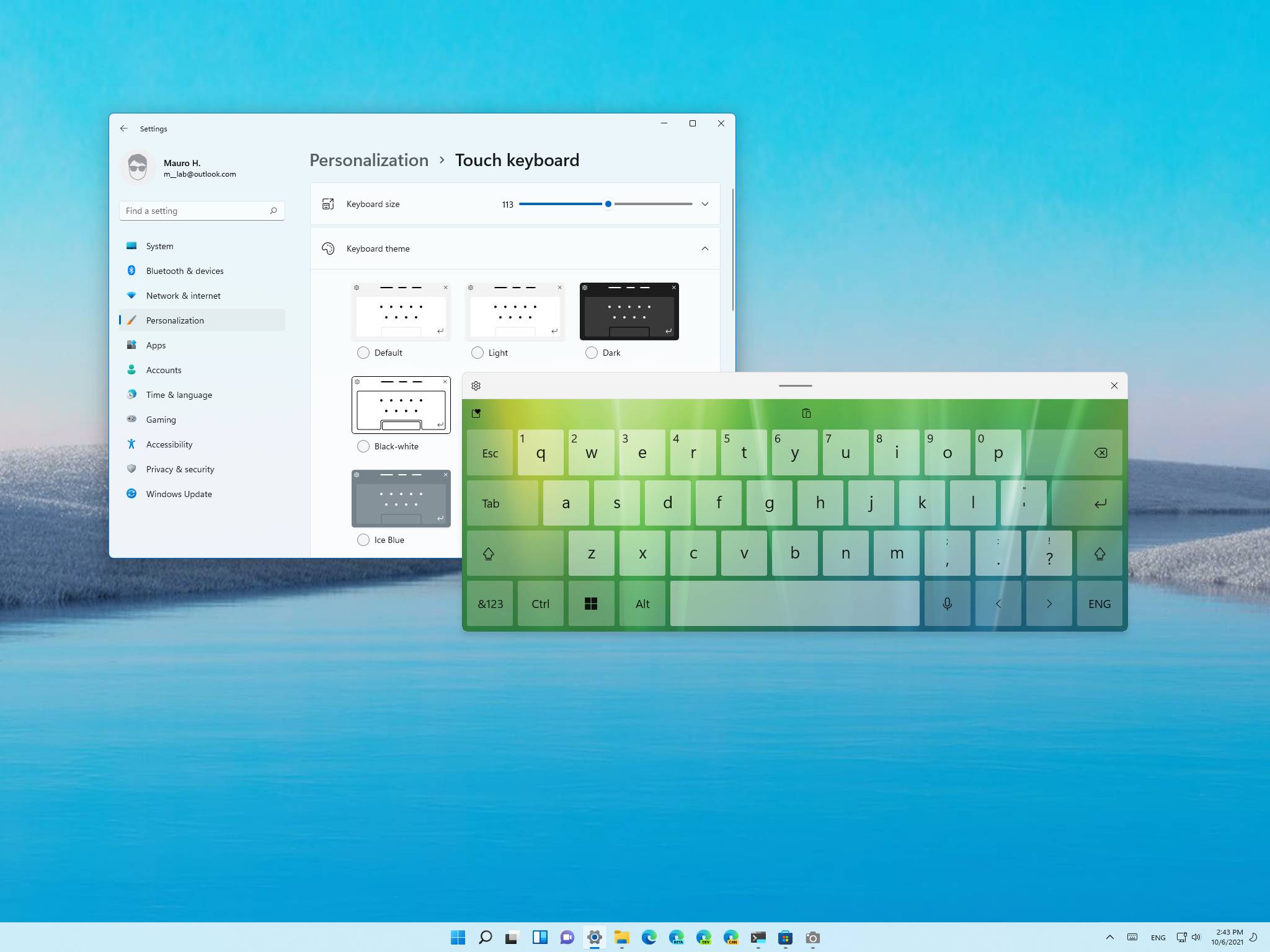
Windows 11 offers significant improvements for touch keyboard users that make knowing how to turn on touch keyboard even more valuable.
Enhanced Layout Customization Options
Windows 11 provides more keyboard personalization:
- Multiple theme options: Light, dark, and high-contrast themes
- Precise size control: Slider for exact keyboard dimensions
- Better split keyboard positioning: Adjustable gap between left and right sections
Pro Tip: Windows 11’s touch keyboard integrates with clipboard history (Windows key + V), letting you paste recently copied items directly from the keyboard.
Future-Proof Your Typing Experience
Since Windows 10 support ended, Windows 11 receives all future touch keyboard improvements:
- AI-powered predictions: More accurate word suggestions
- Better swipe typing: Enhanced shape writing accuracy
- Expanded language support: More layouts becoming available
Critical Warning: Continuing to use Windows 10 exposes you to security risks—upgrade to Windows 11 for safer, more feature-rich touch keyboard functionality.
Quick Reference Guide: How to Turn On Touch Keyboard
– ✅ Automatic method: Tap any text field (search boxes, browsers, apps)
– ✅ System tray: Enable icon via Taskbar settings > Turn system icons on or off
– ✅ Action Center: Swipe from right edge and tap Touch keyboard tile
– ✅ Keyboard shortcut: Press Windows key + Ctrl + O instantly
– ✅ Run command: Type osk in Run dialog for older Windows 10 systems
Mastering these touch keyboard activation methods ensures you’re never stranded without typing capabilities on your Windows tablet or 2-in-1 device. Whether you’re working remotely, taking notes in meetings, or simply browsing on your couch, knowing exactly how to turn on touch keyboard functionality transforms your Windows touchscreen experience from frustrating to fluid. Keep this guide handy for quick reference the next time your keyboard fails to appear—these proven solutions will get you typing again in seconds.