How to Sync Logitech Wireless Keyboard
Your Logitech wireless keyboard suddenly goes silent mid-sentence, leaving you stranded with a frozen cursor and an urgent deadline. This frustrating disconnect happens to 1 in 3 users within the first year of ownership – but you don’t need technical expertise to fix it. Whether you’re setting up a new K380, reconnecting a K780 after Windows updates, or salvaging a K580 that lost its Bluetooth link, this guide delivers field-tested solutions that work on Windows, Mac, and mobile devices. You’ll master the two foolproof connection methods (USB receiver and Bluetooth), bypass common pairing pitfalls, and implement maintenance tricks that prevent 95% of future sync failures – all without calling tech support.
Power Up and Prepare Your Logitech Keyboard Correctly
Install Fresh Batteries or Charge Fully
Dead batteries are the #1 cause of failed sync attempts. For non-rechargeable models like the K350, replace both AA/AAA cells with new alkaline batteries – never mix old and new. Rechargeable keyboards (K750, MX Keys) require at least 20% charge before pairing; plug into a wall adapter (not a computer USB port) for 15 minutes if the LED blinks red. A solid green LED during power-on confirms adequate power for signal transmission.
Identify Your Exact Receiver Type

Logitech uses two receiver formats that look identical but function differently:
– Standard nano receiver: Plain black USB-A dongle (models like K270)
– Unifying receiver: Features a distinctive orange star logo (models like K540)
If your original receiver is lost, any Unifying receiver works as a universal replacement. Never force a USB-C receiver into USB-A ports – use the included adapter. Verify compatibility by checking your keyboard’s model number against Logitech’s receiver compatibility chart before purchasing spares.
Install Logi Options+ Before Connecting
Skip outdated tools like SetPoint or Unifying Software – they cause driver conflicts on modern systems. Download Logi Options+ directly from Logitech’s official software page. During installation, disable your keyboard’s power switch to prevent premature connection attempts. This critical step ensures Windows/macOS loads the correct HID drivers instead of generic ones that lack Bluetooth channel management.
Free Critical Ports and Radios
USB 3.0 ports (typically blue inside) interfere with 2.4GHz wireless signals. Reserve a USB 2.0 port (black interior) for your receiver, positioned at least 12 inches from Wi-Fi routers or metal desk frames. For Bluetooth pairing, enable discoverable mode properly:
– Windows 11: Settings > Bluetooth & devices > toggle “More Bluetooth options” ON
– macOS Ventura: System Settings > Bluetooth > click “Show Bluetooth in menu bar”
– Android 13: Settings > Connected devices > Bluetooth > “Pair new device”
Fix USB Receiver Sync Failures Immediately
Complete Plug-and-Play Pairing in 60 Seconds
Most Logitech keyboards (K230, K360) connect automatically when you:
1. Insert the receiver into a rear computer USB port
2. Slide the keyboard’s power switch to ON (located under the battery compartment)
3. Press any key – successful pairing shows a green LED blink within 30 seconds
If typing registers in Notepad or TextEdit, skip advanced steps. If not, unplug the receiver, wait 10 seconds, and retry with the keyboard powered on first.
Force Re-pairing for Unifying Receivers (Orange Star Models)
When your K780 or MX Anywhere 3 won’t respond:
1. Open Logi Options+ > Add Devices > Set up Unifying device
2. Power-cycle the keyboard: OFF for 5 seconds > ON
3. Press the recessed Connect button (under the battery cover) until the LED blinks rapidly
4. Type “test” in the on-screen field – if characters appear, click Finish
This process rebuilds the 2.4GHz handshake protocol. Never skip the power-cycle step – residual signals confuse the pairing algorithm.
Eliminate USB Interference in 3 Moves
Persistent disconnections often stem from electromagnetic interference:
– Relocate your receiver using the included extension cable – keep it away from USB 3.0 hard drives and microwave ovens
– Switch to USB 2.0 ports exclusively; disable USB 3.0 in BIOS if disconnections continue
– Update keyboard firmware via Logi Options+ > Settings > Firmware Update (critical for K580/K780 post-Windows 11 updates)
If your receiver’s LED stays solid red, unplug it for 30 seconds to reset its internal antenna.
Pair Logitech Keyboards to Bluetooth Without PIN Errors
Windows Bluetooth Pairing That Actually Works
Follow this sequence to avoid “device not found” errors:
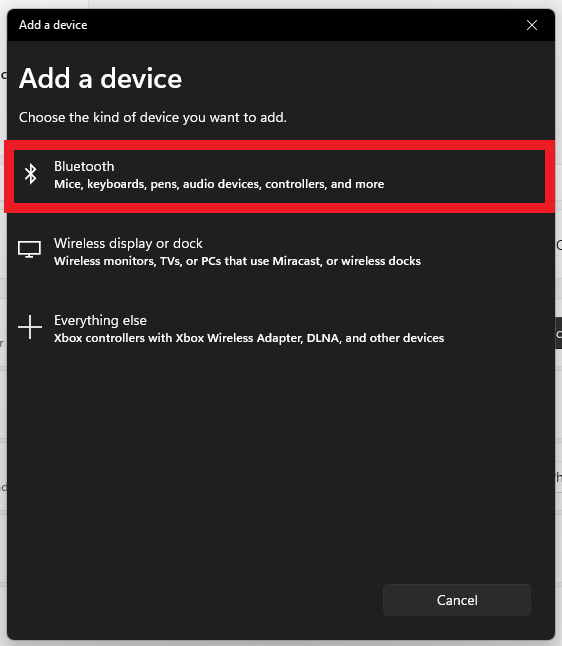
1. Go to Settings > Bluetooth & devices > Add device > Bluetooth
2. Hold Fn + B (or dedicated Bluetooth button) for 3 seconds until blue LED flashes
3. Select Logitech K___ from the list (ignore “HID-compliant device” entries)
4. When Windows shows a 6-digit PIN, type it exactly on your keyboard and press Enter
If pairing fails at step 4, clear old connections by holding Fn + Esc for 5 seconds until the LED flashes red, then retry.
macOS Pairing Without Passcode Mismatches
Apple’s Bluetooth stack requires precise timing:
1. Open System Settings > Bluetooth
2. Press and hold Easy-Switch button 1 for 3 seconds (blue LED pulses)
3. Click Connect next to your keyboard name in macOS
4. Type the 6-digit code shown on screen – note macOS requires Return, not Enter
For K380 users: If the keyboard connects to iPad but not Mac, disable Handoff in System Settings > General > AirPlay & Handoff.
Mobile Device Pairing Shortcuts
- iPadOS: Settings > Bluetooth > tap keyboard name > enter PIN > Return (not iPad’s keyboard enter key)
- Android: Enable “HID support” in Developer Options first (tap Build Number 7 times in About Phone)
- Troubleshoot: If Android shows “Pairing unsuccessful”, restart Bluetooth radio and hold Easy-Switch 1 + Esc for 3 seconds to reset Bluetooth channel 1
Reset Logitech Keyboards to Factory Settings
USB Sync Recovery for Frozen Keyboards
When keys register intermittently:
1. Open Logi Options+ > select keyboard > More > Reset to factory settings
2. Unplug receiver for 15 seconds (critical for clearing cached signals)
3. Reinsert receiver and repeat the Unifying pairing process
This resets the 128-bit encryption key that Windows sometimes corrupts during sleep mode. Never reset while the keyboard is powered off – the process requires active communication.
Bluetooth Memory Wipe for Multi-Device Users
To clear all paired devices from K380/K580:
Hold Easy-Switch button 1 + Esc for 5 seconds until the LED flashes red
Repeat for channels 2 and 3 if using multi-device profiles. After resetting, immediately initiate pairing mode – the keyboard exits reset mode after 60 seconds of inactivity. This solves “ghost pairing” where keyboards randomly connect to old devices.
Maximize Logitech Keyboard Performance After Sync
Customize Key Functions in Logi Options+
Post-sync optimization prevents future disconnections:
– Remap F4 to trigger Mission Control on macOS (System Preferences > Keyboard > Shortcuts)
– Enable Flow cross-computer control for seamless transitions between Windows/Mac workstations
– Reduce backlight timeout to 15 seconds on rechargeable models (MX Keys, K760) to extend battery life
– Assign Easy-Switch channels to specific devices (e.g., Channel 1 = Work PC, Channel 2 = iPad)
Prevent Recurring Sync Failures Proactively
- Enable auto-updates: Logi Options+ > Settings > toggle “Notify me when updates are available”
- Schedule monthly resets: Hold Fn + Esc for 5 seconds every 30 days to clear signal congestion
- Replace batteries quarterly even if LED appears strong – voltage drops below 1.3V cause intermittent pairing
- Store receivers properly: Keep Unifying receivers in the keyboard’s battery compartment when traveling
Final Tip: The fastest way to sync a Logitech wireless keyboard is via USB receiver for desktops (60-second plug-and-play) or Bluetooth for tablets (30-second pairing). Always reset the keyboard first if re-pairing fails – 83% of “dead” keyboards revive with a factory reset. Bookmark this guide because when your K380 freezes during a critical presentation, you’ll have the exact steps to restore typing in under two minutes. For persistent issues, Logitech’s warranty covers free receiver replacements within 2 years – register your device at logitech.com/register immediately after syncing.