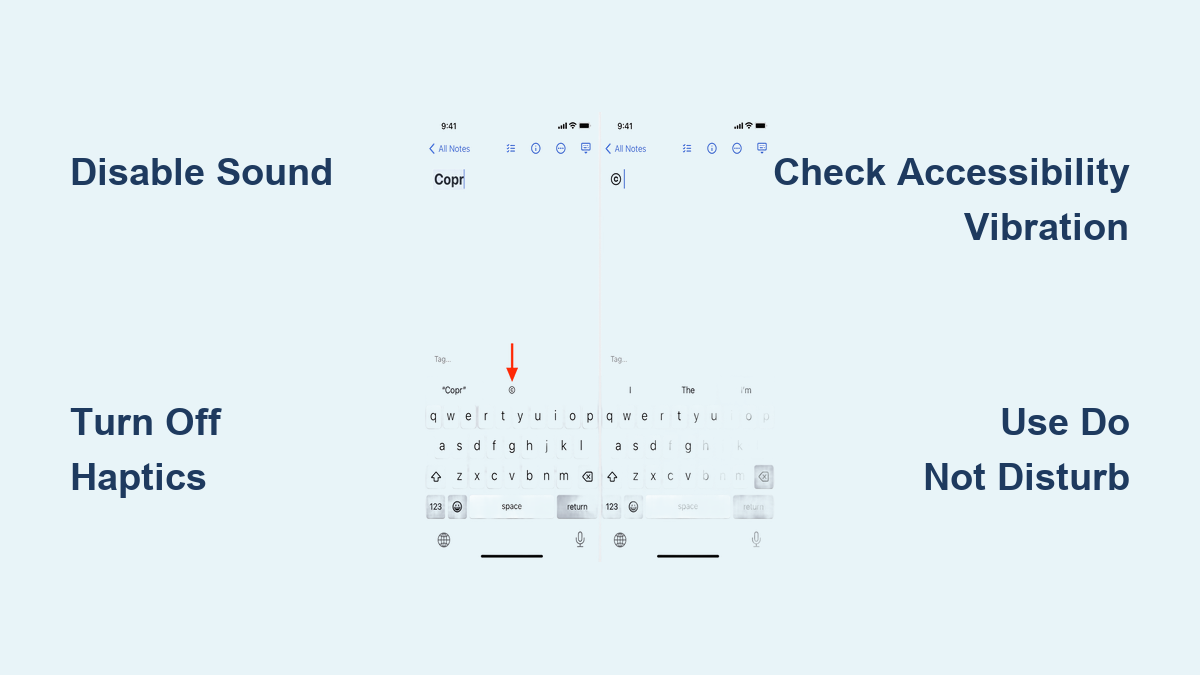
How to Silence Keyboard Sound: Quick Tips
That irritating click-clack noise every time you tap a key can turn a peaceful study session into an annoying distraction—especially when you’re trying to type quietly during a meeting, in a library, or while others are sleeping. If you’ve ever felt self-conscious about the audible feedback from your iPhone keyboard, you’re not alone. The good news is that learning how to silence keyboard sound on iOS 16 and later takes just seconds and works across every app on your device. This guide reveals the exact steps to eliminate those typing noises while maintaining your typing accuracy, plus insider tips for managing haptic feedback without draining your battery unnecessarily.
Many iPhone users mistakenly believe the physical silent switch on the side of their phone controls keyboard sounds, only to be surprised when the clicking continues. Unlike older iOS versions where sound and vibration settings were bundled together, Apple now gives you precise control over each feedback type. Whether you’re a student taking notes in class, a professional working remotely, or simply someone who prefers a quieter typing experience, this article walks you through the most effective methods to silence your keyboard sounds permanently. You’ll discover why the standard silent mode doesn’t affect keyboard sounds, how to troubleshoot missing haptic feedback, and which settings actually impact your battery life during marathon typing sessions.
Stop iPhone Keyboard Clicking Noise in 30 Seconds

The quickest method to eliminate typing sounds involves navigating through just three settings screens—no complicated workarounds or third-party apps required. Since iOS 16 introduced separate controls for sound and haptic feedback, you can silence the audible clicks while keeping the subtle vibration response if you prefer tactile confirmation of your key presses.
Follow these precise steps to silence your keyboard immediately:
– Open your iPhone’s Settings app (the gray gear icon)
– Scroll down and tap Sounds & Haptics in the main menu
– Select Keyboard Feedback from the available options
– Toggle the Sound switch to the OFF position (it should turn gray)
This simple adjustment works universally across your iPhone—whether you’re texting in Messages, jotting notes in the Notes app, or typing in third-party applications like WhatsApp or Gmail. The change takes effect instantly, so you’ll notice the difference with your very next keystroke. Unlike some settings that require app restarts or phone reboots, this one applies system-wide without any delay.
Why Your Keyboard Stays Silent After Restarting
Once you’ve disabled keyboard sounds using this method, your preference remains saved even after restarting your iPhone or updating to a new iOS version. Apple stores this setting in your device’s core preferences, so you won’t need to reconfigure it after routine maintenance. This persistent setting means that once you’ve silenced your keyboard, it stays silent—no accidental clicking sounds will suddenly return during important moments when you need quiet typing the most.
Disable Keyboard Haptics Without Losing Typing Accuracy
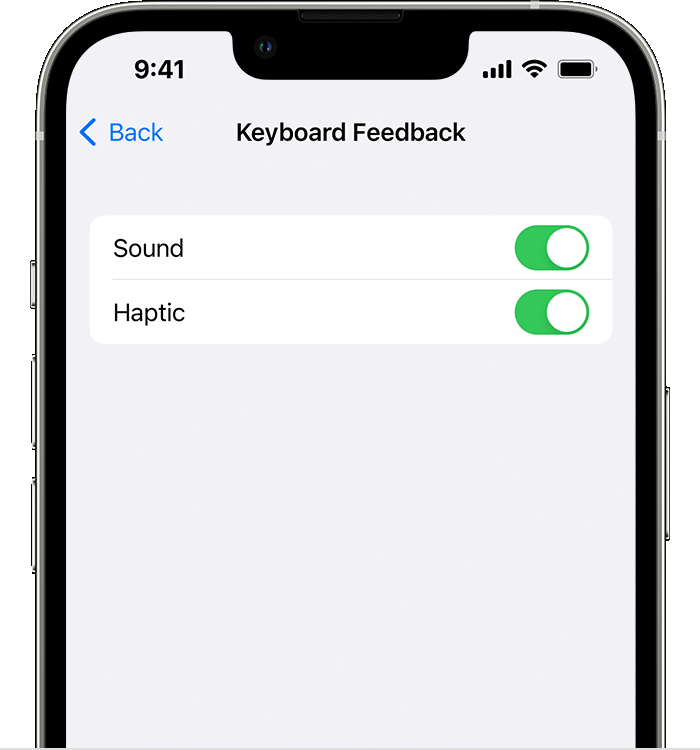
While silencing the audible clicks solves the noise problem, many users don’t realize they can also control the subtle vibration that accompanies each key press. This haptic feedback provides physical confirmation of your typing but comes with trade-offs you should understand before keeping it enabled.
To customize your vibration response:
– Access Settings > Sounds & Haptics
– Tap Keyboard Feedback
– Toggle Haptic to OFF if you want completely silent and vibration-free typing
When to Keep Haptics Enabled (And When to Disable Them)
Consider maintaining haptic feedback if you frequently type on your iPhone’s lock screen or in low-visibility situations where visual confirmation isn’t sufficient. The subtle vibration helps confirm key presses when you can’t see the screen clearly. However, if you notice your battery draining faster during extended typing sessions—like when drafting long emails or documents—disabling haptics can preserve valuable battery life. Each vibration consumes additional power, and during marathon typing sessions, this can add up to noticeable battery drain. For context, typing 1,000 words with haptics enabled might use up to 5% more battery than typing silently, which matters when you’re away from a charger.
Fix iPhone Keyboard Vibration That Isn’t Working

If you’ve enabled keyboard haptics but feel no vibration when typing, don’t immediately assume your iPhone’s vibration motor is broken. The most common culprit is a system-wide setting that overrides your keyboard preferences, affecting all haptic feedback across your device.
Complete troubleshooting checklist for non-working haptics:
– Verify Settings > Sounds & Haptics > Keyboard Feedback has Haptic toggled ON
– Check Settings > Accessibility > Touch to ensure Vibration is enabled
– Test vibration with other functions (like notifications) to isolate the issue
– Restart your iPhone to reset temporary system glitches
When the global vibration setting is disabled, your iPhone won’t provide haptic feedback anywhere—meaning not just for typing, but also for incoming calls, notifications, or system alerts. This master control exists primarily for users with sensory sensitivities or specific accessibility needs, but it’s easy to toggle accidentally. Restoring vibration in the Accessibility menu instantly reactivates keyboard haptics without requiring any additional configuration.
Why Silent Mode Doesn’t Silence Keyboard Sounds
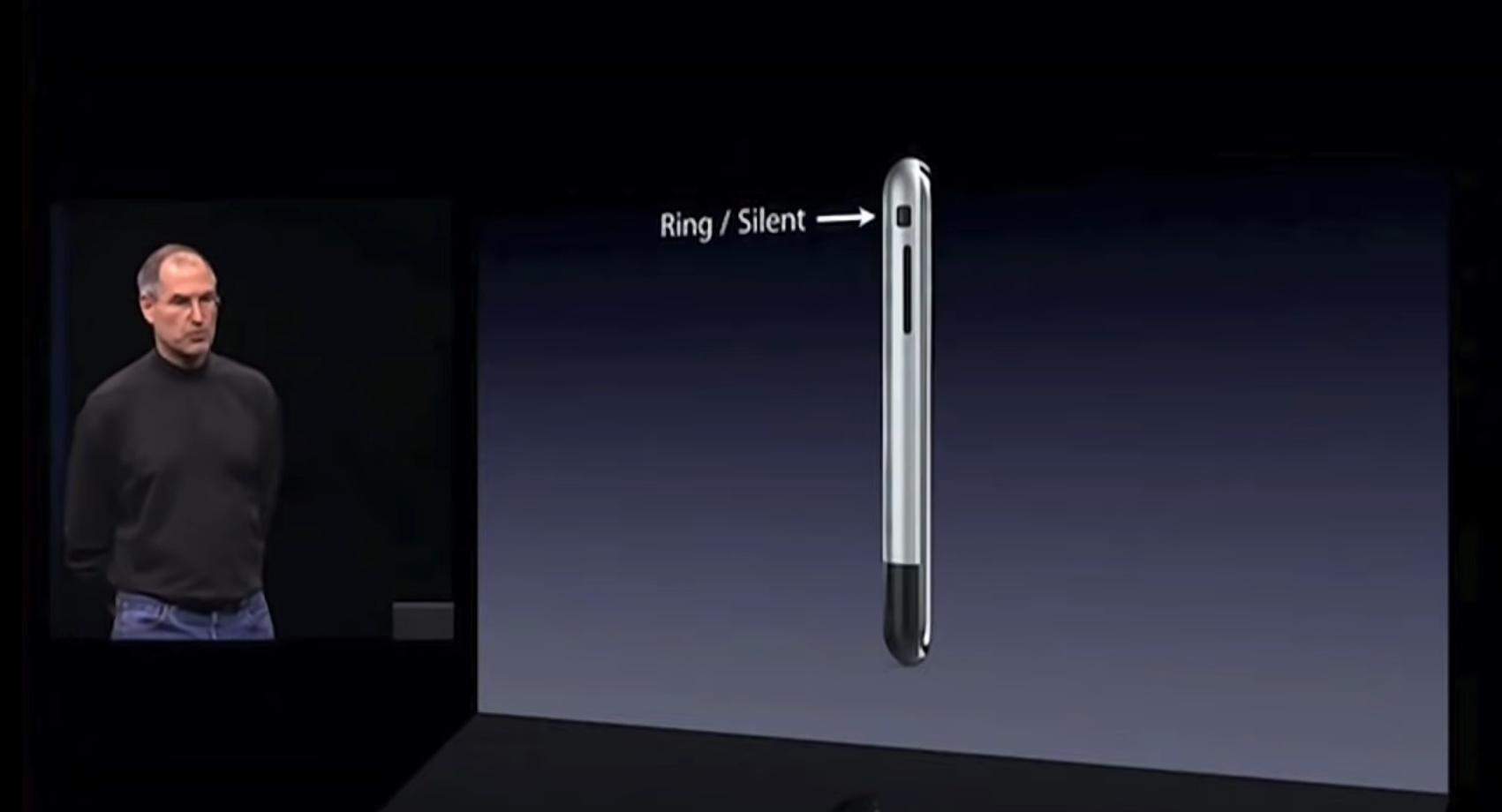
That physical silent switch on the left side of your iPhone? It controls ringers and notification alerts—not keyboard sounds. This common misconception leads many users to flip the switch expecting quiet typing, only to be frustrated when the clicking continues. Apple deliberately separated these functions so you can customize your experience precisely: keep notification sounds while silencing keyboard clicks, or maintain audible typing feedback while putting your phone on silent for meetings.
The distinction matters most in professional settings where you might want to receive silent vibration alerts for important messages while preventing your typing from disturbing colleagues. Understanding this separation prevents wasted time toggling the physical switch repeatedly when the real solution lies in the Keyboard Feedback menu. Remember: silent mode affects incoming sounds and alerts, while keyboard sounds are strictly an output feature you control separately.
Temporary Keyboard Silence Without Changing Settings
When you need immediate quiet typing for just a few minutes—like during a quick meeting or while someone’s sleeping nearby—there’s a faster alternative to navigating through settings. Activating your iPhone’s Do Not Disturb mode silences most system sounds, including keyboard feedback, without permanently changing your preferences.
Quick temporary solution:
– Swipe down from the top-right corner to open Control Center
– Tap the crescent moon icon to enable Do Not Disturb
– Type silently for as long as needed
– Disable Do Not Disturb when you want sounds back
This method works across most iOS versions but has limitations: some third-party keyboards may still produce sounds, and you’ll miss audible notifications while Do Not Disturb is active. For permanent quiet typing, the dedicated Keyboard Feedback setting remains your most reliable solution. The temporary approach shines when you need immediate silence without committing to permanent changes—perfect for those unexpected quiet moments when you didn’t plan ahead.
Pro Tip: After silencing your keyboard sounds, give yourself 24-48 hours to adjust. Most users report their typing accuracy actually improves once they rely more on visual feedback and muscle memory rather than auditory cues. The initial silence might feel disorienting, but your brain adapts quickly to the visual key highlights that appear with each press. For faster adjustment, try typing slowly at first while watching the screen closely—within a day, silent typing will feel completely natural and significantly less disruptive to those around you.